
Accolent ERP allows users to drill down into any Balance Sheet or Income Statement (“Financial Statements) line to analyze the detailed transactions that comprise that line item. Each Financial Statement line item can consist of multiple Account Groups and each Account Group can contain multiple GL Accounts. Each GL Account in the system has a GL Transaction Details Report and a GL Balance Report. To understand a change in a Financial Statement line item, first identify all the included GL Accounts. Then for each GL Account, review the GL Transaction Details report for that time period.
Financial Statements by Warehouse
- Accolent ERP allows the creation of Financial Statements by Warehouse as well as a consolidation of all Warehouses
- To isolate a Financial Statement line item issue, first run the reports separately for each Warehouse
- This may identify the Warehouse that is causing the issue
Financial Statement Line Consists of Multiple GL Accounts
- Each Financial Statement line item may represent multiple GL accounts
- GL Accounts are grouped first by Account Group then by Account Sub-Type then by Account Type
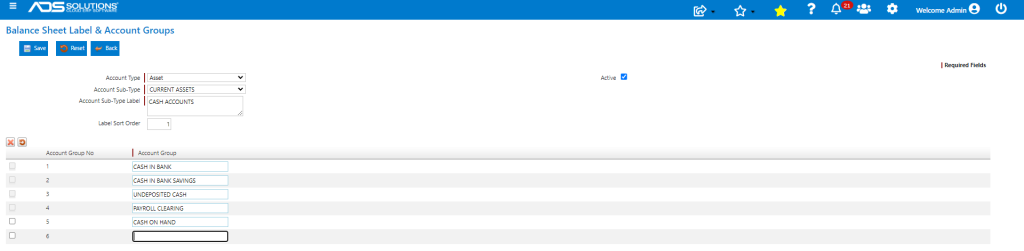
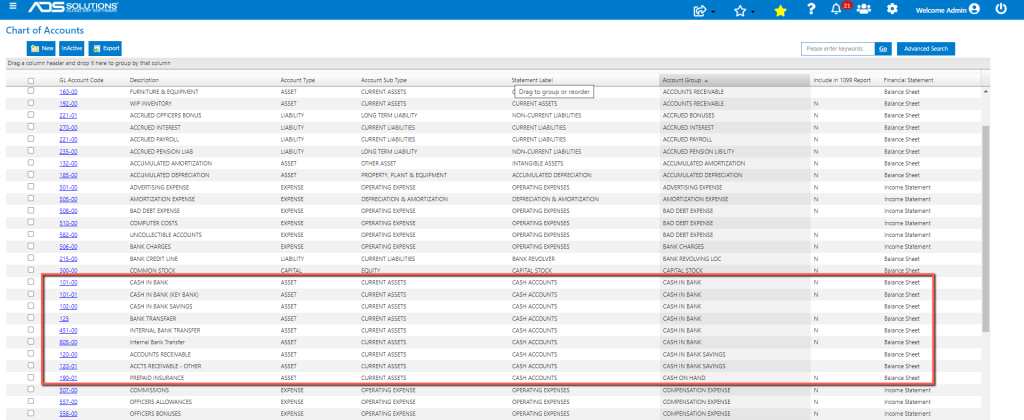
- You can have multiple of the same Account Sub-Types with different Statement Labels
- See this wiki: Setting Up Financial Statements
- The first step in analyzing any Financial Statement line item is to understand what GL Accounts it consists of
Verify Financial Account Set Up
- Use Report 411-Balance Sheet by GL Account and/or 8521-Income Statement by GL Account to see the individual GL Accounts
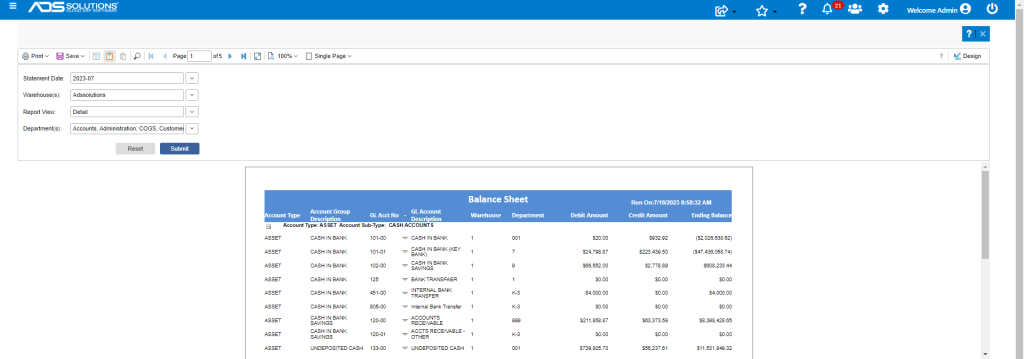
- Remember to run these reports for an individual Warehouse as indicated above
- You may see a single GL Account that seems to have an obvious problem
- You may also find that a GL Account has been grouped under an incorrect Account Group and/or Statement Label
Verify GL Posting Defaults
- Go to Inventory/Products > Warehouses > List Warehouses, select Warehouse > Actions > General Ledger Defaults
- This identifies the GL Accounts used to post transactions
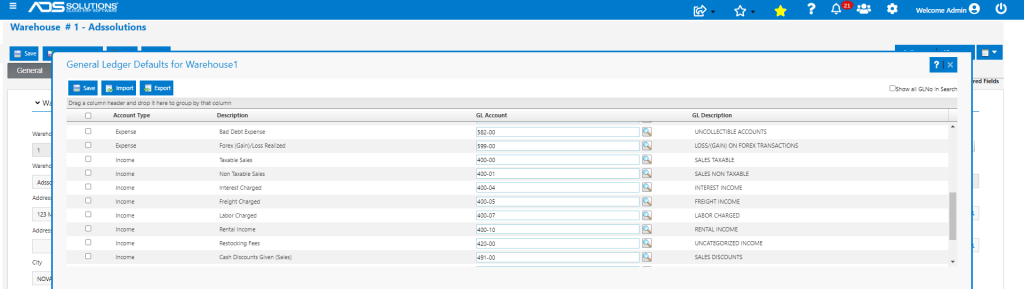
- Verify that these entries specify the correct GL Account for each type of posting; for example, are Taxable Sales posting to the correct GL Account
- Also, if there are GL Accounts set up on the Category, these will override the Warehouse GL Defaults and post instead to the GL Accounts set up at the Category level
- Go to Settings > Value Lists > Product Only > Categories, select Category and then verify that these GL Accounts are set up correctly

Trail Balance
- Once the GL Accounts involved have been identified, run the Trial Balance report
- Run this for each Warehouse individually
- Get ending balances for the GL Accounts that are grouped for the Financial Statement line, sum and compare to the Financial Statement
- The sum of the ending balance should tie to the Financial Statement balance
GL Transaction Details
- Now go to General Ledger > Chart of Accounts > GL Transaction Details to see the detailed transactions for each GL Account
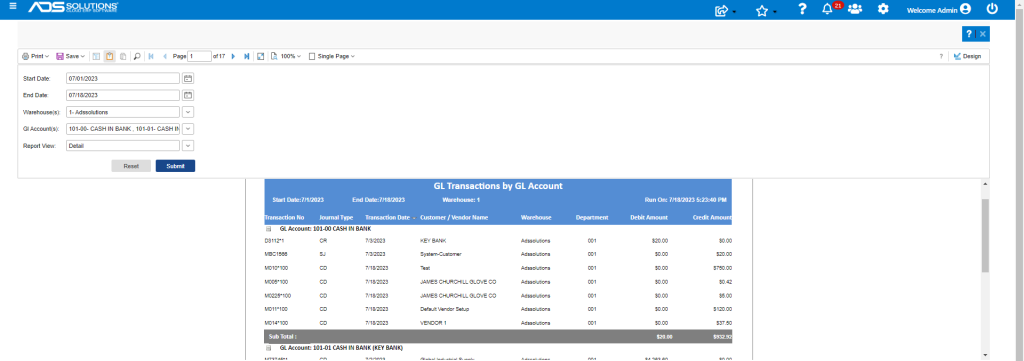
- Run for Warehouses individually
- Although you can select more than one GL Account at a time, it is easier when trying to identify an issue to run for a specific GL Account
- This report lists every transaction entered during this period
- Review this list carefully for things that look incorrect
- Make sure to look for Journal Types of GJ-General Journal Adjustments
- GJ entries are often the source of unexpected GL Account balance changes
- Go to General Ledger > Manage General Ledger > General Ledger Adjustments to view any GJ entry
- Compare the Debit Amount total and the Credit Amount Total to the Debit and Credit totals on the Trail Balance
- These values should match
Summary
- At this point in your analysis you should know: (1) what GL Accounts make up the line on the Financial Statement you are analyzing (2) the balances of those GL Accounts, and (3) what detailed transactions make up these balances
- In most cases you’ll be able to conclude that:
- An entry on the Warehouse GL Defaults or a Category GL Account override that has been assigned an incorrect Gl Account, or
- A GL Account has been grouped incorrectly on the Chart of Accounts, with an incorrect Statement Label and/or Account Group
- A GJ Adjustment has been made to an account, perhaps incorrectly; but keep in mind there may have been an reason for the adjustment, and the user making the entry should be consulted
- This assumes that you are trying to verify a GL Balance in the current period, but are confident that the prior periods are correct
- If you are analyzing multiple periods, it is critically important to start your analysis from a period that you know to be correct, since errors carry forward from on period to the next
- For example, if you think that your Inventory total does not look right, you need to find the period where the error first occurred, then analyze that period – if you find the error it may solve all following periods too