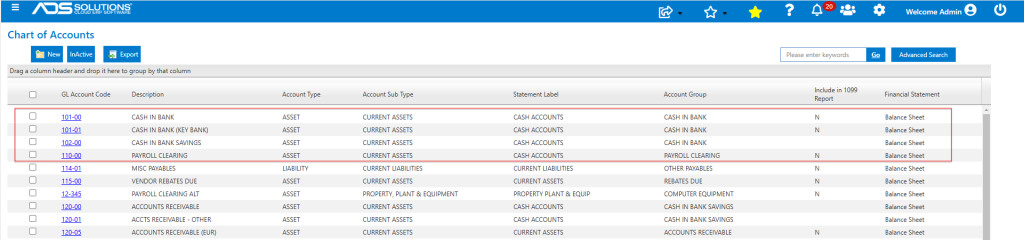
Setting up the Financial Statements in Accolent ERP requires several steps. First, map out the general structure of the financial statements using three levels of categorization: Account Type (e.g., Asset), Account Sub-Type (e.g., Current Assets) and Account Group (e.g., Cash). Then review the printed format of the financial statements that were set up and revise as necessary. When the financial statements are satisfactory, then map each GL Account to the specific financial statement’s Account Type, Account Sub-Type and Account Group.
Setting up the Financial Statement Structure
- From the General Ledger > Financial Statement Set Up menu, select the financial statement type e.g., Balance Sheet Set Up.
- By specifying the Account Sub-Types and Account Sub-Type Labels, the structure of the financial statement can be defined.
- The printed Balance Sheet will have the following structure:
Balance Sheet Structure
Assets
Current Assets
Other Current Assets
Property, Plant & Equipment
Fixed Assets
Other Assets
Total Assets
Liabilities
Current Liabilities
Other Current Liabilities
Long-Term Liabilities
Other Liabilities
Total Liabilities
Capital
Common Stock
Additional Paid-In Capital
Retained Earnings
Total Shareholders’ Equity
Total Liabilities & Shareholders’ Equity
- Under the Account Type (e.g., Asset) there are several Account Sub-Types (e.g., Current Assets, Other Current Assets). The layout of the printed Balance Sheet will follow the order of the Account Types and Account Sub-Types laid out above.
- So, for example, Current Assets will always precede Other Current Assets which in turn will precede Property, Plant & Equipment. You will be able to enter a user-defined Statement Label to replace the Account Sub-Type.
- You can also add as many of the same Account Sub-Types as you need with different Statement Labels and you can specify the sort order within that Account Sub-Type.
- For example, you could have Current Asset Account Sub-Types for each of Accounts Receivable and Inventory and specify that Accounts Receivable appears before Inventory.
- You do not have to use all of the available Account Sub-Types. If you don’t use an Account Sub-Type the Balance Sheet will just skip that Account Sub-Type.
- Under each Account Sub-Type, you can enter multiple Account Groups. For example, create the Account Sub-Type Current Assets and label it Cash & Securities. Then enter the Account Groups: Cash, Marketable Securities and Short-Term Investments. You could give this Account Sub-Type a Sort Order of 1.
Assets
Cash & Securities
Cash
Marketable Securities
Short-Term Investments
- The Account Groups will appear in the order entered on the printed Balance Sheet form, and will be subtotaled by Account Sub-Type. So, in this example, the printed Balance Sheet will show amounts for each of Cash, Marketable Securities and Short-Term Investments, which will total up to Cash & Securities.
- If you choose, you could enter another Current Assets Account Sub-Type labeled Current Assets with the Account Groups: Accounts Receivable, Inventory and Prepaid Expenses. You could give this Account Sub-Type a Sort Order of 2.
Assets
Cash & Securities
Cash
Marketable Securities
Short-Term Investments
Current Assets
Accounts Receivable
Inventory
Prepaid Expenses
- In each case, the Balance Sheet would show all the Account Groups within the Account Sub-Type and a total by Account Sub-Type.
- The printed Income Statement will have the following structure.
Income Statement Structure
Sales
Other Revenues
Total Revenue
Cost of Sales
Gross Profit
Operating Expenses
EBITDA (Earnings before Interest, Taxes, Depreciation & Amortization)
Depreciation & Amortization
EBIT (Earnings before Interest & Taxes)
Interest
Taxes
Income from Operations
Other (Income)/Expense
Net Income
- Under Account Type (e.g., Expense) there are several Account Sub-Types (e.g., Operating Expenses, Depreciation & Amortization).
- The layout of the printed Income Statement will follow the order of the Account Types and Account Sub-Types laid out above. So, for example, Operating Expenses will always precede Interest which in turn will precede Taxes.
- You will be able to enter a user-defined Statement Label to replace the Account Sub-Type names. You can also add as many of the same Account Sub-Types as you need with different Statement Labels and you can specify the sort order within that Account Sub-Type.
- For example, you could have Operating Expense Account Sub-Types for each of Sales & Marketing and General & Administrative and specify that Sales & Marketing appears before General & Administrative.
- You do not have to use all of the available Account Sub-Types. If you don’t use an Account Sub-Type the Income Statement will just skip that Account Sub-Type.
- Under each Account Sub-Type, you can enter multiple Account Groups. For example, under Sales enter the Account Groups: Sales, Discounts Allowed, Freight Income, Labor Income and Repairs Income.
Income
Sales
Sales
Discounts Allowed
Freight Income
Labor Income
Repairs Income
- The Account Groups will appear in the order entered on the printed Income Statement form and will be sub-totaled by Account Sub-Type.
- So, in this example, the printed Income Statement will show amounts for each of Sales, Discounts Allowed, Freight Income, Labor Income and Repairs Income which will total up to Sales.
Mapping the GL Accounts to the Account Groups
- Once the financial statements’ structures have been set up, each GL Account will have to be associated with a specific Account Type (e.g., Asset), an Account Sub-Type (e.g., Current Assets) and an Account Group (e.g., Cash).
- You can map as many GL Accounts to an Account Group as you wish. So, for example, the Cash Account Group could contain four GL Accounts: