
Accolent ERP allows the creation of Prospects, which are similar to Customers. However, unlike Customers, Prospects can initially be created with very limited information only: (i) Prospect Code, (ii) Prospect Name, (iii) Salesperson and (iv) Contact. As the Prospect goes through qualification and discovery much more information can be collected and the Prospect record updated. To create a quote for a Prospect, substantially more information than the initial 4 fields will be required. In particular, the Prospect’s Address, Tax Jurisdiction, Taxable Status and Pricing Tier will be needed. When this information is available a quote can be created for the Prospect. A quote for a Prospect, however, cannot be moved to an order; instead, when a deal is closed for the Prospect, first convert the Prospect to a Customer and then the quote can be moved to an order. More information may be required to convert the Prospect to a Customer, and this can be provided at that time.
Open a Prospect Record
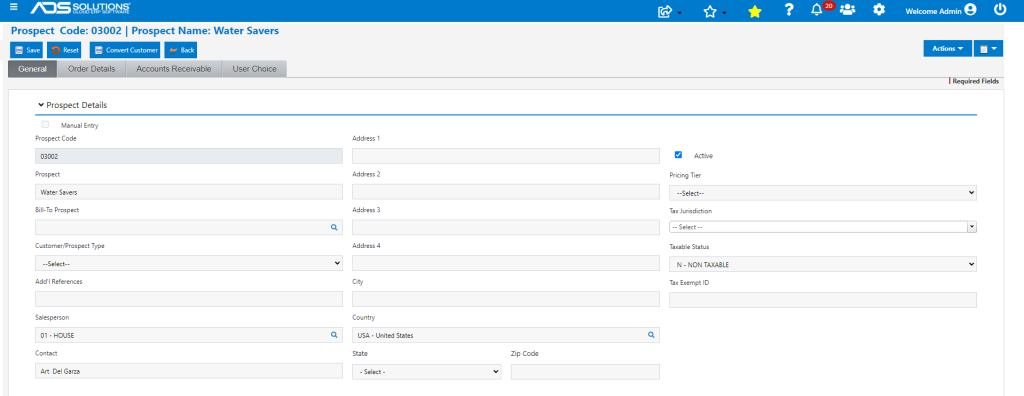
- Look up Prospect 03002-Water Savers.
- The Prospect has been created with only (i) the prospect code, (ii) the prospect name, (iii) the Contact and (iv) the Salesperson. This is the minimum required information to create a Prospect.
- Frequently, this is the only information available for a new Prospect.
Update Prospect
- As the Prospect is qualified and starts to move through the sales process, more information will be gathered and the Prospect record updated.
- A quote cannot be created for a Prospect without substantially more than just the initial information.
- Specifically, a Prospect’s address is needed to allow selection of a tax jurisdiction and the prospect’s taxable status must be obtained. In addition, the prospect must be assigned to a Pricing Tier for pricing purposes.
- There may be more information still required, but the process of creating a quote will identify what is missing.
Create Quote for Prospect
- Go to Sales > Quotes > Create Quote.
- Creating a quote for a Prospect follows the same process as creating a quote for a customer.
- To look up Bill-To’s and Ship-To’s for a Prospect use the same lookups as for customers, but also ensure that the Show Prospects checkbox is selected.
- Search for Water Savers and it will be returned with a P in the C/P column signifying that this is a Prospect.

- The record may be selected by clicking anywhere in the row.
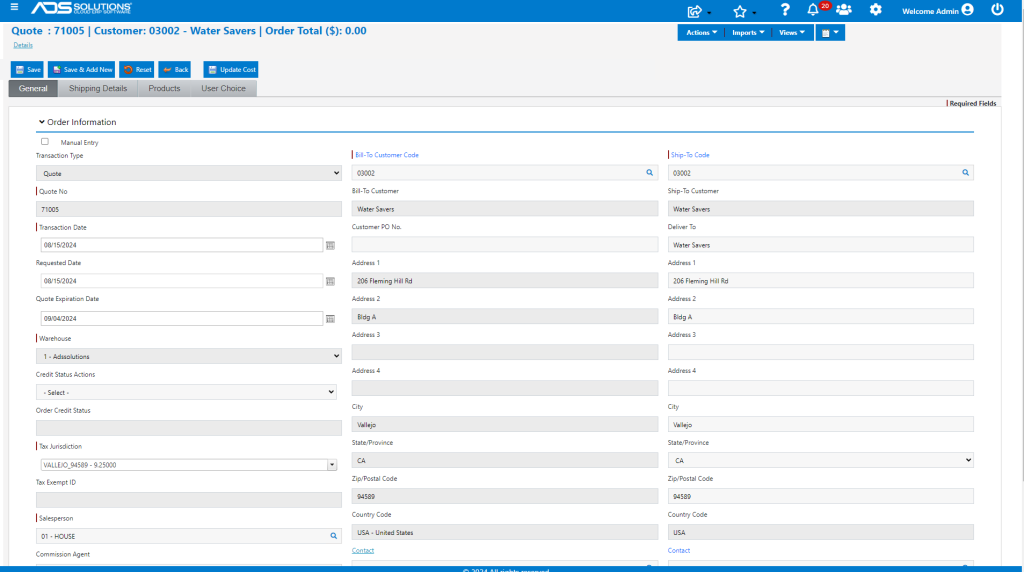
- The quote header appears to be complete.
- Now add products, just as for a customer quote.
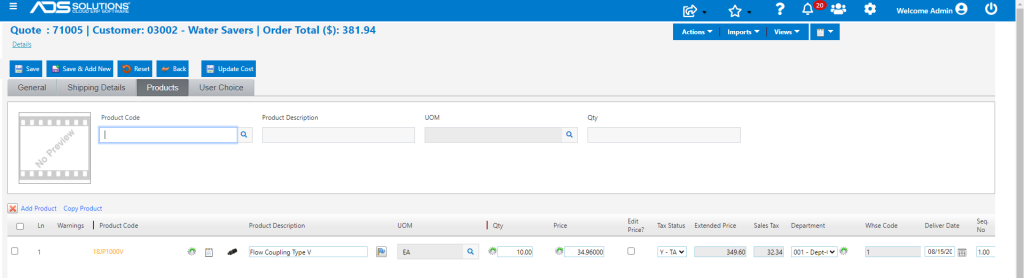
- When done, Save.
- Successfully created quote 71005.
Create Order for Prospect is Blocked
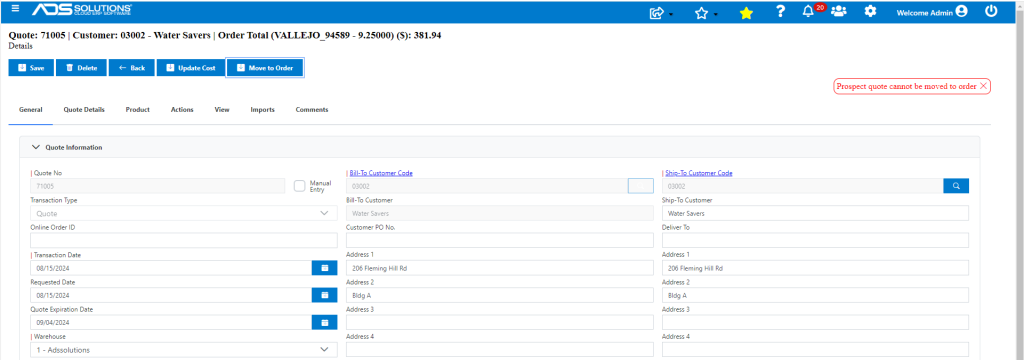
- Open quote and click Move to Order button.
- This will display an error message since a Prospect’s quote cannot be moved to order status; the Prospect has to first be converted to a Customer.
Convert Prospect to Customer
- Open Prospect Water Savers and click button to Convert to Customer.
- Typically, nothing more will be required; however, in some cases a Prospect record may lack some information that is required for a customer, and this may need to be provided before conversion can occur.
- Go to List Prospects, search for Water Savers and click on the Convert to Customer button.
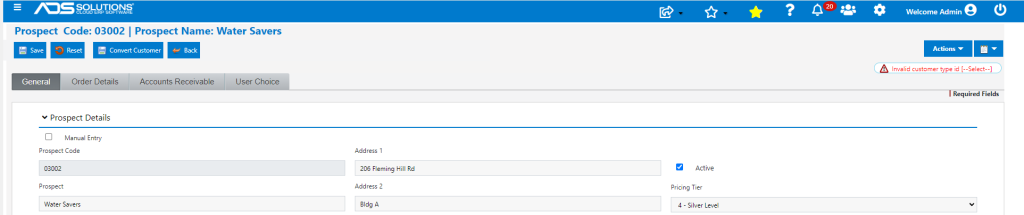
- The screen identifies the missing information.
- Correct and try to convert again.
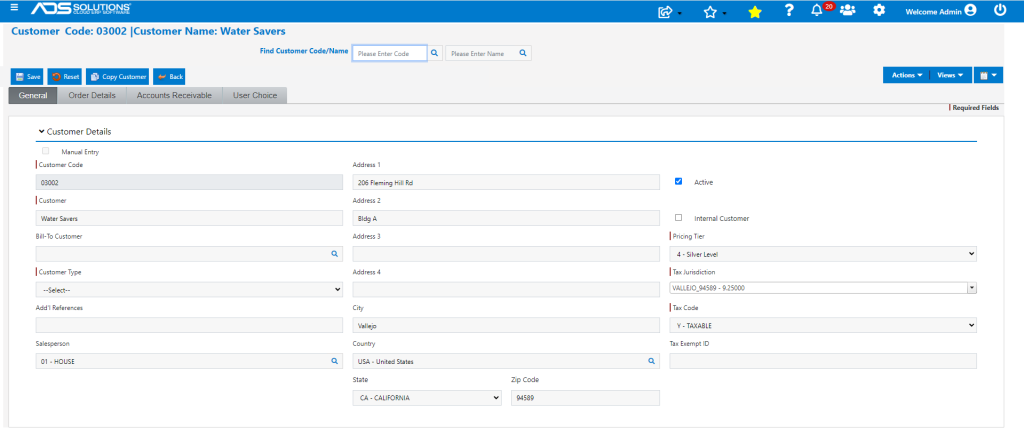
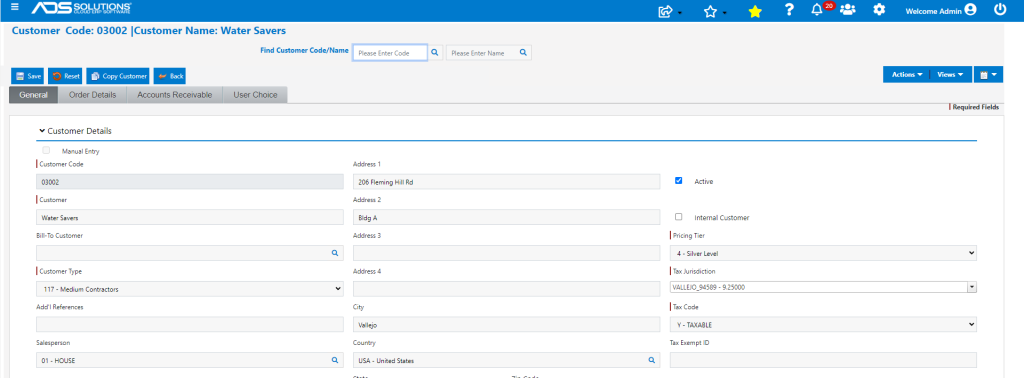
- Water Savers has now been converted to a Customer.
Move Quote to Order
- Now that Water Savers is a Customer, open quote 71005.
- Try again to click on the Move to Order button.
- This time, the order was successfully created.
