
Users all have their own Commission calculation methodologies. Rather than trying to replicate all such possible calculation formulae, Accolent ERP provides a Commissions Excel Export that provides all the base data necessary to calculate salesperson commissions. User can then filter the data as desired, then export to Excel and calculate the Commissions in Excel.
Setting Up Commissions
- Select the global commissions settings.
- Set up Commission Types Value List.
- Assign Commission Types to Products.
- Set up the Profit Matrix on each Salesperson.
Custom Commission Calculations
- Go to Reports Center and select the Commissions by Standard Cost Export report.
- This is the Commission by Standard Cost Export report.
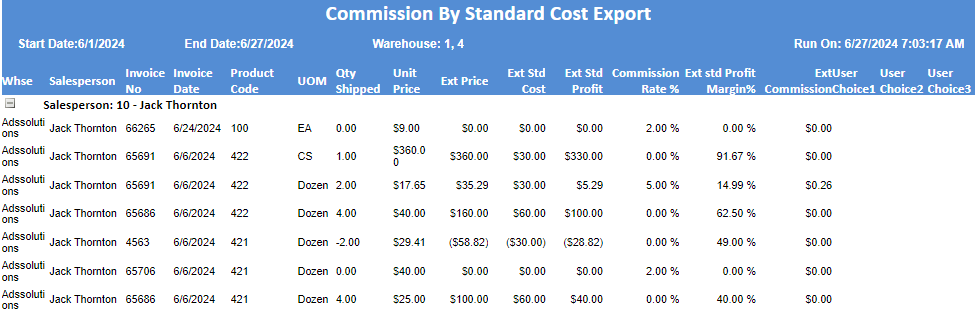
- This report has some additional fields beyond the Commissions by Standard Cost Report.

- It includes the following additional fields: UOM, Qty Shipped, Unit Price, User Choice 1, User Choice 2 and User Choice 3.
- UOM, Qty Shipped, Unit Price will all come from the Sales Order Line Item table.
- User Choice 1, User Choice 2 and User Choice 3 will all be read from the Product master.
- The User Choice fields can be used to store additional commission-related information as desired.
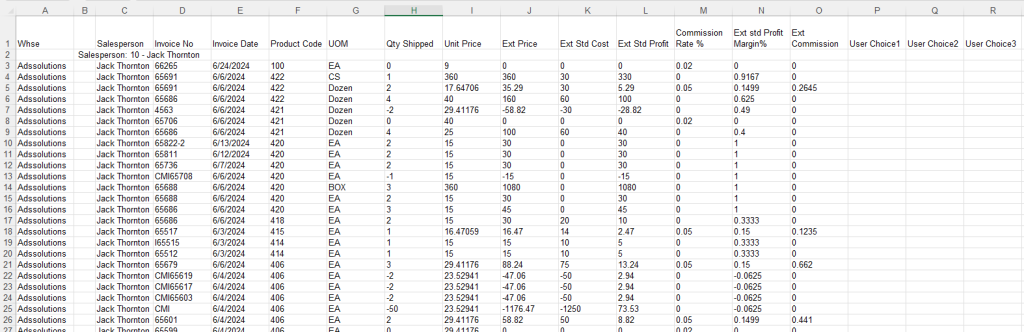
- To create a customized commission calculation, export the report to Excel.
- Use column S to display your custom commission calculation.
- Use columns to the right of column S to create your custom calculation using the data in the columns A through R.
- This calculation can be copied down to every line in the spreadsheet.