Accolent ERP is partnered with and linked to EasyPost the leading multi-carrier solution for shipping packages. Through EasyPost, Accolent ERP users can access over 100 carriers worldwide including all the major carriers and many regional carriers. This carrier diversification allows Accolent ERP users to get the best rates and ensure delivery even with Supply Chain breakdowns. An Accolent ERP order packed and shipped through any of the 100+ EasyPost carriers, automatically records tracking numbers, prints shipping labels, updates shopping carts and stores line-item/box level information in the Accolent ERP database.
Benefits of EasyPost Linkage
- EasyPost gives shippers the ability to:
- Access a global carrier network that delivers 100+ domestic, international and regional carriers,
- Rate shop across multiple carriers and regional carriers,
- Use SmartRate delivery metrics to optimize shipping to save up to 70% in shipping charges, and
- Get shipping labels, tracking numbers and real-time shipment updates.
- The Accolent ERP/EasyPost linkage gives users the ability to:
- Create an order in Accolent ERP,
- Pack the order in multiple boxes and generate packing slips for each box,
- Default configurable box dimensions, and automatically calculate box weights,
- Select from multiple carriers and services to get the best rate,
- Automatically record the master tracking number with the order and print labels for each box, and
- If linked with an eCommerce shopping cart, update the order on the shopping cart with shipping details.
Signing Up for EasyPost
- To use the Accolent ERP/EasyPost linkage, go to the ADS Solutions website page: Accolent ERP/EasyPost Linkage
- Click on the SIGN UP FREE button.
- EasyPost offers a free account for up to 120,000 packages shipped per year, and the first $500 shipping is free.
- Once you have an EasyPost Account, enter the credentials in Accolent ERP Configuration screen.

Create Order in Accolent ERP
- Create Order 21887 for Customer 011.
- Set Shipping Method to EasyPost and Ship Via to EasyPost.
- Then move to shipping.

Pack the Order
- First set the standard box dimensions in the Configurations screen and these will default in during packing but may be overwritten.

- To pack the order after the items are picked, click on the Pack button to open Pack screen.
- Note that Ship button is greyed out until the shipment is packed.
- Order has total weight of 20 Lbs, 2 order lines and 20 items count.
- By default, the system creates a single box.
- Use the Add Boxes button to create a total of 3 boxes including the default box.
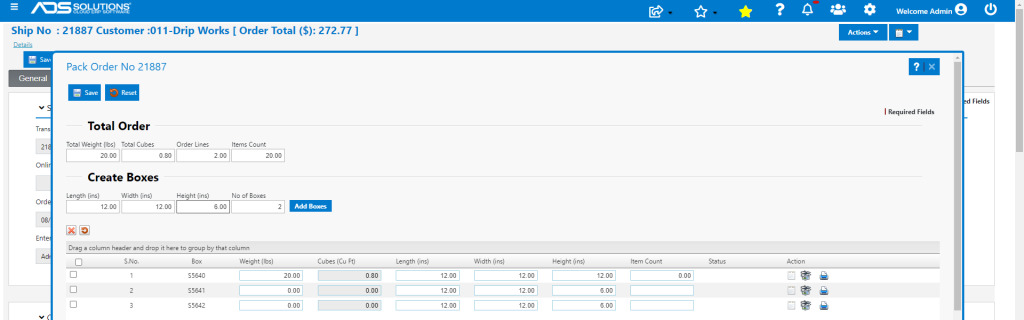
- Click on the Allocate Box icon to allocate Box 1.
- Select a quantity of 8 EA of line 1 for this box and Save.
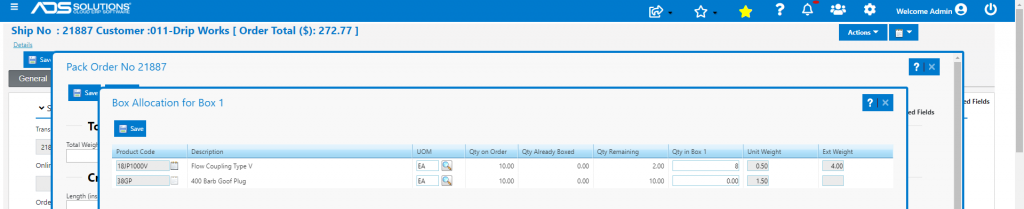
- The Pack screen records the weight of Box 1 as 4 Lbs and 8 items boxed.
- Now allocate Box 2.
- Select the remaining 2 EA items on line 1 and 4 EA on line 2 and Save.

- The Pack screen records the weight of box 2 as 7 Lbs and 6 items boxed.
- Now allocate Box 3.
- Line 1 is fully boxed and so doesn’t appear.
- Select remaining 6 EA items on line 2.

- The whole order is now boxed.
- The Pack screen records a total of 3 Boxes, with total weight of 20.00 Lbs and total Item Count of 20 EA.
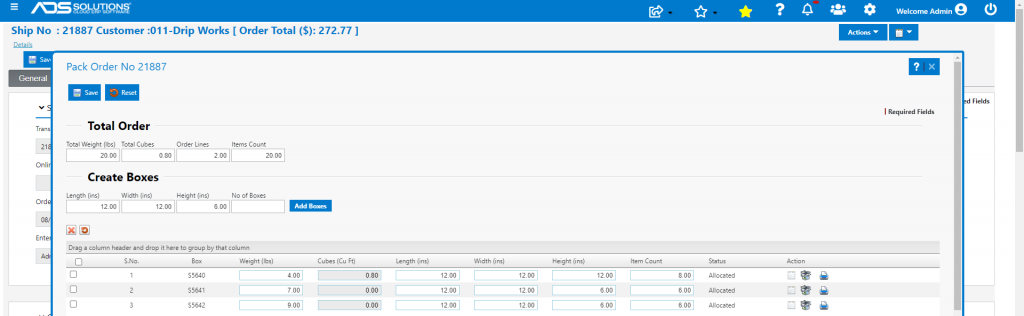
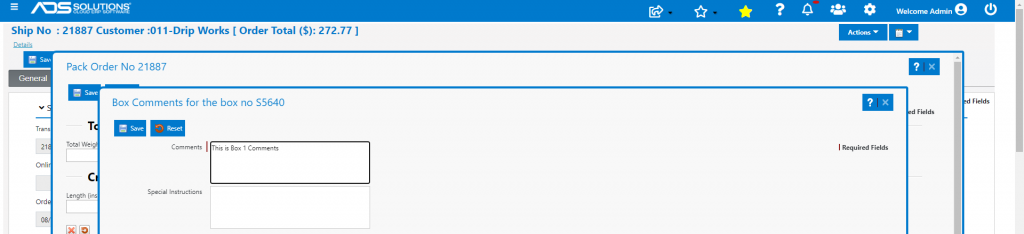
- Comments may be made and stored for each box.
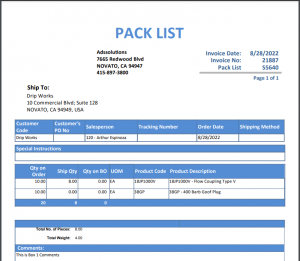
- Packing slips for each box may be printed and inserted in the boxes.
- Save the Pack screen.
- Shipping Method and Ship Via are already set to EasyPost.
Ship the Order
- Now Ship button is available and can be clicked to open Ship screen.
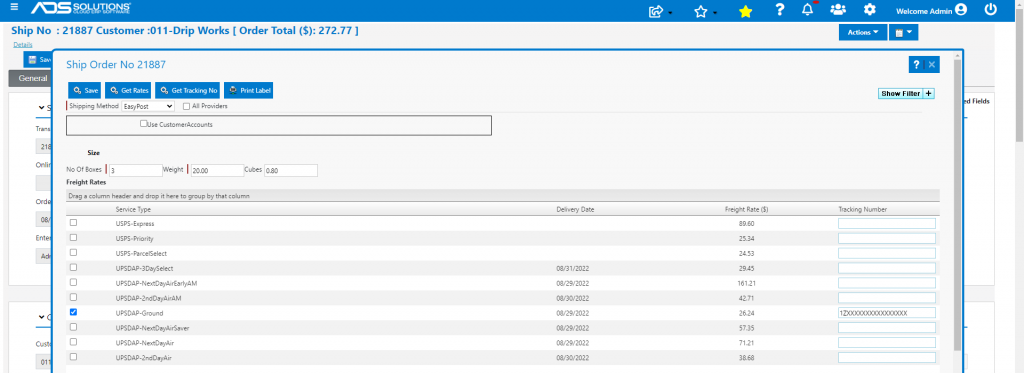
- Click the Get Rates button.
- Shows rates for 3 boxes with total weight of 20 Lbs.
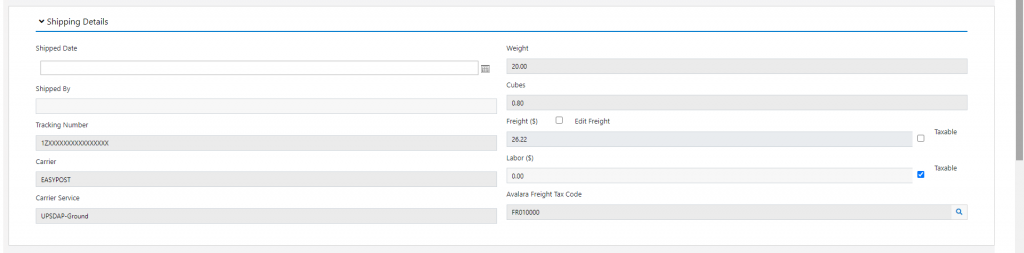
- Select UPSDAP-Ground with Delivery Date=8/29/22 and Rate=$26.24 and get tracking number.
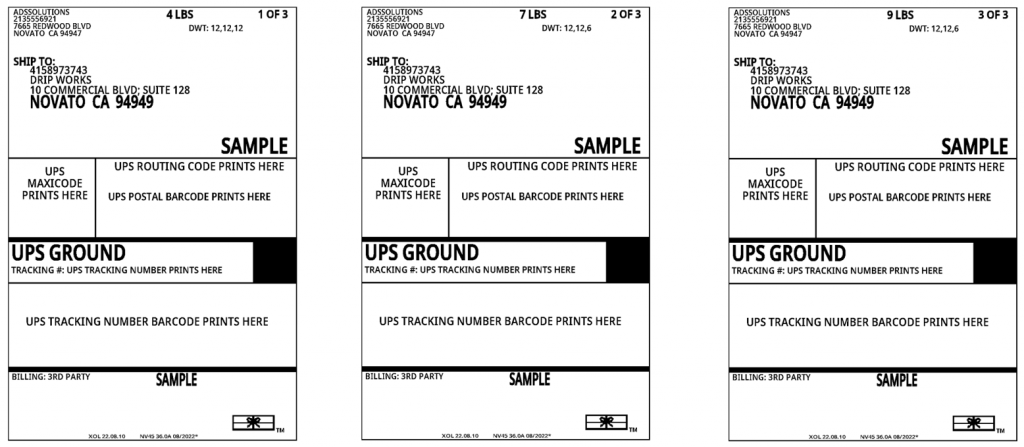
- Print Shipping Labels and affix to boxes.
- Now Save.
- Shipping details on the order are updated.
Create the Invoice
- Move to Invoice.

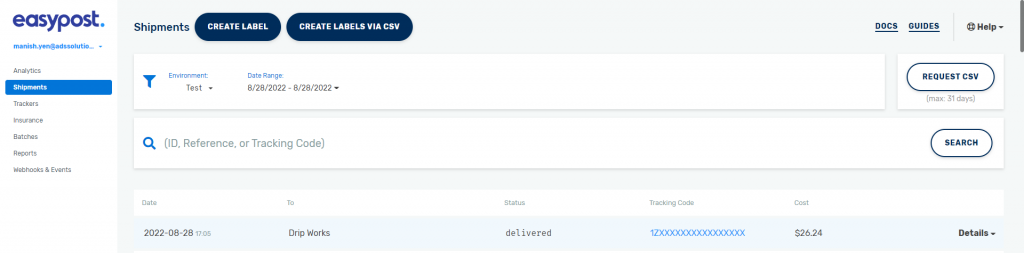
- This is the transaction on the EasyPost dashboard.
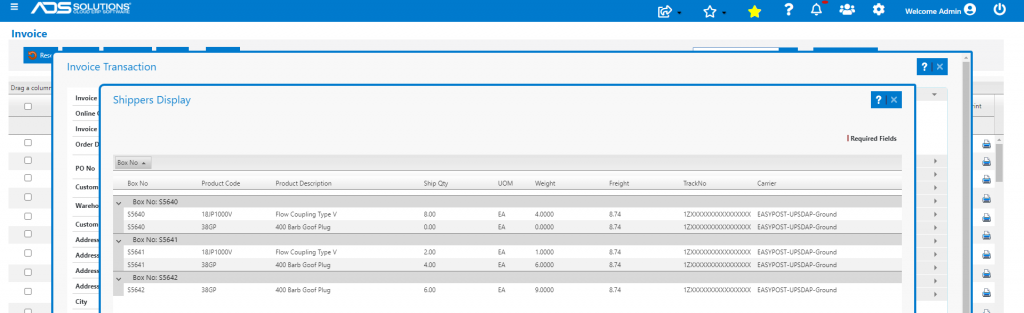
- Look up the Shippers detail screen on Invoice to see box level information.