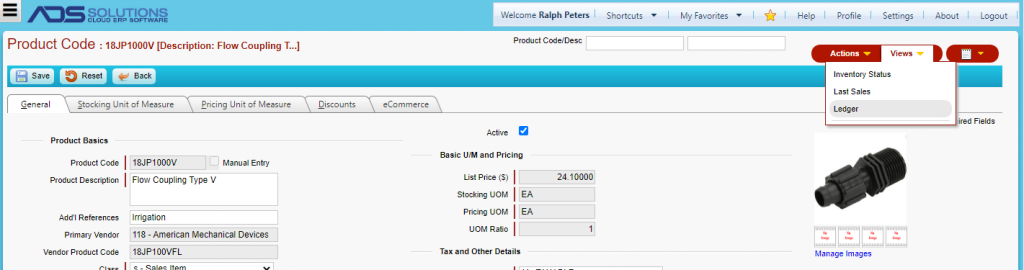
Accolent ERP allows the system to be set up to block access to cost and profit information. This is often used to modify the Order Entry Role to prevent order taking personnel from seeing costs and profit results. Modifications to the Order Entry Role should be made carefully since these changes will prevent order taking personnel from using some of the pricing tools that either already show or that can be used to infer cost and profit information.
Admin User – Order Entry Screens Showing Cost and/or Profit
- There are several menus/fields in Order Entry that show Cost and/or Profit to an Administrator user with ALL RIGHTS
- These menus show Cost and/or Profit
- Actions > Calculate Line-Item Profit
- Actions > Calculate Order Profit
- There are 3 green gear icons on the order entry form that have fields that show Cost and/or Profit
- Create Order > Qty on Backorder icon shows Open POs and Cost on POs
- Create Order > Price icon gives access to price shortcuts based on Markup from Std Cost, Markup from Spec Cost, and Std Margin Target options — all of these allow users to impute Cost and/or Profit
- Create Order > Department icon brings up the Change Cost screen which shows the user the Cost
Admin User – Other Screens Showing Cost and/or Profit
- Customer > Views and Salesperson > Views menus provide access to Sales Reports which show standard cost and standard margin
- Product > Actions > Costs and Product > Actions > Cost History, show Costs and Product > Views > PO History shows PO Costs
Set Up Order Entry User Role
- To block access to Cost and/or Profit for order entry personnel, first select Order Entry Role
- Go to Settings > Users select the user and set user’s role to Order Entry
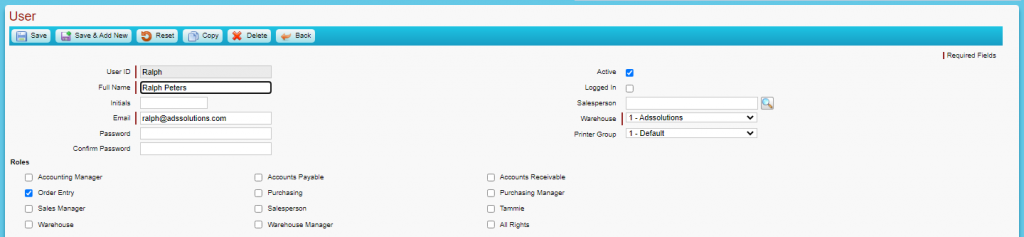
Modify Order Entry Role
- Go to Roles > Settings > Order Entry and uncheck the setting to allow showing Cost/Profit

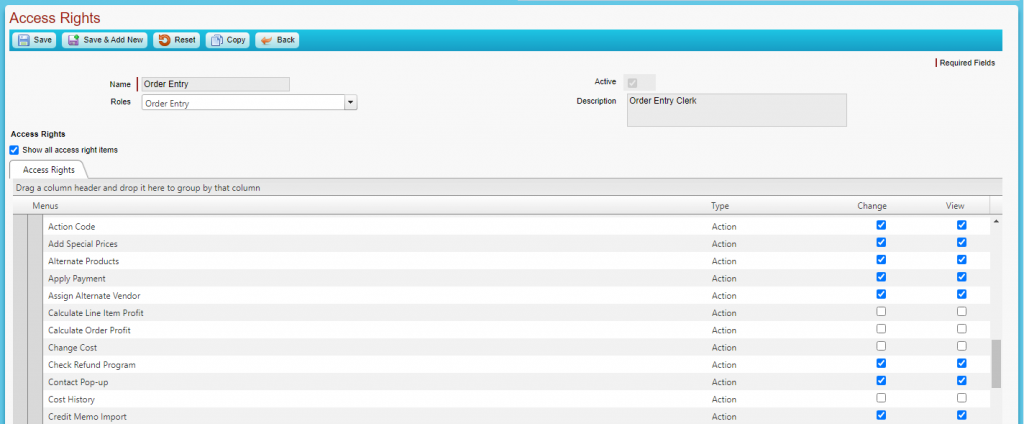
- Go to Settings > Roles > Access Rights > Order Entry to manage the menus access rights
- Expand Sales > Order Entry (after Orders)
- Uncheck access to Calculate Line-Item Profit menu
- Uncheck access to Calculate Order Profit menu
- Uncheck access to the Cost History menu
- Now expand Customers > Customer Details
- Uncheck access to all the Sales History menus
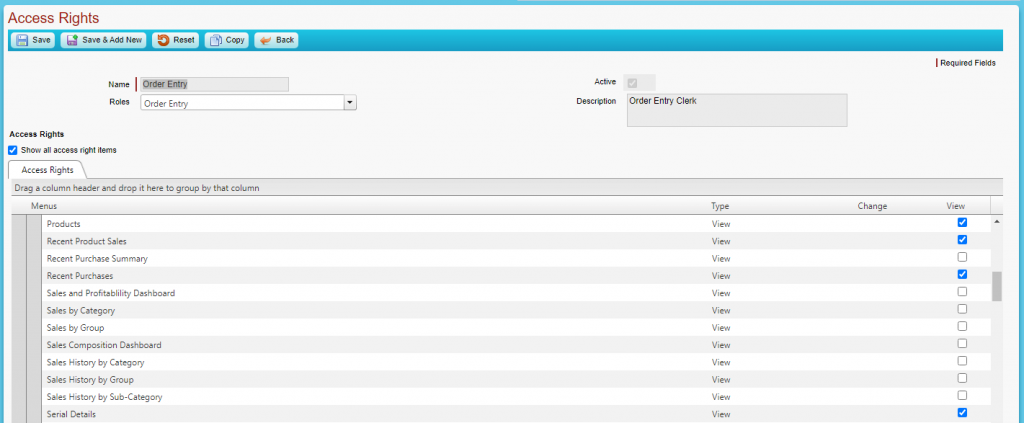
- Similarly, go to Customers > Salesperson
- Uncheck access to all Sales History reports
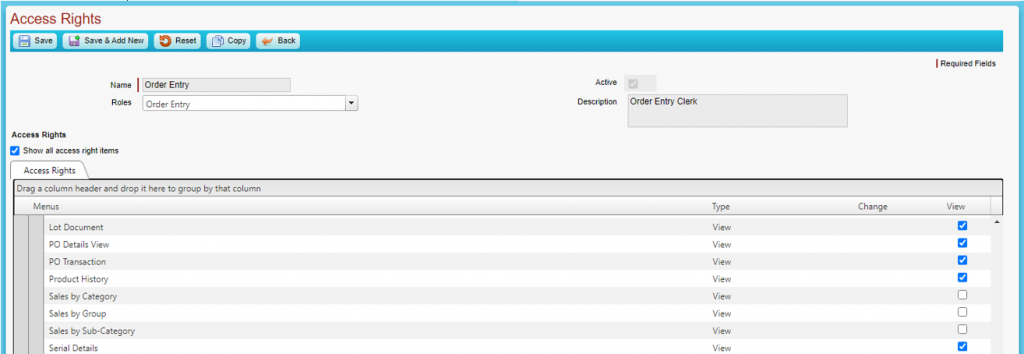
- Now expand Inventory/Products
- Expand Product Code
- Uncheck access to Cost and Cost History menus
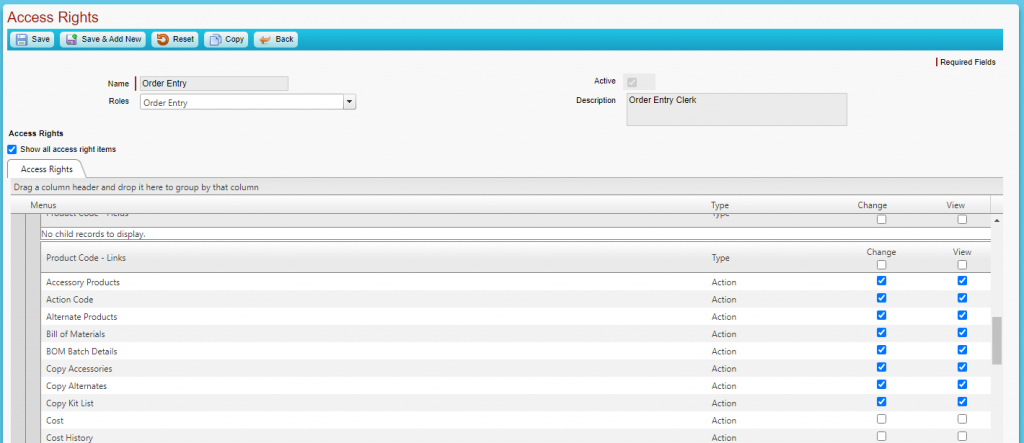
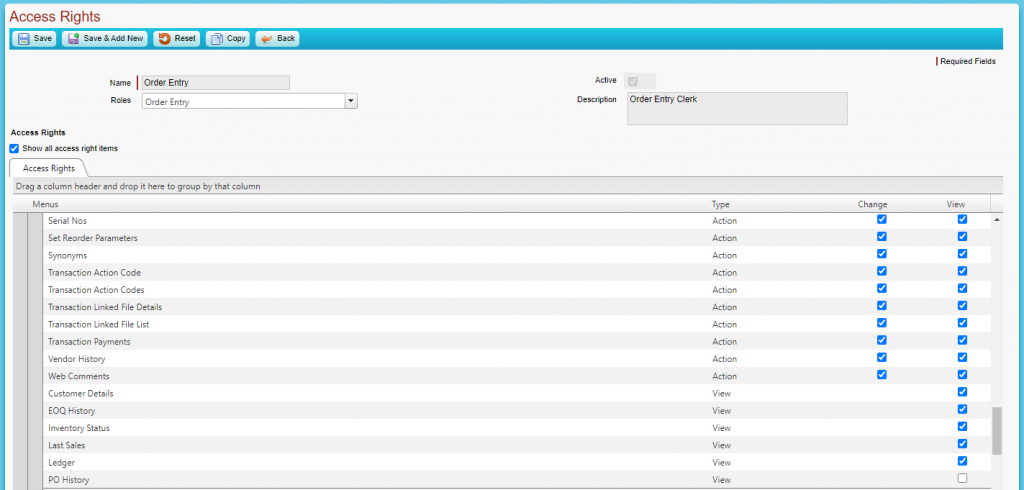
- Scroll down and uncheck access to PO History menus
Login as Order Entry Clerk
- Now log in as Order Entry Clerk Ralph Peters
- Open order 11061 – Calculate Line-Item Profit and Calculate Order Profit menus do not appear

- Click on the green gear icon under Qty on the BO field
- The PO Costs are no longer visible
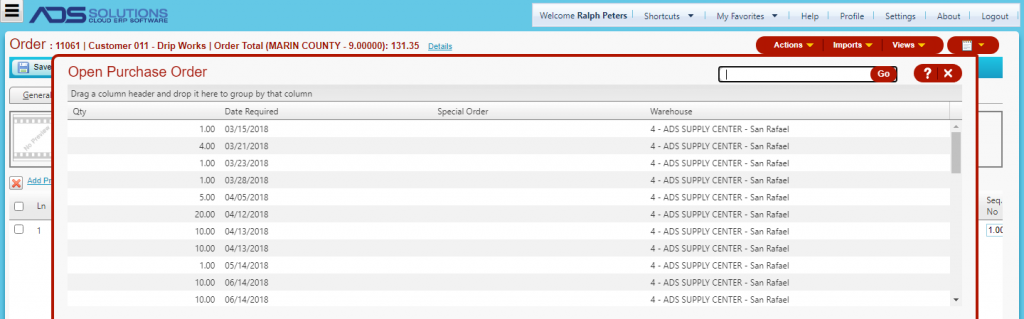
- Gear icons to bring up Price Shortcuts and to Change Cost are no longer available
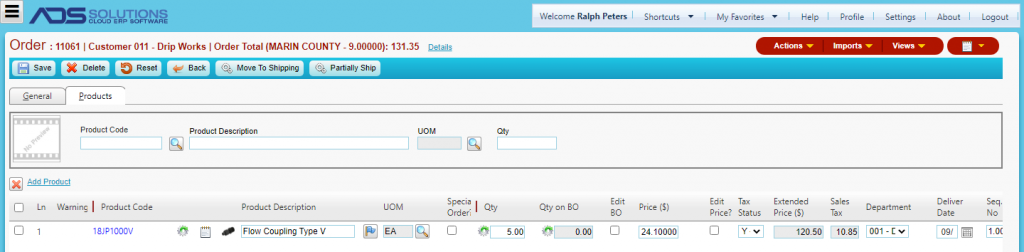
- Move Order to Shipping
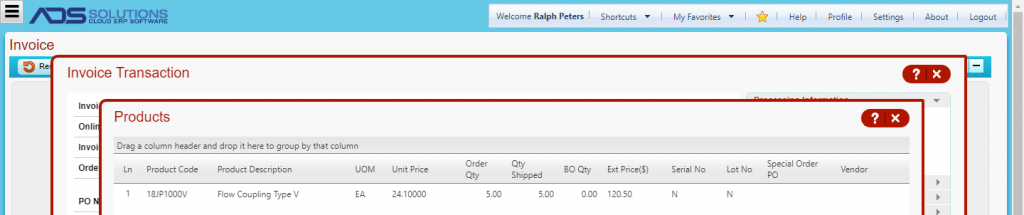
- Move Order to Invoice
- Look at Invoice > Products view, no Costs or Profit are shown
- Go to the Customer record
- No Sales reports are available

- Same for the Salesperson

- Go to the Product master record
- No Cost menus are visible
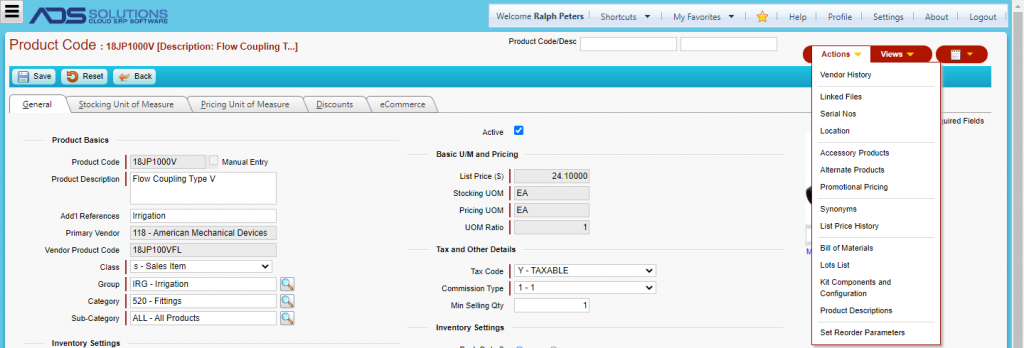
- Product > Views doesn’t show the PO History menu