Accolent ERP allows for the import of simple products from a single CSV file using the Quick Products Import. For complex products with multiple UOMs and multiple costs, the master Product Imports and several supporting import files can be used. The Quick Products Import is typically used to import a Vendor’s catalog CSV file. It accepts these fields: Product Code, Synonym (e.g., barcode), Group, Category and Sub-Category Codes, Product Description, UOM, Weight, Cubes, List Price, Cost and Multicurrency Prices and Costs. The Product Images can be separately imported.
Vendor’s CSV Catalog
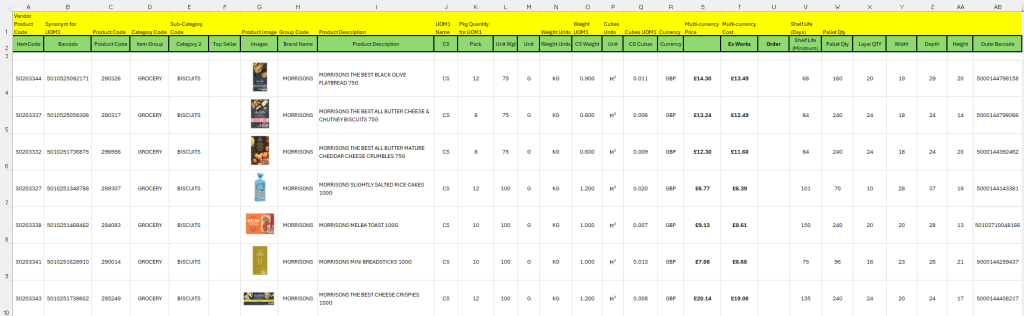
- Below is a typical Vendor Catalog in CSV form.
- The yellow highlighted Row1 shows the mapping of the Vendor Catalog CSV fields to the Quick Product Import.
Download Import Template
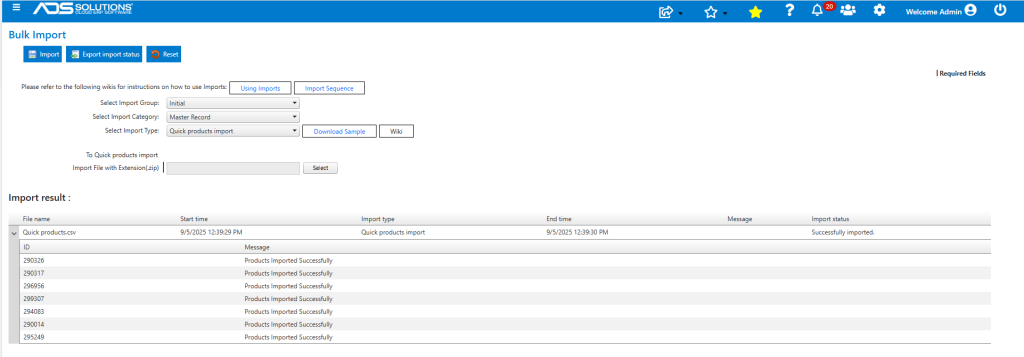
- From Utilities > Imports > Bulk Imports, select Import Group = Initial, select Import Category = Master Record and select Import Type = Quick Products Import.
- Download the template which can then be populated, saved and then imported to create the records in Accolent ERP.
Populate the Import Template
- Multiple Products may be imported in the same CSV template.
- Use the mapping highlighted in yellow on the Vendor Catalog CSV file to populate the Quick Product Import template.
- Note some fields have been added to the Vendor’s Catalog CSV and are calculated results (e.g., Multi-currency price is calculated as a fixed markup to Ex-Works cost, CS Cubes are calculated based on Width, Depth, Height per CS)
- Below is the Quick Products Import template filled out.

Import the Quick Products Import Template
- Zip the Quick Products Import template and import it into Accolent ERP.
- Success message shows the file was successfully imported.
Quick Products Created
- Use the List Product Advanced Search for Group MORRISONS.
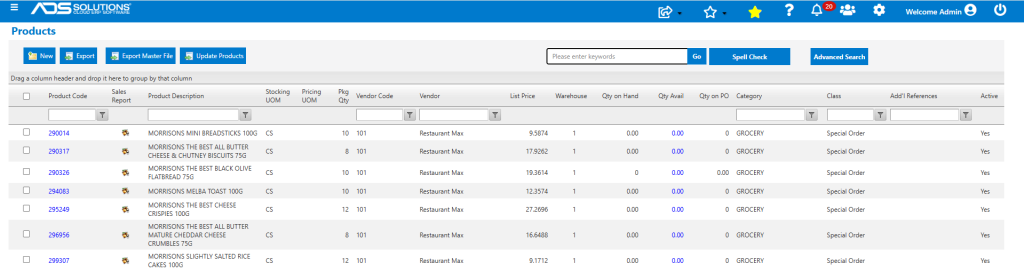
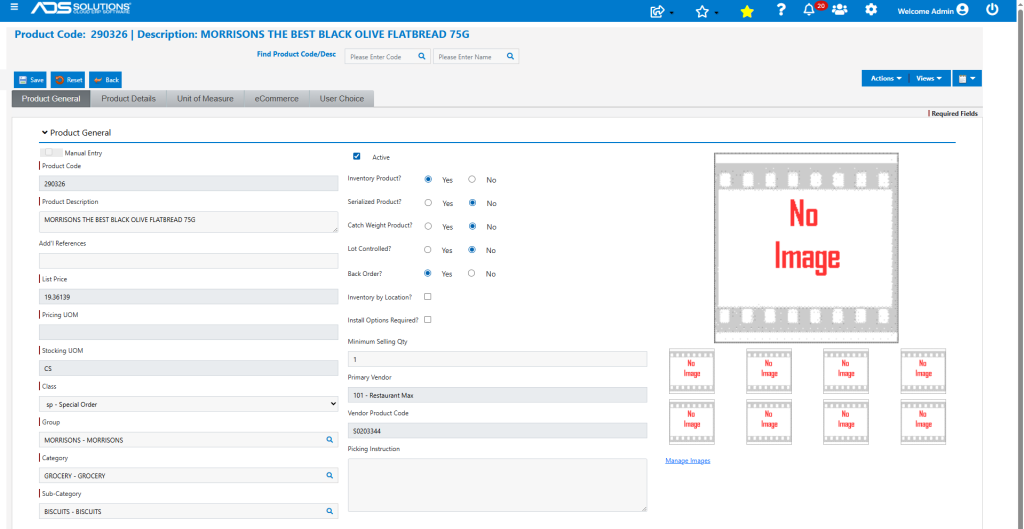
- Verify any product, for example, 290326.
- General Tab shows List Price converted to USD, Group Category, Sub-Category and Vendor Product Code.
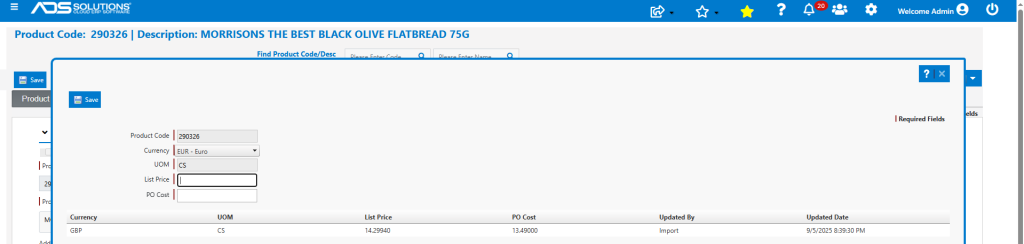
- Barcode stored as a synonym.

- List Price and Cost specified in GBP.
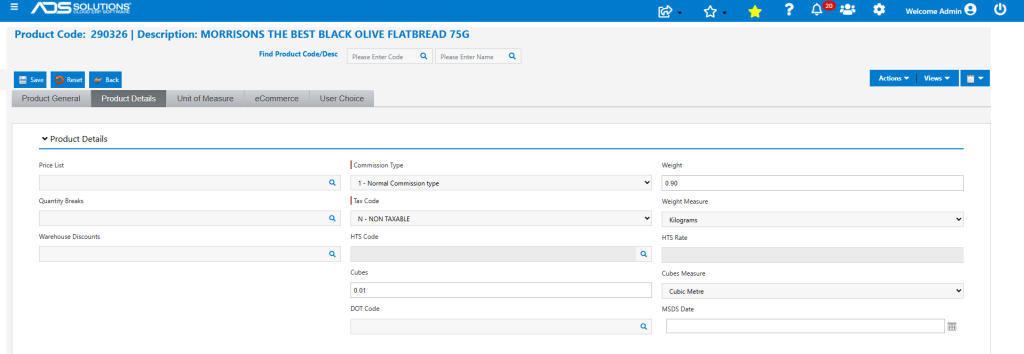
- Weight, Weight units, Cubes and Cubes units imported.
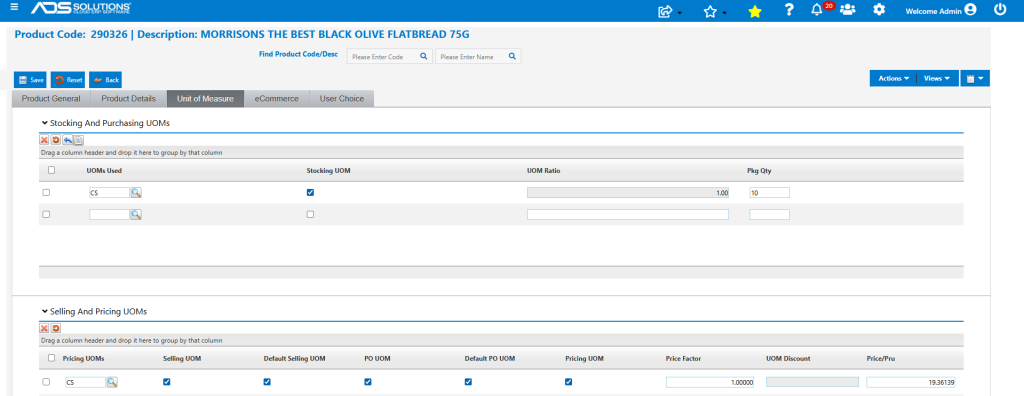
- UOM of CS and Package Qty imported.
- User Choice fields were populated (UC1 and UC2 respectively: Shelf Life (Days), Pallet Quantity).
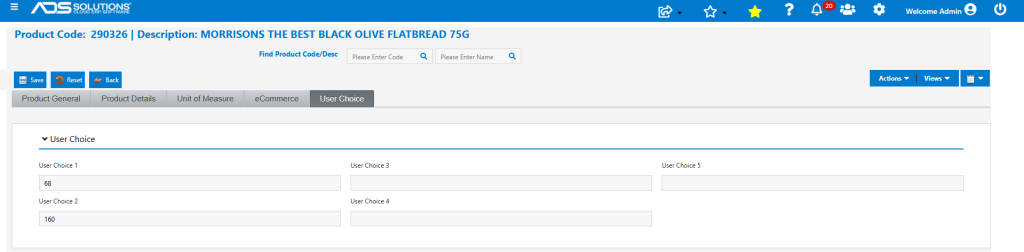
- Note all the User Choice field labels can be changed to reflect the actual information saved.
Upload Images
- Go to Imports > Product > Product Image Import.
- Download the Product Images Excel Template and insert embedded images.
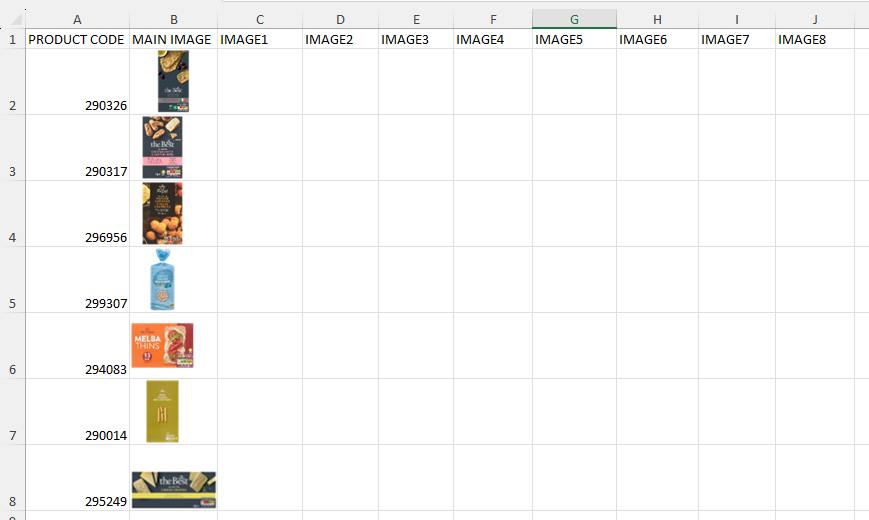
- Save and zip the Excel file. Then import the images.
- Message that images were successfully imported.
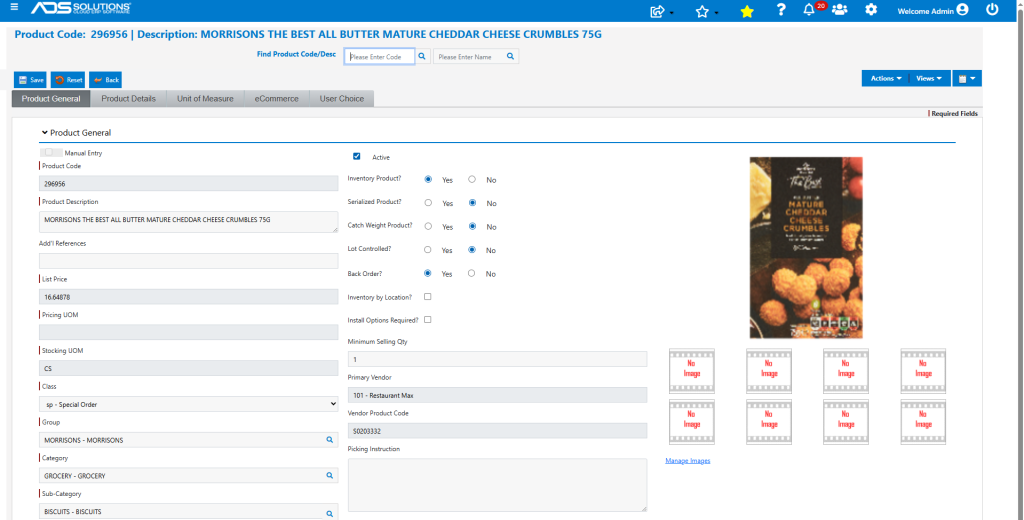
- Verify product 296956, for example.