
Accolent ERP allows orders to be packed and shipped order by order if desired. If this approach is used, orders can be packed in multiple boxes and packing lists generated to show what items are in which box. Alternatively, for small parcel shipments, the Quick Pack & Ship provides a one screen pack and ship capability directly from the List Fulfilments screen.
Overview
- There are 2 use cases for the Quick Pack & Ship screen depending on whether the Shipping Method, Ship Via and Freight have been previously populated or not:
-
- Orders entered manually, default in the Shipping Method and Ship Via from the customer, but may be changed, and freight amount is either entered or left blank.
- Orders passed from a shopping cart (like Shopify) can specify a generic shipping method (e.g., Standard) or a specific shipping method and service (e.g., EasyPost, UPS Ground) and freight amount is populated and paid for.
- NOTE: The Quick Pack & Ship screen is designed for single box shipping. If an order has to be shipped in multiple boxes, then use the Pack and Ship screens inside the Order that includes the ability to allocate boxes and create packing lists for each box.
Create Order
- Create order 63880 manually.
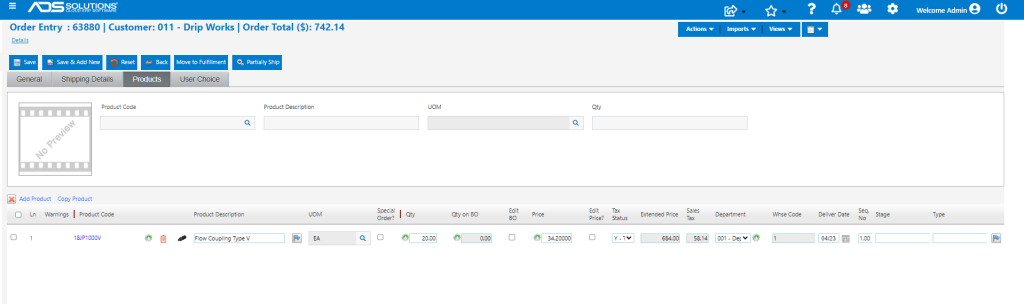
Move Order to Fulfillment
- Save and move order to fulfilment.
- Shipping method and ship via are populated from the customer master.
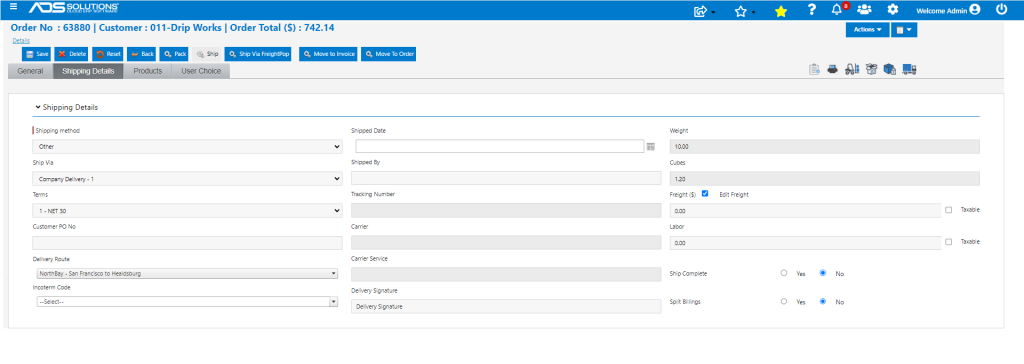
- Either enter freight amount (if already quoted to the customer) or leave blank.
- For web orders (cases 2 and 3 above), Shipping Method, Ship Via and Freight Amount will be filled in already.
Quick Pack & Ship
- On the List Fulfilments screen click on Quick Pack & Ship.
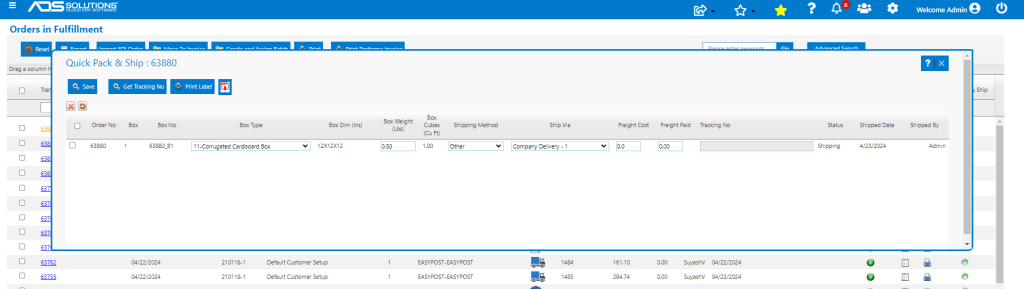
- Box is made automatically, and Box No is assigned.
- Box Type is defaulted but may be changed.
- Box Dim (Ins), L x W x H dimensions default in based on selected Box Type.
- Box Weight (Lbs) is calculated but may be overwritten or passed from a digital scale if connected up.
- Box Cubes (Cu Ft) are calculated based on Box Type.
- Shipping Method and Ship Via pick up what is on the order shipping details tab but may be overwritten.
- Select EasyPost, then Ship Via shows rates. Select UPS Ground.
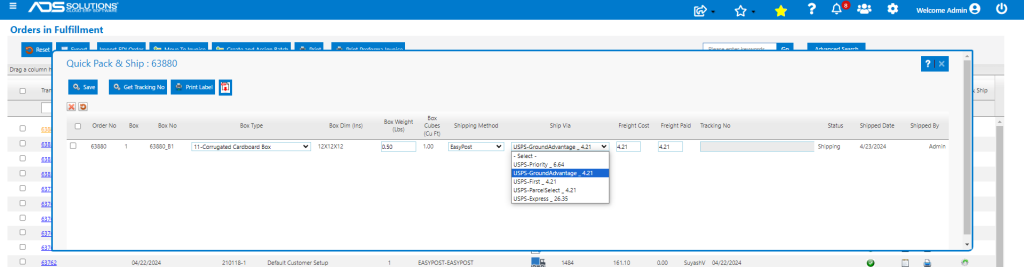
- Selecting the Ship Via populates both the Freight Cost and Freight Paid to $4.21.
- The Freight Paid may be overwritten as desired (e.g., to $10.00 say).
- Then select line and click Get Tracking No; this fills in the Tracking No, creates a Shipping Label and updates the Shipped Date and Shipped By.
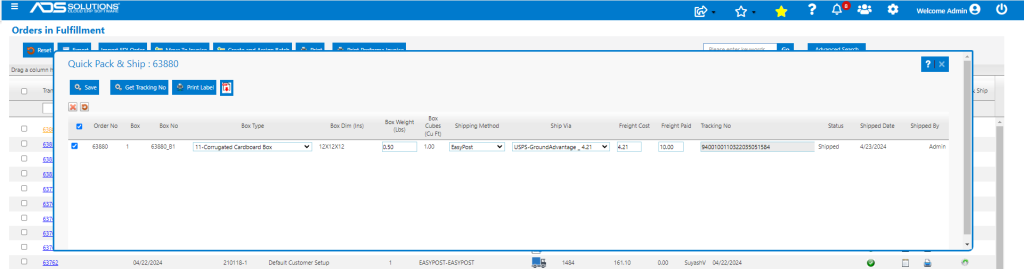
- Then click Print Label allows a printer to be set up for Shipping Labels.
- To get as PDF click Export Label
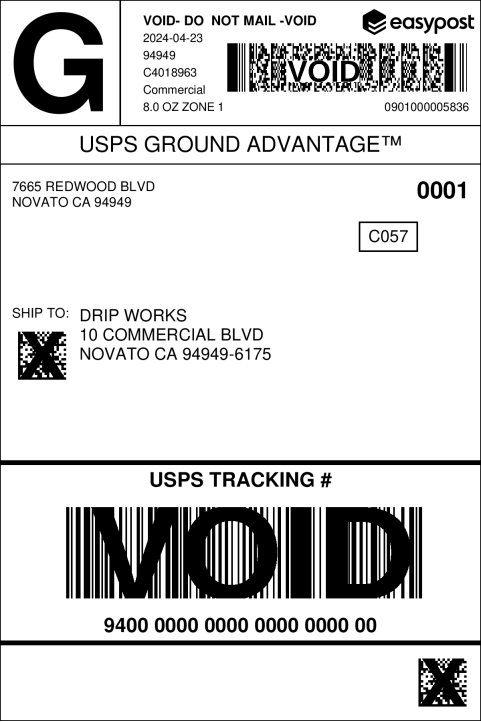
- Then Save Quick Pack & Ship screen.
- Once a Tracking No and/or the Shipping Label is printed and the Quick Pack & Ship screen saved, no further changes may be made.
- When the order has a Tracking Number and/or the Shipping Label is printed the Sub-Status changes to Shipped.
Orders in Fulfillment Updated
- List Fulfillments screen automatically updates Ship-Via, Sub-Status icon to “Shipped” and Order Total for Freight.

- The Shipping Details tab on the Order reflects all the shipping information.
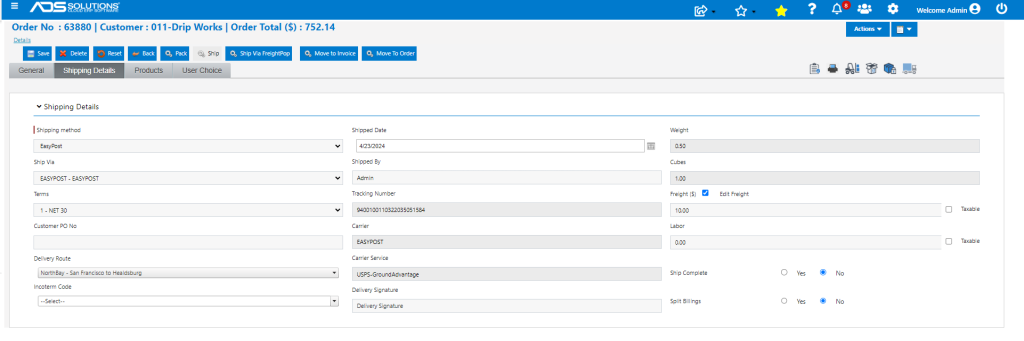
- The Order is now fulfilled directly from the List Fulfillments screen.