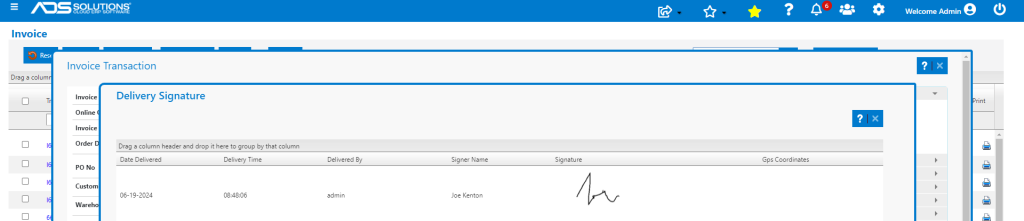
Accolent ERP allows for the capture of a customer’s signature on counter sales or other situations. The tablet/laptop/desktop running Accolent ERP can capture a signature directly on-screen or through signature capture pads connected to the tablet/laptop/desktop. Most signature capture pads that connect via USB or Bluetooth are designed to be plug-and-play input devices and so will work with Accolent ERP.
Enable Signature Capture
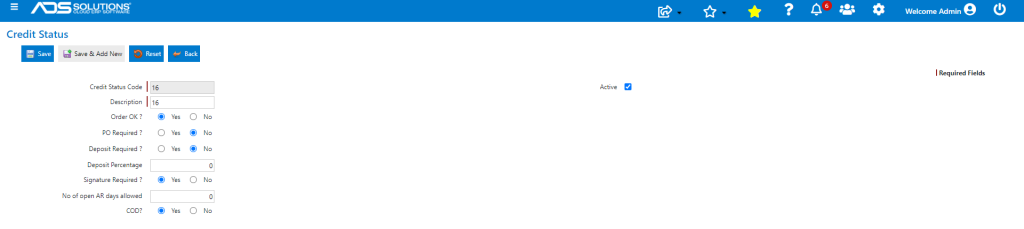
- From the Value Lists: Settings > Value Lists > Other Value Lists (A to L) > Credit Statuses, set up a Credit Status that has Signature Capture checked.
Create an Immediate Invoice
- Select Customer WILSPR that has Signature Required in its Credit Status.
- Create Invoice I66041 for this customer.
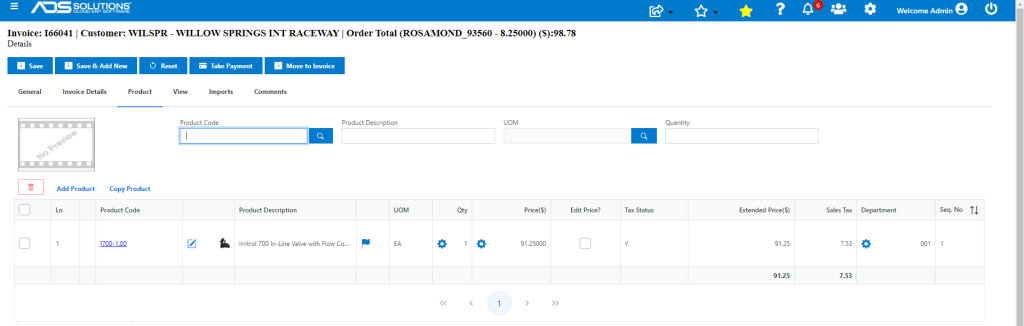
- Typically, on Move to Invoice, the Signature Capture screen comes up.
- In this case, payment is required.
Take Payment on the Invoice
- This Customer’s terms are COD, so the Take Payment screen comes up.
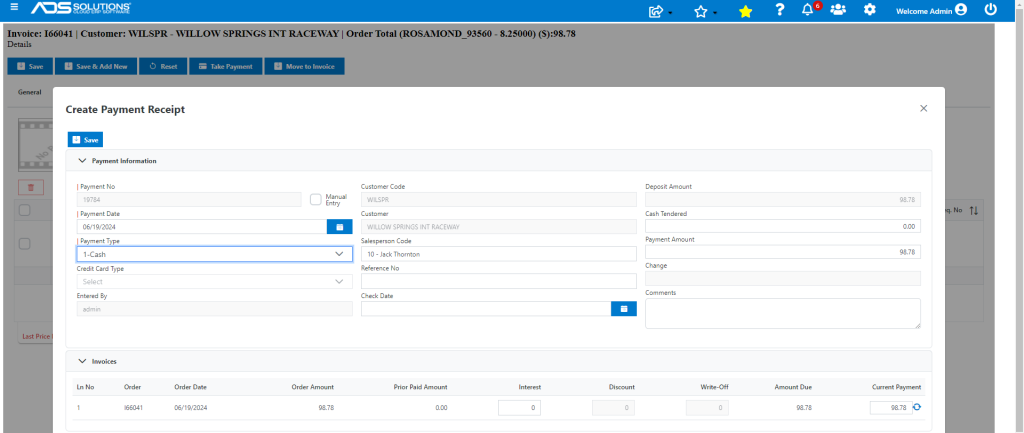
- Save the take payment screen and the on-screen signature capture pops-up.
- In addition to the on-screen capture, Accolent ERP also supports a variety of USB or Bluetooth-connected signature capture pads.
- Enter name and signature and click Save to capture signature.
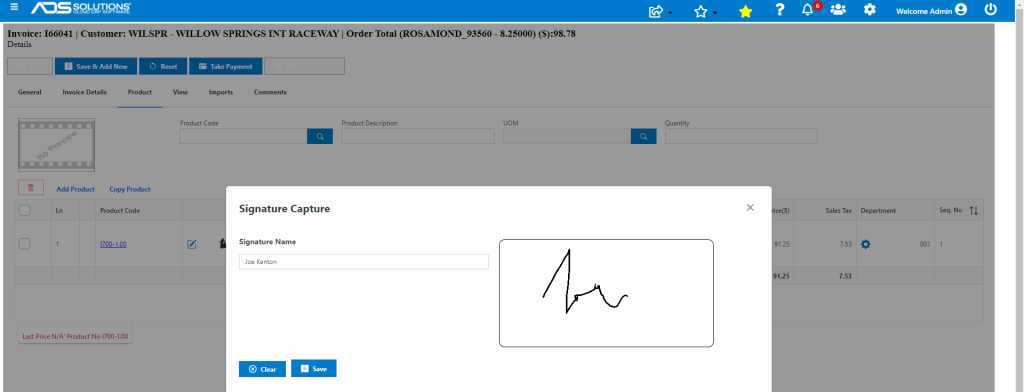
- Creates the Invoice and redirects to the List Invoices screen.

Display/View Captured Signature
- Print the Invoice which displays the captured signature.
- Note as with all forms the Invoice form may be modified by the user to display the signature in a different place on the form or not at all.
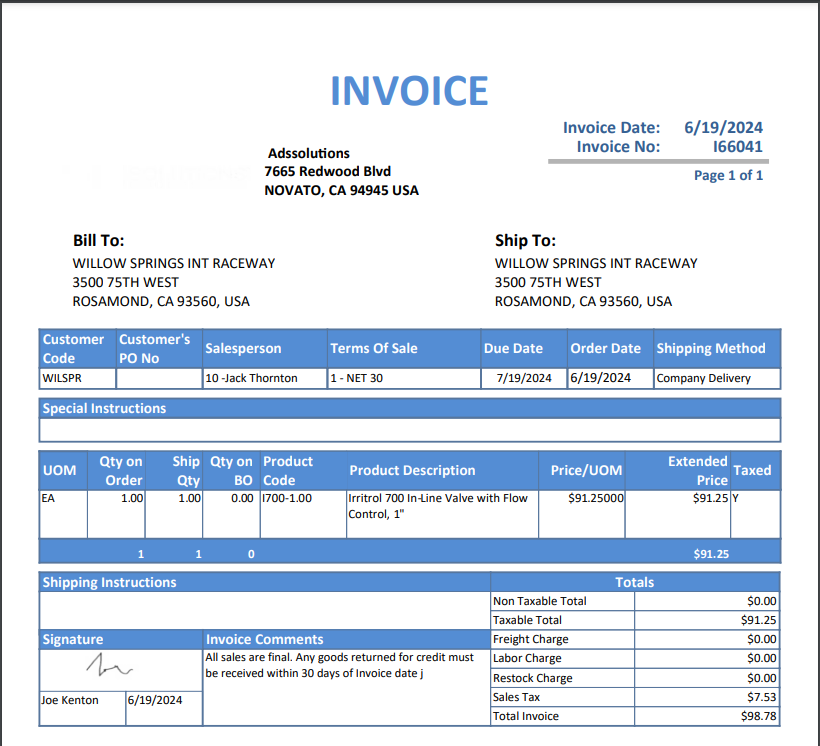
- Open Invoice pop-up and click on Delivery Signature to see the captured signature stored on the Invoice.