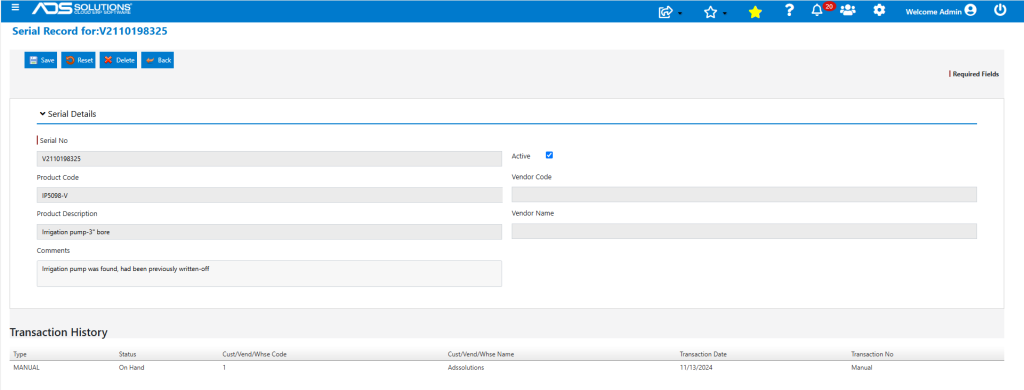
Accolent ERP allows for the use of serialized products. Non-serialized products are tracked only by product code and there is no way to distinguish between two items with the same product code. In contrast, using serialized products, each item is additionally tracked by its unique serial number. All transactions for serialized products require entry of the specific serial numbers affected and a full history of the transactions for each serial number is maintained by the system.
Setting up Serialized Products
- To track serial numbers for a product, the product must be flagged as a Serialized Product on the product master.
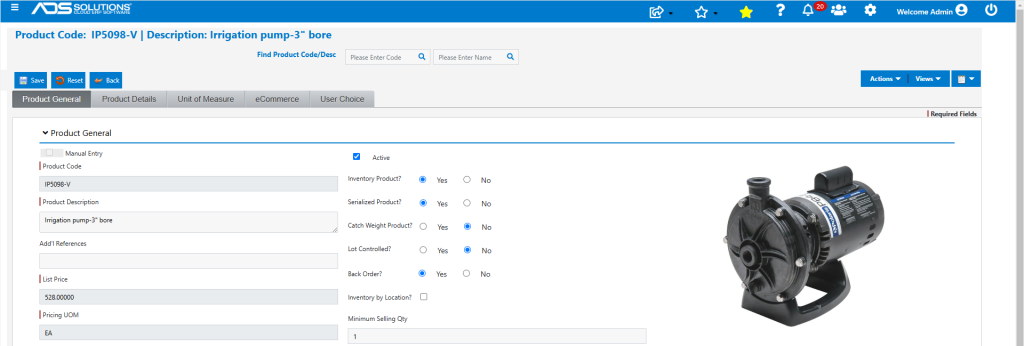
Serials List
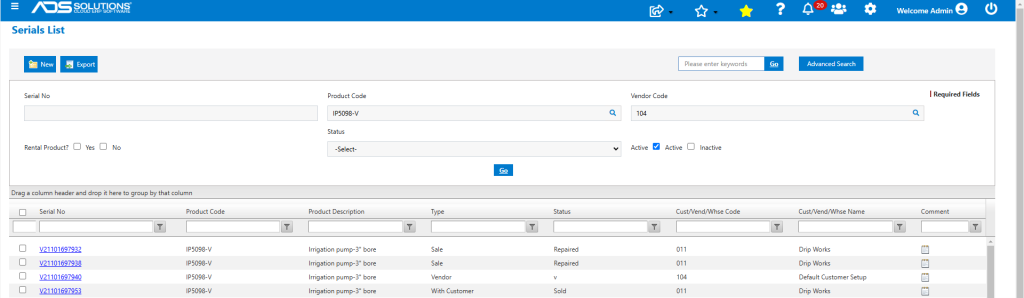
- From the Inventory/Products > Products > Serialized Products > List Serialized Products, it is possible to see the full list of serialized products in the system.

- This screen may be filtered by Serial No, Product Code or Vendor Code or Status or keywords to generate the desired population.
Serial Record
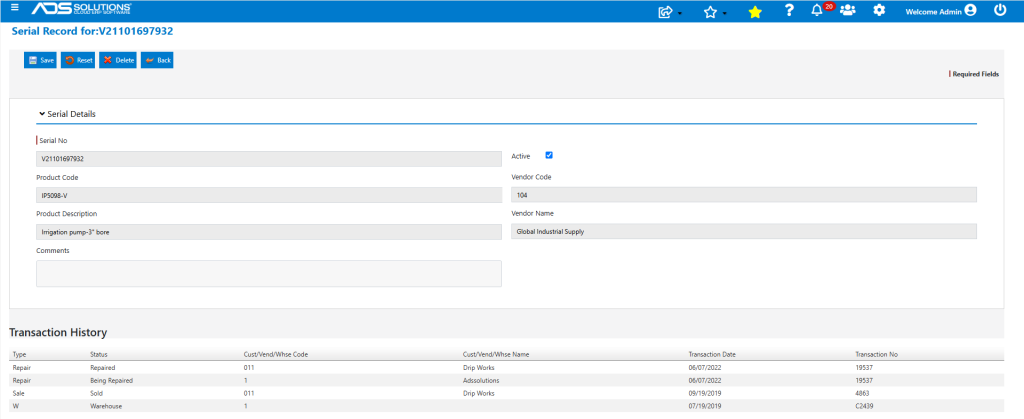
- Click on a serial number hyperlink to open up the Serial Record that displays a full record of the transactions recorded against that serial number.
- For example, open V21101697932 for product IP5098-V, which has a Status of “Repaired”.
- The Serial Record maintains a log of all transactions that affected this serial number.
- For example, the log shows when the product was received and on what PO No from which Vendor, as well as when it was sold, on what Invoice No and to which Customer, when it was repaired and on what invoice was the repair billed.
Recording Serial Nos on Transactions
- Every transaction for a serialized product requires entering/scanning/selecting the specific serial numbers of the items affected by the transaction.
- For example, the receipt of a PO for 5 EA of IP5098-V will require entering/scanning 5 serial numbers in order to receive the PO.
- Similarly, a sale of 3 EA of IP5098-V will require scanning/selecting 3 existing, On-Hand, serial numbers for this product in order to invoice the order.
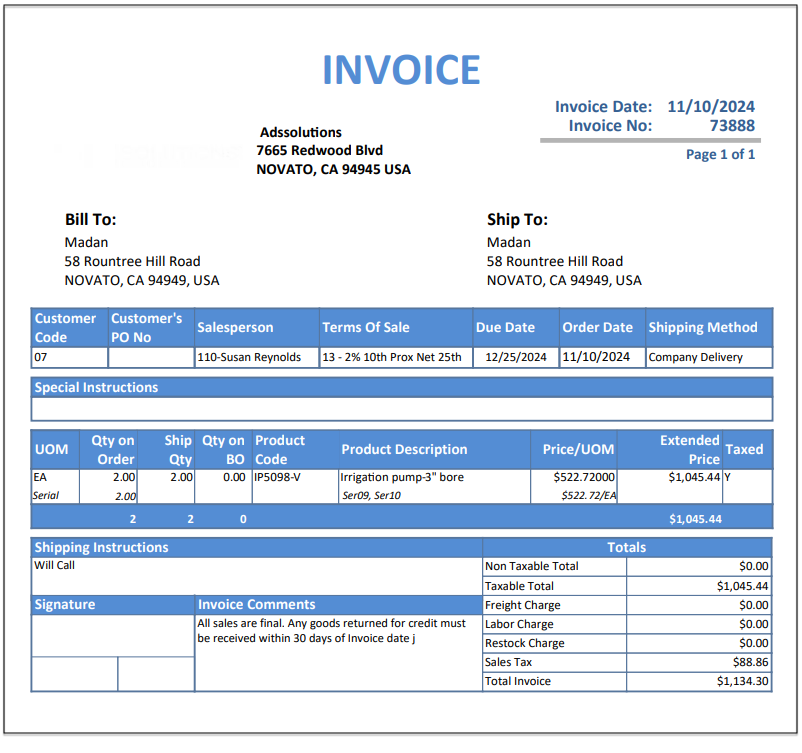
- The standard forms such as invoices or merchandise receivers will show the Serial Nos of the products affected.
Deleting a Serial No
- If a serialized product is missing or damaged or retired, the inventory should first be adjusted through a Manual Inventory Adjustment.
- Then, the serial number may be deleted using the Delete button on the Serial Record screen.
- Once Deleted, the serial number will no longer appear in the Serial List and will not be available to be selected on a transaction.
- If desired, the serial number may also be made inactive to preserve the transaction history and a comment entered to the effect that the item was missing, damaged or retired.
Adding a New Serial No
- There may be situations in which a new Serial No needs to be added (e.g., if an item that was previously marked as missing and its Serial No deleted, was subsequently found).
- As with the process to delete a Serial No, before adding a Serial No, first complete the Manual Inventory Adjustment to add the item.
- Then go to Inventory/Products > Products > Serialized Products > Serials List, Add New.
- Then, enter the Serial No and other information including a Comment.
- On save, this will create a Serial Record with the type of Manual, a status of “On-Hand” for the warehouse selected.