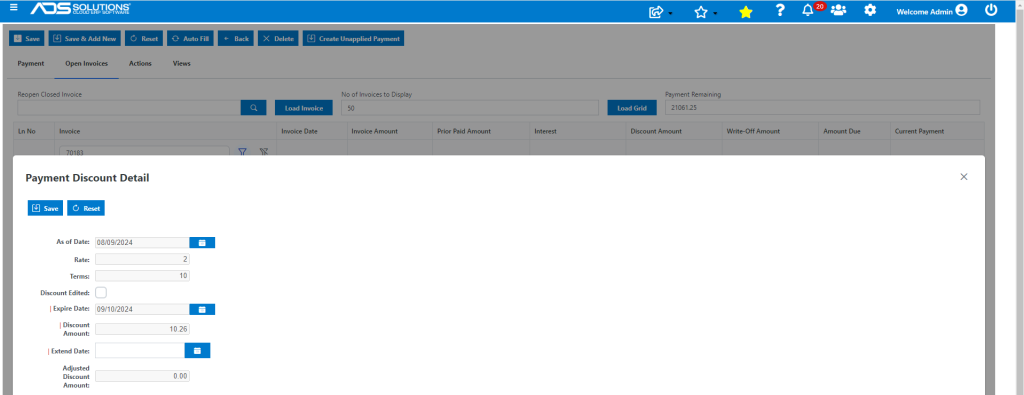
Accolent ERP supports the use of Prox terms. In general, Prox terms means that all invoices created in a particular month prior to a cutoff date are due on a specific day of the following month instead of within a number of days of invoicing. Often Prox terms also specify a discount if paid by the Prox date and a due date when the net payment is due. So, for example, 2% 10th Prox Net 20th Prox (with a 26th cutoff) means that any invoice generated in Sep, prior to Sep 26th, will receive a 2% discount if paid by Nov 10th and will be due net by Nov 20th.
Setting Up Prox Terms
- Go to Settings > Value Lists > Other Value Lists (M – Z) > Terms.
- Create a Prox Terms Code and Description and specify the following information:
- Invoice Cut-off day,
- Discount, if any,
- Discount available if paid before when, and
- Net amount due when.
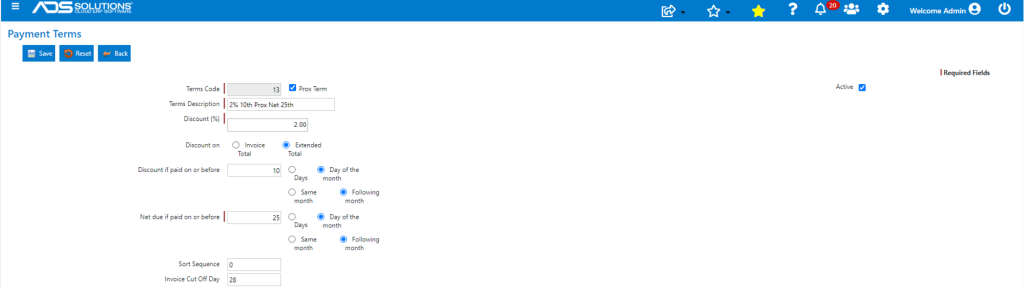
- For example, the above Terms Code settings mean that:
- an invoice created prior to the 28th of the month,
- gets a 2% discount if paid prior to the 10th of the following month, and
- is due net on the 25th of the following month.
- The Net Due can also be specified as a certain number of days rather than as a day of the month, but this has to exceed the maximum possible time to the next prox date for this to make sense.
- If the cut-off date is at the beginning rather than at the end of the month, the discount date and net due date may be specified as in the Same Month rather than the Following Month.
Create Order with Prox Terms 13
- Create order 70183 for Customer ECB2 with Terms Code 13.
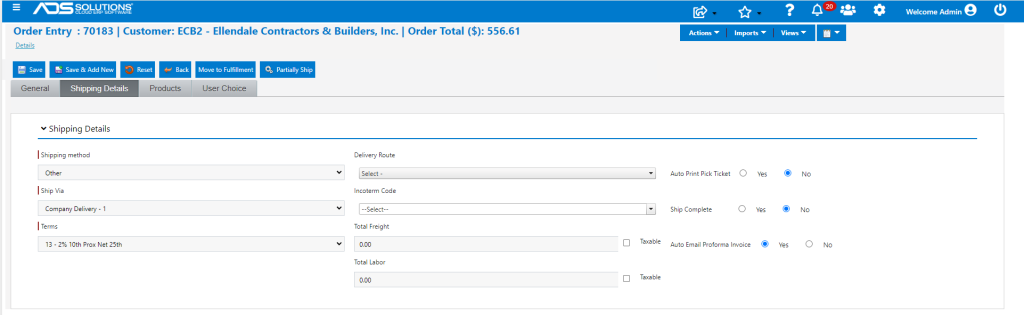
- Move order to fulfillment then invoice.
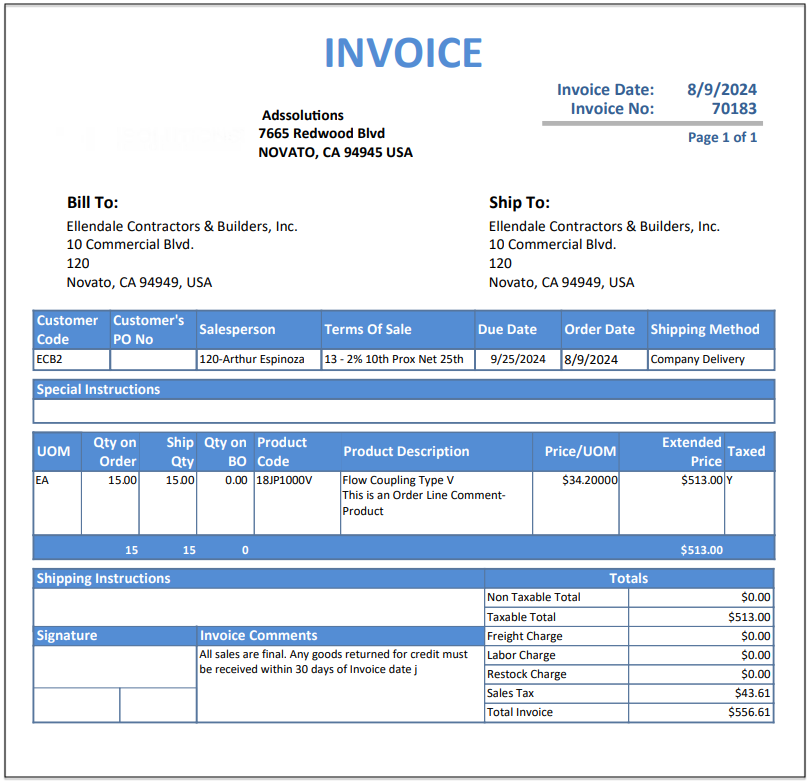
- Invoice Date is 8/9/24, prior to the 8/28/24 Cut-off Date, so the Due Date is 9/25/24.
- Go to Receivables to look up the available discount – since the Invoice Date is prior to the 8/28/24 Cut-off Date, the Discount Date is 9/10/24.
- The Discount Amount is $10.26 calculated 2% of the value of the Goods of $513.00.