
Accolent ERP allows Lot-Controlled products to be tracked by Lot and by Location. The Lots to Locations relationship is many-to-many. This means that, although this is typically not the case, multiple Lots may be associated with a single Location and vice versa. Lot-Controlled products are always also Location tracked. The Lot Ledger Card maintains a complete record of all transactions affecting the Lot and can be accessed from the Product or from the Lot master. Lot quantities are kept in the default stocking unit of measure on the product. Any transaction that affects the quantity of the item also requires that the Lots and the Locations for that transaction quantity be specified so that the Locations and Lots List and Ledger Card are always in sync.
Set Up for a Lot-Controlled Product
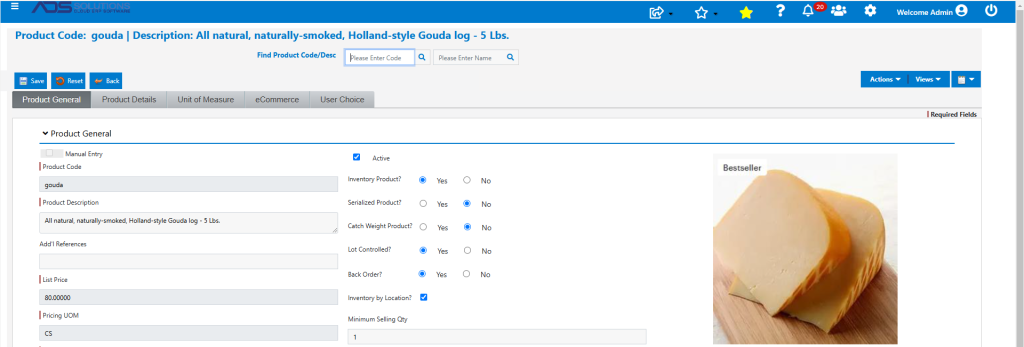
- Look up product code: Gouda-Gouda Cheese Log, which is Lot-Controlled and will also be automatically set to Track Locations.
Receive a PO for a Lot-Controlled Product
- Receive PO C10416 for 3 CS of product Gouda from Vendor W302.
- Because the product is Lot-Controlled, the Lot and Location information will need to be recorded.
- The 3 CS are in 2 Lots: C209875 x 2 CS and C209880 x 1 CS that will be put-away to Primary Location A01-100-100.
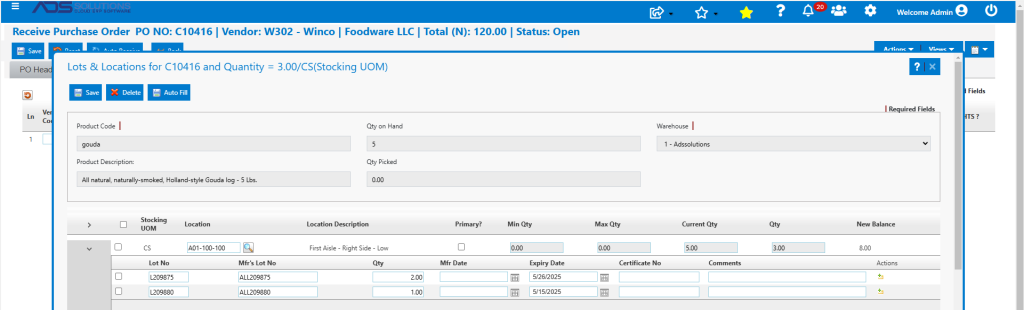
- Save Lot and Location information.
- Then process PO Receipt and Landed Costs, if any.
- PO C10416 is received successfully.
Ledger Card
- The product’s Ledger Card shows the 3 CS received on PO C10416.
- Together with 5 CS received on PO C10314, total QOH is 8 CS.

Locations
- This product is Lot-Controlled, and so also automatically tracks Inventory by Location.
- These 3 CS were put away to the primary Location for this product, A01-100-100.

Lots List
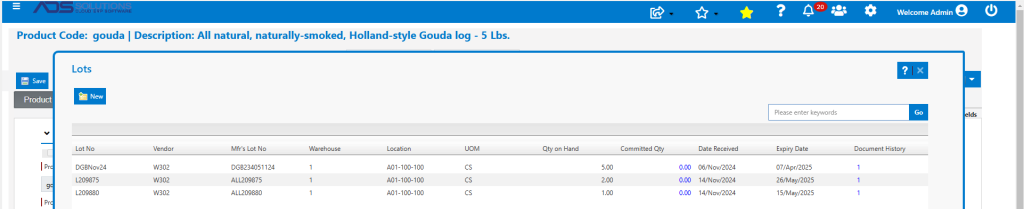
- The product’s Lots List screen shows 3 different Lots with Expiry Dates.
Create an Order for Sale of a Lot Controlled Product
- Now create order 74150 for 2 CS of product Gouda and move to Fulfillment, where Lots and Location must be specified.
- Lots are sorted oldest Expiry Date at the top so user picks from the earliest Expiry Date first.
- Expired Lots will display the Expiry Date in red.
- Select from the nearest Expiry Date Lot which is DGBNov24.
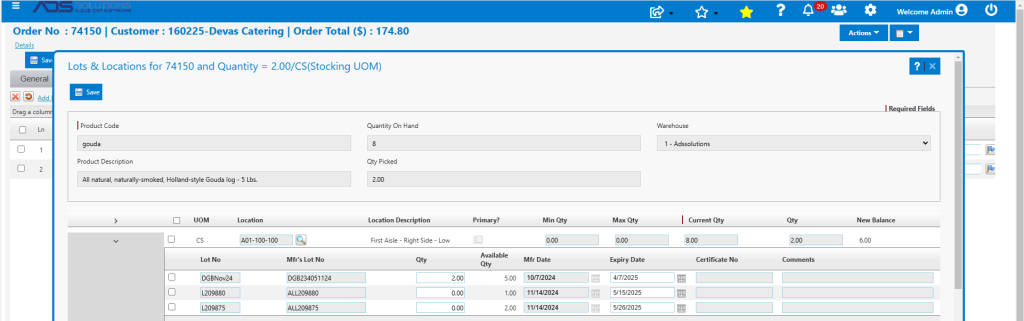
- Save the Lots & Locations screen.
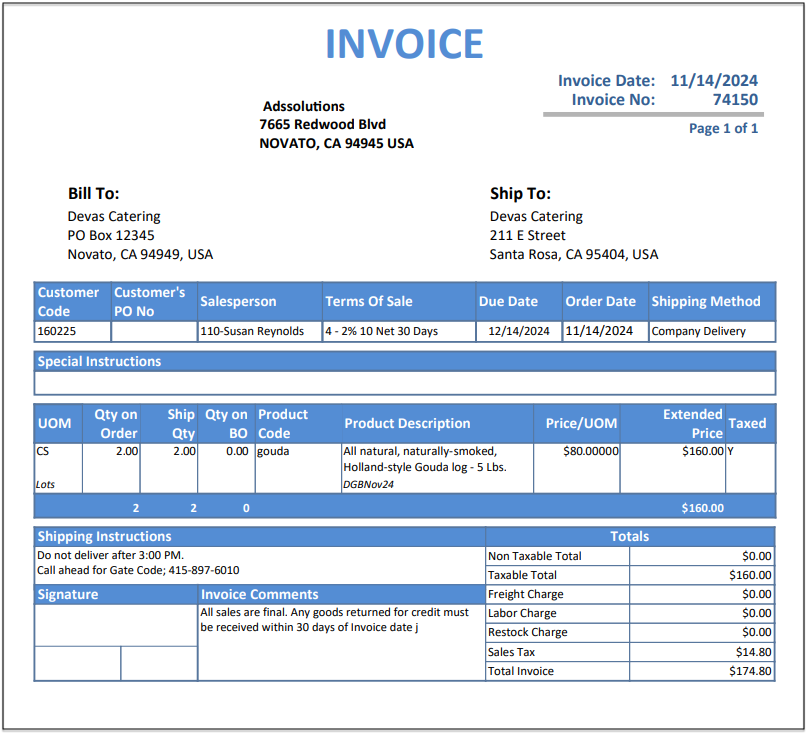
- Then move order 74150 to invoice, which when printed shows the Lot Nos.
Ledger Card
- The product’s Ledger Card records the sale of 2 CS for a balance of 6 CS.

Locations
- The product’s Locations screen shows a total of 6 CS.

Lots List
- The product’s Lots List shows 6 CS in 3 Lots.
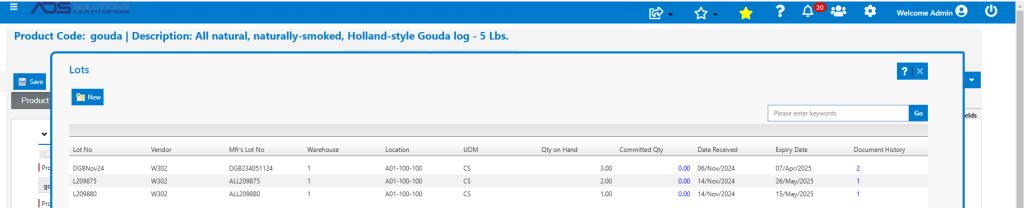
- The Lot Document History hyperlink for each Lot (e.g., DBGNov24) shows all transactions for that Lot.

Reduce/Increase QOH for a Lot Controlled Product
- The Adjust Inventory menu cannot be used with Lot-Controlled products, instead go to Inventory/Products > Products > Manage Lots to open the Lot master.
- Filter by product code to find the relevant Lots.
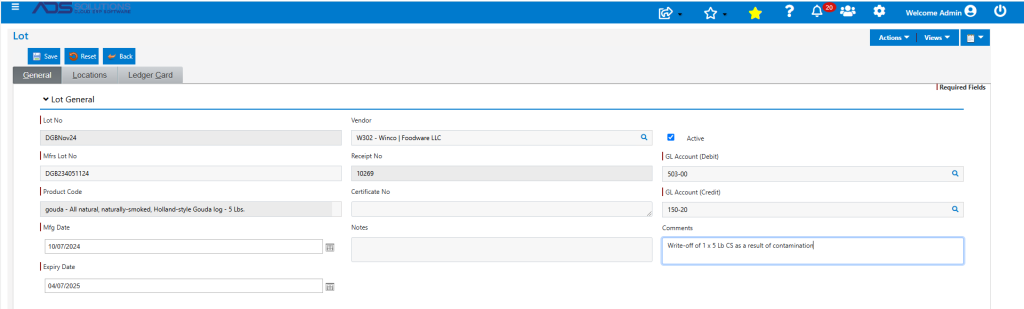
- For example, assume that Lot DGBNov24 has 1 CS which was contaminated and needs to be written-off for a balance of 2 CS.
- Open Lot DGBNov24 and specify the Debit and Credit GL Accounts for the adjustment as well as a Comment on the General tab.
Lots Master
- Then on the Locations tab, expand location A01-100-100 and reduce Qty for Lot DGBNov24 by Qty of 1 CS.
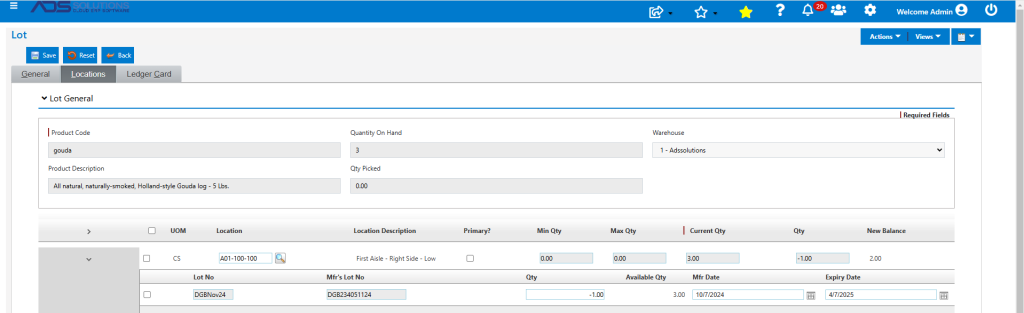
- Click Save to get a confirmation that the Adjustment was completed with Receipt 10386.
- The Lot Ledger Card tab shows the Adjustment leaving a balance of 2 CS on this Lot.

Ledger Card
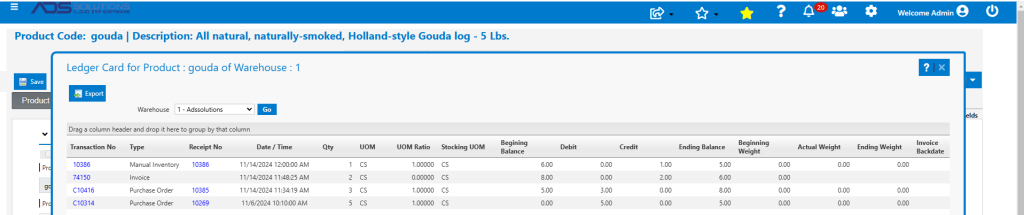
- The product’s Ledger Card shows the Manual Inventory Adjustment to 5 CS.
Locations
- The product’s Locations screen shows a quantity of 5 CS.

Lots List
- The product’s Lots List screen shows a quantity of 5 CS in 3 Lots.

Move QOH for a Lot Controlled Product
- Just as with the Inventory Adjustment, to move a Lot from one Location to another, go to Manage Lots to open the Lots master.
- Filter by product code then open Lot DGBNov24 and go to the Locations tab.
- Add the new Location A01-100-200-F that the Lot will be moved to.
- Then create a zero adjustment to reduce Qty by 2 CS at Location A01-100-100 and increase by 2 CS at the new Location.
Lots Master
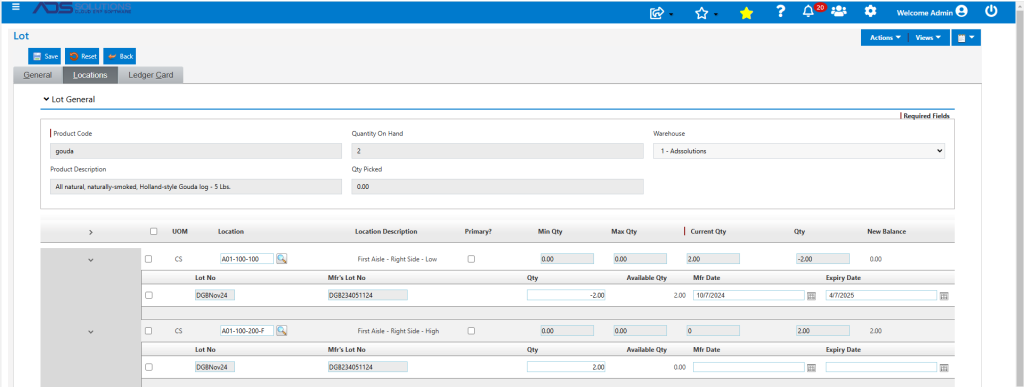
- Then Save which will create a zero Adjustment 10387.
- The quantity of 2 CS is now at Location A01-100-200-F.
Ledger Card
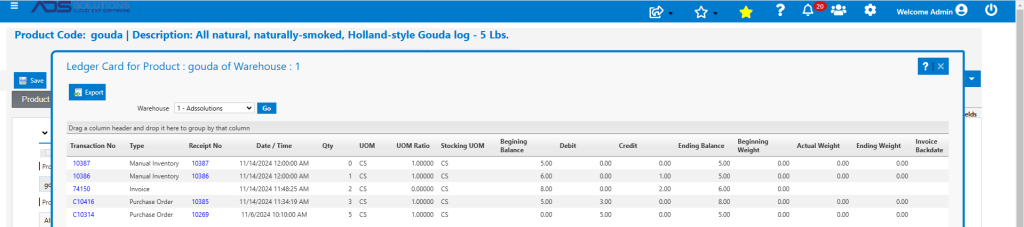
- The product’s Ledger Card is unchanged at 5 CS after the zero adjustment.
Locations
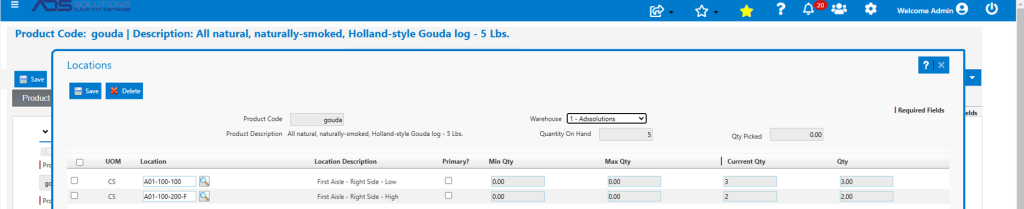
- The product’s Locations screen now shows 2 Locations A01-100-100 with a quantity of 3 CS and A01-100-200-F with a quantity of 2 CS.
Lots List
- The product’s Lots List shows the 3 Lots and the new Location for Lot DGBNov24.

General Ledger Postings
- GL Posting of Receipt of PO No C10416.

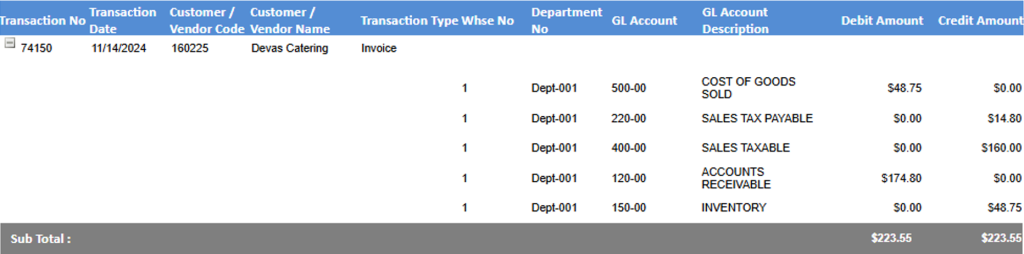
- GL Posting of Invoice 74150.
- GL Posting of Adjustment 10386 to record write-off.

- No GL impact of Adjustment 10387 to simply move to a new location.