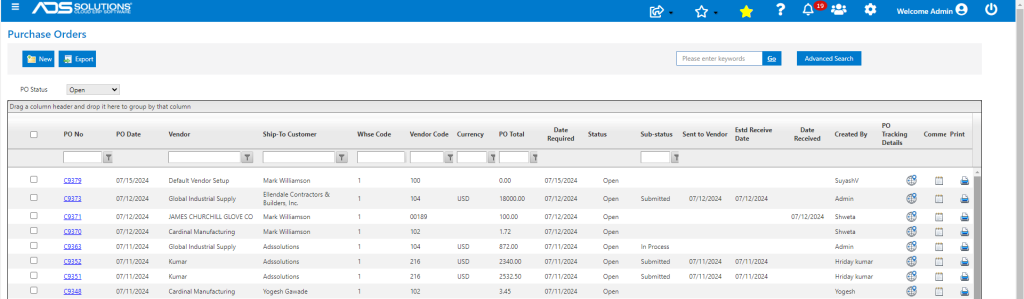
Most List screens in Accolent ERP work the same way and natively offer extensive on-screen display count/pagination, display size, grid filtering, grid sorting, grid grouping and grid re-ordering options. These features are extremely powerful and can be used instead of, or in addition to, the Advanced Search and Keyword Search functionality.
Display Count
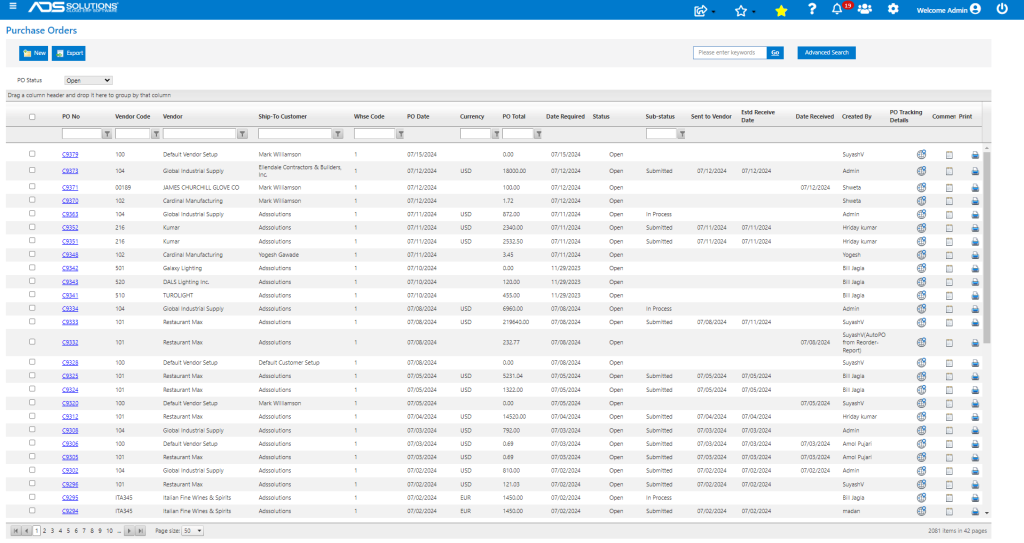
- At the bottom of the grid select whether to display 10, 20 or 50 lines per page.
- If the display size exceeds the screen dimensions, a scroll bar will appear.
- The pagination will adjust to the selected display size.
Display Size
- All screens in the Accolent ERP application are responsive, which means that the columns will be resized to fit the browser window, within certain limits.
- In addition, any column may be widened relative to other columns by dragging the column header.
- Hover over the column divider until the cursor changes to a horizontal double ended arrow then drag the column.
- This works similarly to Excel.
Grid Filtering
- This works similarly to filtering in Excel.
- At the top of the grid below the header row, there is a row of filters.
- Select any column and enter the filter argument which can be an entry or fragment on an entry that appears in that column.
- Note the filters are case sensitive.
- Then select the type of filter from the drop down – typically you will use “Contains.”
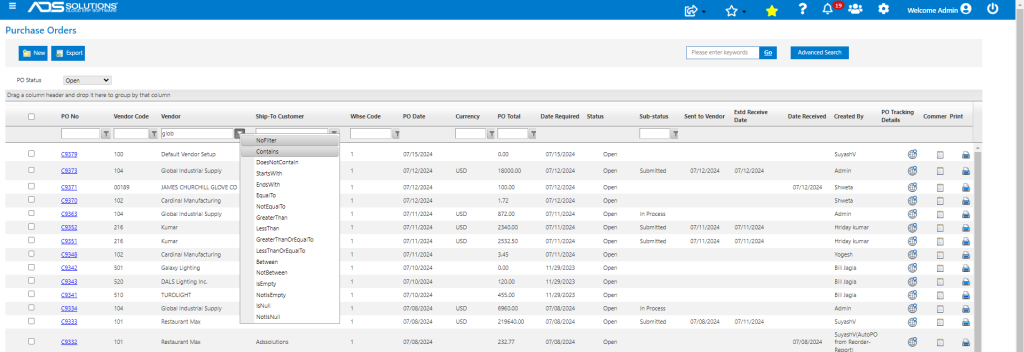
- As soon as you select the filter type the grid will filter based on the argument entered.
- The grid supports multiple filters.
- For example, filter Purchase Orders by Vendor (using Contains) then by Sub-Status Submitted (using Contains).
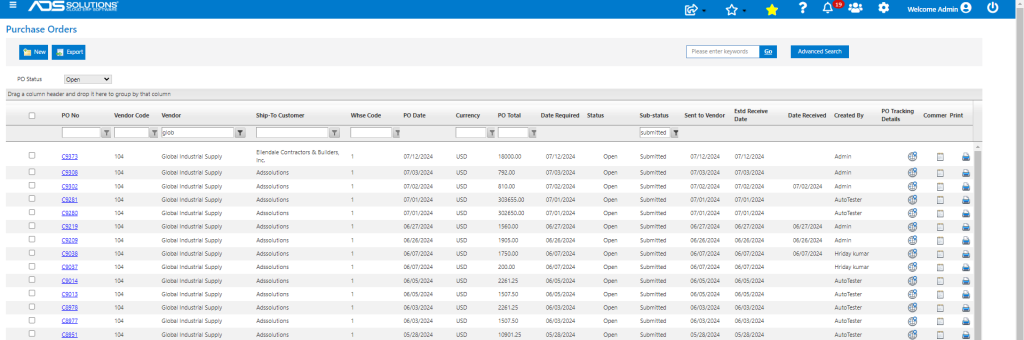
- To remove the filters, select No Filter.
Grid Sorting
- This too works similarly to sorting in Excel.
- Hover on the grid header until a hand appears – then click once to sort in ascending order, twice to sort in descending order and a third time to remove the sort.
- Note not all columns are available to sort by.
- The grid supports multiple sorts.
- For example, sort in ascending order of Vendor Code.
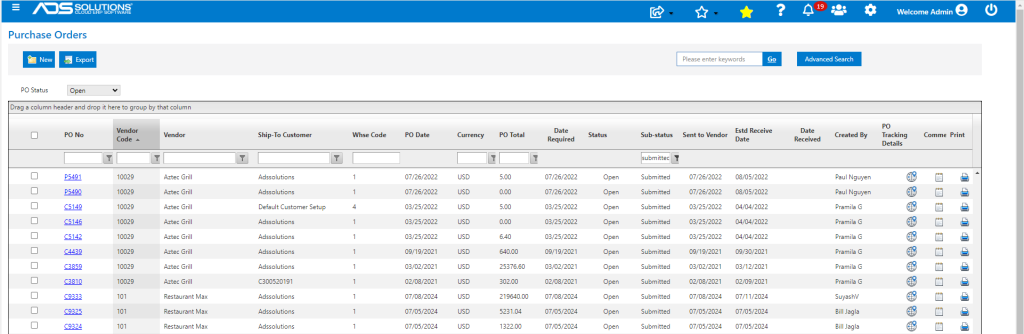
Grid Grouping
- Hover over the column header until the cursor becomes an arrow-ended plus sign.
- Then, to group by that column, drag the column into the header bar.
- The grid supports multiple groupings.
- For example, group by Vendor Code.
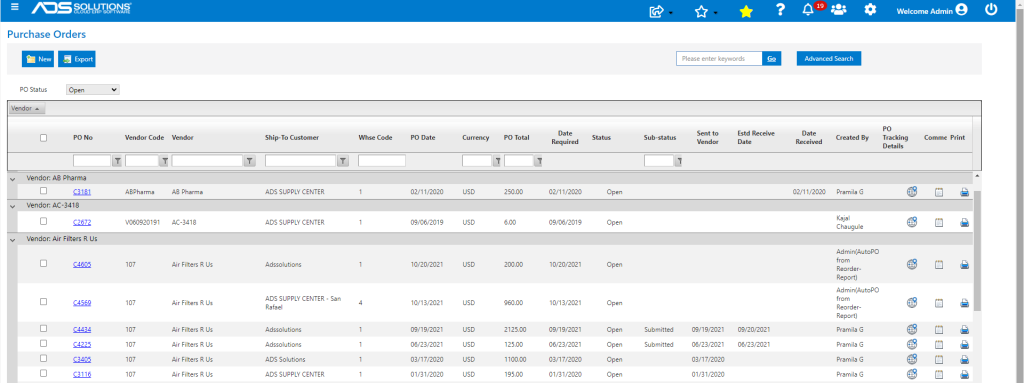
- To close the detail, click on the arrow on the left-hand side of the grid.
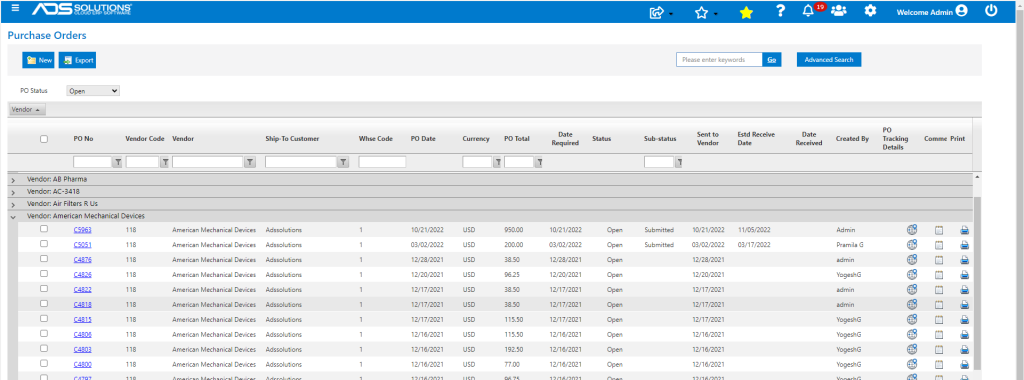
- To remove the grouping grab the column header and move it back into the grid.
Grid Re-ordering
- Hover over the column header until the cursor becomes an arrow-ended plus sign.
- Then, to move that column, drag the column to where it is desired.
- For example, re-order the grid columns to show PO No followed by PO Date.