
Accolent ERP allows users to link documents, schematics, contracts, or pictures to several Accolent ERP screens, including Customers, Contacts, Vendors and Products as well as Sales transactions (Quotes, Orders, Fulfillments, Invoices), POs and Vouchers. Once linked, these files will show up as hyperlinks on the Accolent ERP screens. The linked files can then be accessed from these screens by clicking on the hyperlinks. Files of any type including images, specification sheets, instructions, and MSDS documents can be linked in this way.
Adding Linked Files to Master Records
- To add a new linked file to the Customer record for example, open the Customer, then go to Actions > Linked Files.

- Click on the Add button.
- On the Linked File screen, select Type, e.g., PDF file.
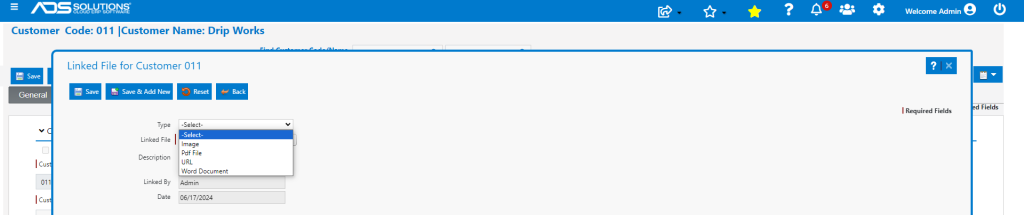
- Then click on the Upload button to browse to the document to link.
- For example, link to Hazmat Transportation Requirements.pdf.
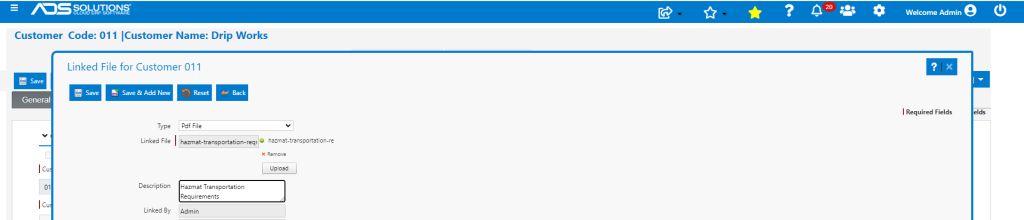
- Then click Save to copy the document from user’s network up to an AWS S3 folder.
- The selected document is now available as a linked file on the master record for Customer 011.

- To add more files, click on Add and link additional documents.
- To remove files, select file(s) and click Remove.
Viewing a Linked File
- To view the Linked file from Customer 011, go to Actions > Linked Files.
- Click on the View icon.
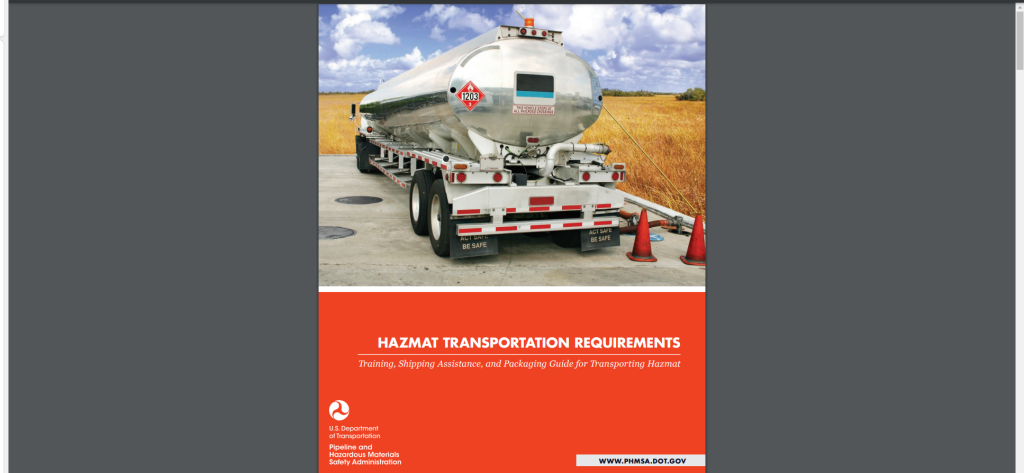
- This will open the 8 page PDF file in a new browser window. The file can then be viewed and/or downloaded if desired.
Adding Linked Files to Sales Transactions
- Linked files can be added to sales transactions just as with master records.
- When added to a transaction such as an order, for example, the linked file will follow the transaction as it moves from order to fulfillment to invoice.
- For example, Order 72956 for Customer 011 has a Linked File and is partially back ordered
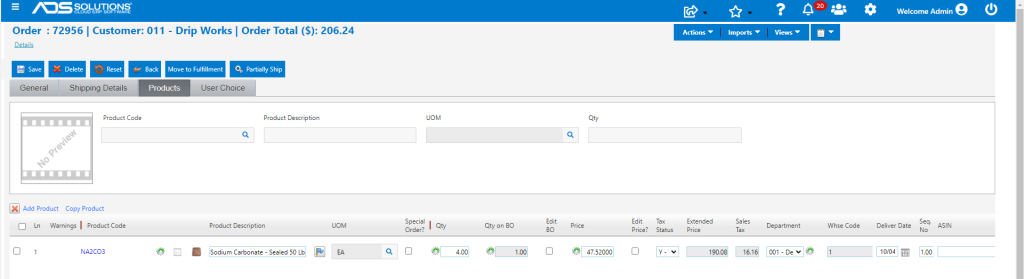
- When invoiced the back order is split off as 72956-1. The linked file is still on invoice 72956 and also on the back order.

- Note however, there is no way to view the linked file from a back order. The linked file may be viewed once the back order is moved to fulfillment or to order.

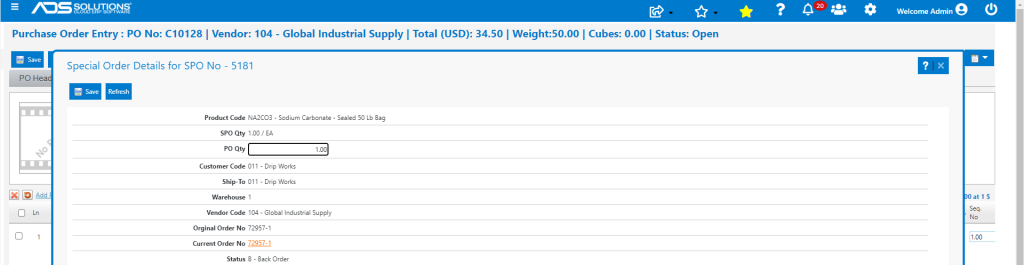
- For special orders, clicking on the SPO link in the PO, then clicking on the back order hyperlink will allow the linked file to be viewed.
Adding Linked Files to PO Transactions
- Linked files can be added to Purchase Orders just as with master records.
- The linked file can be seen on the open PO as well as after the PO has been received.


Adding Linked Files to Vouchers
- Linked files can be added to Vouchers just as with master records.

Records that Support Linked Files
- From Accolent ERP, files may be linked to several master records and transaction records.
- This list includes:
- Customers,
- Contacts,
- Vendors,
- Products,
- Quotes,
- Orders,
- Fulfillments,
- Back Orders,
- Invoices,
- Purchase Orders, and
- Vouchers.