
Accolent ERP provides a comprehensive Keyword Search that is available from most screens. The Keyword Search uses the empty search bar at the top right of the screen. The Keyword Search, as the name implies, searches certain key fields on the record for the search argument entered.
Using the Keyword Search Functionality
- From most screens, enter a search string into the Keyword Search field and click Go.
- This will search certain key fields for the search string entered and returns all records that match.
- The key fields searched vary by screen and a full list is shown below.
- In the case of the List Prodicts screen the Keyword Search searches the Product Code, Product Description and Additional References fields.
- For example, enter the string “two” and click Go to run the Keyword Search.
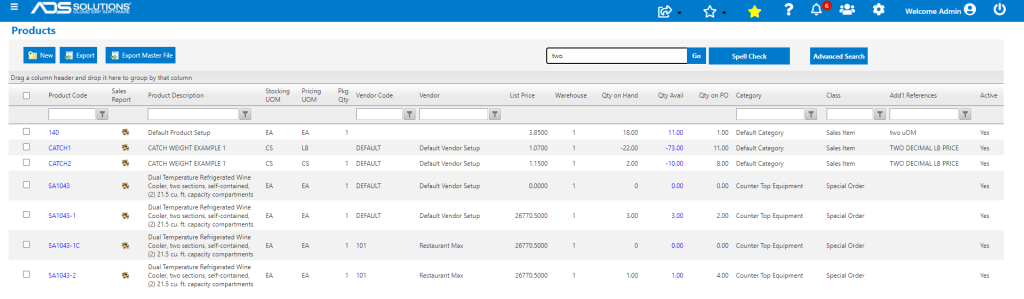
- The search will return all products that have the string “two” in any of the Product Code, or Product Description or Add’l Reference fields.
- The Keyword Search is similar to the standard web page search of Ctrl+F and yields similar results.
- For other screens, the Keyword Search fields searched are listed below by screen.
Keyword Search Fields Searched by Screen
- Following is a summary of all the fields searched
| Screens | Field searched by Keyword Search |
| Sales Transactions (Quotes, Orders, Fulfillments, Invoices) | Transaction No; Customer Code; Customer Name; Ship-To Code |
| Salespersons | Salesperson Code; Salesperson; Address; City; State; Zip Code; Phone; Email |
| Prospects | Prospect Name; Add’l References; Address; City; State; Zip Code; Phone; Salesperson Code |
| Contacts | Contact Code; First Name; Middle Name; Last Name; Address; City; State; Zip Code; Type |
| Vendors | Vendor Code; Vendor Name; Add’l Reference; Address; City; State; Zip Code; Phone |
| Purchase Orders | PO No; Vendor Code; Vendor Name; Ship-To Customer |
| Requests for Quote | RFQ No; RFQ Name |
| Back Orders | Transaction No; Warehouse; Ship-To Code; Contact |
| Future Orders | Order No |
| Products | Product Code; Product Description; Add’l References |
| Warehouses | Warehouse Code; Warehouse Name; City; State; Tax Jurisdiction |
| Warehouse Transfers | Transaction No; Sending Warehouse; Receiving Warehouse; Packed By; Received By |
| Voucher Adjustments | Adjustment No; Adjustment Description; Voucher No; Vendor Code; Vendor Name |
| Chart of Accounts | GL Account Code; GL Account Description; GL Account Type; Include 1099 |
| GL Adjustments | GL Adjustment No; GL Adjustment Type; GL Adjustment Description |
| Reports Center | Report No; Report Name |
| Printer List | Printer Master ID; Printer Name; Printer Type; Printer |
| Roles | Role Name ; Role Description |
| Users | User ID; Full Name; Email |