Accolent ERP allows the use of Groups, Categories and Sub-categories. Groups include Categories and Categories include Sub-categories. Properly organizing products using this structure simplifies searching for products and pricing. This organizing structure carries through to the Self-Service Portal and Online Stores and serves as a product index.
Groups
- Groups are the highest level of the product organizing structure.
- To see a list of groups, edit a group, or create a new group, go to Settings > Value Lists > Product Only Lists > Groups.


Group Fields
| Buttons and Functions | Description |
| Active check box | To view an inactive account, see Active and Inactive Records. |
| Group Code | Code that identifies the group. An entry in this field is required. |
| Description | Description identifying the group. An entry in this field is required. |
| Web | Should products in this group be displayed in the Self-Service Portal and Online Stores? |
Categories
- Categories are the second level of the product organizing structure.
- A Category may have its own general ledger GL Account numbers or department numbers for the purpose of recording sales, COGS and inventory. GL Accounts assigned to a category override the Warehouse GL Defaults.
- Using separate Category GL Accounts allows reporting of results by Category. For example, to split sales of equipment vs. sales of consumables, consumables could use the default GL Account based on the warehouse and equipment categories could have a single alternate GL Account assigned.
- Similarly, a Category can specify its minimum gross margin which will override the warehouse gross margin and the global gross margin.
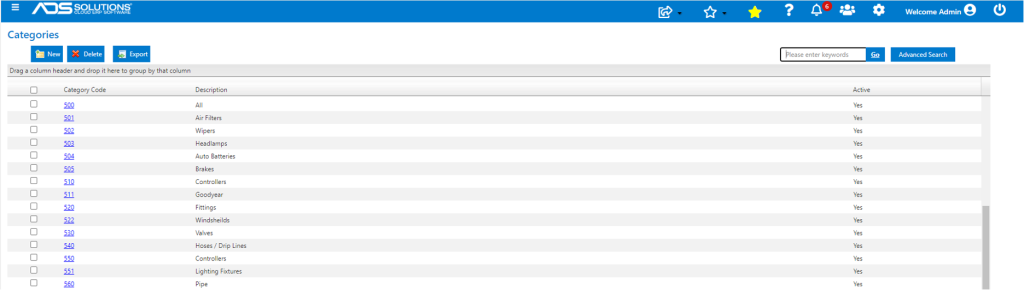
- To see a list of categories, edit a category, or create a new category go to Settings > Value Lists > Product Only Lists > Categories.
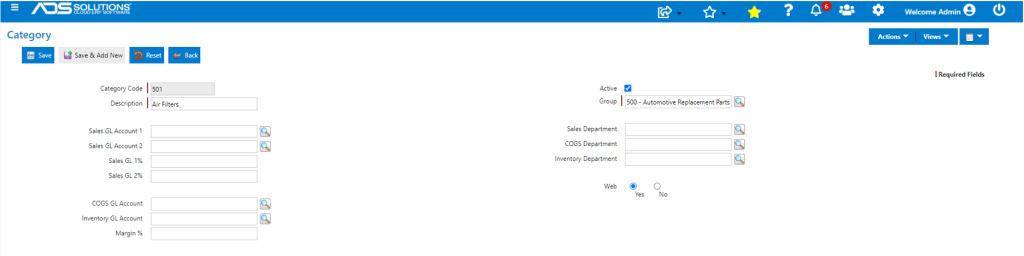
Category Fields
| Buttons and Functions | Description |
| Active check box | To view an inactive account, see Active and Inactive Records. |
| Category Code | Code that identifies the category. An entry in this field is required. |
| Description | Description identifying the category. An entry in this field is required. |
| Group | Group that the Category belongs to. |
| Sales GL Account | GL Account associated with this category. Use the look up button to bring up a list of GL Accounts from which a GL Account can be selected. The same GL Account can be shared by more than one category although this limits reporting capabilities. |
| COGS GL Account | A separate GL Account assigned to a category for purposes of posting COGS. If no GL Account or department number is defined for a category, products will post to the Warehouse GL Default COGS Account. |
| Inventory GL Account | A separate GL Account assigned to a category for purposes of tracking inventory for this Category. |
| Sales Department | Sales department associated with the Category that posts to the sales journal. If a department number is not defined here, sales will post to the department number defined in the GL set up unless another department is chosen in order entry. |
| COGS Department | COGS department associated with the Category. The department number defined here will be used to post to cost of goods sold. |
| Inventory Department | Inventory department associated with the Category. The department number defined here will be used to post to the GL. |
| Margin % | Gross margin percentage by category used to restrict sales of an item in order entry. Gross margin restrictions by category take precedence over the restriction by warehouse and the global company setting. |
| Web | Should products in this Category be displayed in the Self-Service Portal and Online Stores? |
Sub-Categories
- Sub-Categories are the third-level of the product organizing structure.
- Sub-categories allow products to be filtered, sorted, or grouped by sub-category on certain reports.
- To see a list of sub-categories, edit a sub-category, or create a new sub-category go to Settings > Value Lists > Product Only Lists > Sub-Categories.

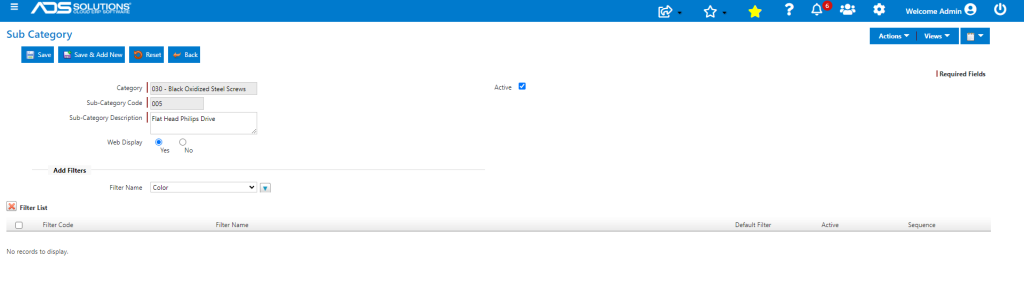
Sub-Category Fields
| Fields | Description |
| Active check box | To view an inactive account, see Active and Inactive Records. |
| Category | Code that identifies the category that the sub-category belongs to. An entry in this field is required. |
| Subcategory Code | Code that identifies the sub-category. An entry in this field is required. |
| Description | Description identifying the sub-category. An entry in this field is required. |
| Web Display | Should this sub-category of products be displayed in the Self-Service Portal and Online Stores? |
| Filter Name | Use this drop-down field to add existing Filters to this sub-category. To add a Filter, find the filter from the drop down and then click the blue down arrow to add the filter. This will populate the filter to the grid. |
| Filter List Fields | Description. |
| Filter Code | Code that identifies the Filter. |
| Filter Name | Description of the Filter. |
| Default Filter | Is this a default Filter? |
| Active | Is this Filter active. |
| Sequence | Sequence in which the Filter is displayed on the screen. |
Filters
- Filters can be set up to further sort a Sub-category.
- An unlimited number of Filters can be assigned to a sub-category.
- Filters are used to further sort the sub-category. For example, a sub-category for Denim Jeans, could use filters to sort by Label, Style, Color, Size or Price Range (e.g., $50-$100, $101-$150, $151-$200).
- To see a list of product filters, edit a filter, or create a new filter, go to Settings > Value Lists > Product Only Lists > Product Filters.

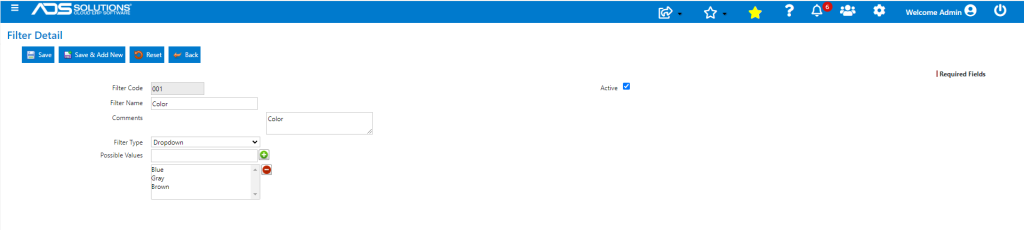
Product Filter Fields
| Fields | Description |
| Active check box | To view an inactive account, see Active and Inactive Records. |
| Filter Code | Code that identifies the filter. An entry in this field is required. |
| Filter Name | Name or description identifying the filter. This value will appear as part of the product index when the product filter is associated with a displayed sub-category. An entry in this field is required. |
| Comments | Comments associated with this filter. |
| Filter Type | Three types of filter are possible: Text Box, Dropdown and Price Box.
1. Text Box – creates a text filter. 2. Dropdown – creates a filter that can have a set of allowable values that can be selected from. For example, create a filter code, SIZ, to sort on size. 3. Price Box |
| Max Length | Maximum length of text for a textbox type filter. This field is only available when “textbox” is the selected Filter Type. |
| Possible Values | Specifies the allowable values that will display in the filter’s dropdown list. This field is only available when “dropdown” is the selected Filter Type. To use the field, type a value in the top field and press the Add button to add it to the list of values. Highlight one or more values in the lower (list) field and press the Remove button to remove values from the list. For example, the SIZ filter may have allowable values of Small, Medium, Large. |
| Min Value | Minimum price for this filter. This field is only available when Price Box is the selected Filter Type. |
| Max Value | Maximum price for this filter. This field is only available when Price Box is the selected Filter Type. |
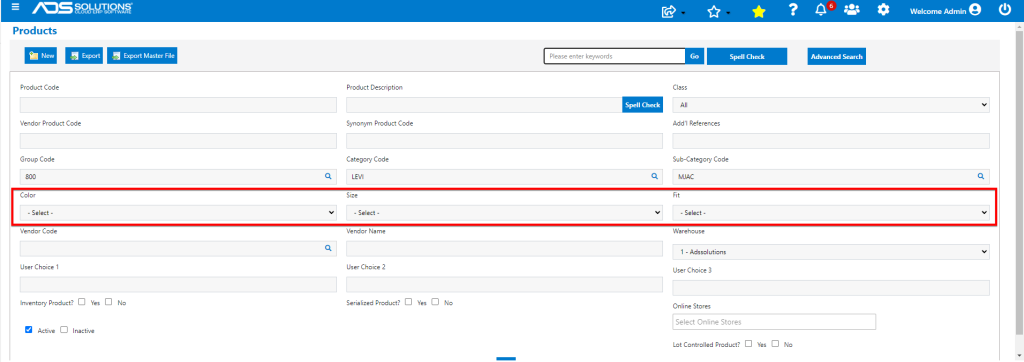
- Once Filters have been set up for a particular Sub-Category, select that Sub-Category from the product list screen to see the Filters displayed in the Advanced Search screen.