
The Accolent ERP email/fax defaults functionality allows forms to be automatically emailed or faxed to Customers, Vendors or Salespersons. To set this up, each form for each Customer, Vendor or Salesperson has to be linked to the contacts that will receive that particular form. Once these form recipients are set up their addresses will auto-populate in any time the form they are linked to it created or sent.
Setting up Email/Fax Defaults
- To set up email/fax default entries, go to Customers > Customers and select a specific Customer (e.g., 011).
- Then from the Actions tab select Email/Fax Defaults.
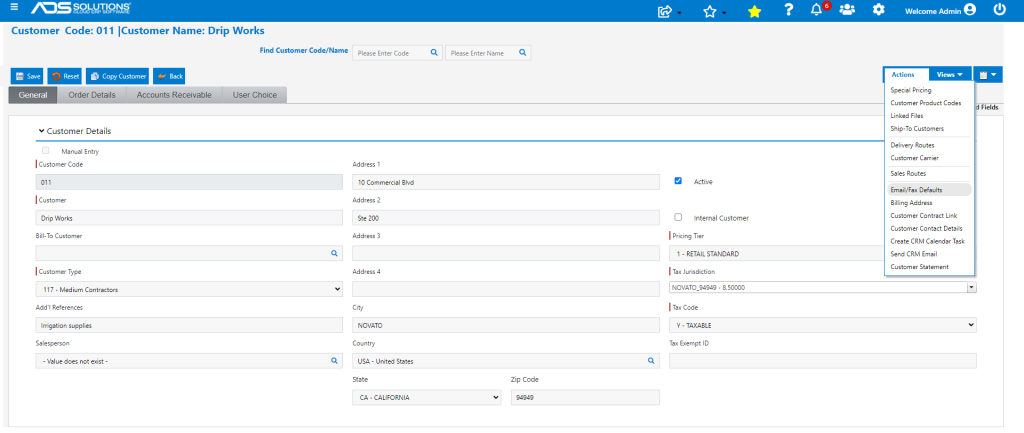
- Clicking on the Email/Fax Defaults menu opens a pop up window showing the forms that have already been set up and/or a dropdown box that lists additional forms.
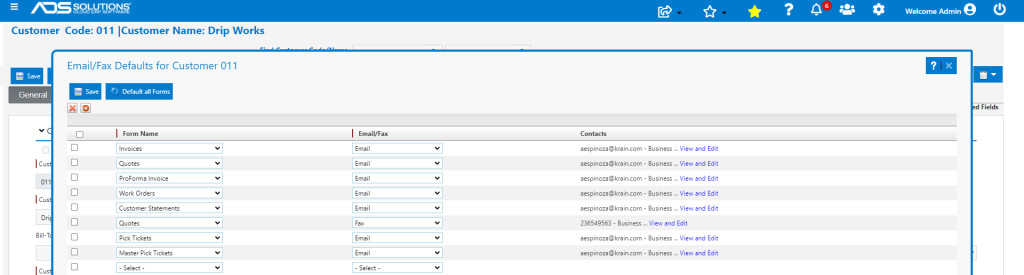
- On the screen select a form, specify the method of delivery and the Contact that will receive the form.
- Click on the View and Edit hyperlink to add/delete listed Contacts.
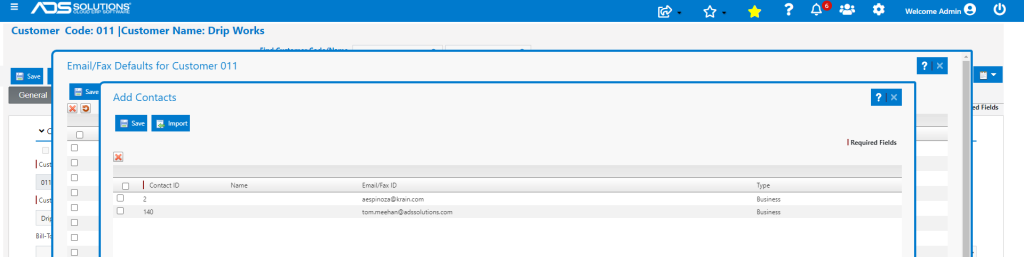
Adding a Contact
- To add a Contact, click on the Import button to bring up the list of Contacts linked to this Customer.
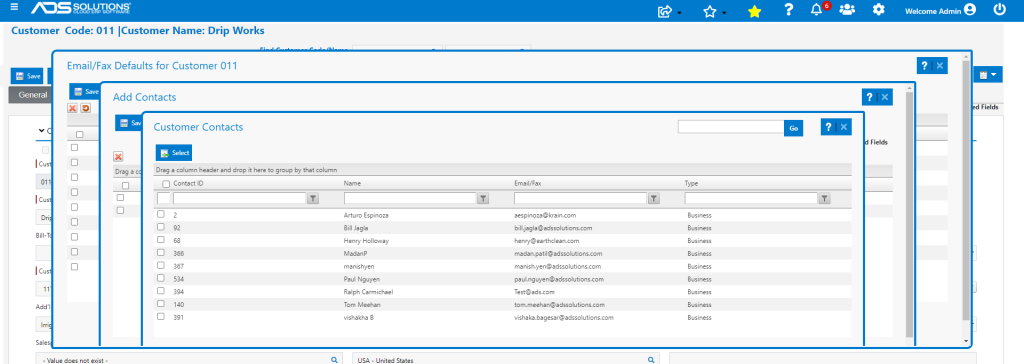
- Click in the checkbox to the left of the Contact ID and then click the Select button, then Save to add the Contact.
Adding a Form
- To add a form to the Email/Fax Defaults list click on the dropdown.
- Select the form type, then select Email or Fax.
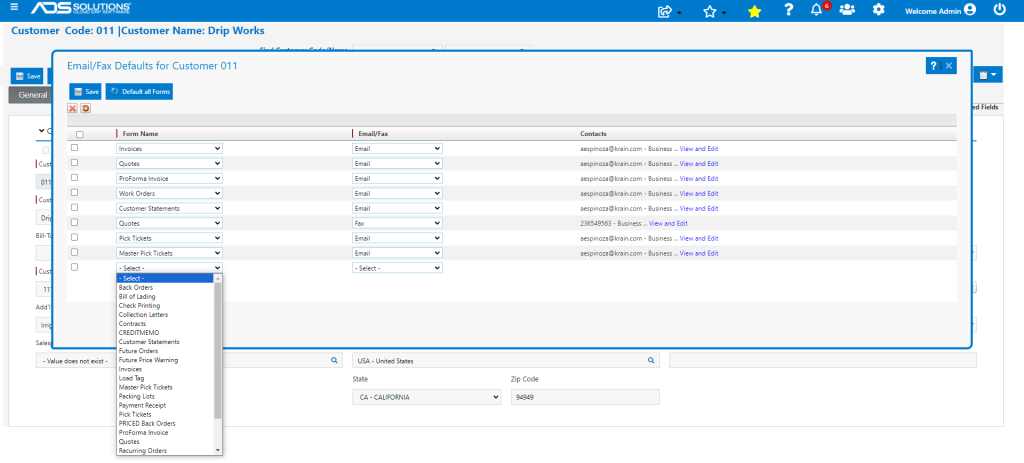
- Use the View and Edit hyperlink to pull up the list of Contacts to choose from.
- Use the same process for forms related to Vendor and Salesperson.
Sending Forms
- Forms may be set up to auto email to the Email/Fax Defaults.
- Also, when a form is viewed, there will be Print, Email and Fax options shown.
- The Print options populate from the default printer(s) set up for the form, and the Email and Fax options populate from the Email/Fax Defaults set up.
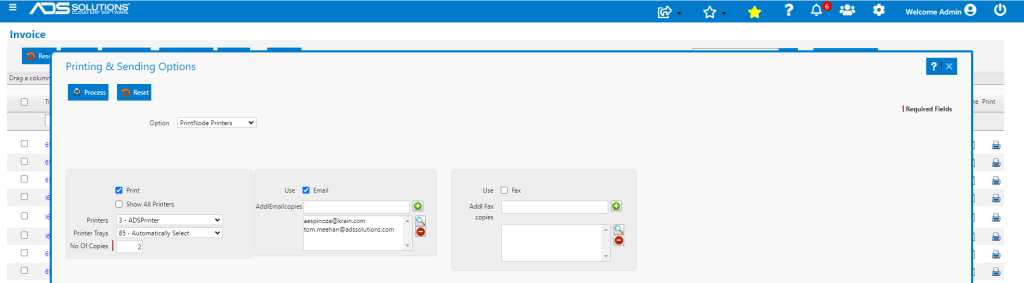
- Clicking Process will automatically send emails (or fax-by emails) with the form as an attachment, to the Email/Fax Default recipients set up.