Accolent ERP supports automated AP payments through Tipalti, a leading AP Automation platform. In Accolent ERP, users create Vouchers then select Vouchers to be paid and select the bank as ePayable Bank. When the user clicks Create Checks, if the bank is ePayable Bank, Accolent ERP will call the Tipalti API to upload the whole payment file to Tipalti. Tipalti will process all the payments using the payment type selected by the vendor and send back confirmation. Accolent ERP will import the payment information and update Accounts Payable and AP Aging.
Configuration Settings
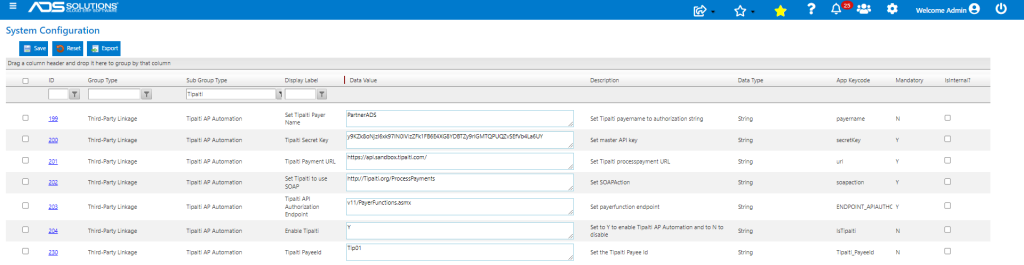
- In Accolent ERP, various Configuration settings have to be made in order to use Tipalti.
- Once user signs up with Tipalti, ADS Solutions will update the Tipalti configuration settings.
Onboarding Vendors
- To use Tipalti all Vendors need to be uploaded to Tipalti.
- Vendors will then go to Tipalti to set up their payment method.
- See Onboarding Vendors to Tipalti.
Create Vouchers
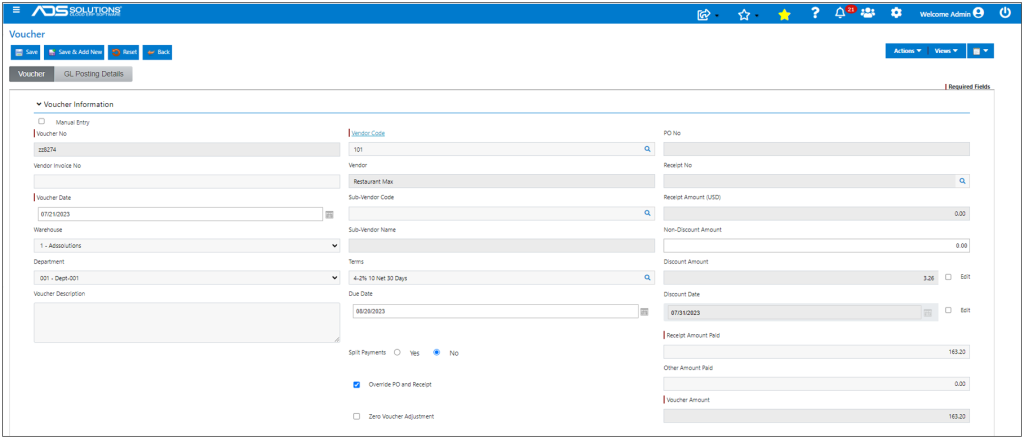
- Go to Payables > Vouchers > List Vouchers.
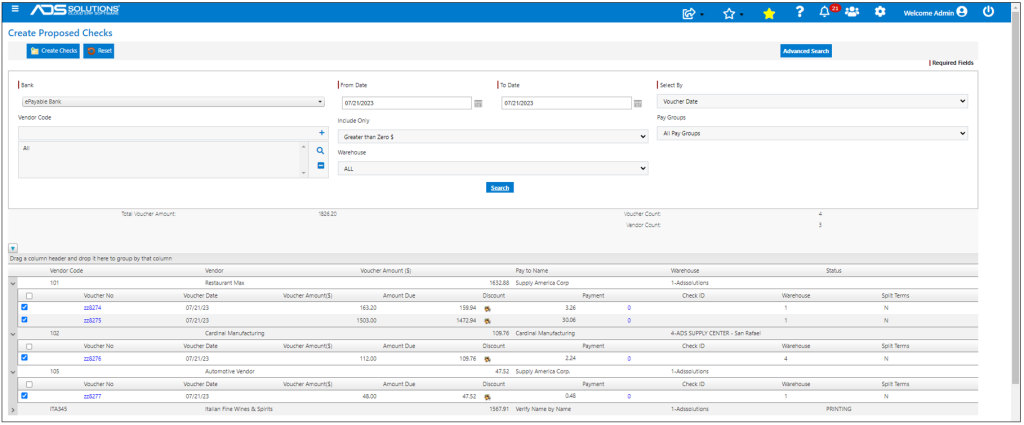
- Add Voucher ZZ8274 for Vendor 101 for $163.20.
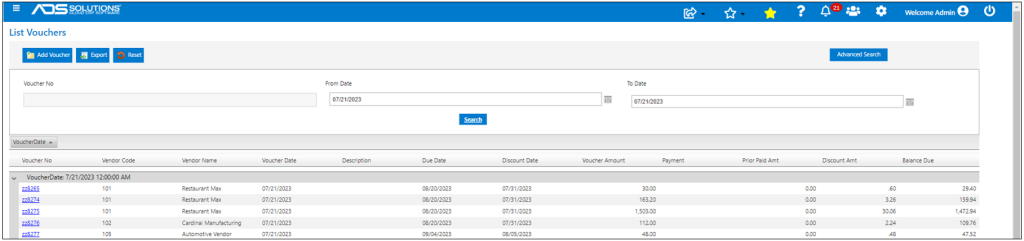
- Similarly, create Vouchers ZZ8275 ($1,503.00) for Vendor 101, ZZ8276 (112) for Vendor 102 and ZZ8277 for Vendor 105.
Create Proposed Checks
- Go to Payables > Create Checks > Create Proposed Checks > List Proposed Checks.
- Select ePayable Bank.
- Select Vouchers based on Vendors and Select By options.
- Then select which Vouchers to pay and click Create Checks.
Print Proposed Checks
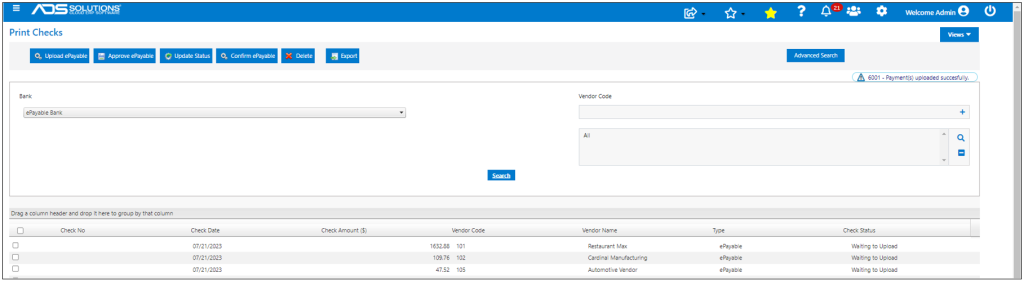
- Go to Payables > Create Checks > Create Proposed Checks > Print Proposed Checks.
- For the ePayable Bank, this will not print a check but will move it to the Temp Check table.
- Checks will have the status “Waiting to Upload”.
Upload Checks to Tipalti
- Click on Upload ePayable button to submit check to Tipalti; message will indicate “Payments uploaded successfully”.
- If, on clicking Upload ePayable button, no check is found to submit the error message “No items found to process” will be shown.
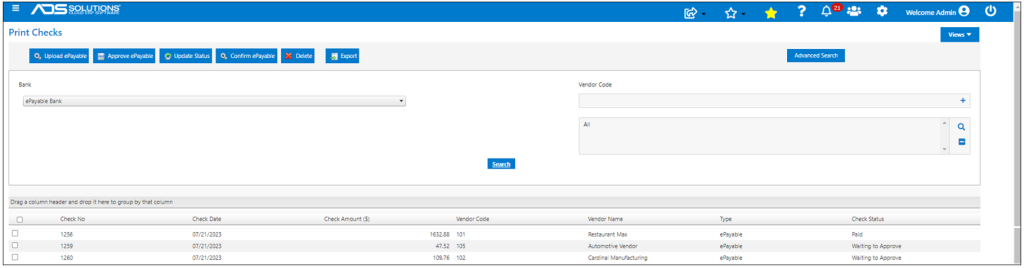
- In this example there are checks to submit, Temp Checks 1256, 1257 and 1258 were created and status changes to “Waiting to Approve”.
Approve Checks in Tipalti
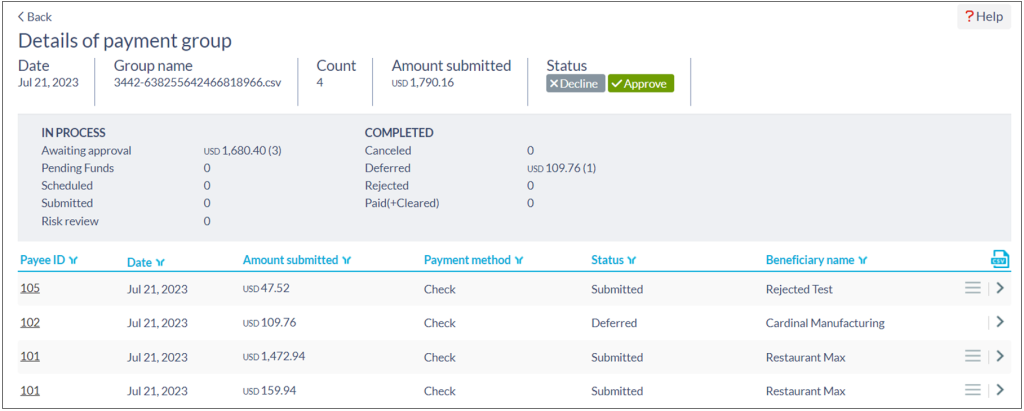
- Now click the Approve ePayable button which will open the Tipalti dashboard in a separate browser tab.
- Click Approve in the Tipalti dashboard.
Update Status in Accolent
- Go back to Accolent ERP, Payables > Create Checks > Create Proposed Checks > Print Proposed Checks and select ePayable Bank.
- Click Update Status button.
- If there are no checks pending the error message “No items to process” will display.
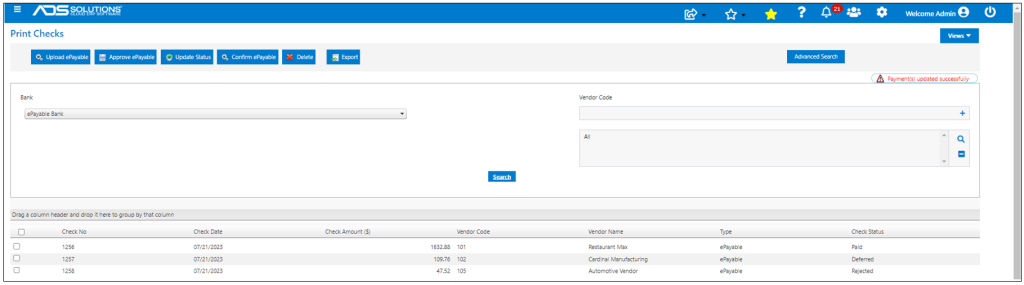
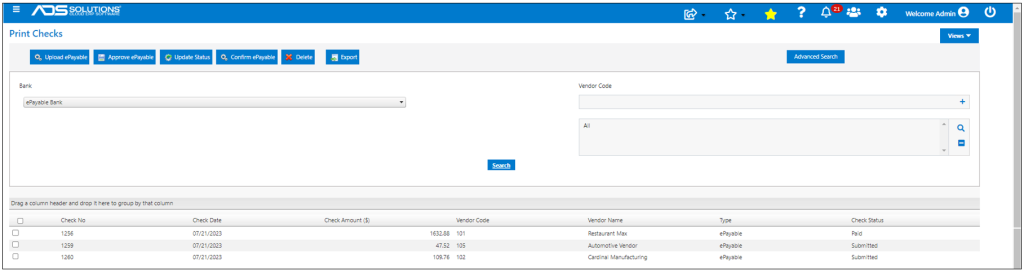
- In this example, there are checks and the status of Temp Checks 1256, 1257 and 1258 will change from “Waiting to Approve” to “Submitted”.
Possible Payment Results from Tipalti
- Payments typically take a few minutes to process through Tipalti after being approved.
- To see the current status, use the Update Status button.
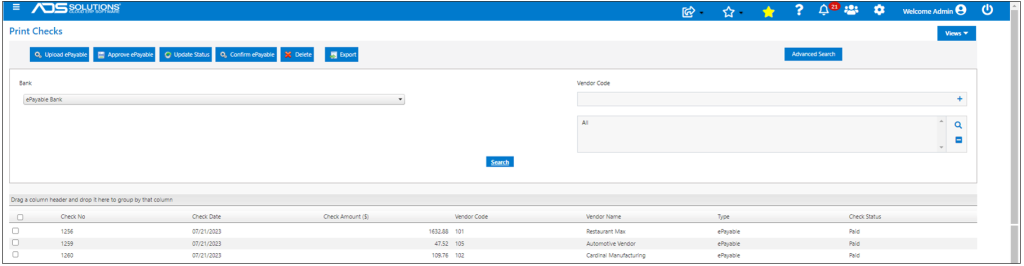
- If checks are properly paid in Tipalti the status will change from “Submitted” to “Paid” as for Check 1256 for Vendor 101.
- If the Payee is not “Payable” in Tipalti (e.g., if Vendor has not set up its payee information), the status will change to “Deferred” as for Check 1257 for Vendor 102.
- If for some reason the payment is rejected (e.g., if the payee information is wrong) the status will change to “Rejected” as for Check 1258 for Vendor 105.
Confirm Paid Checks in Accolent ERP
- To confirm checks with status “Paid”, select the checks, then click the Confirm ePayable button.
- This will move the checks out of the Temp Checks table to the Checks table.
- Under Views > Printed Checks the checks will show as confirmed.
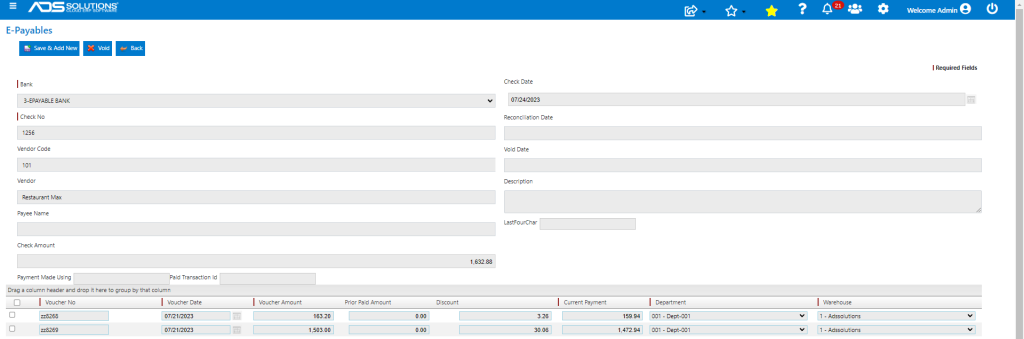
- Select Check 1256 and click Confirm ePayable – now shows as confirmed.
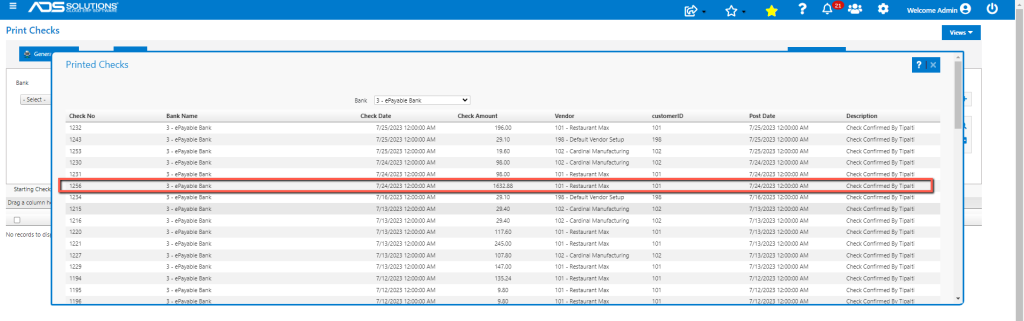
- Once Confirmed, checks show up in Accolent ERP on the List Checks screen with the Type of ePayable Check.
Re-submitting Deferred and Rejected Payments
- In Tipalti, Deferred Payments result from a Vendor not being Payable; Rejected Payments result from incorrect information on the Payee record.
- Both of these are final statuses in Tipalti.
- So, these checks must be deleted and created again, then re-uploaded to Tipalti.
- First go to Tipalti and correct (or ask Payees to correct) the Vendor records.
- Then use the Delete button to delete the checks in Accolent ERP.
- Then recreate Checks and re-upload.
- When uploaded to Tipalti, Checks show status of “Waiting to Approve”.
- Once Approved in Tipalti, checks go to “Submitted” status.
- When Checks are Paid in Tipalti, status goes to “Paid”.
- Check run is now complete and all checks are now paid.
Payer Fees
- When a check run is completed and payments are made, Tipalti generates Payer Fees.
- Payer Fees are triggered daily around 9:30 AM PST.
- Accolent ERP automatically creates a voucher and a check for the Payer Fees using the Tpalti Vendor set up on the Configuration screen.
- For example, Voucher ZZ8722 was automatically created on 8/28/23 for Payer Fees of $50.00.

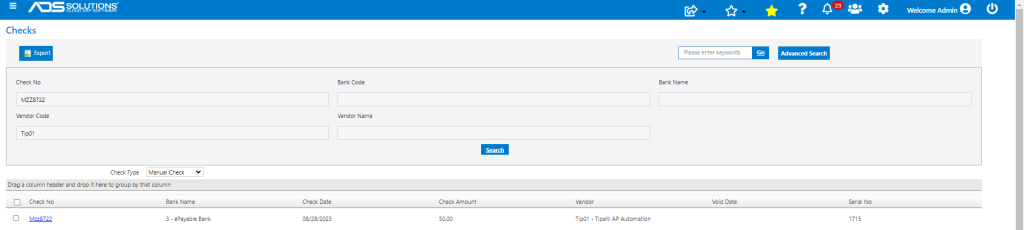
- This is the Check created automatically to pay Voucher ZZ8722.