
Accolent ERP supports automated AP payments through Tipalti, a leading AP Automation platform. To use the Tipalti AP Automation, your Vendors must be set up in Tipalti. To accomplish this, all Vendors can initially be exported from Accolent ERP and Uploaded to Tipalti in a “Not Payable” status. Vendors will then be contacted and asked to login to Tipalti to set their payment methods and other payment information. This will make the Vendors “Payable” and able to be paid through Tipalti. New Vendors can be pushed to Tipalti directly from Accolent ERP via an API.
Onboarding Vendors
- To use the Tipalti AP Automation integration, Vendors have to be set up in Tipalti.
- Accolent ERP Vendors can be initially set up in Tipalti with the status “Not Payable”.
- An onboarding invitation email can then be generated from Tipalti on behalf of the Accolent ERP user, with instructions on how Vendors should log into Tipalti and provide payment and tax form details.
- Once a Vendor completes that process, the Vendor will have the status “Payable” in Tipalti and can receive payments.
Initial Loading of Accolent ERP Vendors
- Initially, Vendors already in Accolent ERP can be exported to a CSV file from Accolent ERP and uploaded to Tipalti.
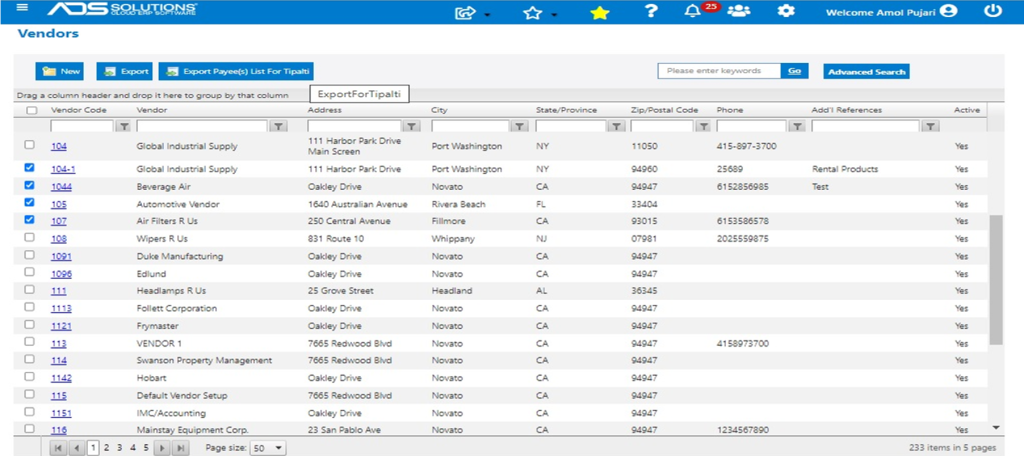
- In Accolent ERP, go to Purchasing/Vendors > List Vendors, select Vendors to export to Tipalti, then click on the button Export Payee(s) List for Tipalti to download as a CSV file.
- Go to Tipalti Dashboard > Integrations > File Imports and import the CSV file.
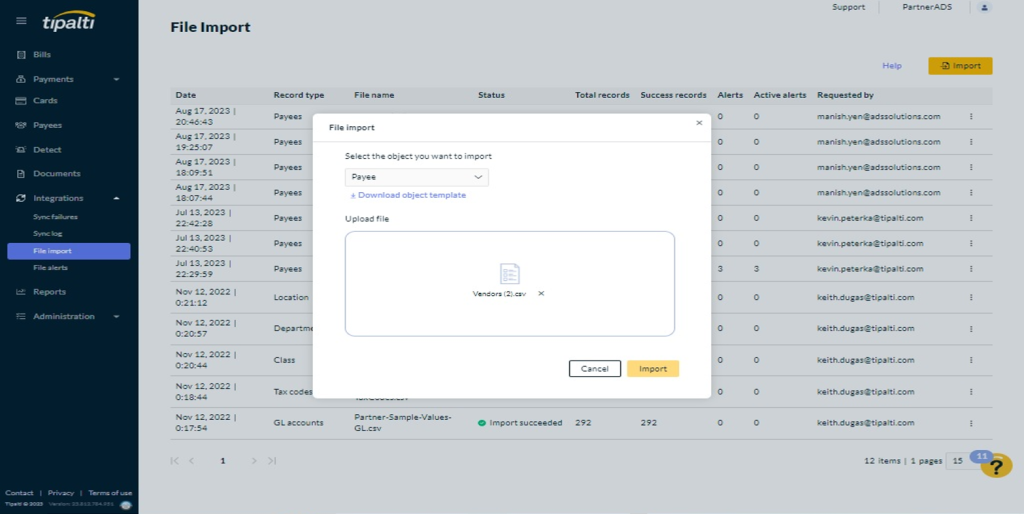
- Status indicator should show that import succeeded.

- Once completed, Tipalti will send an email, on your behalf, to Vendors asking them to set up their preferred payment methods and payment information in Tipalti.
- Vendors will go to the Tipalti Dashboard and login to set up their payment methods.
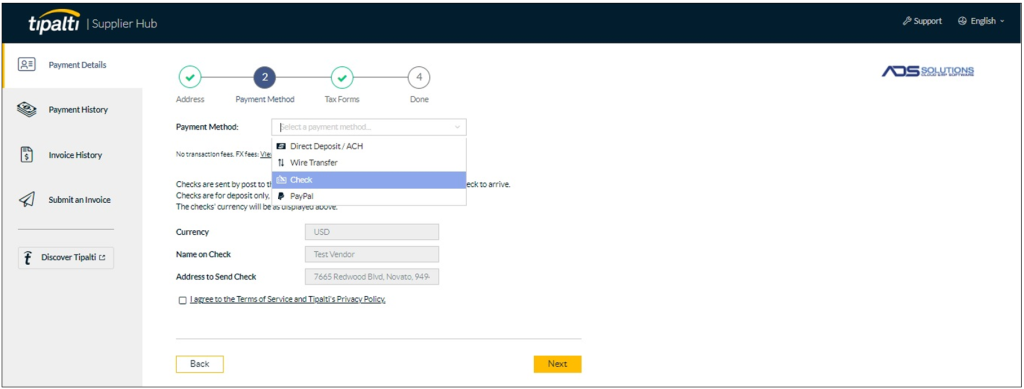
- Vendors will also need to set up their tax forms.
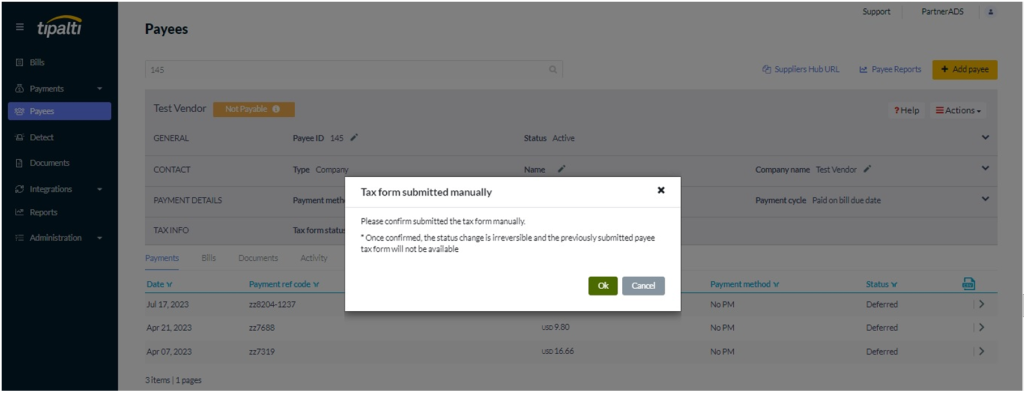
- When set up is completed, Vendors will be “Payable”.
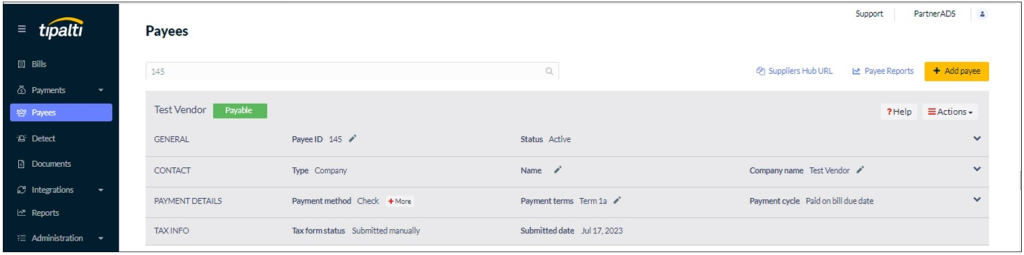
Adding New Vendors
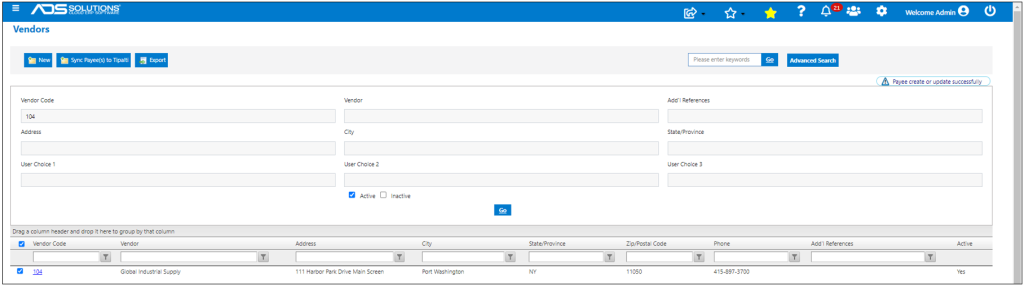
- To add Vendor(s) in Accolent ERP to Tipalti, go to List Vendors screen, click checkbox to select new Vendor(s) then click on the Sync Payee(s) to Tipalti button.
- There will be a message “Payee created or updated successfully”.
- All Vendors are created initially in Tipalti in a “Not Payable” status.
- Vendors have to login to Tipalti to enter their Payment information and tax forms to become “Payable”.