
Accolent ERP allows users to take trade-ins of used equipment against sales of new equipment. The used equipment taken as a trade-in will be maintained in inventory and should be identified using some easily recognizable Product Code. For example, the Product Code could consist of a prefix for “Used” then the “Model No” of the item then some suffix to group by “Condition.” E.g., UU-IP4802-A could mean product code IP4802 that has been used and is in good condition. Typically, the trade-in product will be created on the fly and added to the order as a negative quantity. After completion of the order the trade-in product will need to be inspected and the product record edited as necessary.
Set Configuration
- Go to Settings > System > System Configuration.
- Set Config ID 271 to “Y” to allow Trade-Ins.

Create Order
- Create order 77659 for Customer 011.
- Add Qty 1 EA of Product B74548 for $1,080.00.
- Add Product-on-the-Fly for trade-in of old pump UU-IP4802-A (i.e., Used pump model IP4802 in good condition).
- Set Trade-In Price of $300, with Standard Cost of $300.
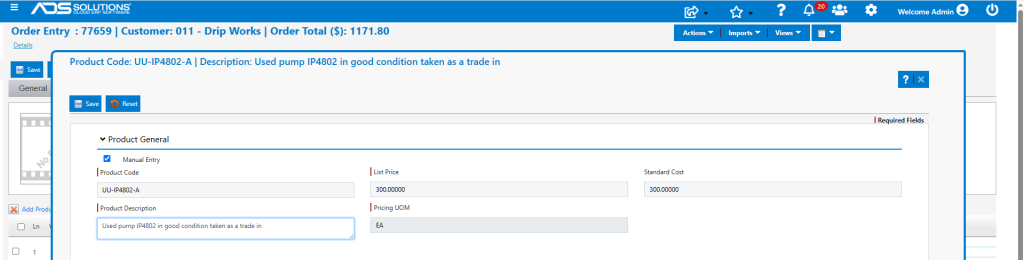
- Take Trade-in Qty of -1 EA of UU-IP4802-A for $300.
- Applies the Customer Discount set up of 1% which, in this case, wouldn’t apply.
- Adjust the order price to $300 (i.e., remove the customer discount).
- For the Low Price Warning, accept the order entry price.
- Uncheck the Special Order flag and then Save.
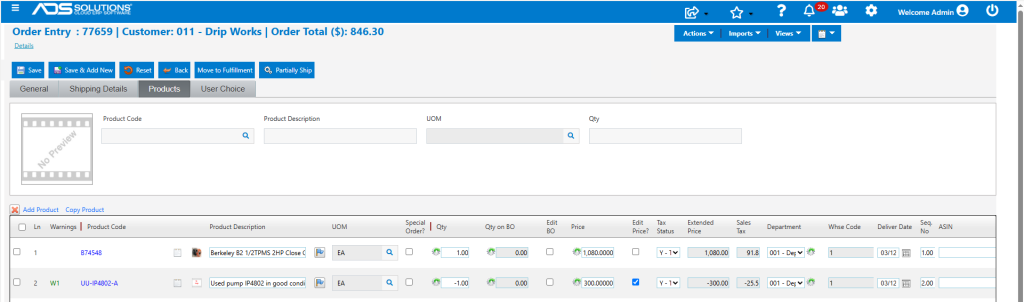
- The order pricing now reflects a credit for the trade-in product.

- Then move to fulfillment and invoice.

General Ledger Posting
- Look up the GL Posting of the transaction.
- The price of $780 reflects a price of $1,080.00 for B74548 less a $300 credit for the trade-in UU-IP4802-A.
- The cost of $425.00 reflects a cost of $725.00 for B74548 less a cost for the trade-in of $300.
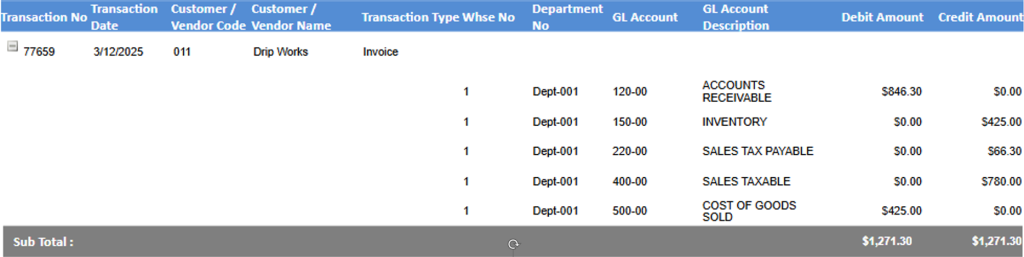
Inventory Changes Recorded
- Look up the Average Cost table for B74548.

- Look up the Average Cost table for UU-IP4802-A.

New Trade-In Product Made Automatically
- The new trade-in product UU-IP4802-A was made automatically using the Default product settings.
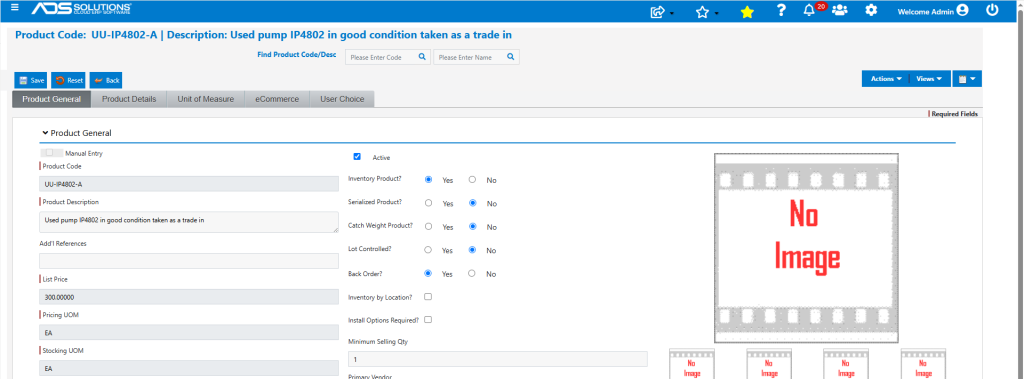
- After completion of the trade-in, the product can be further inspected, modified and updated as desired.
- The selling price, serialized product, group, category, sub-category, etc., should all be edited, if required.