
Accolent ERP includes Shortcuts and Favorites which are links that can substantially speed up navigation within the system to different menu options. The Shortcuts and Favorites options are accessed from a header toolbar that is available from all screens throughout the application.
Header Toolbar
- On all screens throughout the application, a header toolbar is available on the top right-hand side of the screen.

- The options in the Header toolbar include:
- Shortcuts
- My Favorites
- Favorites Star icon
- Help
- Profile
- Settings
- About
- Logout
Shortcuts
- Accolent ERP comes with a set of pre-made Shortcuts that a user can select from.
- Shortcuts are pre-defined links to various commonly used menu options within the system.
- Choose from the Unassigned Shortcuts available and Assign.
- Then click Save.
- Once assigned, Shortcuts will be added to the Shortcuts dropdown in the header toolbar.
- On any screen, access the dropdown list of Shortcuts to directly navigate to the Shortcuts link or open it in another browser tab.
- For example, from the List Orders screen select the header toolbar dropdown Shortcuts list.
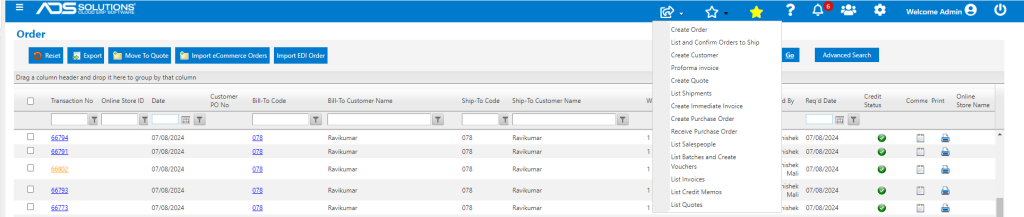
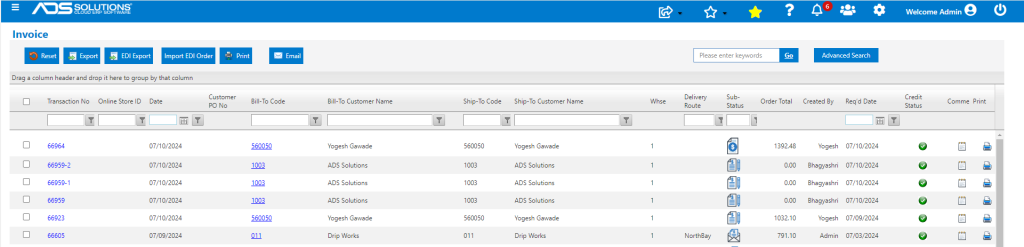
- Click on any Shortcut, (e.g., List Invoices) to go directly to this screen.
My Favorites
- Favorites are similar to Shortcuts except that these are links that users can create for themselves.
- To designate any screen as a Favorite, while on that screen click on the yellow Star in the Header toolbar.
- The link to that page will be added to the user’s My Favorites dropdown list in the header toolbar.
- For example, go to Receivables > Payment Receipts > List Payment Receipts and click on the yellow Star in the Header bar.
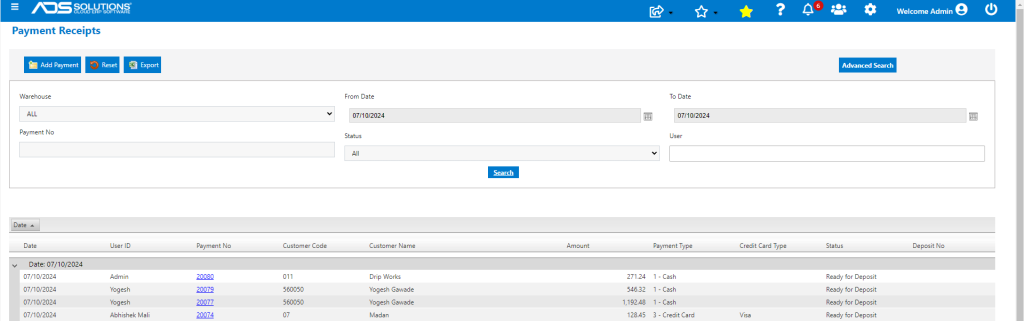
- The List Payment Receipts link will now appear in the My Favorites dropdown list in the header toolbar.
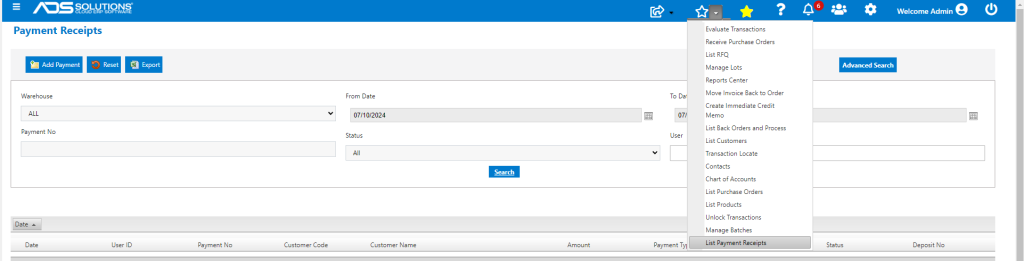
- The List Payment Receipts screen can now be launched from anywhere in the application directly from the My Favorites toolbar.
Help
- The Help button in the Header toolbar launches the Accolent Help wiki.
- Type in any natural language keywords to search the extensive library of how-to wikis.
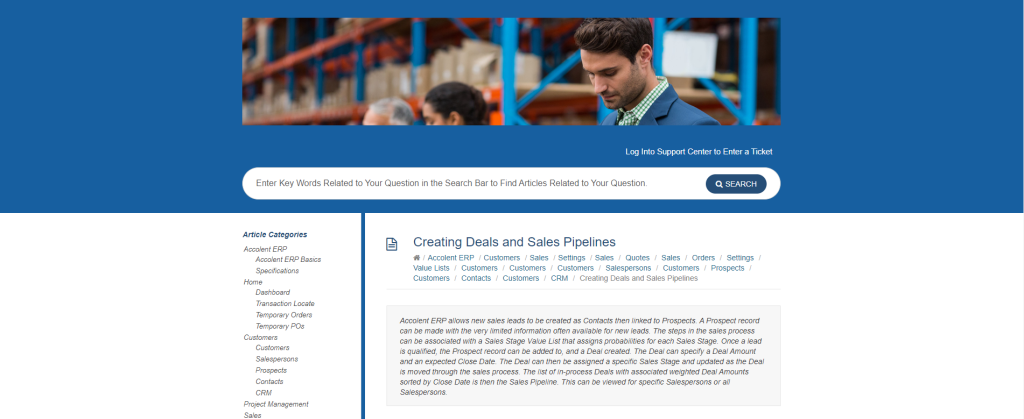
Notifications
- The notifications icon shows if there are “unread” notifications.
- To turn off the unread counter, any user with All Rights permissions can mark the notifications as “read” and they will not appear.
Profile
- The profile button in the Header toolbar allows the user to view or change user specifications.
- From the Profile menu, user can set or change:
- User’s password,
- User’s default warehouse, and
- User’s printer group.

Settings
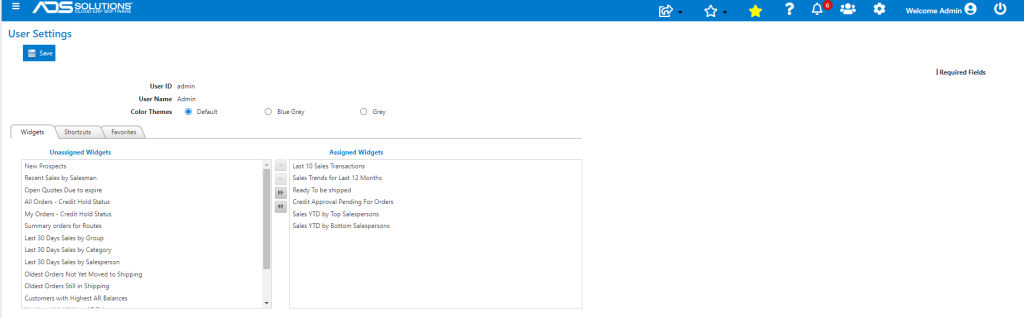
- Users have the ability to customize the appearance and organization of their screens.
- From the Settings menu user can manage Widgets, Shortcuts, Favorites and Recent Items.
- Set Color Themes to define page colors and styles throughout Accolent ERP.
- Select Widgets that will display on the user’s Home page.
- Select from existing Shortcuts.
- Select Favorites that link to user-defined favorite screens and transactions.
- See Recent Items that are recently accessed types of transactions.
Logout
- Use the logout button to exit the application
- It is always more secure and recommended that users use the Logout button to exit rather than simply closing the browser button