Salespersons need to be Accolent ERP Users in order to be able to see customer records, create quotes and orders, to be able to access customer-pricing and to view sales reports. So, in almost all cases, Salespersons will also be Users. Typically, User records are created first then Users can be designated as Salespersons from the User screen. If the Salesperson record already exists, the link to the User can be made directly. If the Salesperson record doesn’t yet exist, the system can create the Salesperson and Contact records with the same Full Name and Email Address as on the User record, and link both the Salesperson and Contact to the User. Once this is done, immediate invoices and POS transactions entered by the User will default the Salesperson linked to the User.
Salesperson is also an Accolent User or Not
- In almost all cases Salespersons will also be Users with access to customers, pricing, orders, and reports records in Accolent ERP and will also be able to send/receive emails directly from Accolent ERP using the email integration.
- Conceivably there may be cases where a Salesperson works only in a third-party CRM system that is linked to Accolent ERP. If, in this case, the Salesperson is not an Accolent ERP User the Salesperson will not be able to access the Accolent ERP system, and will not be able to:
- Access any customer records,
- Create quotes or orders or invoices,
- Access any Sales reports, or
- Send emails from Accolent ERP.
Salesperson Set Up as a User
- Typically, where Salespersons are also Users, the User records will be set up first.
- Then the Salesperson and Contact records can be created from the User screen and linked directly to the User.
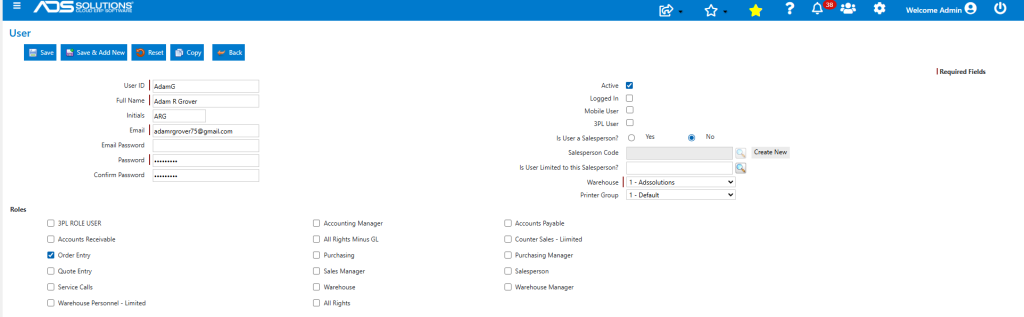
Create User
- Create new User AdamG, with Full Name Adam R Grover, and email address adamrgrover75@gmail.com.
- The new User is also a Salesperson which can be created directly but, for this example, leave the “Is User a Salesperson?” setting as No.
- Save the new User, which was created successfully.
Designate User as a Salesperson
- From the List Users screen, open the User and change the “Is User a Salesperson?” setting to Yes, to mark as a Salesperson.
- The Salesperson Code field and the Create New button are now available.
- Enter Salesperson Code 110 to link to an existing salesperson. This linkage to an existing Salesperson will be accepted only if the Salesperson and User records have the same Full Name and Email Addresses.
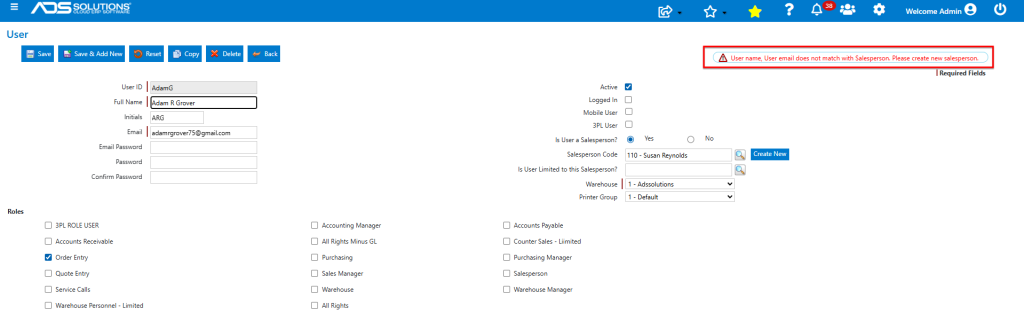
- The validation blocks the linkage of User AdamG to Salesperson Code 110.
Create Salesperson from User Screen
- Remove Salesperson Code 110 and click the Create New to button open up a pop-up to create a Salesperson.
- On the pop-up, the Salesperson Code 131 is auto assigned, and Salesperson Name and Email Address are populated from the User record.
- Enter the Salesperson’s address and then click Update.
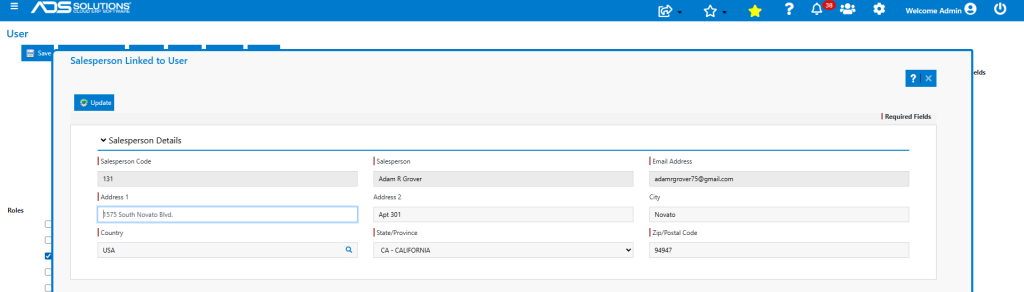
- This creates the Salesperson and Contact records, closes the pop-up and returns to the User screen which can then be Saved.
- Salesperson 131 was created and linked to User AdamG.
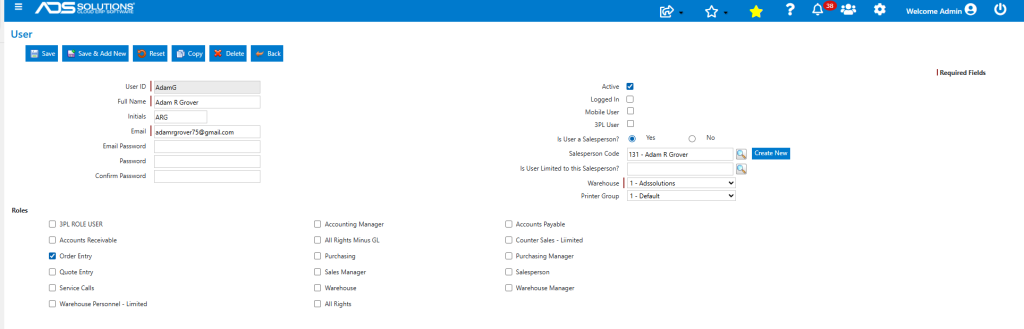
Salesperson Created
- Open Salesperson Code 131, which correctly reflects User details: Name, Address, and Contact with email address.
- Note that most CRM systems manage salesperson communications with customers and prospects by email. With the Salesperson’s actual email address and password set on the User screen, and Config ID 257 set to “Yes”, the Salesperson can send emails from his/her own email address.
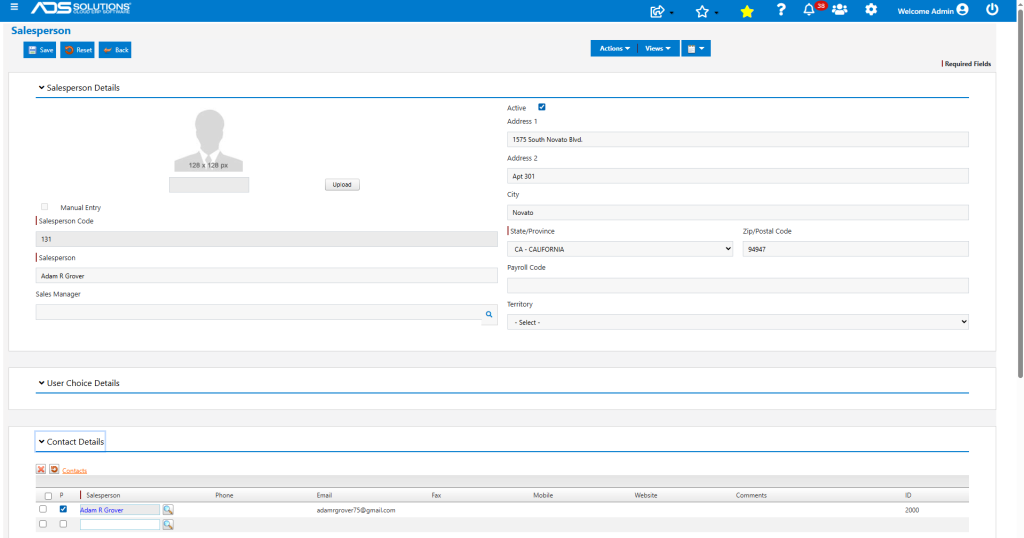
Salesperson Record Linked to Contact
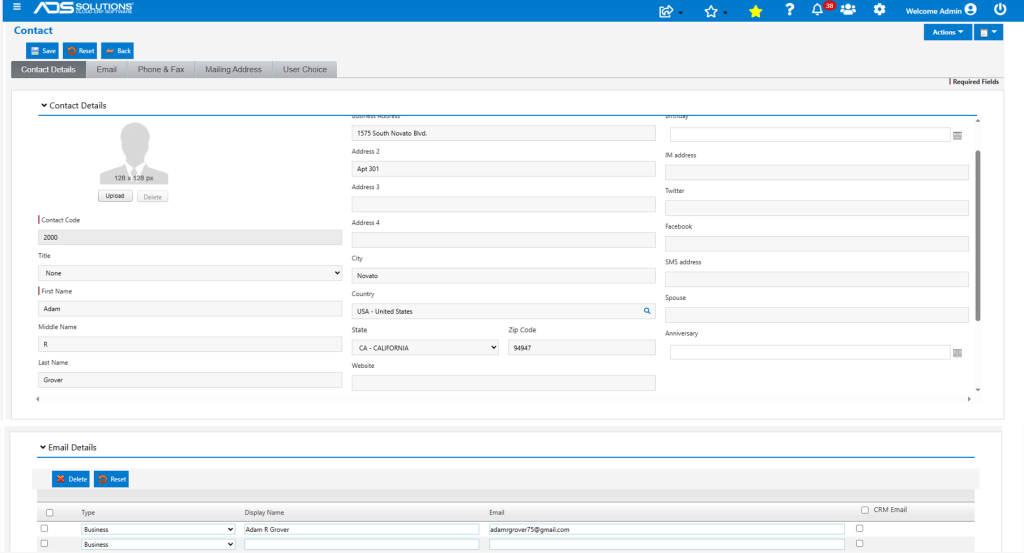
- Once a Salesperson record is set up, all the personal details and contact information for the Salesperson may be entered as a Contact and linked to the Salesperson record.
- Adam R Grover has Contact Code 2000.
Salesperson Commissions – Orders
- In the typical distributor model, the Salesperson would then be assigned to specific Customers and Prospects.
- All quotes or orders require a salesperson to be specified, and the assigned Salesperson will automatically populate on all sales made to these Customers and Prospects; this cannot be changed except by an All Rights User.
- The result is that the assigned Salesperson (and no other salespersons) will receive commissions on sales to these Customers or Prospects.
Salesperson Commissions – Immediate Invoices or POS
- On Immediate Invoices and POS transactions, the User taking the sale typically gets the commission credit for the transaction.
- If the User is a Salesperson, the User-linked Salesperson will default in on Immediate Invoices and POS transactions taken by that User but these may be changed.
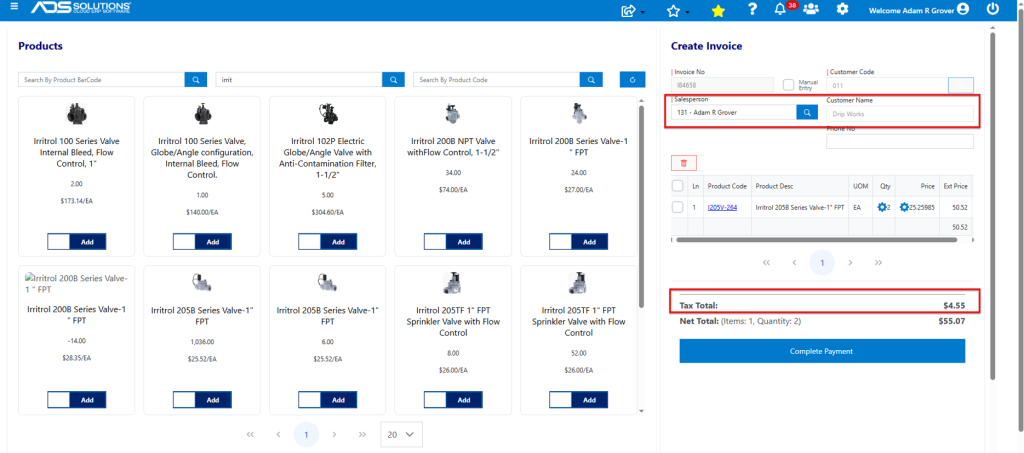
- Login as User AdamG and create Immediate Invoice for customer 011.
- The transaction defaults Warehouse 1 which is the warehouse associated with User AdamG, the Tax Jurisdiction and Delivery Address of Warehouse 1 and Salesperson 131, which is linked to User AdamG.
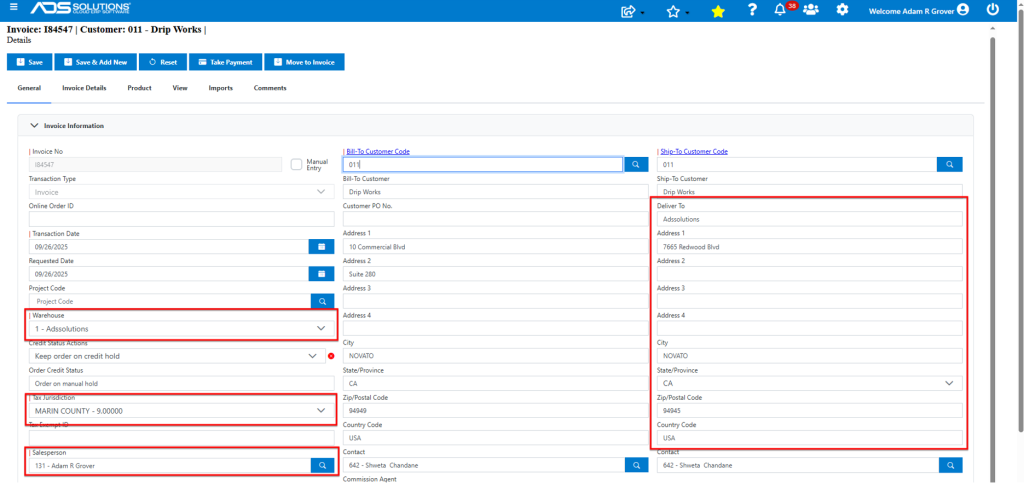
- Similarly, while logged in as User AdamG, create a POS transaction.
- As for the Immediate Invoice the Warehouse, the Tax Jurisdiction of the Warehouse and Salesperson 131 default in here too.