
Accolent ERP is integrated with PrintNode, a third-party, enterprise-grade, Cloud Printing solution. We strongly recommend you use PrintNode to manage printing from Accolent ERP, which runs in the AWS Public Cloud, to your on-premises printers. At one time we also supported Google Cloud Print, but Google has since dropped support for Google Cloud Print.
These wikis, detail the process of setting up your printers in Accolent ERP:
- Setting up Accolent Cloud Printing
- Adding Printers to Accolent ERP
- Setting Printer Groups and Assigning Forms
Download the PrintNode Client
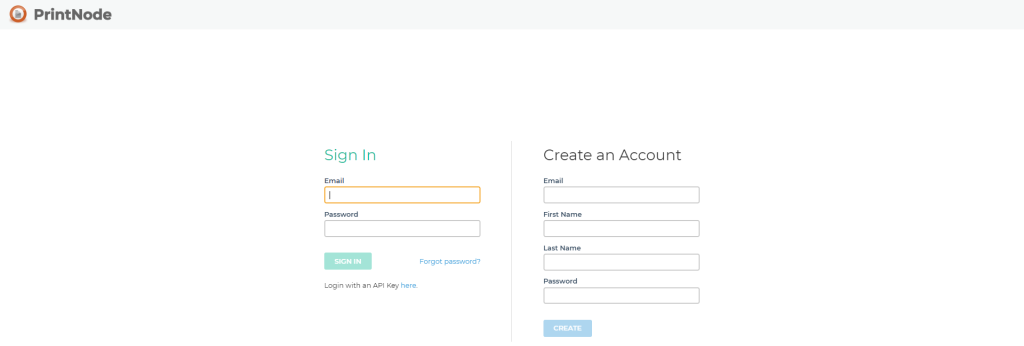
- Go to https://app.printnode.com to download the PrintNode client onto the machine you wish to install the printers from.
- Both the printer and this machine will have to be turned on and this machine will have to be accessible over the Internet in order to print to it from the Cloud.
- Sign in to PrintNode with the username and password we will provide to you.
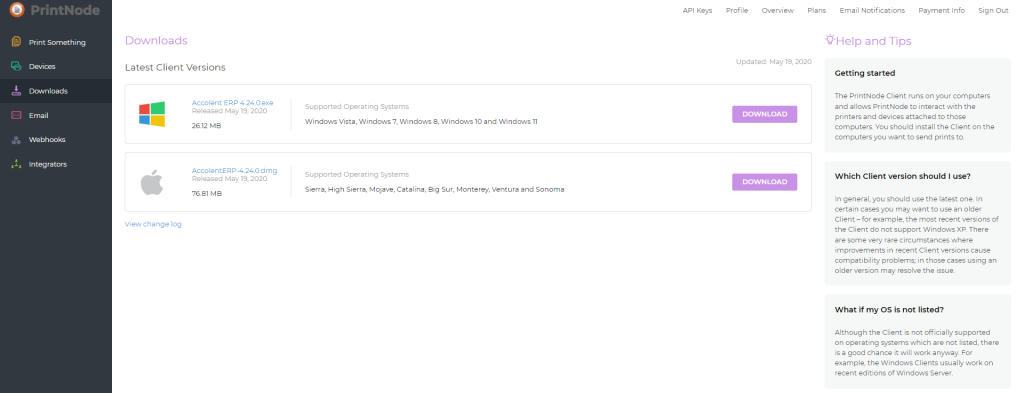
- Click on Downloads and download the version for the operating system running on that machine.
- Accept the License and create a desktop shortcut, then click Next to download and install the client.
Printer Setup Complete
- You will now need to log in again,
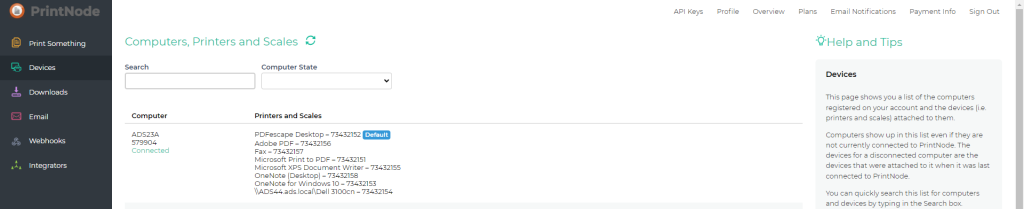
- Now click on Devices and you should see the computer you just installed the client on and the attached printer(s).
Verify and Print a Test Page
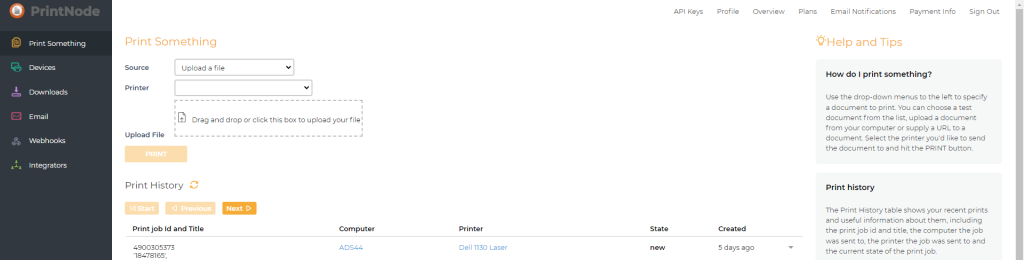
- Test the setup by clicking on Print Something and either upload a test file or print the Test Page.
- Then click Print.
- Once the test page prints correctly, then configure the printing in Accolent ERP.
Configure Printing in Accolent ERP
- Go to API Keys at top right of the screen, login and create the API Key.

- Copy the API Key.
- Then open Accolent ERP and go to Settings > System Configuration > Config ID 117 and paste in the API Key and Save.

Add Printer in Accolent ERP
- Then go to Settings > Printing & Sending > Printer Master List and add New.
- Enter the Printer just set up with a type PrintNode Printers.
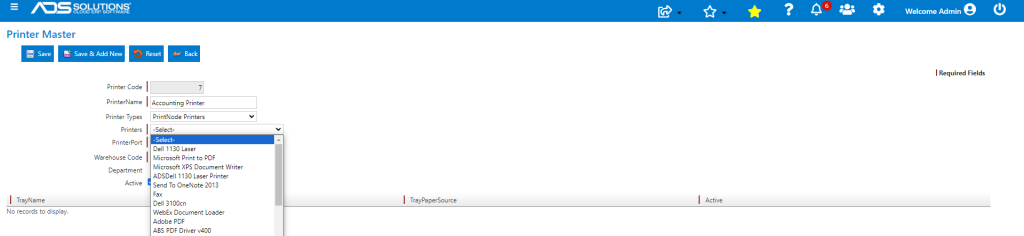
- Enter Warehouse and Department then Save.
- Assign Printer to the Printer Group.
- Printer is now set up and you should be able to select a document and print.
- Then assign the forms to printers as appropriate.
- See also these wikis: Adding Printers to Accolent ERP and Setting Printer Groups and Assigning Forms