Accolent ERP allows transaction forms to be sent by email to the addressees set up in the Email/Fax Defaults for each form. The transmittal emails can use either standard email templates or be created as free-hand emails. Standard email templates can be created for each form type using the system variables shown under the lookup icon for each form type. Most list screens also allow users to add to/modify the standard email templates to create free-hand emails using an HTML editor. Both the standard email template and free-hand emails automatically add the form as an attachment to the transmittal email.
Using Email Templates
- Go to settings > Printing & Sending > Email Templates.
- There are several standard email templates that may be sent to customers with the appropriate transaction forms as attachments.
- Each of these standard email templates can be set up with variables that will be taken from the transaction forms directly.
- Users can select whether to print, email or fax and set this up as default behavior.
- Printers and email/fax addressees can also be set up as defaults.
- Once set up, printing/sending will then be handled manually or automatically by the system based on the defaults.
Standard Invoice Email Template
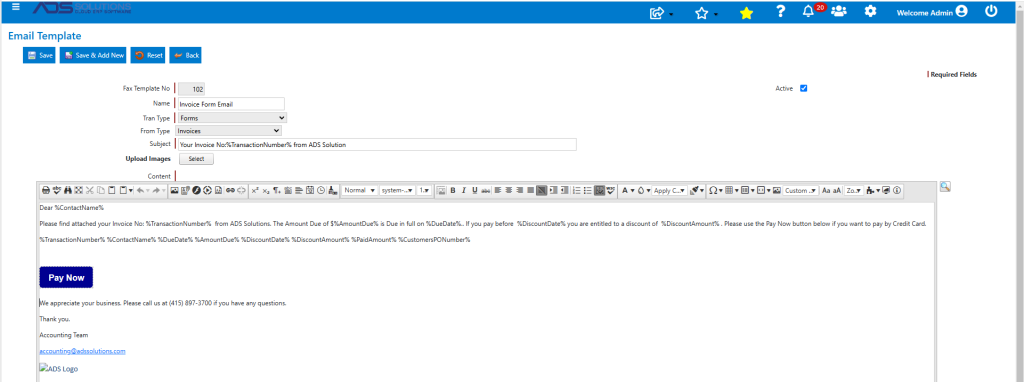
- Set up the standard email template for invoices.
- Use the HTML editor in design mode, to type in the content of the standard email template.
- Use the list of variables, accessed by the lookup icon on the top RHS, to customize the email.
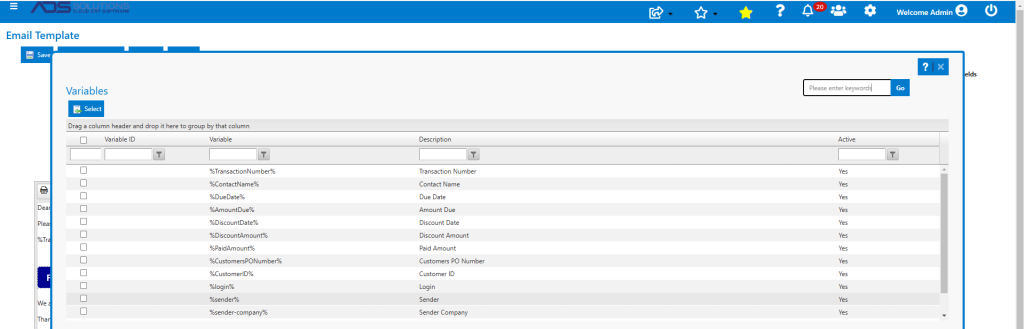
- When sent, the standard email template will replace the variables in body of transmittal email with the actual values.
- If desired, include a Pay Now button that will allow customers to automatically pay invoices by Credit Card or eCheck.
- The Pay Now button automatically calls the Fiserv hosted payment page (HPP) that will record the payment, the payer, the invoice, etc., and update all details to Accolent ERP through a webhook.
Send Email using Standard Template
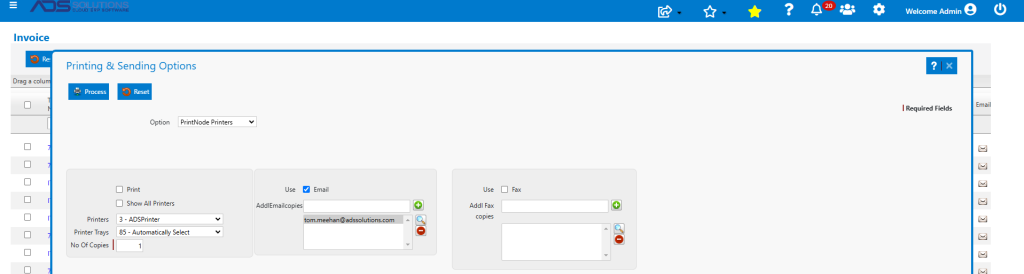
- To send a transmittal email with an invoice (e.g., Invoice 73870) as an attachment, go to the List Invoices screen, find the invoice in the grid then click on the Print icon (on the RHS) for that row.
- This will open the Printing & Sending Options screen.
- From this screen the form can be printed to the default printer or emailed or faxed to the default addressees using the standard email template.
- When this option is used, no further customization of the standard email template is allowed.
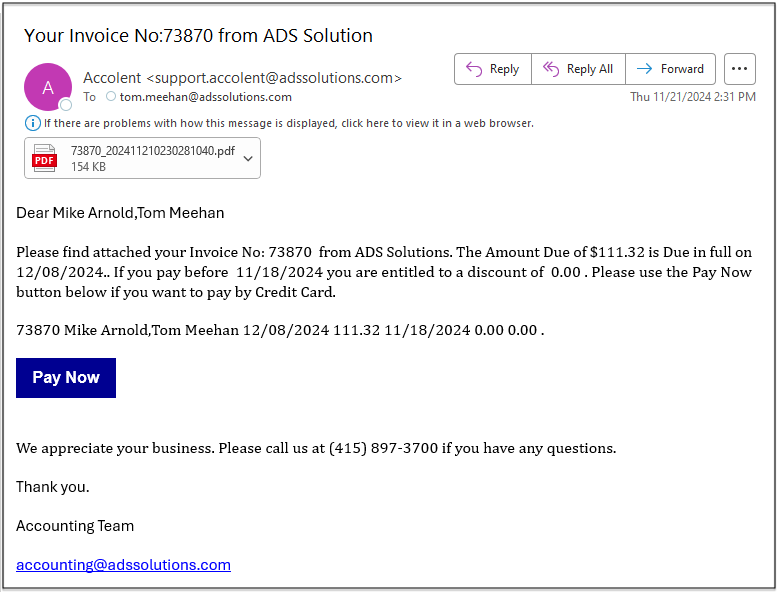
- The email template will replace the variables with actual values. So, for Invoice 73870, the email will have: Due Date of 12/8/24, Invoice Amount of $111.32, Discount Date of 11/18/24 (which has passed), so Discount Amount of $0.00.
- When emailed, this is the edited free-hand email that gets sent out.
Send Email using Free-Hand Template
- To send a free-hand transmittal email with Invoice 73870 as an attachment, go to the List Invoices screen, find the invoice in the grid then click on the Email (envelope) icon (on the RHS) for that row.
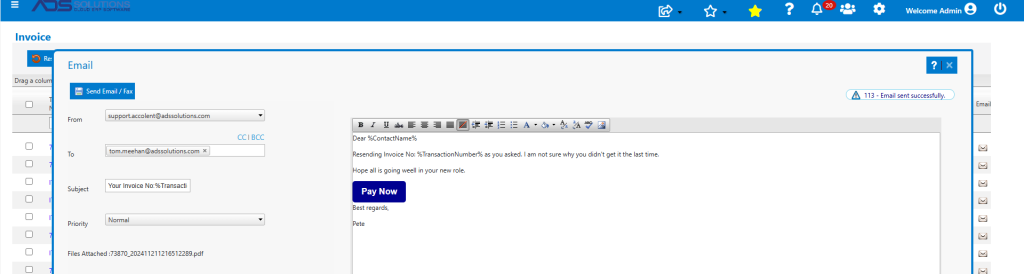
- This will open the Email screen with an HTML editor.
- From this screen the form can only be emailed (or sent to fax-by-email) using a customizable email template.
- When this option is used, the standard email template can be added to/modified using an HTML editor.
- This is the edited email template, which will be used for this email only, it will not be saved.
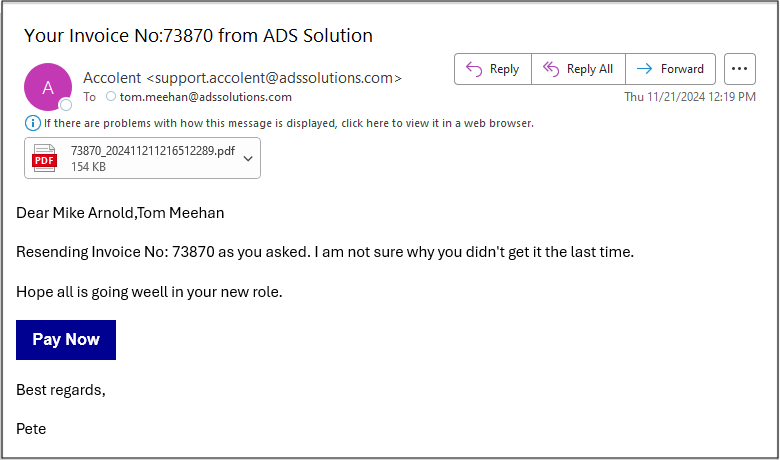
- This is the transmittal email that is sent.
Other Standard Email Templates
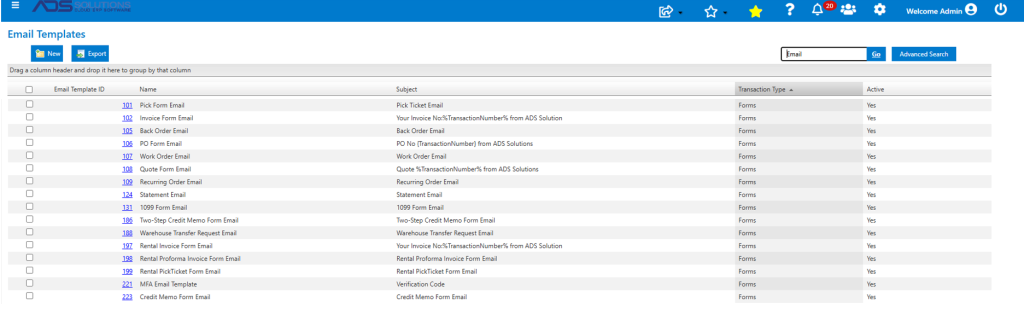
- Standard email templates can be set up for many types of forms.
- The setup of all these forms transmittal email templates works the same way and has the same system variables.
- All transmittal emails for customer-facing forms can be sent using the Print icon which brings up a Print/Email/Fax screen. Some, but not all, of these can also be sent as customizable free-hand emails.
Other Print and Email Options
- For many of the sales-related and purchasing-related forms there are Auto Email and Auto Print capabilities.
- These Auto Print and Auto Email options will only allow the use of the standard email templates.
- Also, all sales and purchasing transactions allow for printing or emailing from within a specific transaction.
Recent Interactions
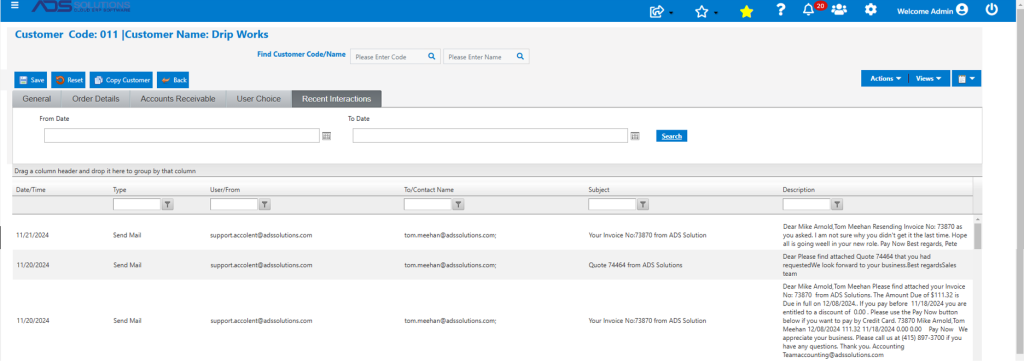
- All form transmittal emails get logged to the Recent Interactions tab.
- The Recent Interactions tab captures all emails sent to customers, prospects and vendors.