
Accolent ERP provides a number of User Choice fields on the master, sub-master and transactions records. These fields can be utilized to store in the database, as text formatted strings, any data the user wishes to track. In addition, specifically for the Customer, Vendor and Product records, the labels of these User Choice fields can be renamed by the user, and the Advanced Search can filter on User Choice 1, 2 and 3 fields within these masters.
Find Customer User Choice Fields in Dynamic Lookup
- Go to Settings > Value Lists > Other Value Lists (A-L) > Dynamic Look up.
- Enter Customer User Choice in search to see all Lookup fields for Customer User Choice fields.

Rename Customer User Choice Fields
- Click on the Lookup ID for any Customer User Choice field.
- Change the Lookup Description as desired. For example, rename “User Choice 1” as “501(c)(3) Organizations.”
- Then Save.

- User Choice field 1 will now have the label “501(c)(3) Organizations” that was entered as the Lookup Description.
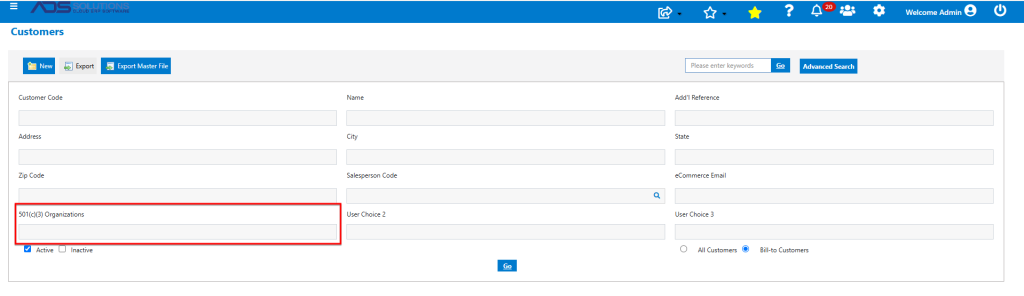
- Go to Customers > List Customers to bring up the Advanced Search.
- The User Choice 1 filter now shows “501(c)(3) Organizations,” the renamed label.
Filter Customer Records
- The renamed fields can be used to store the desired data.
- For example, search in the 501(c)(3) Organization (renamed User Choice 1) field for “Public Charity.”
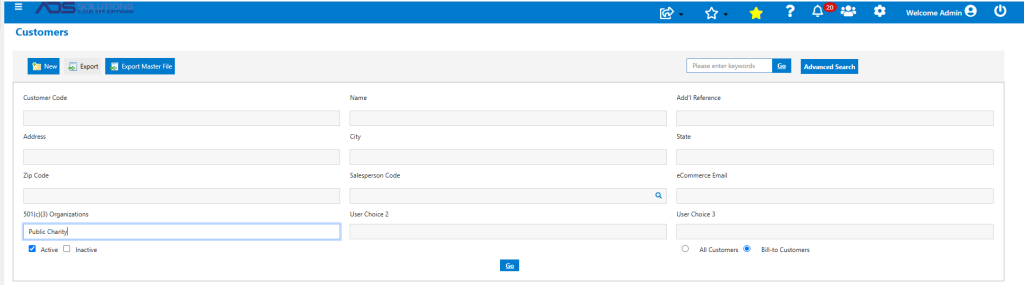
- The search will return all Customer records with this data in the 501(c)(3) field.
- In this case, the search finds Customer 20225-1 New Life Baptist Church.
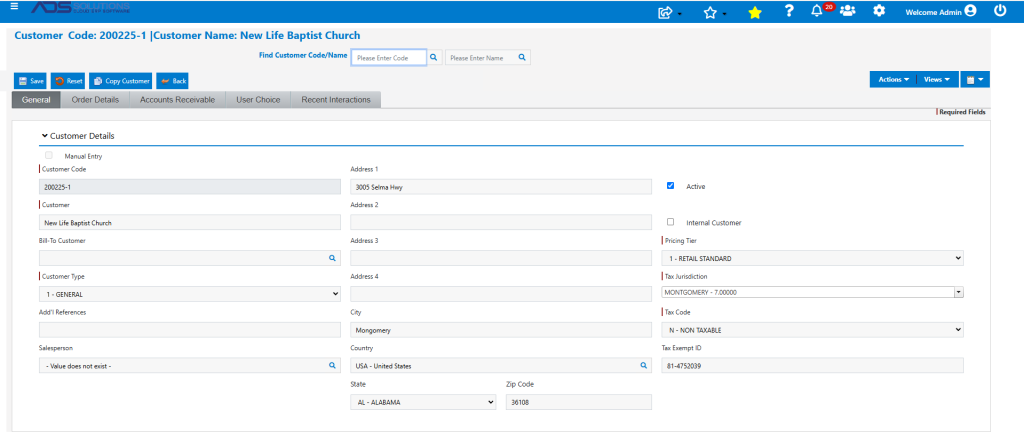
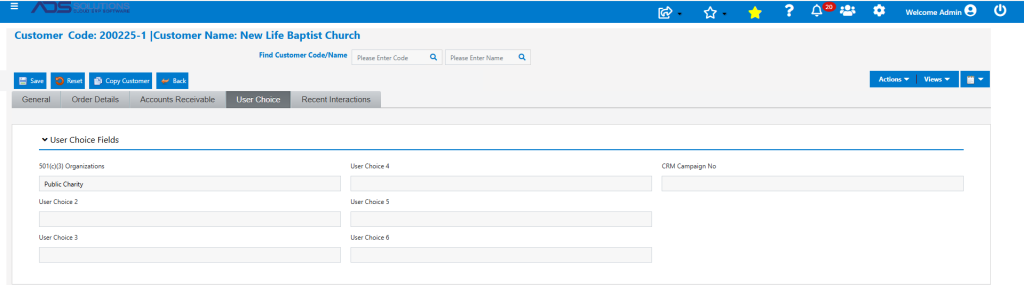
- New Life Baptist Church has the value “Public Charity” stored in User Choice 1.
Vendor & Product Master Records
- User Choice Fields on the Vendor and Product master records can be renamed and filtered just as with Customer records.
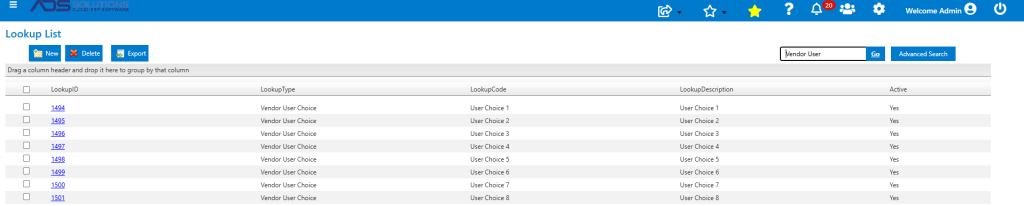
- Go to Value Lists for Vendor User Choice and rename fields.
- Similarly, go to Value Lists for Product User Choice and rename fields as desired.
