Accolent ERP allows Purchase Orders (POs) to be received in full or partially. When the goods on a PO are received, the Receive PO screen allows each line on the PO to be marked to record the Quantity Received, the Quantity Open that remains and the Quantity Canceled. If lines on the PO are canceled partially or completely, the Vendor must be separately notified of any such cancelations. Upon PO Receipt the system updates inventory and product Ledger cards and posts the transaction to the General Ledger.
Receiving a PO
- To receive a PO, go to Purchasing/Vendors > Purchase Orders > Receive Purchase Order, select the PO No to be received.
- PO Receiving records by PO line which goods were received, are still open or which were canceled.

Using the Qty Fields
- To record the receipt of a PO line item, enter values into the Qty Rec’d, Qty Open and Qty Cancel fields as needed.
- Start from Qty Rec’d and proceed to Qty Open then to Qty Cancel.
- Enter a value in Qty Rec’d; the Qty Open field will then automatically complete based on the entry in Qty Rec’d.
- Enter a value in Qty Open and the Qty Cancel field will automatically complete based on the entry in Qty Open.
- The Status will also change to reflect the new status of the line.
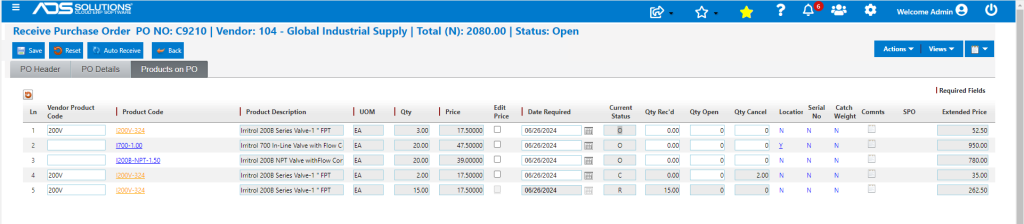
- For example, for line 1, 15 EA of the 20 EA ordered have been received.
- Enter Qty Rec’d of 15 EA, and a value of 5 EA will display in Qty Open.
- To cancel 2 EA, decrease Qty Open to 3 EA and 2 EA will display in Qty Cancel.

- When done, Save the PO Receiver.
- Reopen the PO and the partially received line 1 will have split into three lines 1, 4 and 5 as follows:
- Line 1 has Status O reflecting Qty Open of 3 EA,
- New Line 4 has Status C reflecting Qty Cancel of 2 EA on the original Line 1, and
- New Line 5 has Status R reflecting Qty Rec’d of 15 EA on the original Line 1.
Examples Using the Qty Fields
Partially Receiving a Line
- To partially receive a line, enter the Qty Rec’d amount, and the remaining amount will automatically appear in the Qty Open field.
Canceling a Line in Full
- To cancel a line in full, enter the quantity ordered in Qty Cancel.
- Note: the PO Vendor ewill have to be separately notified of any cancellations.
Partially Canceling a Line
- Canceling and receiving:
- Enter the quantity received in Qty Rec’d, the remaining amount will automatically appear in Qty Open.
- Reduce the amount in the Qty Open field by the amount to be canceled and the remainder will appear in Qty Cancel.
- Canceling only:
- Either enter the amount open in Qty Open or enter the amount canceled in Qty Cancel.
- If less than the remaining line item amount is entered in Qty Cancel, the remainder will be added to Qty Open.
- Note: the PO Vendor ewill have to be separately notified of any cancellations.
Over-Receiving a Line
- To allow over-receiving POs, go to System Configuration > Application Settings > Purchase Orders > ID 296.
- Config ID 296 allows entry of an over-receiving percentage greater than or equal to 0%. If the entry is 0% this means no over-receiving is allowed. If the entry is a percentage greater than 0% (e.g., 20%), this means that any PO line may be over-received by up to 20%.

- The User will also need the permission to Over-Receive POs. This can be set from Settings > Roles > Settings.
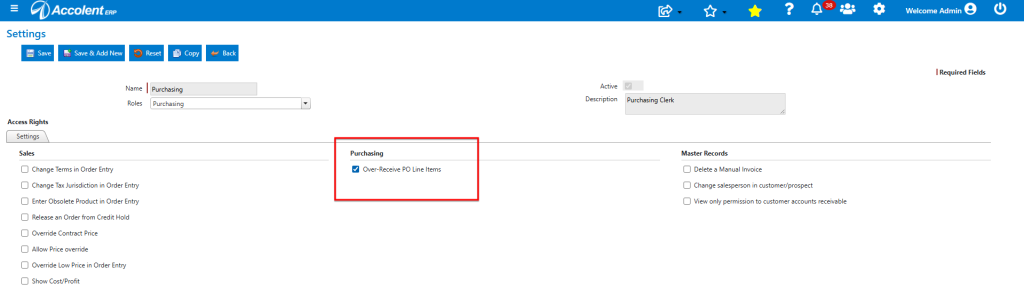
- If Configuration ID 296 is set to 20%, and the user has the permission to Over-Receive, then on a PO Line with Qty of 5 EA, user may enter 6 EA in Qty Rec’d and it will be accepted. A Qty Rec’d entry of 7 EA would be blocked as exceeding the 20% permission.
- You will not be able to enter more than the amount ordered in Qty Open or Qty Cancel.
Opening a Received Line
- To reopen a line, enter a negative quantity in Qty Rec’d; a corresponding positive amount will appear automatically in Qty Open.
- A value cannot directly be entered in Qty Open when the line has already been received.
Over-Receiving a Received Line
- If a quantity of 4 EA of a product was ordered and received but it subsequently becomes clear that 5 EA were actually received, enter a 1 in Qty Rec’d to over-receive the received line.
Auto Receive
- The Auto Receive button will update all line items with a quantity equal to the quantity ordered; these values can be adjusted as needed.
- If most items on order were received, the Auto Receive button is a quick option to mark items as received.
Completing the PO Receipt
- When done Save the PO Receipt.
- This will bring up the Landed Cost screen which allows these costs to be entered.
- Landed Costs will be allocated to the line items on the PO and capitalized into Inventory.
- Save to generate a prompt to print the Merchandise Received form.
- Upon completion of PO Receiving, the system computes the average cost of the products. received, updates the inventory and ledger cards, and posts the transaction to the General Ledger.
- At that point a voucher may then be created to pay the Vendor.
- Special order items on a PO are linked to a sales order, so when the PO is received the linked back order will move to Shipping to be filled.
GL Posting
- When the PO is received, the GL is updated to record the Qty Rec’d of 15 EA.

Ledger Card
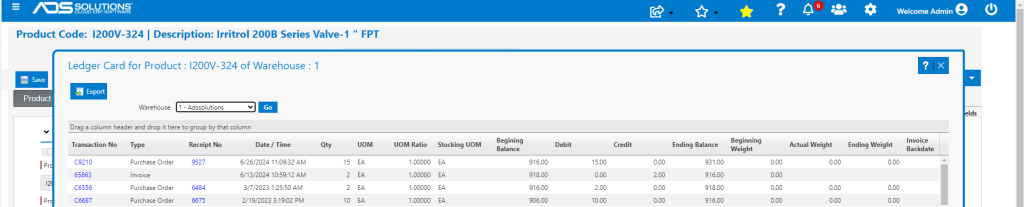
- The product’s ledger card reflects the Qty Rec’d of 15 EA.