
Accolent ERP’s Accounts Receivable (AR) module tracks payment receipts and collections. The system allows users to record payments against Customers’ AR accounts. Customer’s AR shows Invoice amounts due which automatically reflect prior payments made, calculate interest on overdue accounts, calculate any early-payment discounts available, and allow any write-offs desired. Payments received from Customers can be applied against outstanding invoices, credit memos and/or taken as unapplied cash.
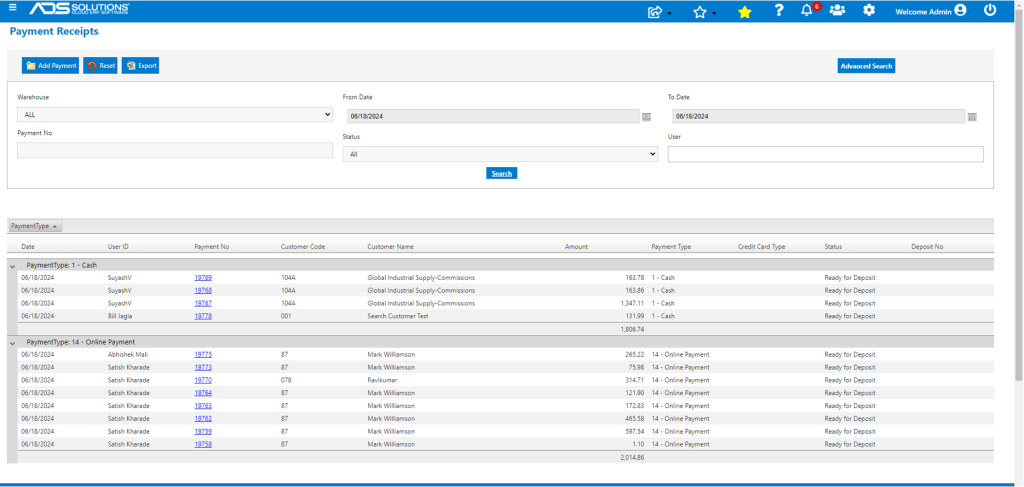
List Payment Receipts
- Go to Receivables > Payment Receipts > List Payment Receipts to see a list of all Payments.
- Click on the hyperlink on any Payment No to see details of that payment.
Enter Payment
- Click on the Add Payment button to enter a payment.
- On the Payment tab, enter Payment No (or allow for auto numbering) and Customer Code.
- Select Payment Type from the dropdown.
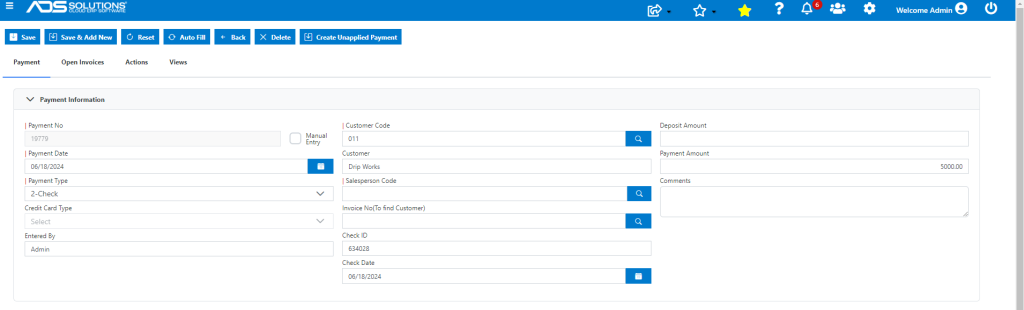
- Enter the Payment amount and the Check No as a reference that can be used later to find the payment details while in the Customer record using the Views tab and the Collections menu.
- If set up, for integrated payments, the system can accept credit cards and ACH payments.
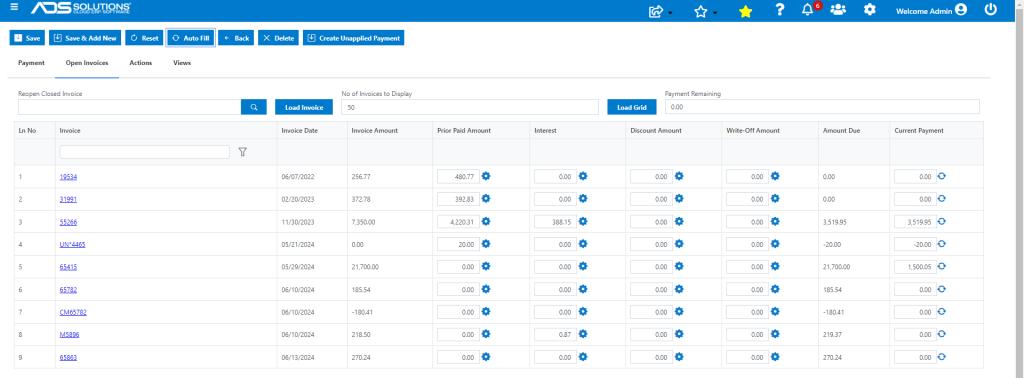
- Click on the Open Invoices tab.
- The screen defaults to display the 50 oldest invoices for this customer to see more records, change the setting; then click on Load Grid.
- This will populate the grid with the oldest open invoices.
Allocating the Payment to Invoices
- Clicking the Auto Fill button in the screen header to automatically distribute the payment amount.
- The allocation of the payment amount will be to the oldest open invoice first.
- Clicking on the
 icon for an Invoice will put the Amount Due for that invoice into the Payment column.
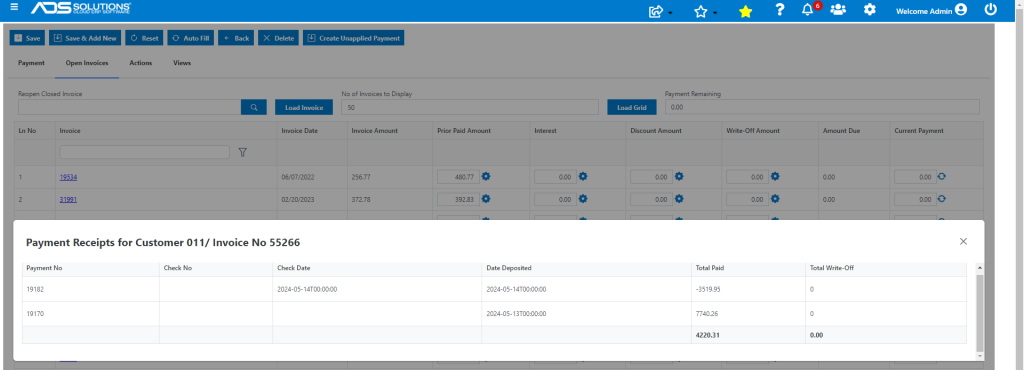
Prior Payment Details
- Clicking on the gear icon in the Prior Paid Amount column will open up the previous payment details.
Charging Interest
- The system can be set up to charge interest, if desired.
- If enabled, interest is re-computed daily to the current date, based on the date of invoice, terms, and prior payments.
- See this wiki: http://help.accolent.net/charging-interest/.
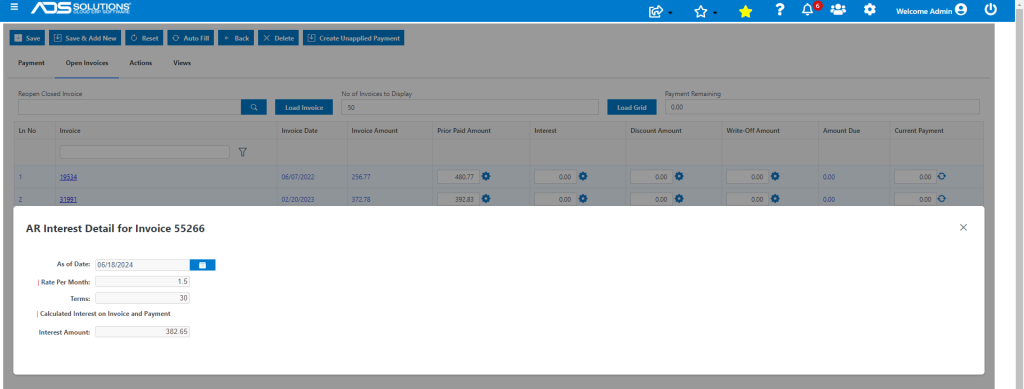
- Clicking on the gear icon in the Interest column will open up the interest charges details.
Giving Payment Discounts
- The Discount column shows the available discount based on the payment terms set up with this customer.
- If a discount is still available, it will reduce the Amount Due.
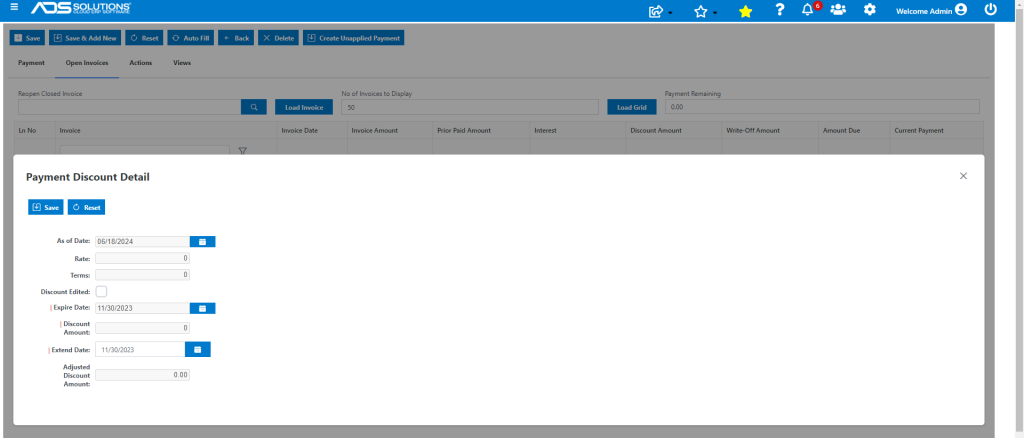
- Clicking on the gear icon next to a discount amount will open up the payment discount detail and enable the expiry date of the discount to be extended, if desired.
- Note: that a payment discount will only be given in connection with payment in full; for example:
- if Invoice Amount is $100, Prior Paid Amount is $0 and a Discount of $2 is available based on Terms, the Amount Due will be $98;
- prior to the Discount expiry, a payment of $80 will show Invoice Amount of $100, Prior Paid Amount of $80, an available Discount of $2 and an Amount Due of $18; and
- after the Discount expires, the record will show an Invoice Amount of $100, Prior Paid Amount of $80, an available Discount of $0 for an Amount Due of $20.
Entering a Write-Off
- Enter a Write-Off amount to be applied to an Invoice if desired.
- NOTE that a Write-Off can only be taken in connection with closing an open invoice.
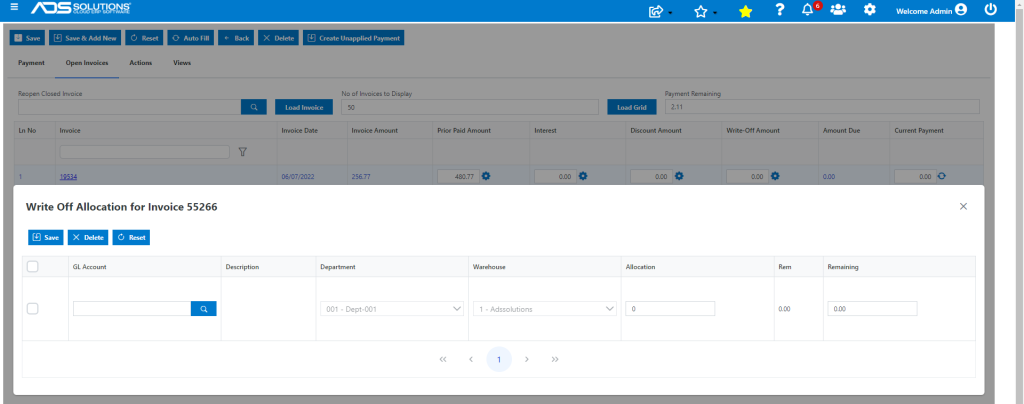
- Clicking on the gear icon next to the Write-Off amount will allow entry of a Write-Off.
- Specify the GL Account for the proposed Write-Off.
Completing the Payment Receipt
- The Payment Remaining field above the grid shows at all times the balance of the payment left to allocate.
- You will not be able to save the Payment Receipt transaction until the full amount of the payment has been allocated.
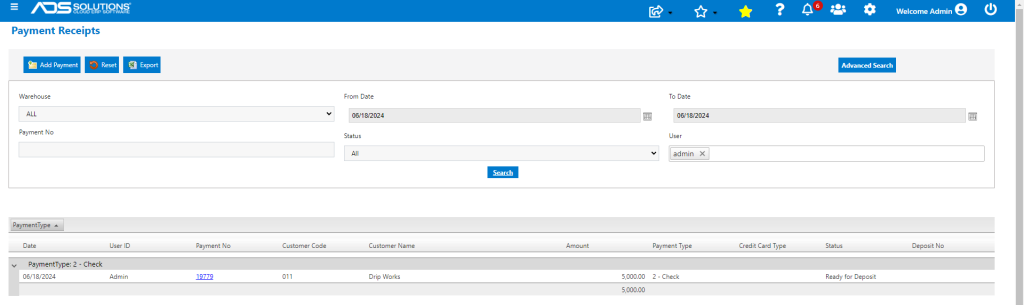
- When done click on the Save button to complete the Payment Receipt transaction; the payment will be automatically posted to the GL and is now Ready for Deposit.
- The system will redirect to the List Payment Receipts screen.
Reversing a Payment Receipt
- After a payment has been saved but not yet deposited, use the Void Payment Receipts functionality to reverse the payment. See wiki: http://help.accolent.net/voiding-ar-payment-receipts/.
- If the payment has been deposited, use the Returned Check functionality to record a bounced check. See wiki: http://help.accolent.net/recording-a-bounced-check/.