The Accolent ERP Self-Service Portal allows Customers’ employees (“End-Users”) to place orders, review the status of their orders, look up their prior transactions, review their Statements and pay invoices. This allows the Accolent user to deliver better service to its Customers with fewer sales and service personnel, increasing efficiency and reducing cost. The Self-Service Portal is a separate website that is linked to Accolent ERP and allows access to only those Customers and their End-Users that have been approved for Self-Service Portal access. Customers will get the same pricing, terms, shipping methods, etc., on the Self-Service Portal as they would get in Accolent ERP. Products in Accolent ERP may be marked for display on the Self-Service Portal and then will then be immediately available on the Self-Service Portal. All the product prices set up for a particular Customer in Accolent ERP will be available to that Customer in the Self-Service Portal.
Selecting Products to Display on the Self Service Portal
- The Self-Service Portal is directly connected to the Accolent ERP database.
- So, to control which products are displayed in the Self-Service Portal, they have to be marked as such in Accolent ERP.
- Products to be displayed in the Self-Service Portal can be selected either as whole Groups, Categories or Sub-Categories or can be individually selected.
Selecting Products by Group, Category and Sub-Category
- To set all the products in a Group for Self-Service Portal display, go to Settings > Value Lists > Product Only Lists > Groups Value List, select the Group and select Web Display as “Yes”.
- When saved, all products in Group IRG will be marked to show on the Self-Service Portal.

- The selection of Web Display for a Group will apply to all products in the Group and will override the settings on any Category(s) in the Group.
- Similarly, the selection of Web Display for a Category will apply to all products in the Category and will override the settings on any Sub-Category(s) in the Category.
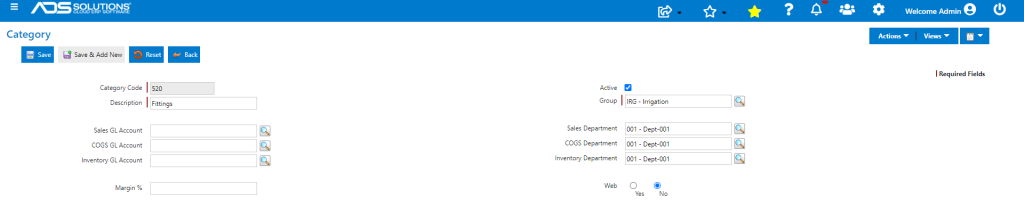
- For example, Product 18JP1000V is in Group IRG, Category 520 and Sub-Category ALL. If Category 520 was previously Saved as Web Display “No”, setting Group IRG as Web Display “Yes” will override the previous setting.
Selecting Products Individually
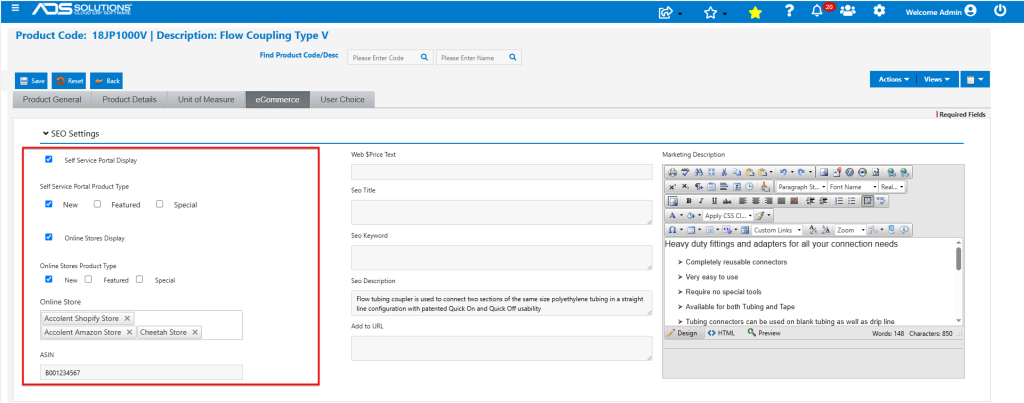
- On the eCommerce tab of the Accolent ERP Product master mark products for Self-Service Portal display.
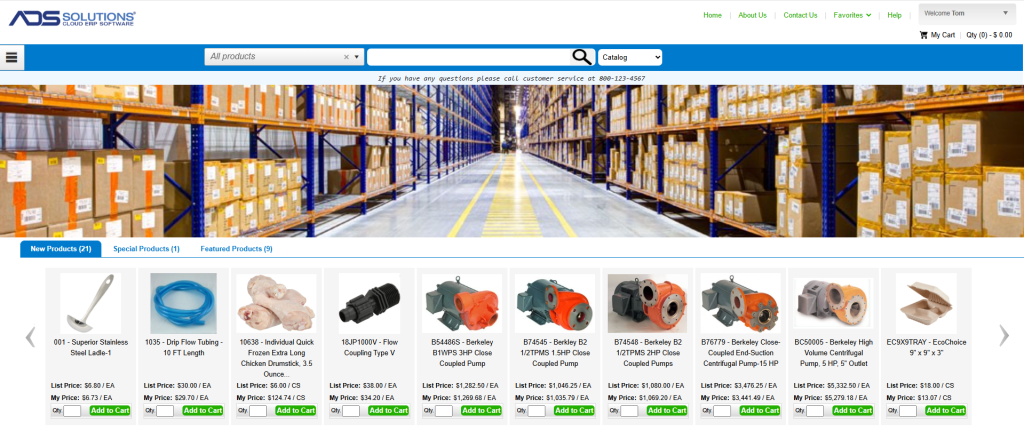
- Products may be designated as New, Featured or Special products and will then appear in these tabs on the Home page of the Self-Service Portal.
Adding SEO Information to Products
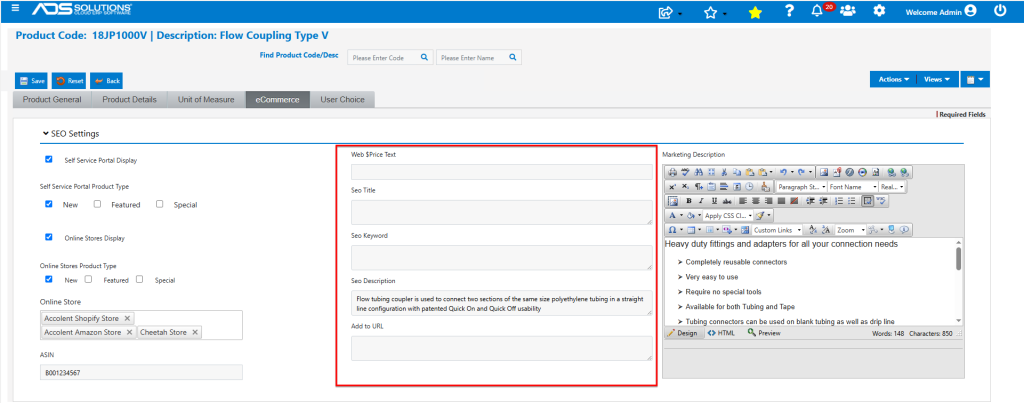
- In the middle column of the eCommerce tab of the Accolent ERP Product master, SEO (Search Engine Optimization) entries can be specified for products.
- SEO entries are not used in the Self-Service Portal since search engines cannot get past the log in screen; however, SEO is critical for Online Stores to enable visitors to find products through internet searches.
- For search engines to index a page, the web page needs to have an SEO Title, an SEO Keyword, a Meta (SEO) Description and a searchable URL. The Add to URL (also referred to as the slug) is used to create the page URL which search engines use to find the page. The slug is added to the end of the URL; so, for example, for a Shopify Store, the URL would look like https://storename.myshopify.com/products/productname/, where the products/productname is specified in the Add to URL.
- In the Self-Service Portal, the product name is shown as the concatenation of the Accolent ERP fields for Product Code and Product Description (e.g., “18JP1000V – Flow Coupling Type V”) and the product description is shown as the Accolent ERP field for SEO Description (e.g., “Flow tubing coupler used to connect two sections of the same size polyethylene tubing in a straight line configuration with patented Quick On and Quick Off usability”).
Adding Marketing Descriptions to Products
- In the right-hand column of the eCommerce tab of the Accolent ERP Product master, specify full marketing description for products.
- For online visitors, the product name that is displayed in Accolent ERP is not sufficient to determine whether the product will meet their needs.
- To provide this additional information, use the full HTML editor to add full Marketing Descriptions and/or detailed specifications to products displayed in the Self-Service Portal and Online Stores.
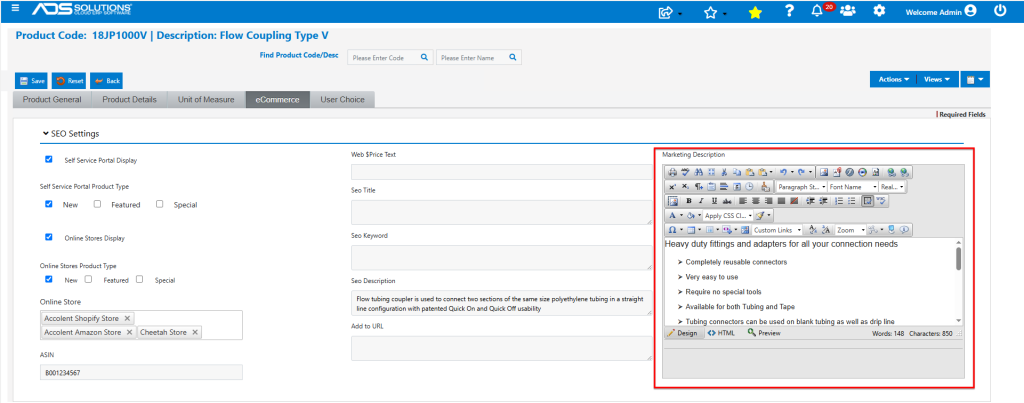
Adding Product Specification Sheets
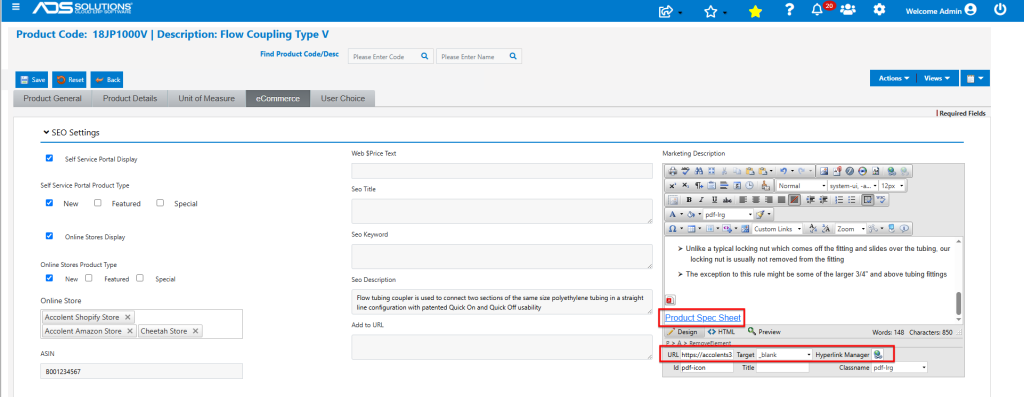
- To add a Product Spec Sheets to the Self-Service Portal, first save the spec sheet for a specific product as a Linked File on the product mnaster in Accolent ERP.
- Then go to Linked Files and select the option to Make Public (which allows the linked file to be viewed on the Self-Service Portal).

- This will show the AWS S3 public URL for the product spec sheet which can be copied and entered as a hyperlink in the Marketing Description.
Adding Web Comments
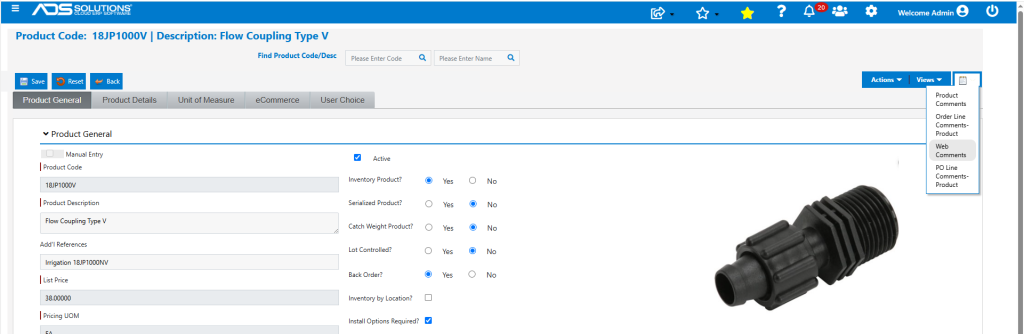
- To display additional pop-up Comments on the Self-Service Portal, use the web comments under the Comments menu on the product in Accolent ERP.
- These Comments can be used for any additional information not specified in the Marketing Description.
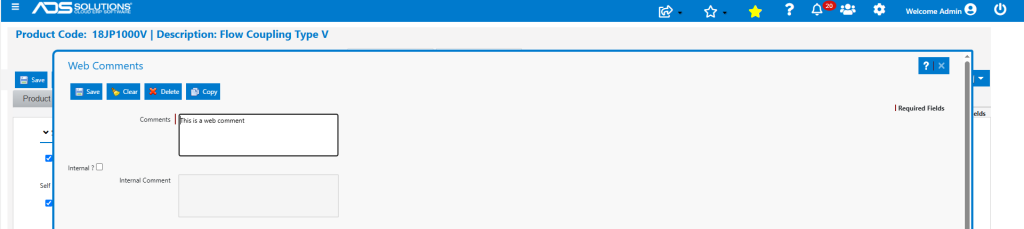
- Add comments or detailed specifications to this screen.
Self-Service Portal Product Display
- Since product 18JP1000V was flagged for “Self-Service Portal Display” and as “New”, the product will be displayed on the Home page of the Self-Service Portal under New Products.
- The product details page will show the Product SEO Description and the Marketing Description.
- Install Options, Alternates and Accessories are also shown on the product details page.
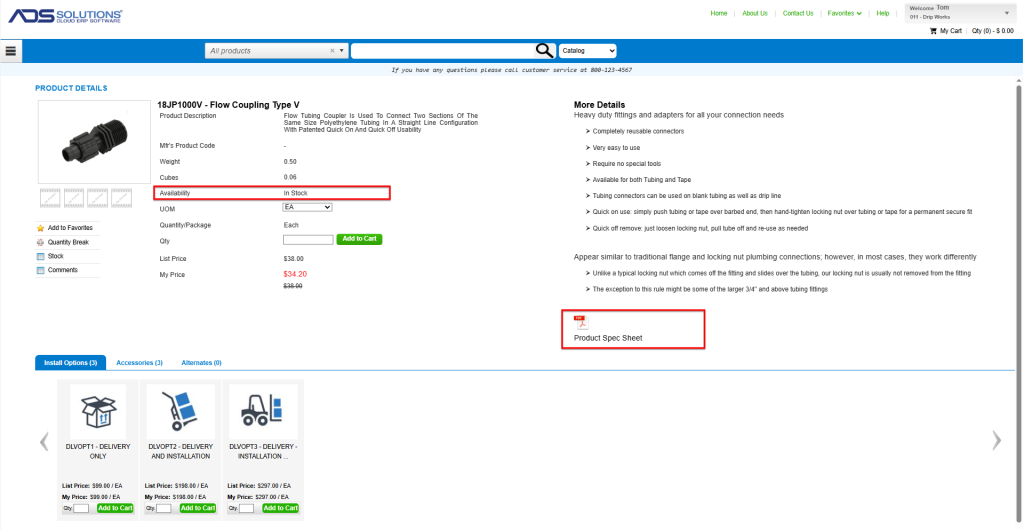
- The “Availability” field is controlled by Configuration ID 265. If this is set to “N” the field and the value “In Stock” will not show at all.
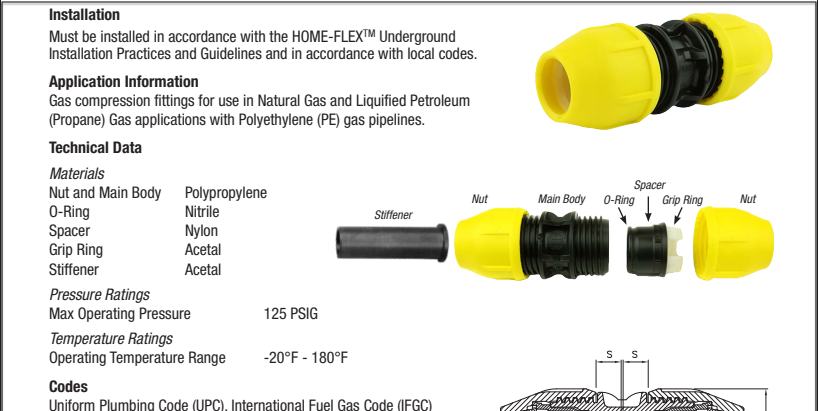
- Clicking on the “Product Spec Sheet” hyperlink will open the Linked File saved on the product in Accolent ERP.
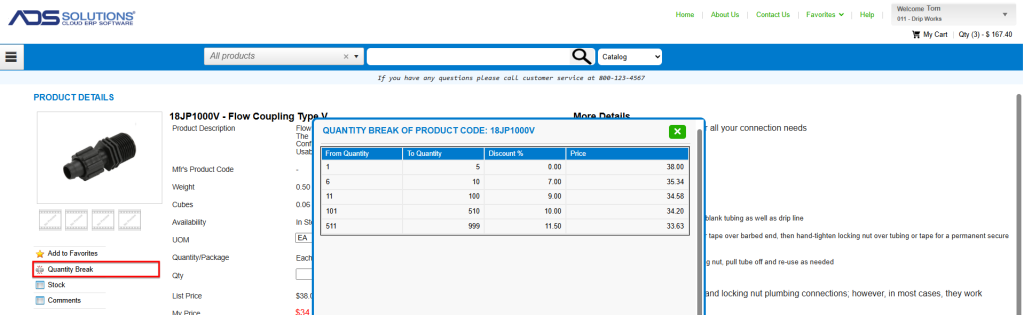
- Clicking on the “Quantity Break” icon will show any Qty Breaks attached to the product in Accolent ERP.
- The “Stock” button is controlled by Configuration ID 266. If this is set to “N” the “Stock” button will not appear at all. If the “Stock” button does appear, clicking on it will show the Qty Avail in Accolent ERP.
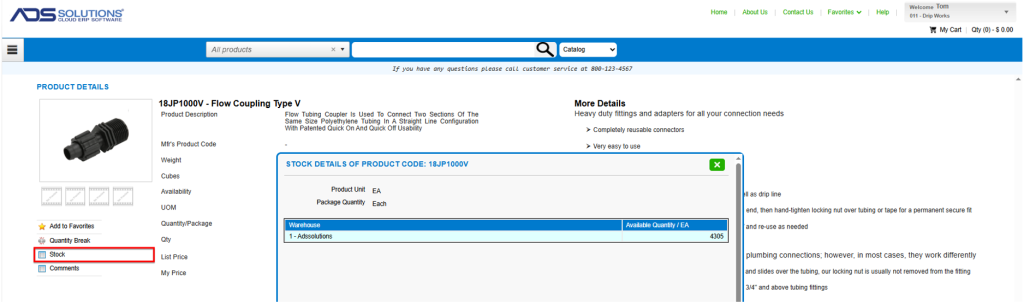
- Clicking on the “Comments” button will display any additional comments saved as Web Comments on the product in Accolent ERP.
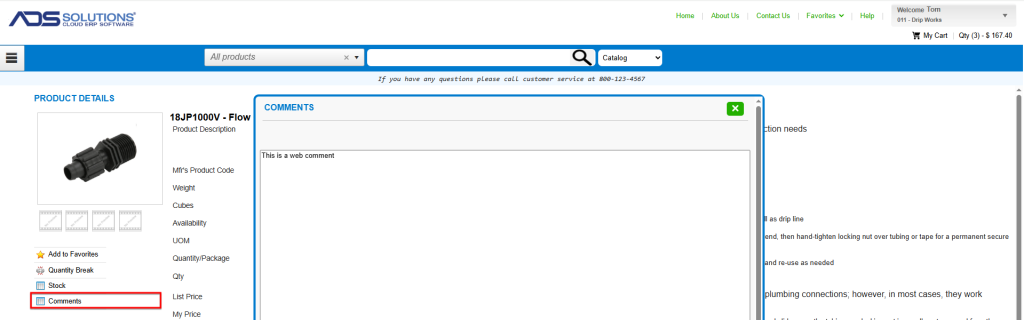
Self-Service Portal Prices
- All prices in the Self-Service Portal reflect the Customer’s pricing in Accolent ERP.
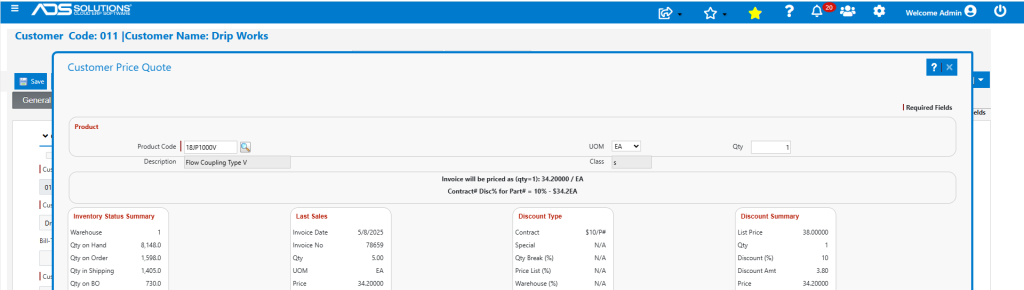
- For example, the price for 18JP1000V for Customer 011 in Self-Service Portal is $34.20, which is a discount to List Price of $38.00.
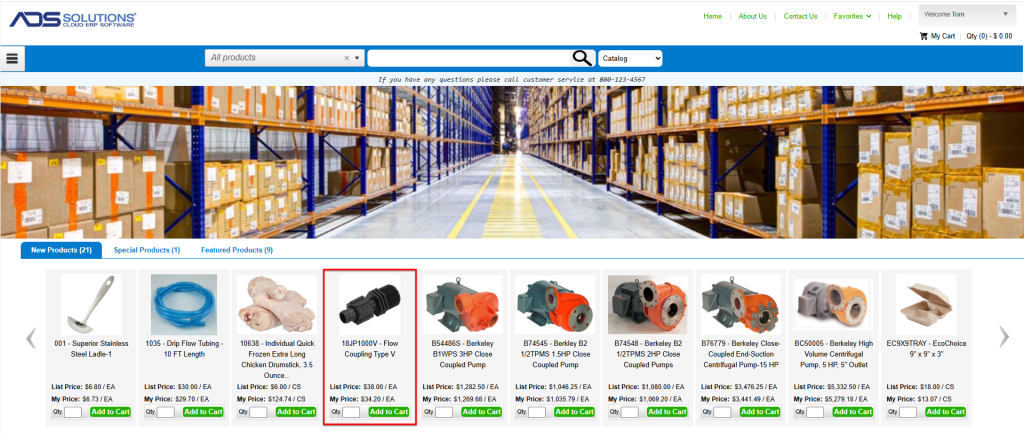
- This is the same as the price of 18JP1000V for Customer 011 in Accolent ERP.