Accolent ERP provides full support for unlimited product Units of Measure (UOMs). Each product can have unlimited UOMs that it can be sold in and purchased in. Each product has a defined stocking UOM that inventory is kept in, as well as a pricing UOM that sets the List Price for the product. The product can specify in which UOMs the product can be sold, as well as the default selling UOM. The product can also specify which UOMs the product can be purchased in and what the default UOM is for purchasing. UOMS other than the pricing UOM can specify discounts off the List Price adjusted by the UOM Ratio.
Product UOM Tab
- Go to Inventory/Products > Products and select any product.
- Fill out at least the required fields on the General tab of the Product.
- Then go to the Unit of Measure tab.
Stocking and Purchasing UOMs
- Enter the UOMs used.
- Select one Stocking UOM; this will not be able to be changed once the product is used in transactions.
- Specify the UOM Ratio for each UOM relative to the Stocking UOM which will have a UOM Ratio value of 1.00.
- When the Stocking UOM grid is set up, click on the document icon to copy the UOMs to the Selling and Pricing UOMs grid.
Selling and Purchasing UOMs
- Select which UOMs are Selling UOMs and select the Default Selling UOM.
- Select which UOMs are PO UOMs and select the Default PO UOM.
- Select one Pricing UOM; this will not be able to be changed once the product is used in transactions.
- Specify the Price Factor for each UOM relative to the Pricing UOM which will have a Price Factor of 1.00
- Specify the Price for Pricing UOM; this is the List Price.
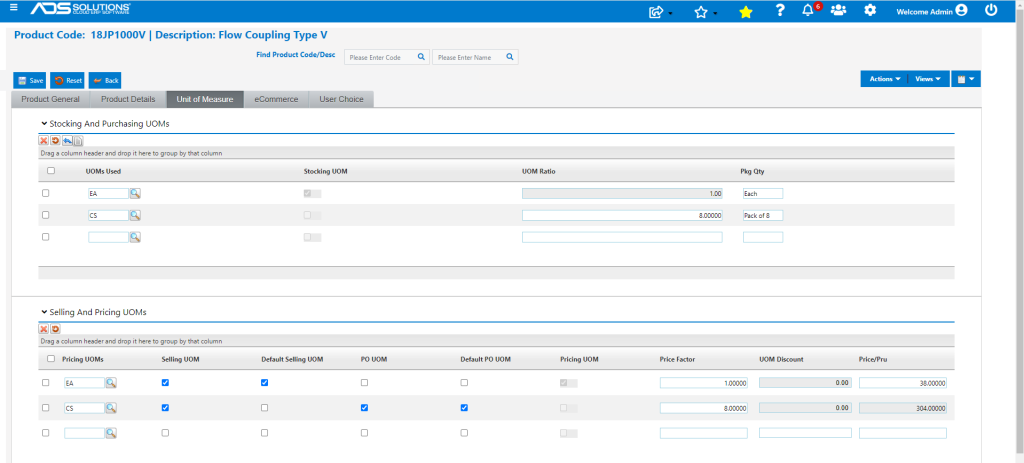
Stocking and Purchasing Fields
| Field | Description |
| UOMs Used | List all the UOMs that will be used for the product. Use a separate row on the grid for each UOM. You can have unlimited UOMs. Note: each UOM used in the system will first have to be set up from Settings > Value Lists > Other Value Lists (A to L) > Dynamic Lookup, with Lookup Type of UOM. |
| Default Stocking UOM | This is the UOM in which inventory is kept. Only one of the UOMs can be selected as the Stocking UOM. |
| UOM Ratio | This defines the physical translation between all of the UOMs. The Stocking UOM will have a value of 1.00 and all the other UOMs will be defined off this base. For example, if inventory is kept in EA (Each) but the product is also stocked by the CS (Case) of 8, the UOM ratio would be 1.00 for EA but 8.00 for CS. |
| Pkg Qty | This is a memo field describing the Package Quantity. So, for example, if screws were sold by the BOX and by the CS, the Pkg Qty for BOX may be 100 screws and for CS may be 10 boxes. |
Selling and Pricing Fields
| Field | Description | |
| Pricing UOMs | This will display the same list of UOMs specified on the Stocking UOM grid in the same order. | |
| Selling UOM | This specifies which UOMs the product is sold in. At least one of the UOMs must be checked as a Selling UOM, but all UOMs may be Selling UOMs. For example, the product may be sold by the EA and also by the CS. | |
| Default Selling UOM | This is the Default Selling UOM that will populate into Orders but may be changed at that time by the user to any Selling UOM. Only one UOM may be selected as the Default Selling UOM. | |
| PO UOM | This specifies which UOMs Purchase Orders may be placed in. At least one of the UOMs must be checked as PO UOM, but all UOMs may be PO UOMs if the vendor supports this. For example, POs may be specified by the EA or by the CS. | |
| Default PO UOM | This is the Default PO UOM that will populate into Purchase Orders but may be changed at that time by the user to any PO UOM. Only one UOM may be selected as the Default PO UOM. | |
| Pricing UOM |
|
|
| Price Factor | This specifies the interrelationship between the pricing of the different UOMs. For example, if the Price of the EA is $36.00, a Price Factor of 8 entered for the CS will give the CS a Price of $288.00. | |
| UOM Discount | This field calculates the discount implied by the Price Factor. Since a CS consists of 8 EA, a Price Factor of 8 represents a 0% discount offered on sales by the CS rather than by the EA. | |
| Price | This refers to the Price per Pricing Unit. The Price for the Pricing UOM is referred to as the List Price and is displayed on the General tab of the Product. |
Catch Weight Products
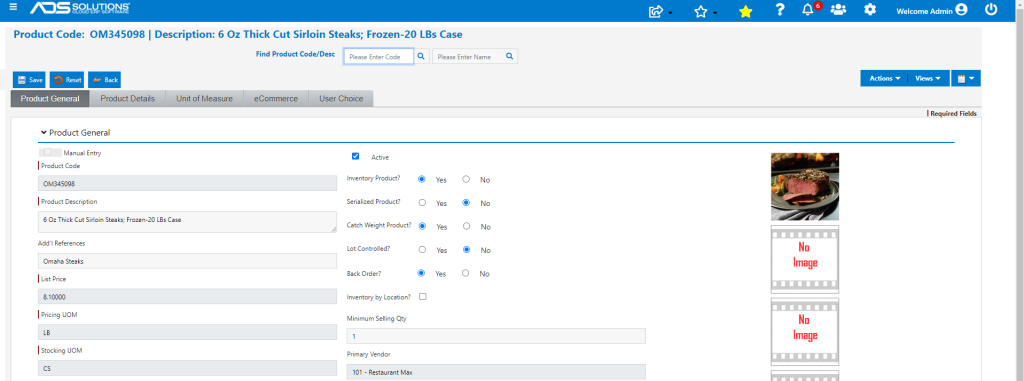
- Catch Weight is used for products that are stocked by quantity but sold by weight.
- On the General tab of the Product, select Yes on the Catch Weight Product? radio button.
- For example, create a product to sell 20 LB cases of Sirloin Steaks:
- Catch Weight Product
- Stocked by the CS (average 20 LBs) and sold by the CS
- Priced by the LB.
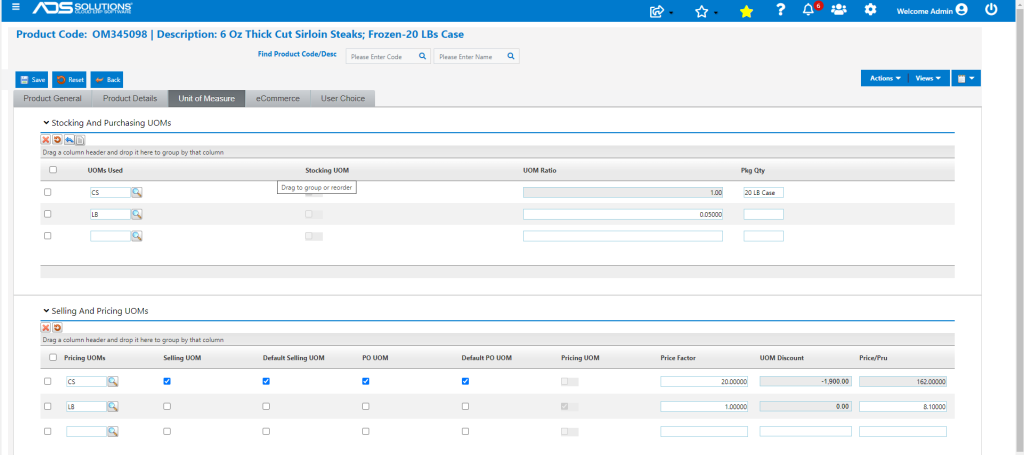
Stocking and Purchasing UOMs
- Stocked only by the CS.
- Average CS weight is 20 LB. so UOM Ratio for LB. UOM is 0.05.
Selling and Purchasing UOMs
- Sold only by the CS.
- Ordered from the vendor only by the CS.
- Priced per LB.
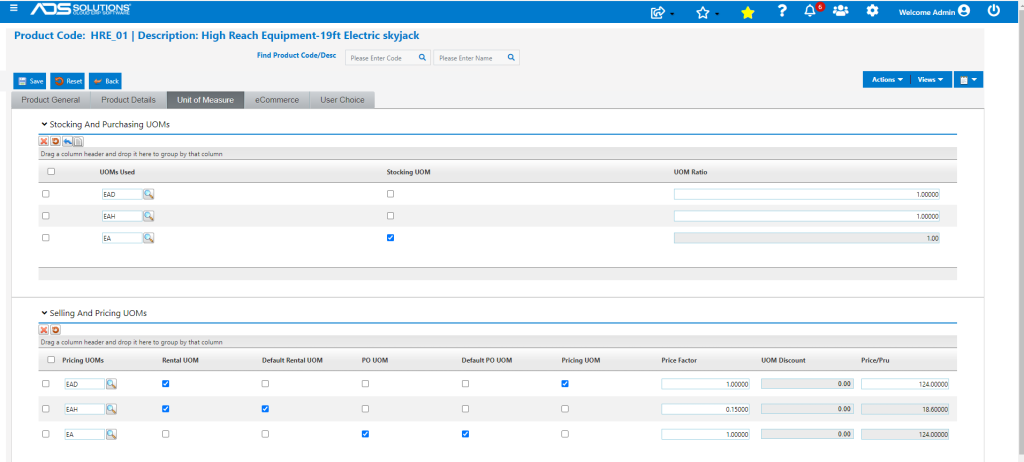
Rental Products
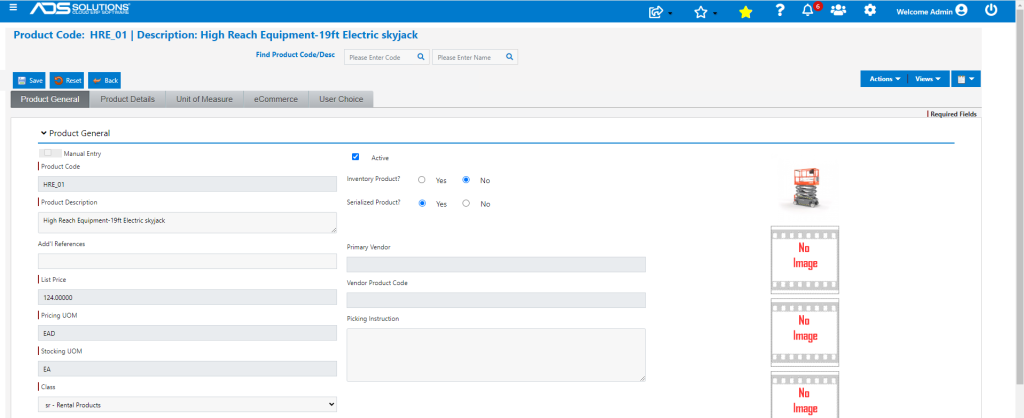
- On the General tab of the Product select Class SR for Rental product.
- Rental products are held as Fixed Assets not in Inventory and are automatically serialized.
- All other Inventory settings are unavailable.
Stocking and Purchasing UOMs
- Click on blue back-arrow icon to import Rental UOMs in addition to EA.
- Stocked by the EA but rented by EAD (EA per DAY) or EAH (EA per HR).
- EA is the Stocking UOM.
Selling and Purchasing UOMs
- Click on the document icon to copy Stocking UOMs to copy the UOMs to the Selling and Pricing UOMs grid.
- Only Rental UOMs are Selling UOMs; EAD is the Default Selling UOM.
- Default PO UOM and PO UOM are both EA, allowing purchase of the item from the vendor.
- Pricing would be set up as desired.