
Accolent ERP allows for barcodes that are stored as product synonyms to be printed on standard sticky label sheets. User can select a product population, a barcode type, and a form type, and then print the barcode labels. Product labels are printed on a form that has 80 products to a page. Bin labels can be printed on a form that has 2 products per page. Like all Accolent ERP forms, the standard forms may be customized to print on a different size sticky label template or to put different information on the label.
Default Barcode Type
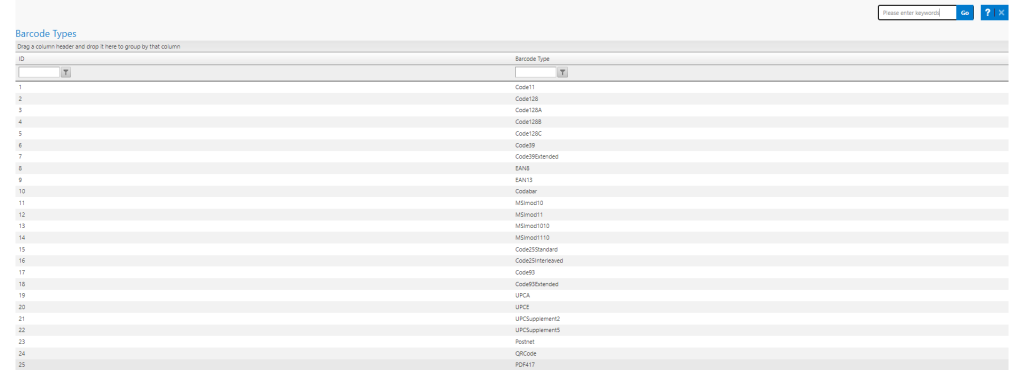
- First go to Settings > System > System Configuration to set the default barcode type to be used throughout.
- Click on the Select Barcode Type hyperlink, select the barcode type, then copy (Ctrl+C) and paste (Ctrl+V) the barcode name into the System Configuration Data Value field.

Printing Barcode Labels
- Go to Inventory/Products > Barcodes > Printing Barcode Labels.
- This screen allows the printing of product or bin labels that include the barcode as well as human readable information.
- Printing and affixing these labels to products or bins allows warehouse personnel to scan rather manually identify products to pick or put-away, improving productivity and reducing errors.
- Printing barcode labels involves the following steps:
- First go to Settings > Printing & Sending > Forms Setup to select the report form, and
- Then go to Inventory/Products > Barcodes > Printing Barcode Labels to select the population of products, then print the labels.
Select Label Report Type
- Go to Settings > Printing & Sending > Forms Setup, select form 187 Barcode Label Printing and select from Barcode_Product_Label or the Barcode_Bin_Shelf_Label.
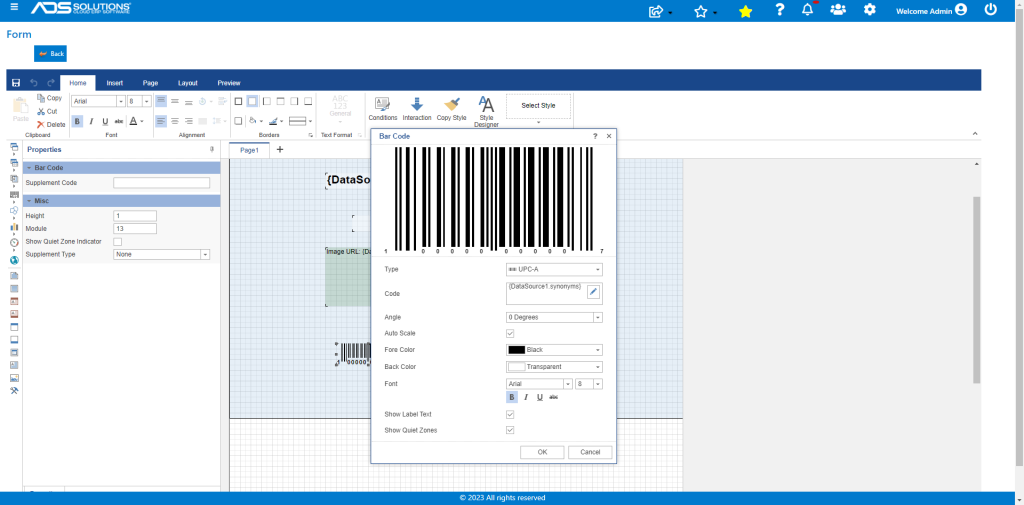
- Use the Designer to select the barcode type, by default both forms are set to UPC-A.
- Both reports are designed to print to standard sticky label sizes as shown here: https://www.sheetlabels.com/labels/standard-sizes
- The barcode product label report prints on SL105 to create 80 labels each 1.75” x 0.5” per sheet.

- The barcode bin/shelf label report prints on SL514 to create 2 labels each 5.5” x 8.5” per sheet.
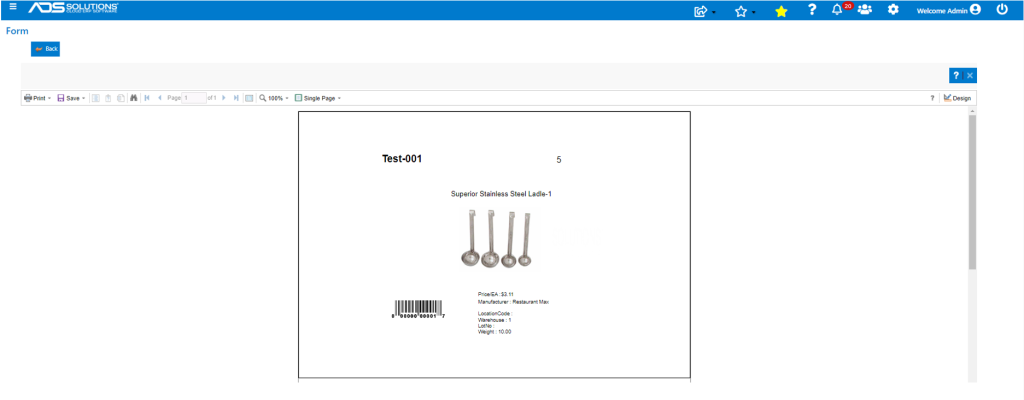
- Both these reports can be modified to print on different size labels and/or to include other information, change fonts, layout, etc.
- Available fields in the View include: Company Logo, Product Code, Product Description, Warehouse Code, Barcode Type, Pkg Qty, List Price, Weight, Vendor No, Vendor Name, Product Image, Primary Location, Lot No, etc.
Select Population of Labels
- Select the population of products using the Advanced Search filters.
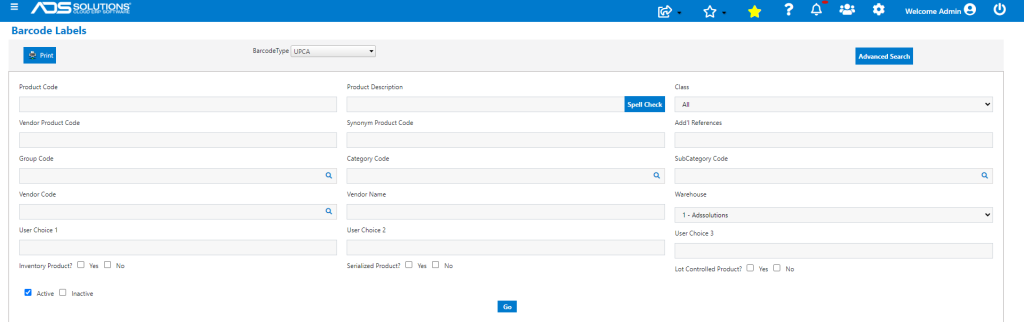
- The selection of products is shown in the grid.
- NOTE: the selection will only return synonyms that are set up in the selected Barcode Type.
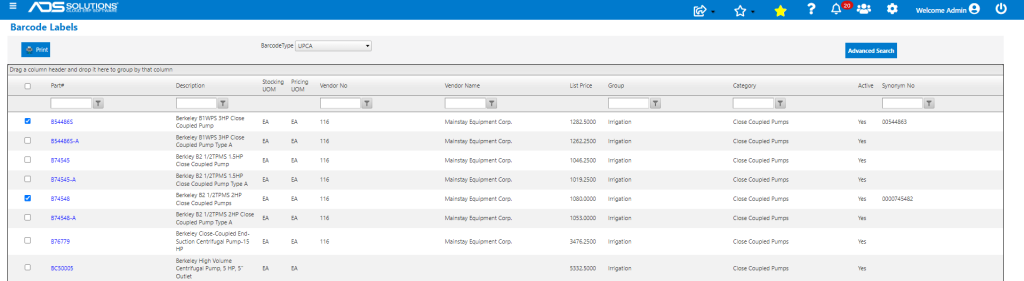
- The grid will populate the Synonym with the UPCA barcode stored as the primary barcode on each product.
- Select all the items or a subset of the items.
- Then click Print to print the selected report for all products in the selection that have primary barcodes stored as synonyms.
