
Accolent ERP allows a user to open multiple browser tabs at the same time. These additional tabs can be used to look up records and/or to edit supporting records in another part of the system while in the middle of a task. For example, while in the middle of entering an Order, it is possible to edit the customer’s address in another browser tab without having to get out of Order Entry.
NOTE: any additional browser tab that is opened will be part of the same browser session and will use the same browser cache. The browser does not distinguish between the different tabs. As such, it is CRITICALLY IMPORTANT that care be taken not to inadvertently overwrite records in one tab from another or to enter potentially competing transactions in two different browser tabs.
Opening Multiple Browser Tabs
- At any time to open an additional browser tab, navigate to the menu you want, then right click on the menu and select open another browser tab.
- Then look up or make any changes in the new browser tab and save.
- When finished, close the additional browser tab; it is not a good idea to leave additional browser tabs open.
- Return to the original browser tab and continue with the original task.
- Any changes will take effect when the screen is saved or refreshed.
Example: Create Order and Edit Customer Address in an Additional Tab
- For example, while entering an Order open a new tab and edit the Customer’s address then go back to the Order and complete.
Create an Order
- While processing order 65869 for Customer 011, recognize that the Customer’s address is incorrect
- Customer’s Billing Address is Suite No 280 not 180
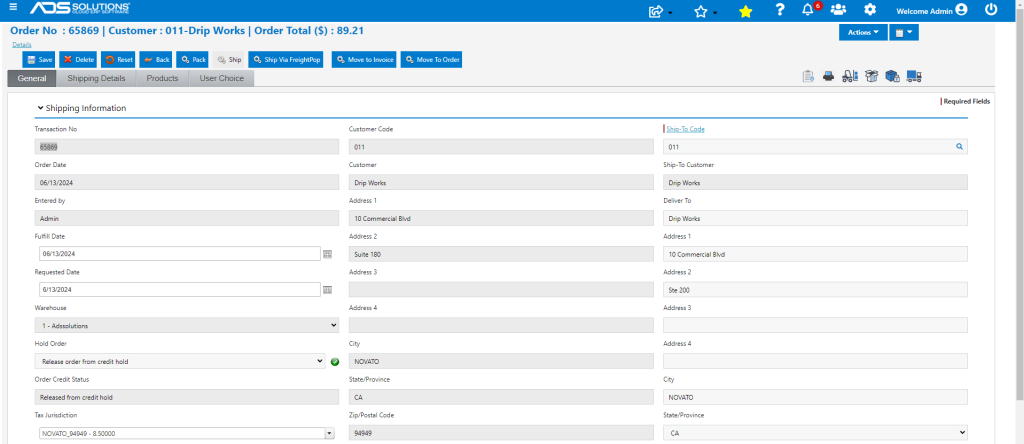
Right Click to Open a New Browser Tab
- Click on the hamburger menus and go to Customers > Customers.
- Then right click on List Customers to open this pop-up.
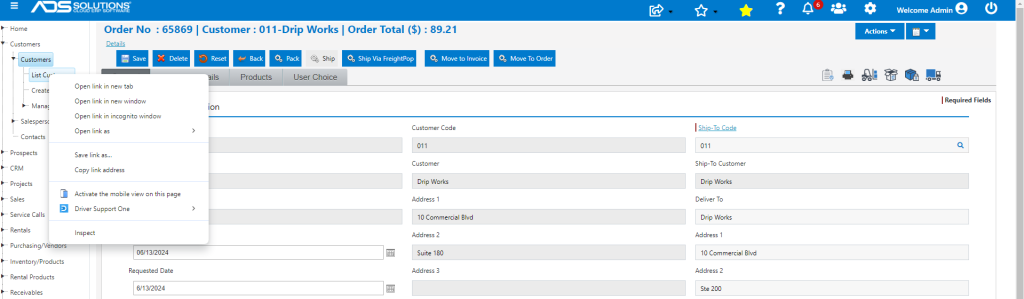
- Select Open link in new tab to create a new browser tab

- Go to the new browser tab and select the customer
Edit the Record in the New Browser Tab
- Click on Actions > Billing Address.
- Edit the Customer’s billing address.
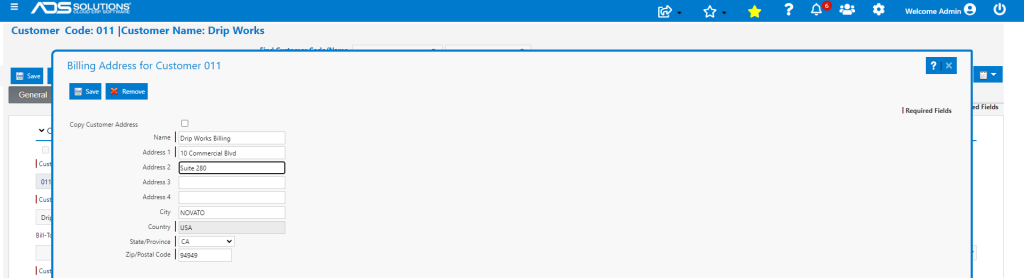
- Save the record.
- Close the additional browser tab so that there is no possibility of inadvertently changing the record again.
Return to the Order in the Original Browser Tab
- Go back to the original browser tab to pick up the Order where it was left off.
- Refresh the record to see the address changes take effect in the Order.
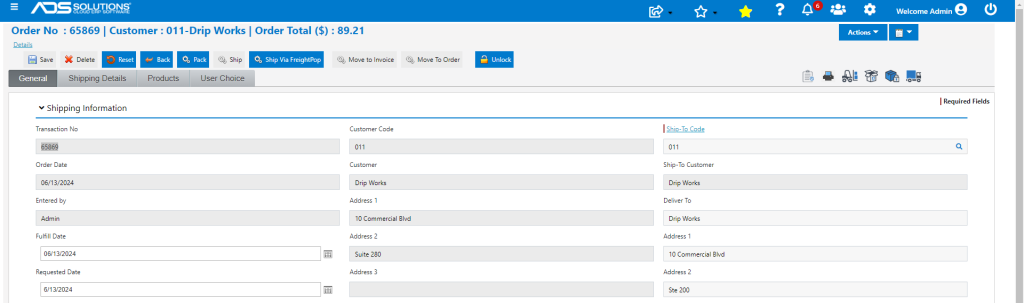
- Then continue processing the order.
Important Warnings
- The additional browser tab is part of the same browser session and uses the same browser cache, and the browser itself doesn’t distinguish between the two open tabs.
- So, while this is an extremely powerful capability, it should be used ONLY to look up records or to edit supporting records.
- Great care must be taken NOT TO CREATE CONFLICTS between the browser tabs which will end up overwriting the conflicting record; for example, changing a Customer’s State in an additional tab could affect the Tax Jurisdiction in the original order.
- You SHOULD NEVER use multiple tabs to enter multiple orders for different customers as this could cause inventory conflicts and/or merging of different records.
- You SHOULD ALWAYS close additional browser tabs when done to prevent inadvertently editing records.