
For Restaurant Supply distributors, Accolent ERP provides an easy linkage with AutoQuotes (“AQ”). Using AQ, distributors can create AQ Projects and then download these as pre-configured CSV files. These CSV files (“AQ Export CSVs”) can be zipped and then imported into Accolent ERP as orders. To create an order in Accolent ERP, first create the order header specifying the Customer, terms, etc., then import the zipped AQ Export CSV. From the AQ Export CSV, the system will first automatically create any new vendors and products that are not already in Accolent ERP. Then the system will automatically create the order lines in Accolent ERP. Once the order is created in Accolent ERP, it can be sent to the Customer, edited and/or moved to fulfillment as needed.
Create AQ Export CSV
- Create an AQ Project and then export as an AQ Export CSV.
- If the AQ Project is downloaded as an Excel file, it must first be saved as CSV file. If it has special non ASCII characters, it may be saved as CSV UTF-8 (Comma delimited) file which will preserve the non-ASCII characters; otherwise as a CSV (Comma delimited) which will automatically replace the non-ASCII characters with “?”.
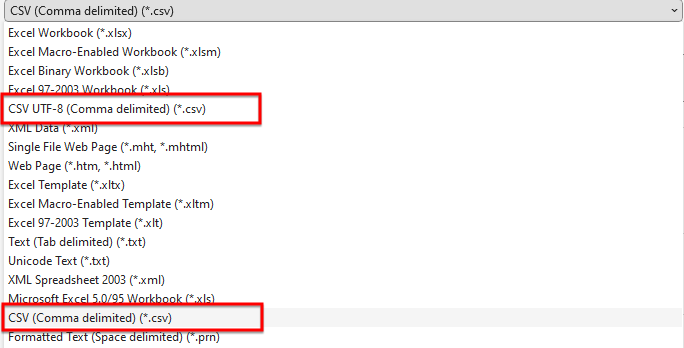
- Save the AQ Export CSV using the CSV UTF-8 format, then zip the file.

Accolent ERP/AQ Automation
- To import the AQ Export CSV into Accolent ERP, first create the order header for an existing Customer, then go the products tab and use the Imports > AutoQuotes Import option to upload the AQ Export CSV.
- When the AQ Export CSV is imported into Accolent ERP the system will automatically:
- Create any Vendors that need to be created,
- Create any Products that need to be created, and then
- Import the Products into an order and create any order line comments and Accessory Product linkages needed.
- In this example, there are:
- Two Vendors: Migali and Magikitch’n,
- Three Products: C-3R-HC, 6M-MAGGRDL672R/L and the Back Shelf (72”) which is an Accessory Product for 6M-MAGGRDL672R/L, and
- Three order lines.
Import AQ Export CSV into Order
- Create Order 78262 for customer 160225.
- Then browse to and import the zipped CSV file.
- This is the import success message received.
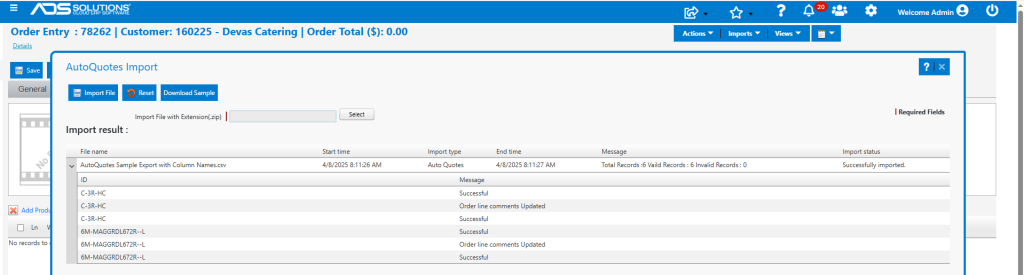
Created Vendors
- The Accolent ERP/AQ automation created two Vendors.
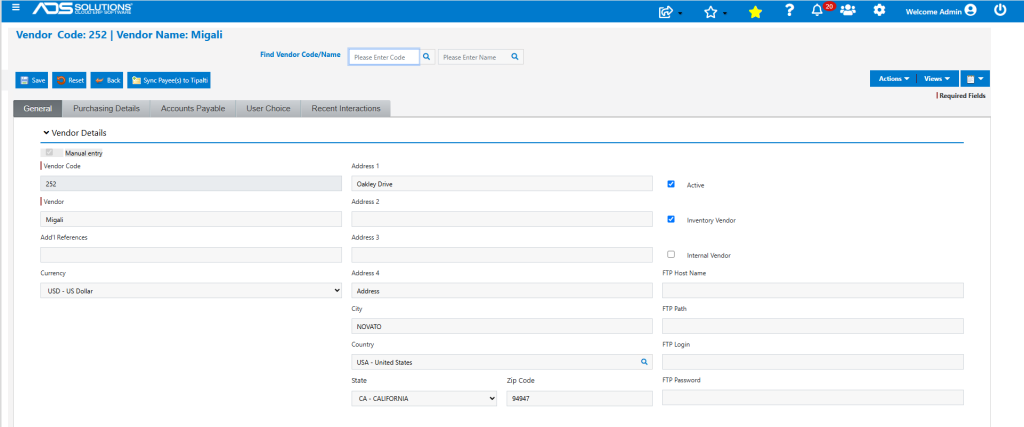
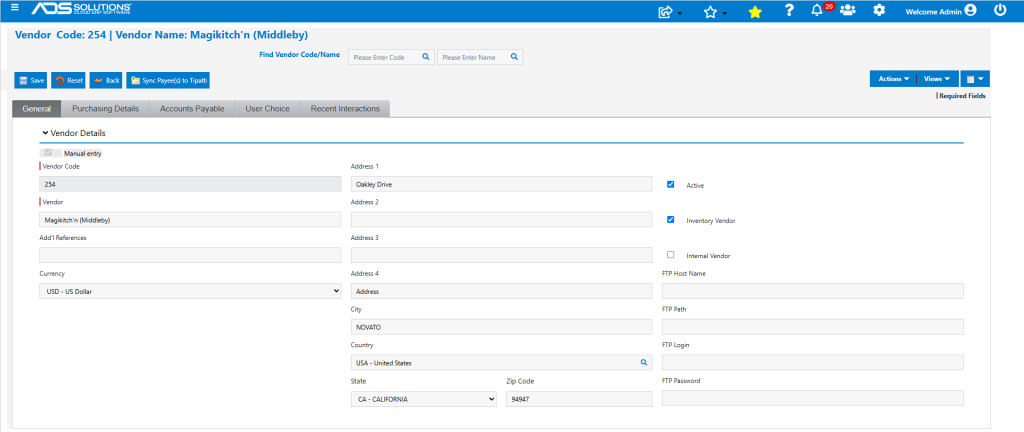
- Note that the Address and other information for these Vendors are based on the default record and so will have to be reviewed and corrected before POs are sent to these Vendors.
Vendor Migali
- For product C-3R-HC, Vendor “Migali” was made automatically and assigned Vendor Code 252.
Vendor Magikitch’n
- For product 6M-MAGGRDL672R/L and its accessory Back Shelf, Vendor Magikitch’n (Middleby) was created and assigned Vendor Code 254.
Created Products
- The Accolent/AQ automation created two Products and one Accessory Product.
- Note that when creating Product Codes, all these special characters (®, ©, *, /, |, |, ‘, %, <, >) will be replaced by “—” (two hyphens).
- Note also that the Groups, Categories and Sub-Categories as well as other information for these Products will be based on the default record and so will have to be reviewed and corrected.
Product C-3R-HC
- Created Product C-3R-HC from row 2 of the CSV file.
- List Price is taken from Sell (M) as $3,904.15168.
- Vendor Migali is assigned as the Primary Vendor.
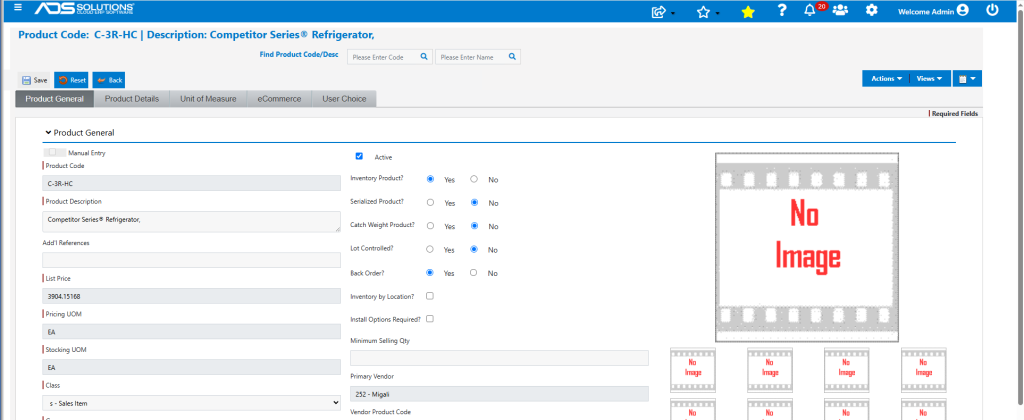
- Standard Cost is taken from Net (Q) as $3,003.19360.

Product 6M-MAGGRDL672R—L
- Created Product 6M-MAGGRDL672R–L from Row 5 of the CSV file. Note that the second from last character in the Product Code “/” was replaced with “—”.
- List Price is taken from Sell (M) as $4,317.06600.
- Assigned Vendor Magikitch’n (Middleby) as the Primary Vendor.
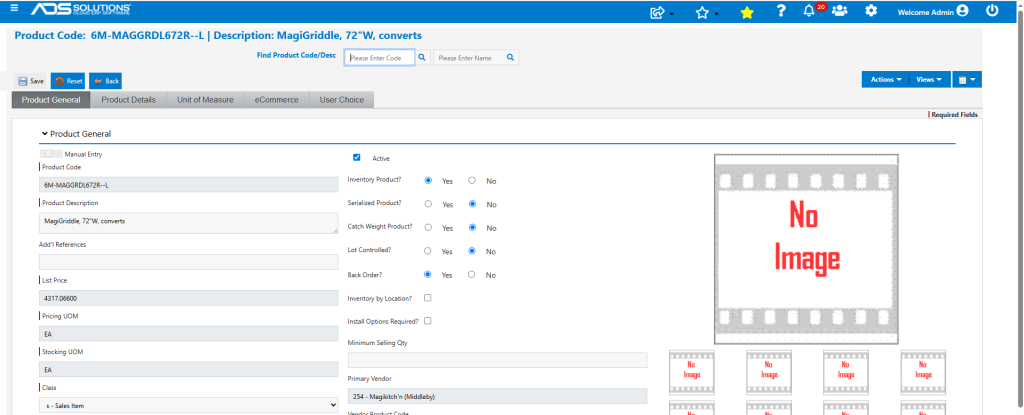
- Cost is taken from Net (Q) as $3,320.82000.

- Go to Actions > Accessory Products, shows 6M-MAGGRDL672R—L-A-01 as an Accessory for Product 6M-MAGGRDL672R—L.

Product 6M-MAGGRDL672R—L-A01
- Created Product 6M-MAGGRDL672R—L-A01 from Row 7 of the CSV file.
- Product 6M-MAGGRDL672R—L-A01 is an Accessory for Product 6M-MAGGRDL672R—L. If there is more than one Accessory Product, the suffixes would be A02, A03, etc.
- List Price is taken from Sell (M) as $2,232.44775.
- Assigned Vendor Magikitch’n (Middleby) as the Primary Vendor.
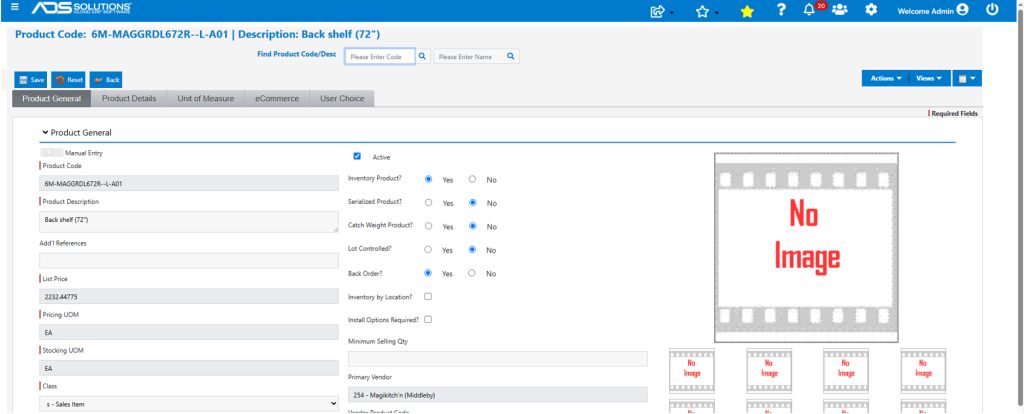
- Cost is taken from Net (Q) as $1,717.26750.

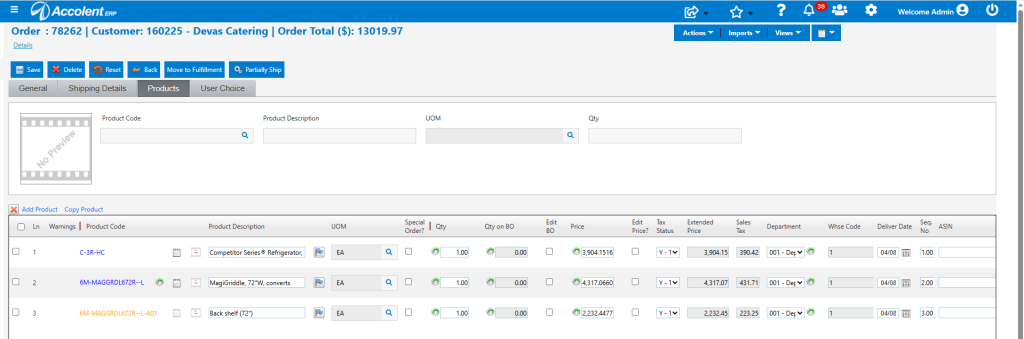
Created Order 78262
- Once the import is completed, close the AutoQuotes Import pop-up to see order 78262.
- There are three order lines for 1 EA of C-3R-HC, 6M-MAGGRDL672R—L, and 6M-MAGGRDL672R—L-A01.
C-3R-HC
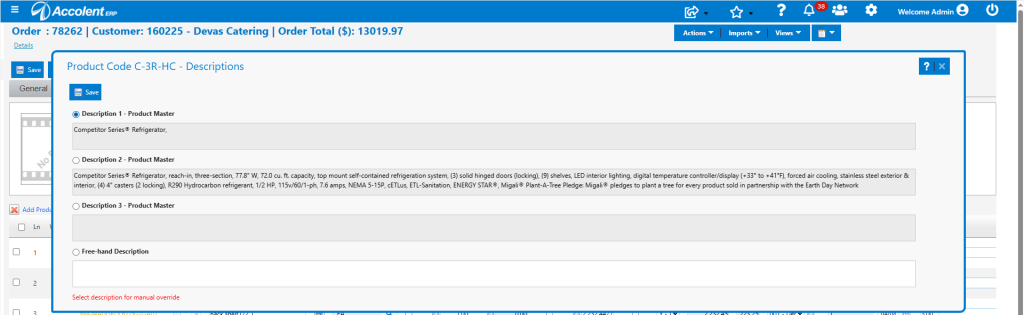
- Click on the “flag” icon for C-3R-HC to see the short and full descriptions.
- Because the AQ Export CSV file was in UTF-8 format, the “®” and “°” characters were preserved in the Product Description.
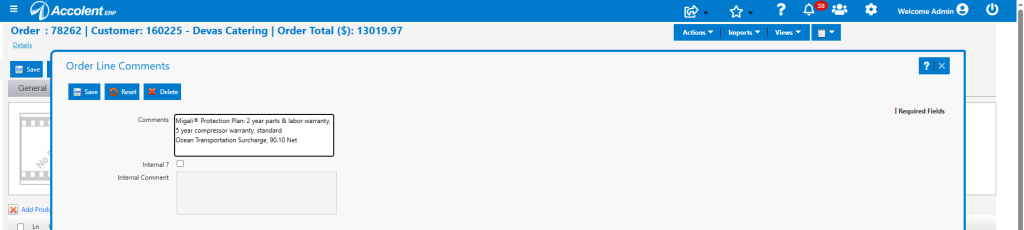
- Open the order line comments “notepad” icon for C-3R-HC
- Created 2 order line comments from Rows 3 and 4 of the CSV file.
- Row 3 is the Migali ® Protection Plan.
- Row 4 is the Ocean Transportation Surcharge which has a non-zero value in Sell (M) and so is created as an order line comment but also preserves the value in Net (Q). If this is selected, a non-inventory product should be manually entered for this.
6M-MAGGRDL672R–L
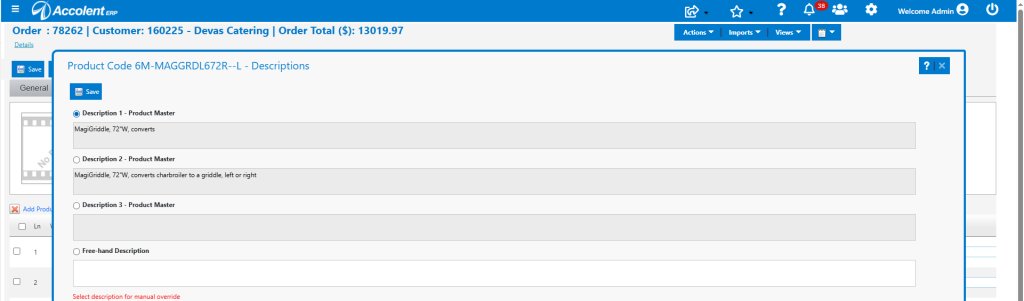
- Click on the “flag” icon for 6M-MAGGRDL672R–L to see the short and full descriptions.
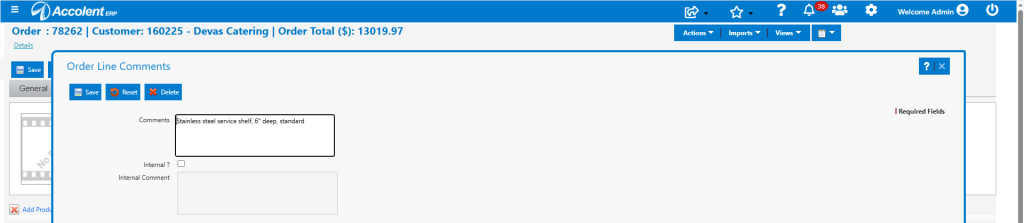
- Open the order line comments “notepad” icon for 6M-MAGGRDL672R–L
- Created order line comment from Row 6 of the CSV file.
- Click on the “gear” icon immediately after the product code.
- Indicates that Accessory Products exist for 6M-MAGGRDL672L–R.
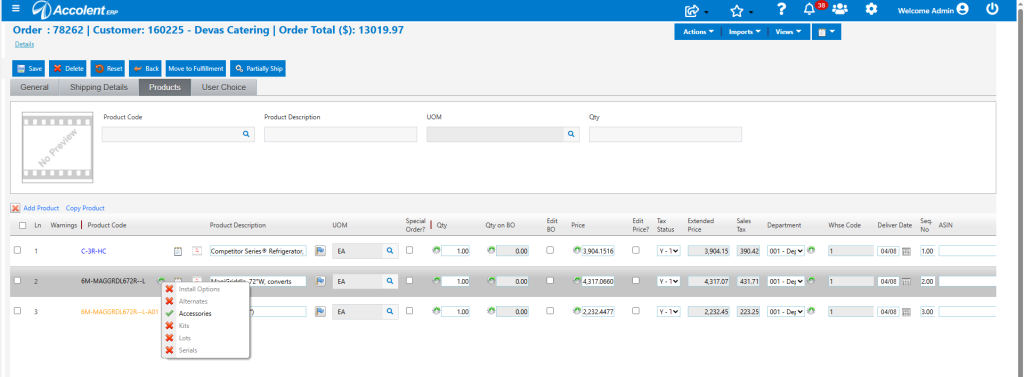
- Click on the Accessories indicator, which shows the Accessory Product 6M-MAGGRDL672R—L-A01.

6M-MAGGRDL672R—L-A01
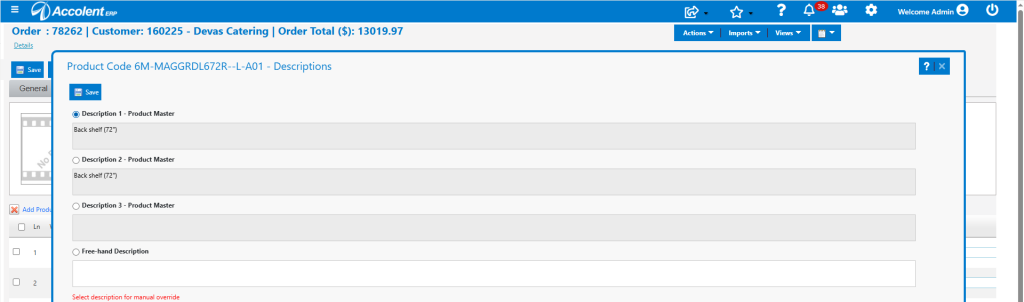
- Click on the “flag” icon for 6M-MAGGRDL672R—L-A01 to see the short and full descriptions.
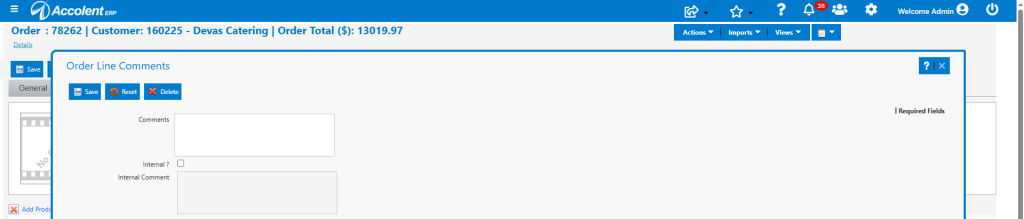
- Open the order line comments “notepad” icon for 6M-MAGGRDL672R—L-A01 and verify that there are no line comments.
- The order 78262 can now be saved, sent to Customer if desired, or moved to fulfillment.
- If any of these products on the order were marked as Class SP (Special Order) rather than Class S (Sales) by default, then POs to the Vendors could be created and sent automatically when the order is moved to fulfillment.