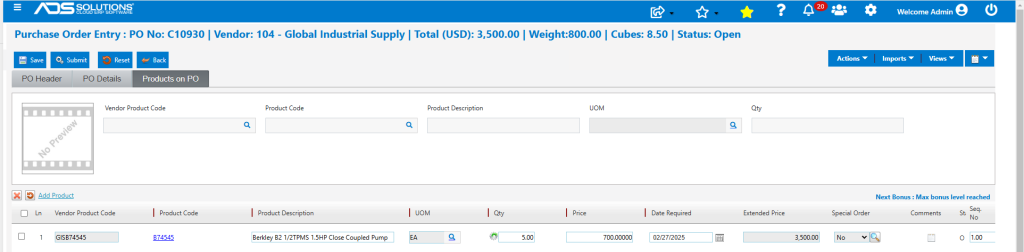
Accolent ERP maintains cross references of item numbers used by Vendors (referred to as Vendor Product Codes) against the internal Product Codes used for these same items in Accolent ERP. Once recorded, Purchase Orders to that Vendor can be specified either using the Vendor Product Code or the corresponding internal Product Code, and both will appear on Purchase Orders to this Vendor.
Vendor Product Codes
- For each Vendor, Accolent ERP maintains a cross reference list of the item numbers used by that Vendor against the internal Product Codes.
- Once this correspondence between a Vendor’s Product Code and the internal Product Code is recorded, the item can be specified on POs to this Vendor using either the Vendor Product Code or the internal Product Code.
- Both the Vendor Product Code and the internal Product Code will show on the PO.
Purchase History from Vendor
- The history of purchases of Products from a particular Vendor is maintained on the Vendor’s master record.
- Go to Purchasing/Vendors > List Vendors and select the Vendor.
- Under Actions, select Vendor Product Codes.
- The Vendor Product Codes screen shows by Product Code the last time the Product was purchased from this Vendor.
- This screen also shows by Product Code the corresponding Vendor’s Product Code.
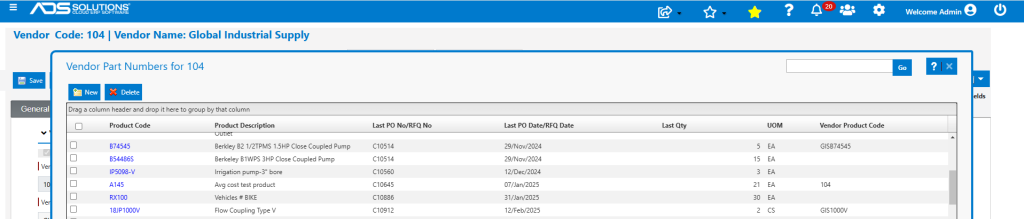
Recording Vendor Product Codes from the Vendor
- To record the Vendor Product Code corresponding to any given internal Product Code, select the Product Code.
- This opens the Add Vendor Product Code screen that allows the Vendor Product Code to be recorded and saved.
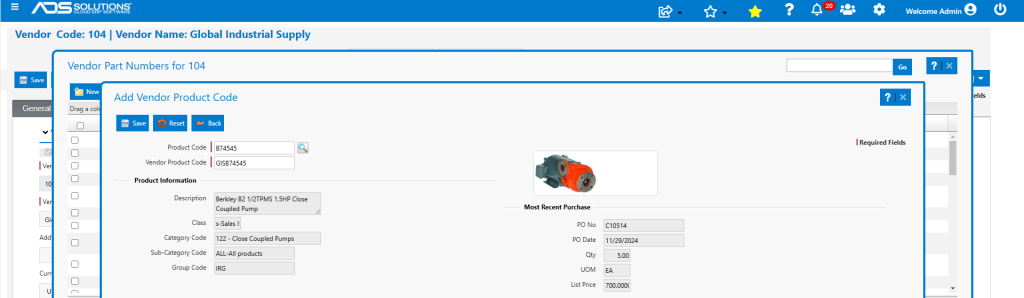
- Alternatively, if a Product hasn’t yet been purchased from this Vendor, click the New button to enter the Product Code and corresponding Vendor Product Code.
- Save to add the Vendor Product Code.
Adding Vendor Product Codes from the Product
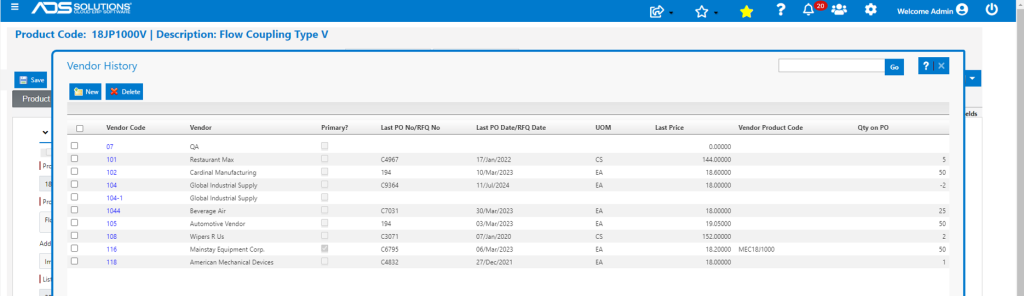
- To add a Vendor Product Code from the product, open the product then go to Actions > Vendor History and click on the Vendor.
- Then enter the Vendor’s Product Code for this product.
- For example, for Vendor 116 enter MEC18JP1000 as the Vendor’s Product Code.
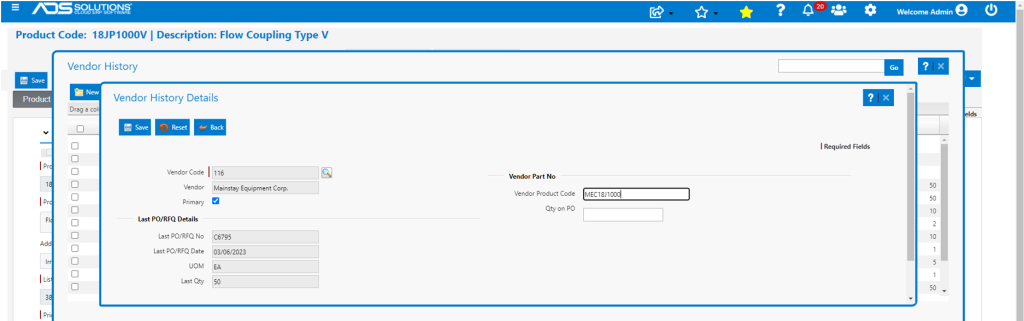
- Save to add the Vendor Product Code.
Creating a PO
- If a Vendor Product Code exists for a particular Product, the PO to this Vendor can specify either the Vendor Product Code or the internal Product Code and both will appear on the PO.
- Create PO No C10930 for Vendor 104.
- Enter either the Vendor Product Code GOSB74545 or the internal Product Code B74545, and both will display on the PO.