
Accolent ERP allows dispatchers to take Service Calls from Customers, and in response, to schedule and dispatch service technicians to provide break fix/repair/replacement services at Customers’ locations. Based on a Customer call, a dispatcher makes a Service Call calendar appointment for a specific service technician. The service technician can access the calendar appointment on a mobile device (i.e., tablet), drive to the Customer’s location, then provide services using replacement parts available on the truck. When done, the service technician will be able to create an invoice for parts and labor, obtain the Customer’s signature on the invoice, auto-email the invoice and collect payment from the Customer.
Dispatch of Service Technician
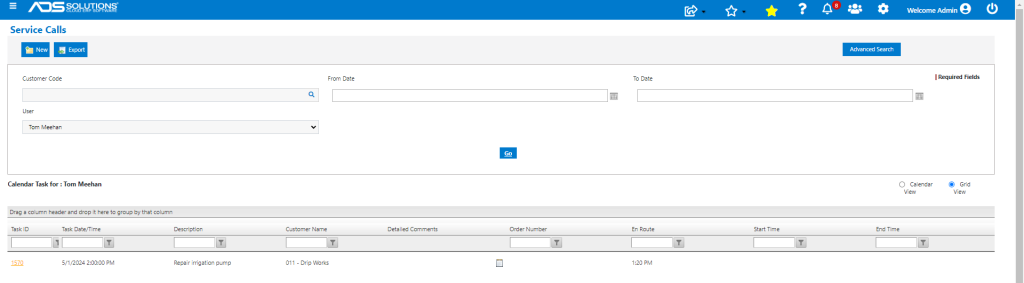
- To respond to incoming calls from Customers with requests for services, dispatchers can go to Service Calls > List Service Calls, to review availability of service technicians.
- Based on the requested date and time and the availability of technicians, a specific service technician can be assigned.
- In this example, Tom, a service technician associated with Warehouse 4, is available.
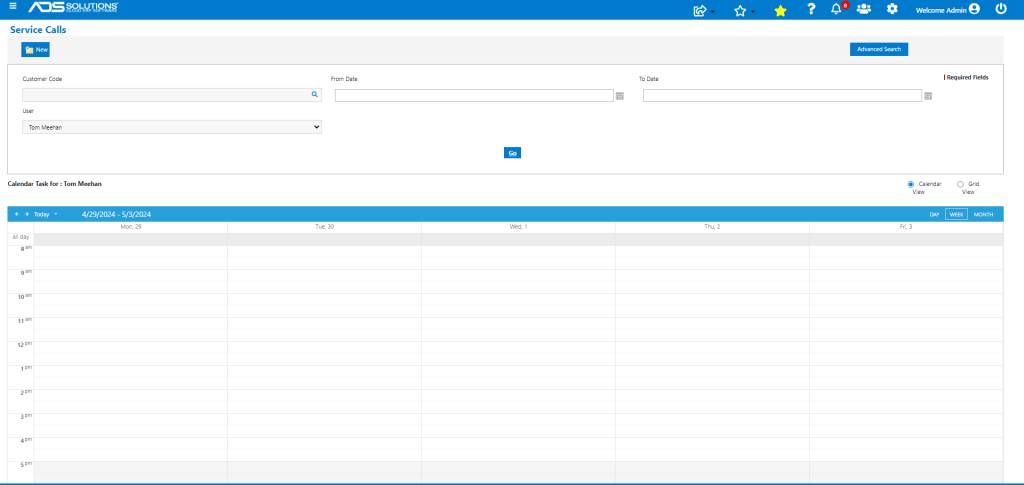
- The dispatcher then clicks on the New button to create a new Service Call task.
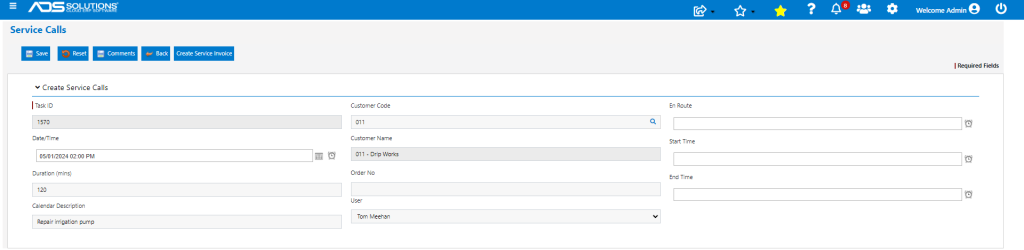
- The dispatcher can enter the Date/Time, Duration, Calendar Description and Customer Code to create the Service Call task.
Service Technician Updated
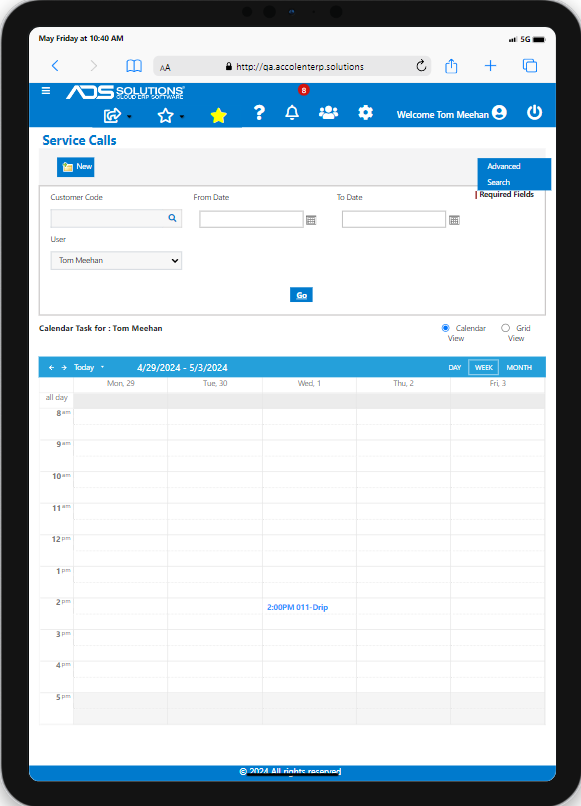
- The Service Call appointment now appears on the service technician’s calendar and can be viewed on a tablet.
- Clicking on the calendar entry opens the Service Call task.
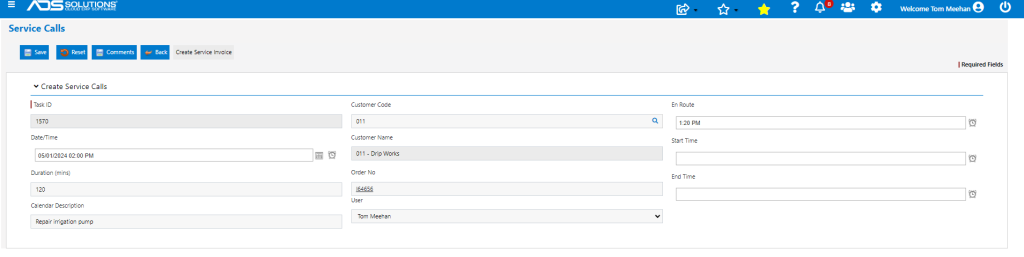
- When leaving for the appointment, the service technician can update the Service Call with the en route time.
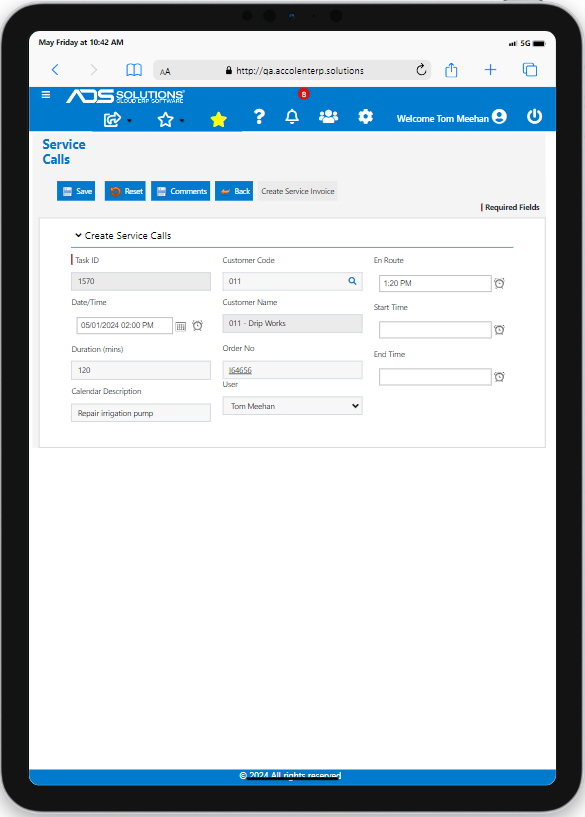
- This updates the record available to the dispatcher to update the Customer if needed.
- Similarly, when the service technician arrives at the Customer’s site, the Service Call task can be updated to record the time the work is started and when completed.
Service Tech Creates a Service Invoice
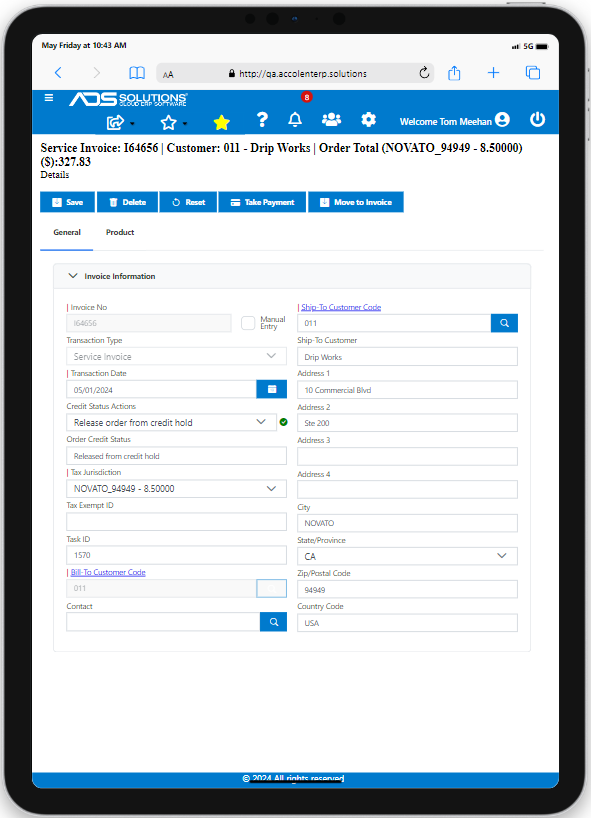
- Once at the Customer’s site, the service technician can open the Service Call task and click on the Create Service Invoice button.
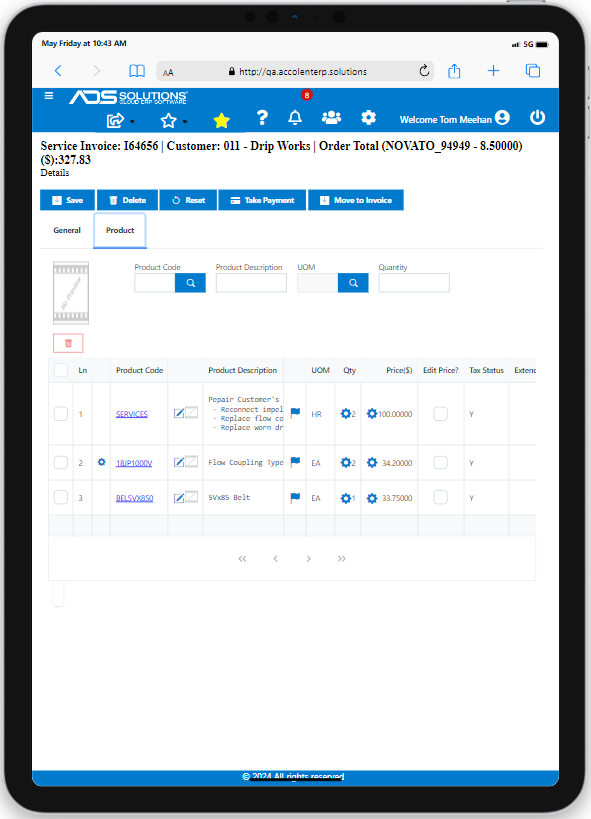
- Creates Service Invoice I64656, with all of the fields on the General tab defaulted in from the Service Call entry made by the Dispatcher.
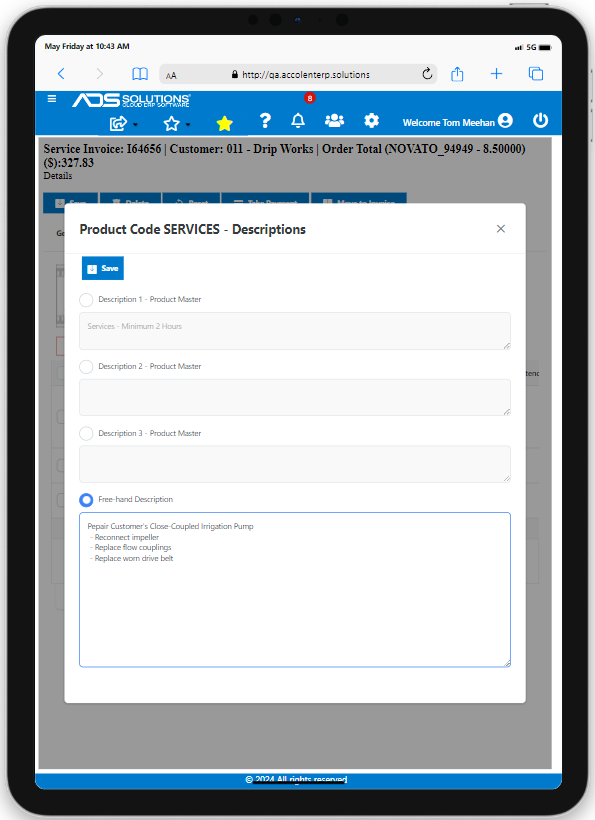
- On the Product tab, the service technician will create a one-line place holder for the non-inventory Services Product.
- A multi-line freehand description can be entered for the Services Product and the quantity can be edited to reflect the actual time spent.
Dispatcher Updated
- The Service Invoice can be saved at any time while in progress.
- Whenever the Service Invoice is saved it will automatically update the Service Invoice No as well as Start and end times to the Service Call record available to the dispatcher.
Completing the Service Invoice
- To complete the job, products may be added as needed from the service technician’s truck (virtual warehouse) to the Service Invoice.
- All products in the virtual warehouse will show the quantity available to the service technician and will reflect the Customer’s negotiated pricing.
- If the job is a repair to an existing serialized product, the service technician can record the serial number and whether the repair is covered under warranty or not.
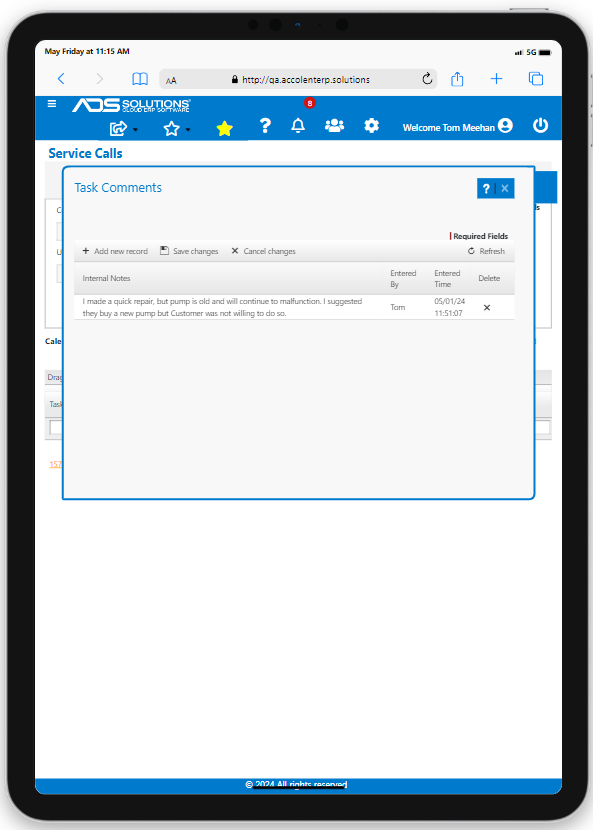
- Opening the Service Call task in the grid view allows the service technician to enter detailed Internal Notes on the job that can be saved.
- When done the service technician can click on Move to Invoice to invoice the Customer, obtain a signature, auto email the invoice to the Customer and (optionally) collect payment if desired.
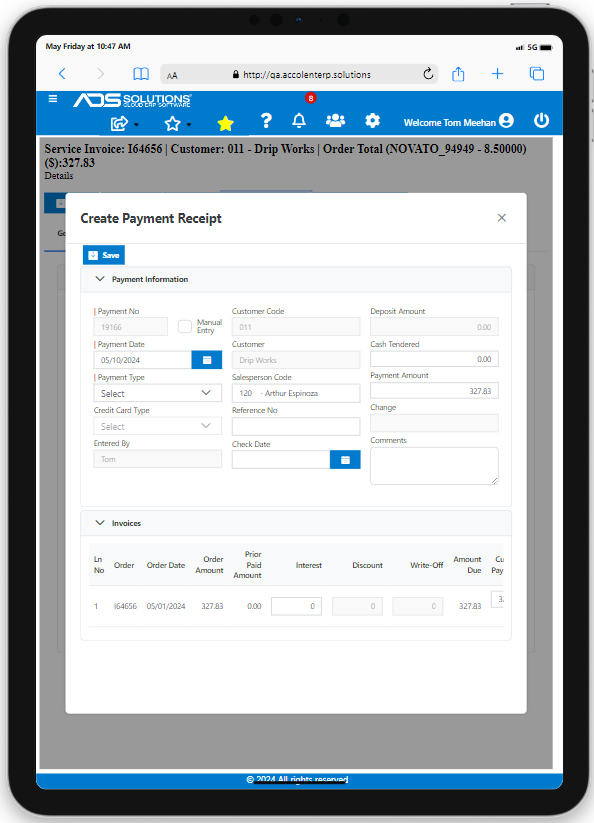
- On clicking Move to Invoice transaction is completed.
