
The Accolent ERP system has a user named Admin set up for ADS Solutions’ use to install and maintain the system. We will also set up a System Manager user with All Rights for your use. Using the System Manager user, you will be able to set up all your users.
Access with a Web Browser
- Once the Accolent ERP users have been set up, users can access Accolent ERP over the Internet from any device that runs a modern web browser.
- However, Accolent ERP has been optimized for Google Chrome and this is the recommended web browser.
Active and Inactive Users
- The System Manager user (or any user with All Rights) will be able to set up any number of users on the system.
- Users can be marked as Active or Inactive, but you are limited to having no more Active users at any one time than the number of licensed users.
- To access the system, a user must have the status of Active user.
- The System Manager (or any user with All Rights) can change any user’s status from Active to Inactive or vice versa at any time.
- NOTE: The Admin user is for ADS Solutions’ use and is not included in the total number of Active users allowed.
Logging In
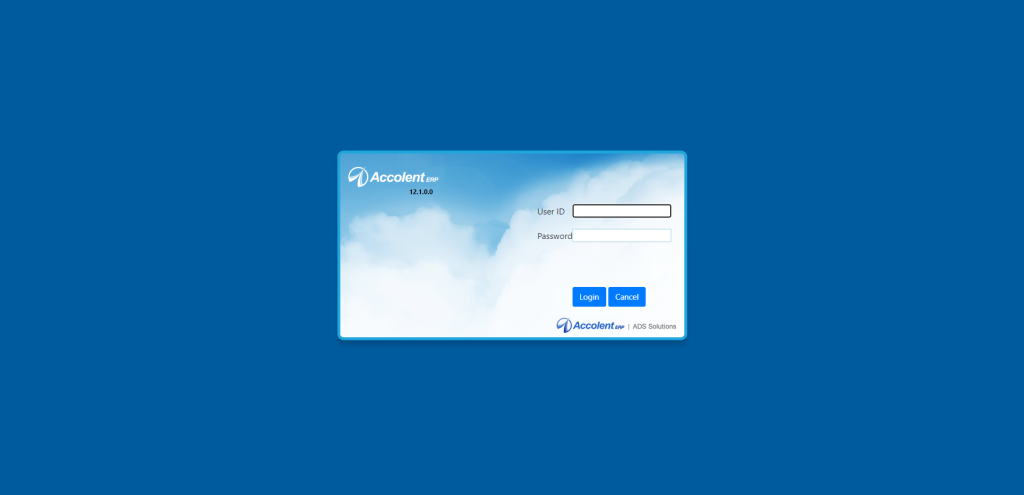
- To log in a user will open a browser and go to the Accolent ERP log in screen.
- The URL address of this screen will be provided to you after the system is set up on AWS.
- The log in screen requires a one-word (i.e., no spaces) user name that is not case sensitive and a one-word password that is case sensitive.
- A user who forgets his logon password will need to contact the System Manager (or any user with administrative rights) who can reset the user’s password.
- A user cannot log in more than once at any point in time using the same user ID and password.
- If the user does not properly terminate his/her prior session and then tries to log in again with the same user ID and password, the system will warn the user then terminate the prior session if user wants to proceed with log in.
Multiple Browser Tabs Best Practices
- Accolent ERP allows a logged in user to open multiple browser tabs from within the same browser session.
- This makes it very convenient for a user that might be in the middle of an order, for example, to right click and open another browser tab to look up some customer data.
- This second browser tab is part of the same user session so a user must exercise great care not to overwrite a record open in the initial browser tab.
- In particular, user cannot have two tabs in the same part of the system open that might conflict. For example if user is in the middle of entering an order, another order MUST NOT be opened in a different browser tab.
- It is strongly recommended, if another browser tab is opened to look something up, that it be closed after the data is obtained to avoid any confusion as to which data record is open.
Browser Best Practices
- Although it is possible to do so, avoid using the browser’s back and forward buttons for navigation.
- The Accolent ERP menus, Back buttons, and shortcuts should be used instead.
- Keeping additional sessions of Accolent ERP open in multiple windows or tabs of the same browser is not recommended.
Time Outs Due to Inactivity
- A user time out setting is provided to prevent users from staying logged in without activity for extended amounts of time.
- This timing out is required to maintain data security.
- The timeout setting is 60 minutes.
- After that period of inactivity has elapsed, the user will be logged out and will have to log back in again.
Logging Out
- To exit the system, a user should click the Logout button in the User Menu area in the top right corner of every screen.