
Accolent ERP allows the creation of several types of orders, for the sale or rental of products to customers. Accolent ERP supports two-step orders and over-the counter orders, also referred to as immediate invoicing.
Order Types
- Two-Step: An order is entered and moved to shipping. In the warehouse, a pick list is printed, the goods are picked, packed and and then ship confirmed and invoiced
- One-Step or Immediate invoicing: This one-step process allows a customer waiting at a sales counter to purchase goods and receive an invoice
- Repairs: These are orders that involve receipt of a (typically serialized) product from a customer and the use of products, services and labor to repair the product for the customer. Can be two-step or one-step orders
- Recurring: These are two-step orders that recur at regular intervals over a specified contract term
List Orders
- To see a list of orders, go to Sales > Orders > List Orders
- The List Orders screen shows a complete list of all existing orders; similarly for List Repairs and List Recurring Orders
- After an order is “Moved to Shipping” it will be available and viewable in the List Shipments screen
- Immediate Invoices are shown in the List Invoices screen
Create Orders
- To create or edit an order, go to Sales > Orders > List Orders and select an order, or Sales > Orders
Order General Tab: Fields
| Fields and Functions | Description |
| Transaction Type | Transaction type can be an order (two-step order), repair or recurring order depending on menu selection |
| Order No | Automatically-assigned transaction number or manually entered transaction number |
| Transaction Date | Transaction date that will appear on the transaction |
| Invoice Display Date | Print date for the Invoice |
| Print Invoice Display Date | If this checkbox is checked the Invoice will be preinted with the selected Invoice Display Date rather than the true Invoice date |
| Bill-To Customer | Customer that will appear in the Bill-To section of the transaction. The Bill-To customer will be expected to pay for the transaction. Credit status will be determined based on this customer. Default ship via, warehouse, terms, and salesperson will be determined based on this customer |
| Ship-To Customer | Customer or location where the goods will be shipped. Default tax jurisdiction is based on this customer. You can choose to select a customer that has been designated as a Ship-To customer for the Bill-To customer or you can choose to manually enter a name and address. |
| Processing Options | Processing options indicate how the transaction should be handled and vary depending on the transaction. Select whether to print the pick ticket when the order is Moved to Shipping. Select whether the order must be shipped complete or whether the order may be shipped without any items that may be backordered and subsequently shipped. |
| Hold Order / Credit Status | A customer on credit hold must be released from credit hold to process an order. Orders can be created for customers on credit hold and held awaiting release, if the user has permission to do so. Users without permission to release or hold an order for a customer on credit hold will be warned that an order cannot be created |
| PO Number | Customer PO or Reference number to aid in identifying the order |
| Ship Via | Shipping method for this order |
| Warehouse | Warehouse to provide goods for this order |
| Terms | Terms on the order |
| Salesperson | Salesperson credited with the order |
| Tax Jurisdiction | Tax jurisdiction for the order. A combination of the customer’s tax code, the assigned tax jurisdiction, and the tax code assigned to the products on order will determine whether tax will be charged and at what rate |
| User Choice 1-7 | User choice fields can be used as memo fields to store information |
| Total Freight | Enter one-line freight charge amount, if desired |
| Total Labor | Enter one-line labor amount, if desired |
Order Products Tab: Fields
| Fields and Functions | Description |
| Save | Save the transaction as an order. While an order, the warehouse will not have access to the transaction |
| Delete Line(s) | Remove checked lines from a transaction. If all lines are removed, the transaction will be cancelled |
| Reset Lines | Reset all unsaved values on order lines |
| Move to Shipping | Releases the transaction to the warehouse and moves it to Shipping. The transaction will no longer be on the List Orders screen but will display on the List Shipments screen. |
| Product code | 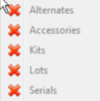 Code that identifies the product. An entry in this field is required. Use the Look Up screen to find the product, if needed. Right click the product code entry field to see a list of options related to the product. The field will be outlined in orange to notify the user if an alternate or accessory product is associated or if kits, lots, or serial numbers require values Code that identifies the product. An entry in this field is required. Use the Look Up screen to find the product, if needed. Right click the product code entry field to see a list of options related to the product. The field will be outlined in orange to notify the user if an alternate or accessory product is associated or if kits, lots, or serial numbers require values
Click the Comments icon Click the Product Image icon to view the image associate with that product |
| Description | Description used to identify the product on the PO. Modify the description as desired. Product descriptions may be up to 200 characters. Multiple descriptions are available by clicking the Multiple Product Description icon  |
| UOM | Sales unit of measure. Enter the desired sales units or use the Look Up button to access the Unit of Measure screen to see which units have been defined for this product |
| Special Order? | This checkbox defines whether this order should be treated as a special order |
| Gear icon | Click on the  icon next to the Qty field to open the Order Quantity Review screen which will allow you to see Product and Inventory information for the indicated part and warehouse. icon next to the Qty field to open the Order Quantity Review screen which will allow you to see Product and Inventory information for the indicated part and warehouse. |
| Qty | Quantity ordered. Enter the quantity you wish to order for the units specified. Click the Order Quantity Review icon to go to the Order Quantity Review screen to see inventory available in alternate warehouse and to accept or backorder quantities |
| Qty on BO | Quantity ordered that will be backordered when backorders are processed. Until that time, the backorder is pro-forma. Backorders are processed after ship confirmation is completed. This prompt does not appear if either the customer or product is marked indicating that backorders are not accepted |
| Edit BO? | The system will automatically enter a backorder quantity equal to the quantity on order less the quantity available. If this checkbox is selected, user may override the Qty on BO to allow the quantity available to go negative |
| Price/PrU | Price for the selected unit of measure after applying all the customer’s earned discounts. Discounts earned for quantity breaks and/or customer pricelists are displayed at the bottom of the screen. If there is a next quantity break it will also display on this line. If contract or special pricing applies, then a message will appear to notify the user that this type of pricing has been applied in the calculated sales price |
| Edit Price? | If this checkbox is checked, system will not recalculate price (e.g., if qty shipped falls short of qty break pricing levels), but instead will preserve the unit price entered. This allows a quoted price to be preserved as the order is fulfilled |
| Tax Code | Tax code relating to this product purchase. The tax code determines whether tax will be charged on this line item. If the customer has never purchased the product, then the entries in the TAXABLE fields of the customer and product records are taken into account. Otherwise, the last tax setting used for this customer and product will appear as the default setting. You may overwrite the default by entering any tax code defined on the system |
| Extended Price | Extended price for this quantity of products at this price. Quantity multiplied by price to show the line item price rounded to two decimal places |
| Department | Each line item may be allocated by department. Allocating sales by department is valuable for sales analysis and General Ledger purposes. |
| Date Required | Date Required by line item. |
| Total | Total price for all items including tax and other charges. See price breakdown by placing the mouse over the Details button. The Order Totals popup screen includes a More Details option. |

Order Actions Menu
- Find functions relating to order entry
- Access Actions Menu from Sales > Orders > Create Order > Actions
Calculate Bid
- Calculate a total price for the entire order
- Adjust any one parameter like discount percentage or profit dollars and this will recalculate the screen
- When satisfied, apply to the order
Add Special Prices
- Each customer may have a Special Price List of discounts by product or category
- Each customer may also have a Shared Special Price List of discounts by product or category
- Access to those lists to view or change items is available when creating an order
Calculate Line Item Profit
- Adjust discount percentage, price, cost, amount of profit, percentage of profit, and mark up from cost for each line on the order
- Save the changes to import them to the order
Linked Files
- Link files to the order to include related information with the order
Freight Rate Look Up
- Choose a shipping provider and request rates from that provider
- You will then have the opportunity to add a surcharge and export selected services
Take Payment
- Take a deposit or other payment on the order
Order Entry Imports Menu
- View products that can be imported to the order by adding an order quantity
- Access Order Imports Menu from Sales > Orders > Create Order > Imports
Recent Parts Purchased
- Import recently parts recently sold to this customer and view detailed last sale information
- Last price, invoice number, invoice date, quantity, unit of measure and cost are all available
- All products with a defined quantity can be imported, screen by screen, to the transaction
- The default tax code to apply to a product and customer can also be defined
Customer Product Codes
- Import products with a defined customer product code to the order or add new Customer Product Codes
Product Search
- Enter search terms to pull up a selection of products
- Select warehouse to see information about the product including quantity available in the selected warehouse
- Enter Order Qty and import into the order
Bill-To Customer Contracts
- Import Bill-To customer contracts
- Contracts related to this customer are shown with the option to enter a unit of measure and quantity to add to the order
Ship-To Customer Contracts
- Import Ship-To customer contracts
- Contracts related to this customer are shown with the option to enter a unit of measure and quantity to add to the order
Products with Special Prices
- Import products with special prices defined for the customer on the customer record.
Import Products
- Import products from a past transaction for the customer
- Select the type of transaction then choose the transaction from the Look Up screen
Order Views Menu
- Find information that helps the order entry process
- Access Order View Menu from Sales > Orders > Create Order > Views
Payments
- Details of payments made by this customer
Collections
- Details of Open Invoices and Paid Invoices for this customer together with corresponding payments
Special Order History
- Details of special orders placed for this customer together with the PO No placed on the vendor
Order Comments Menu
- Find information that helps the order entry process
- Access Order Comments Menus from Sales > Orders > Create Order > comments icon
Printed Comments
- Enter a comment
- Select which forms the comment should print on
- The printed comment will appear in the Special Instructions section of the selected forms
Internal Notes
- Enter one or more internal notes
- These will be recorded chronologically with the User ID of the person entering the note and the Date Entered
- Notes and history will exist with the transaction through its complete lifecycle: quotes to order and can be viewed, edited, added to or deleted at any time