
Accolent ERP provides the ability to create a Purchase Order (PO) Header then import the PO Line Items from a CSV file. This capability allows users to create standard PO templates as CSVs which can then be quickly imported and edited as needed. This ability to import PO lines works in exactly the same way as creating Quotes/Orders/Invoice Line Items from a CSV import file.
Create PO Header
- Go to Purchasing/Vendors > Purchase Orders > Create Purchase Orders.
- Enter the PO No (if manual entry is selected), enter Vendor Code and the rest of the PO Header should populate from the Vendor record.
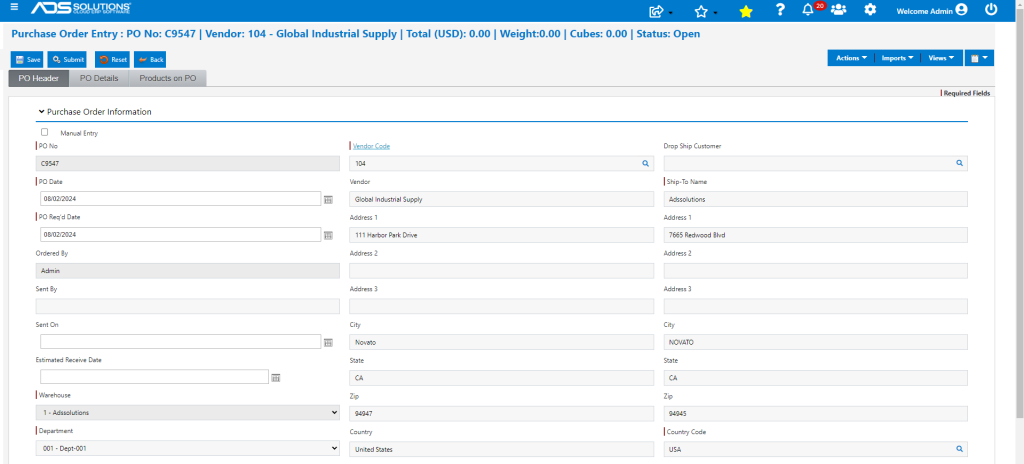
- Go to the Products tab > Imports.
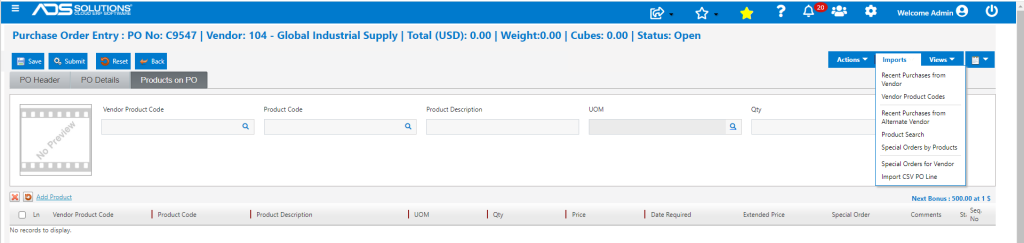
- Click on Imports > Import CSV PO Lines.

Create CSV File
- Click on Download Sample to download the CSV template.
- Do not edit the column names.
- Fill in the PO Lines as rows in the CSV file.
- Only Product Code, Qty, UOM and Price are needed for each row.

- When done, save the CSV file, then move it to Zip file format and save.
- The CSV file can be created in advance of creating the PO Header using the standard CSV template.
Import Zipped CSV File
- Select the Zip file, then click the Import button.
- The CSV rows will be automatically created as PO Lines for the PO.
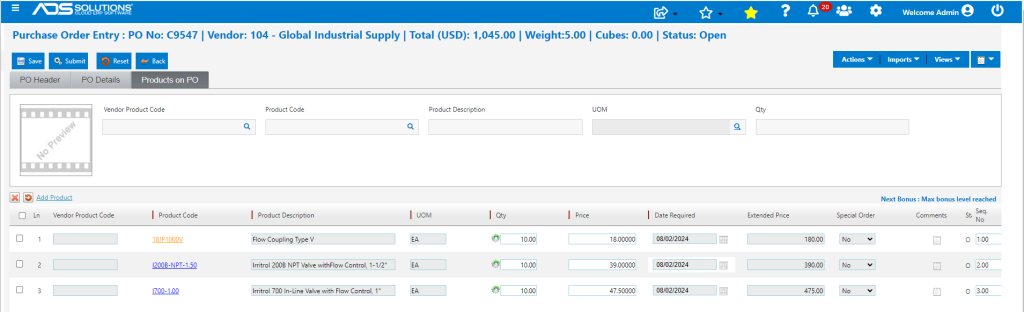
- Save the PO.
- The saved PO may continue to be added to until complete.
- When complete, click Submit to send the PO to the Vendor.
