
Accolent ERP supports Configurable Products and Variants. A Configurable Product is not a single product, but rather a family of identical products that vary based only on the values selected for certain Attributes associated with the product. Since Configurable Products require a lot of specific entries, Accolent ERP streamlines the process by allowing for the import of Configurable Products and all their related Product Attributes from CSVs. Upon import, a Stored Procedure automatically (1) creates the Configurable Products, (2) creates the Product Attributes and Variants for each, then (3) links the Configurable Products and the Product Attributes and (4) creates the Variants for each Configurable Product. A separate import template is then used to import multiple images per Configurable or Variant product.
Download Import Template
- From Utilities > Imports > Bulk Imports, select Import Group = Initial, select Import Category = Master Record and select Import Type = Configurable Products and Variants
- Download the template which can then be populated, saved and then imported to create the records in Accolent ERP.
Populate the Import Template
- Multiple Configurable Products each with multiple Attributes and Values may be imported in the same CSV template.
- Each of the Product Attributes (e.g., Color) stores not just the possible Values (e.g., Black) but also a Description which can be any text entry (e.g., a hex code or Euro Size).
- Go to Settings > Value Lists > Product Only Lists > Product Attributes to see a Product Attribute Value List in Accolent ERP.
- For example, below is the Product Attribute list for Color:

- Below is the Import Template with Row 1 added to describe the typical usage of the fields for importing Configurable Products and Product Attributes and Values.
- Note that the standard template will not have Row 1 or the yellow highlighting of the titles in Row 2 – these were added only in this wiki for clarity.
- Other ways to assign the Group, Category, Sub-Category and User Choice fields are also possible.

Import the Configurable Products and Variants CSV
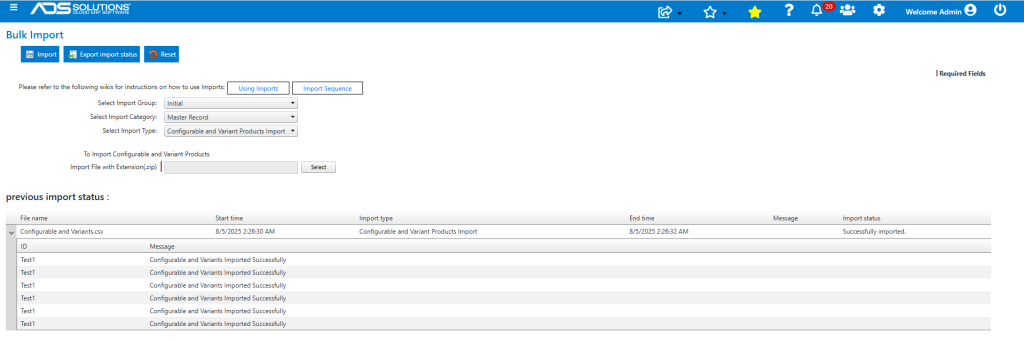
- Zip the Configurable Products and Variants file and import it into Accolent ERP.
- Success message shows the file was successfully imported.
Configurable Product and Variants Created
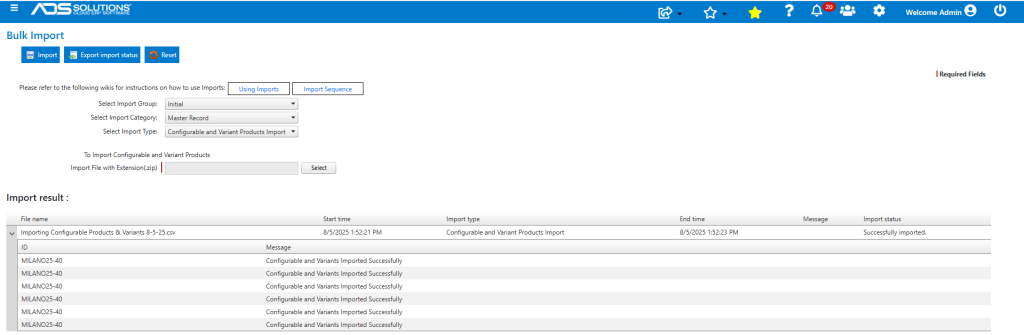
- Search List Products for “MILANO25”
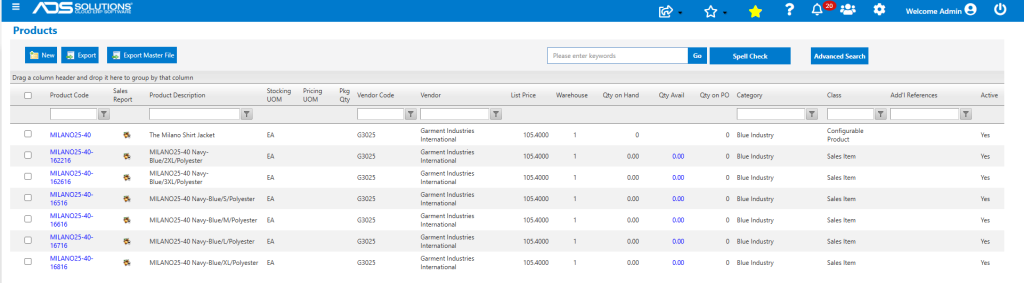
- The search returns the Configurable Product, and its 6 Variants that were all made automatically by the system.
- Each Variant has a unique SKU created by adding a unique suffix to the Configurable Product Code (e.g., MILANO25-40-16716).
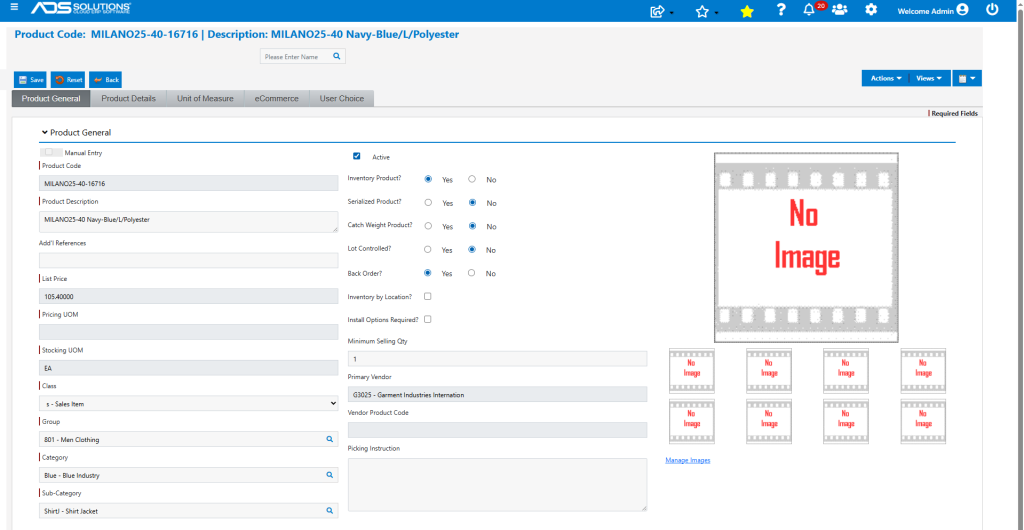
- Open MILANO25-40-16716, for example, which is the Variant corresponding to the combination of Navy-Blue/L/Polyester.
- This is the Navy-Blue/L/Polyester Variant for this product:
- User Choice fields were populated as indicated (UC1 through UC4 respectively: Retail Price, Selling Period, Cut/Fit, Country of Origin):
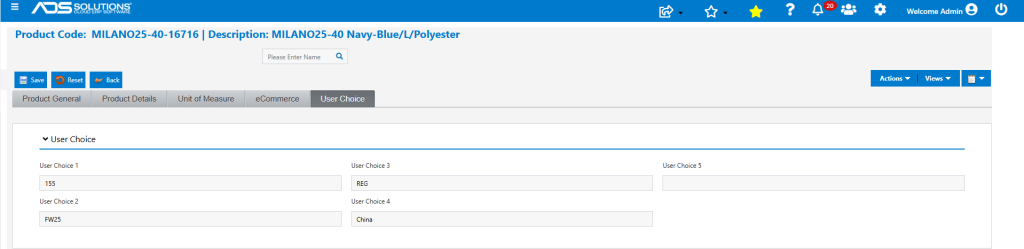
- Note all the User Choice field labels can be changed to reflect the actual information saved.
Upload Images
- Go to Imports > Product > Product Image Import.
- Download the Product Images Excel Template and insert embedded images.
- Each Variant can have its own images if desired; however, in this case the Variants differ only in size so the same images may apply to all.
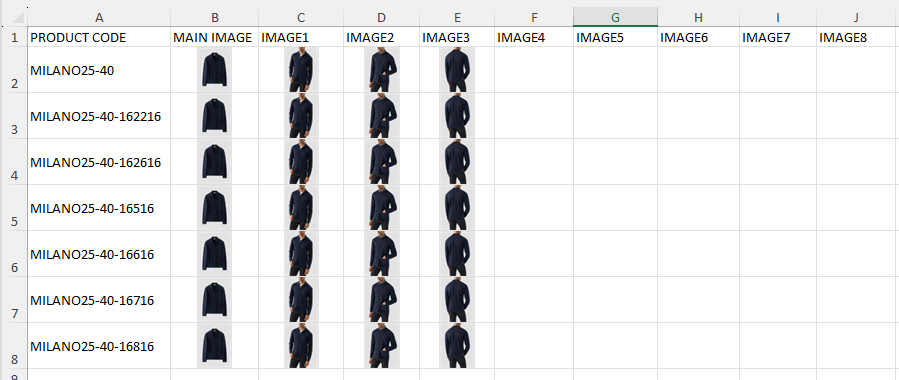
- Save and zip the Excel file.
- Now import the images.
- Message indicating that product images were successfully imported.

- Go to Inventory/Products > Products > List Products and enter “MILANO” in product code and from dropdown, select the configurable product MILANO25-40
- Shows the product images that were imported.
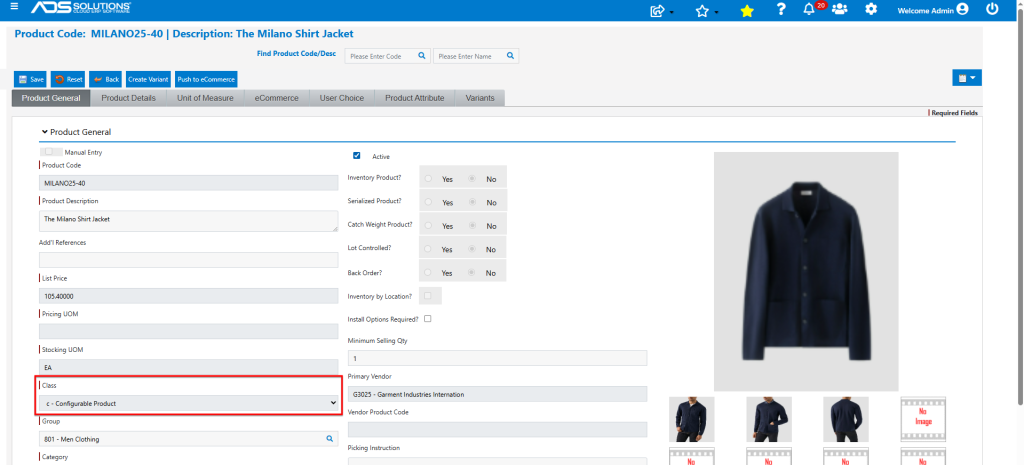
- Go to the Variants tab and select any of the Variants.
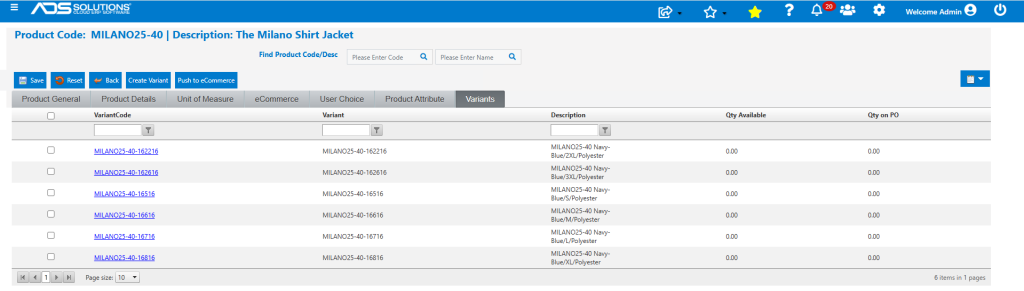
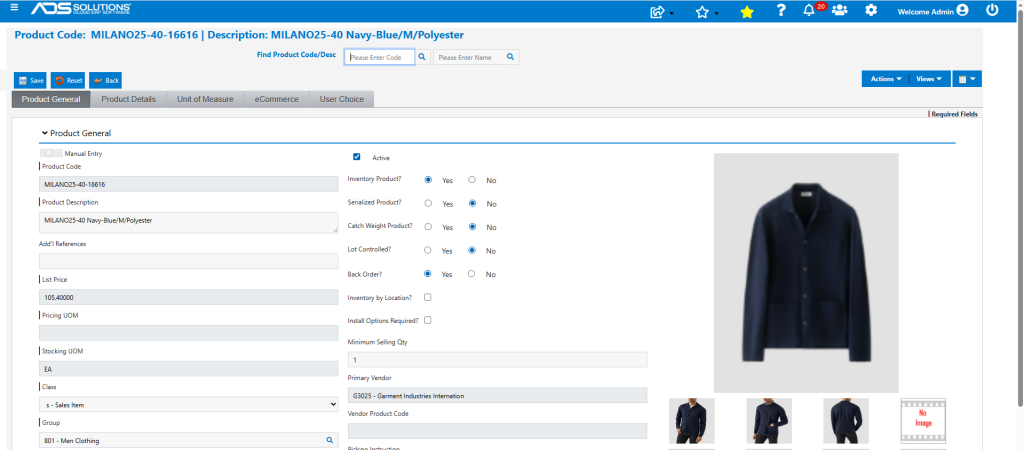
- For example, select MILANO25-40-16616 (Navy Blue/M/Polyester).
- Images were successfully imported into the product record.
- All configurable products and variants were successfully imported as were the multiple product images.