
Orders flagged as “Ship-Complete” will not be able to ship confirmed until all line items on the order can be filled. For Ship-Complete orders that have lines that cannot be filled, the whole order will be moved to back order. The lines that can be filled will have inventory allocated reducing Q-Avail to be sold to others. When quantity becomes available to fill the lines that could not be filled, evaluating the back order will show that the Ship-Complete Order can be filled. It will then be able to be moved to fulfillment and then can be invoiced.
Ship Complete Settings
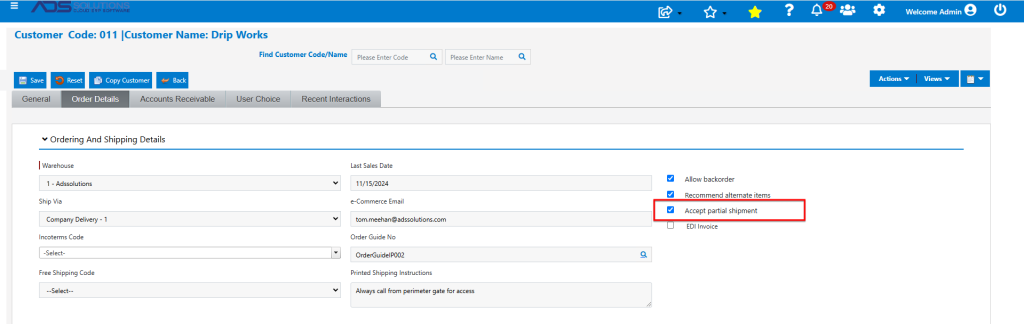
- The Accept Partial Shipments checkbox on the Customer record designates whether or not the customer wants partially filled orders to be shipped.
- If Accept Partial Shipments is checked on the Customer record, any order for this customer will default the Ship Complete flag to No.
- However, the Ship Complete flag on the order can be changed from the default value by the user, if desired, for that order only.
- For example, Customer 011 has Accept Partial Shipments=Y, so orders for this Customer will default to Ship Complete=N; however, this can be overridden on any order.
Create Ship-Complete Order
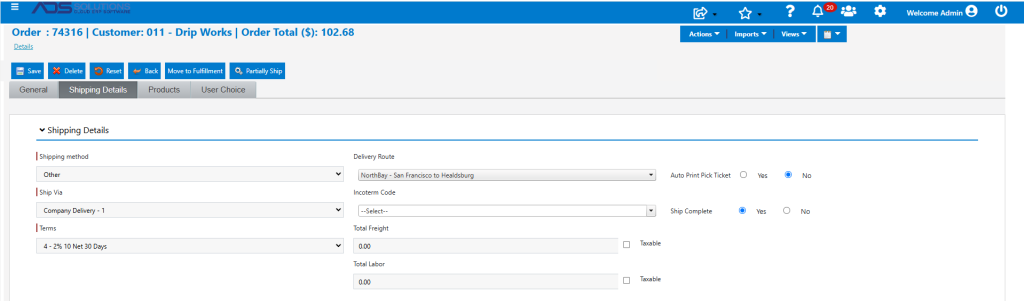
- Create order 74316 for Customer 011.
- Designate order as a Ship-Complete order.
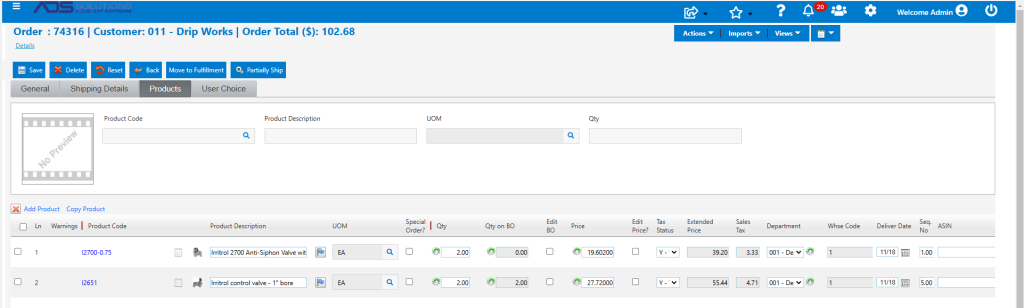
- Product I2700-0.75 is in stock, but product I2651 is not in stock and back ordered.
Move to Fulfillment
- Move order to fulfillment.
- Order 74316 does not appear on the Orders in Fulfillment screen (even though order line 1 could be filled).
- Because the order is Ship-Complete, and some lines cannot be filled the whole order is moved to back order.
- Look up the order on the Transaction Locate screen.

Receive a PO
- Receive PO No C10448 which replenishes product I2651.
- The back order 74316 can now be filled.
Evaluate and Process Back Orders
- The Evaluate Back Orders functionality evaluates all BOs in the selected population in reverse chronological order, and reports whether each BO Can be filled, Can be partially filled or Cannot be filled based on inventory levels.
- Select 74316 and click Evaluate BOs.
- Since the Evaluate population is just this back order, it will move ahead of other older back orders for purposes of assessing whether it can be filled or not.
- Since Qty on Hand of both line items is now sufficient to fill this order, screen shows Can be filled.

- Click Process Orders to move BO to Fulfillment and print the pick ticket.
Fulfill Order
- Order 74316-1 now appears in the List Orders in Fulfillment screen.
- Open 74316-1 – pop-up warns that this is Ship-Complete.
- Click OK to accept the warning and proceed.
- The Products tab shows that the Qty Shipped has been defaulted in.

- Move to Invoice.
- Ship-Complete order has now been invoiced.
