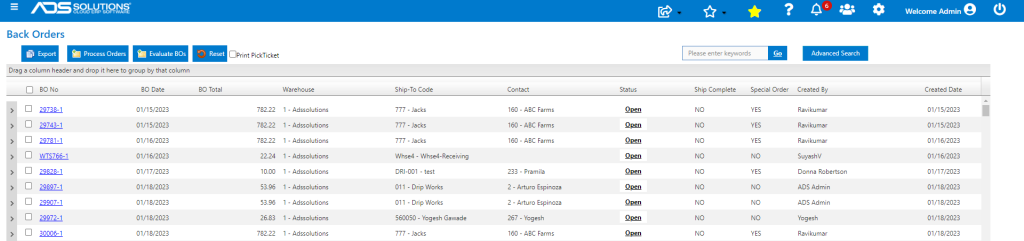
Accolent ERP allows users to evaluate outstanding back orders at any time. Selecting a population of back orders to evaluate and running the Evaluate BOs, indicates which of the selected back orders: (1) Cannot be Filled, (2) Can be Partially Filled and (3) Can be Filled. Running the Process Orders allows those back orders that Can be Partially Filled and those that Can be Filled to be moved to fulfillment and processed.
Evaluating which Back Orders can be Filled
- Go to Sales > Manage Back Orders > List Back Orders and Process.
- The screen displays all open back orders with the status Open in chronological order (oldest first).
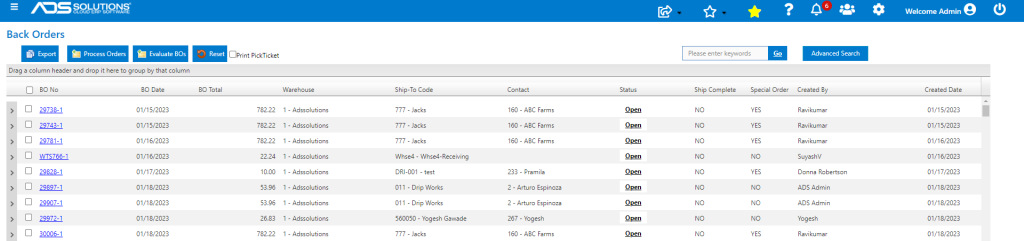
- Select which back orders to evaluate, then click on the Evaluate BOs button.
- The ability to select a partial population to Evaluate is very powerful; it allows the user to Evaluate, for example, only BOs for:
- A particular Customer or group of Customers, or
- Customers on a particular delivery route for which the truck is leaving shortly, or
- Other situations in which back orders may be filled in other than strict chronological order.
- Note, to select all back orders use the checkbox for BO No in the grid header.
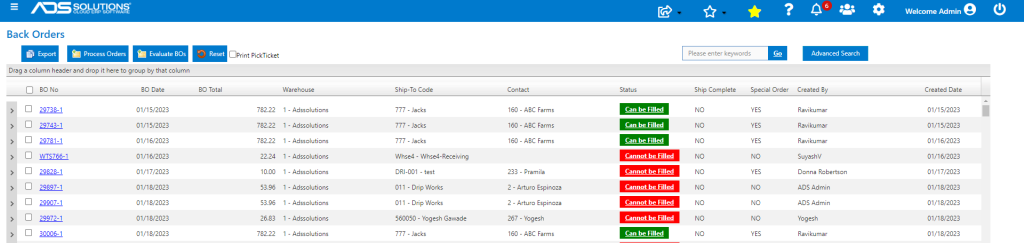
- The system reports on which back orders in the selected population can be filled starting with the oldest first and filling what can be filled from Quantity Available.
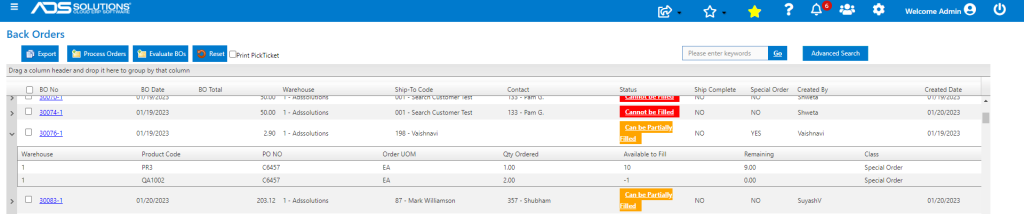
- Each transaction is marked with one of the following statuses: (1) Cannot be Filled, (2) Can be Partially Filled or (3) Can be Filled.
- The population can be unselected and reselected to evaluate a different set of back orders.
- For example, if a truck is leaving, reselect the back orders to be evaluated based on the truck’s delivery route.
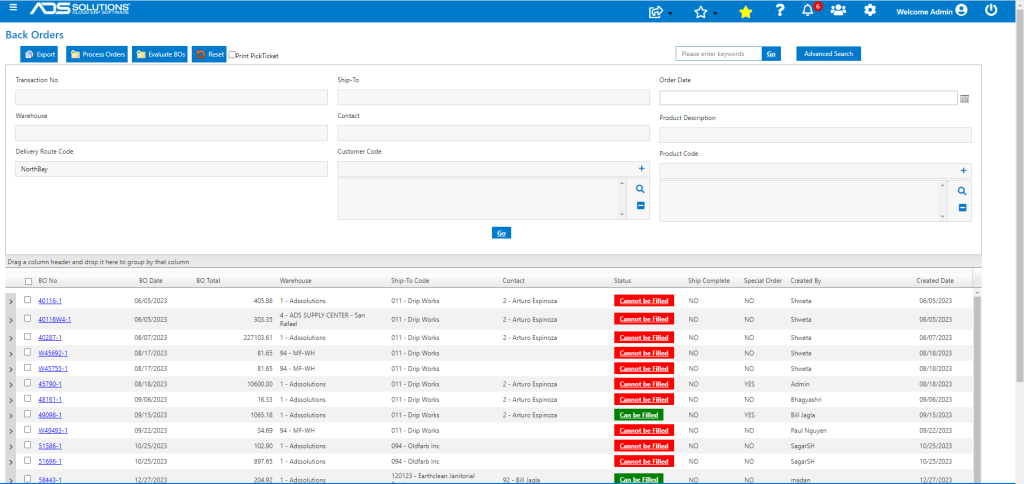
- If a different set of back orders is evaluated, there will be a different set of back orders that can be processed from the selection.
- Click on the expand arrow, to see which specific items on a Can be Partially Filled back order can be filled.
Processing Back Orders
- Once satisfied with the selection, select the specific back orders to be processed.
- Then select the Print Pick Ticket checkbox and click the Process BOs button.
- For example, select 30083-1 (Partial), 30111 and 30118 to process.
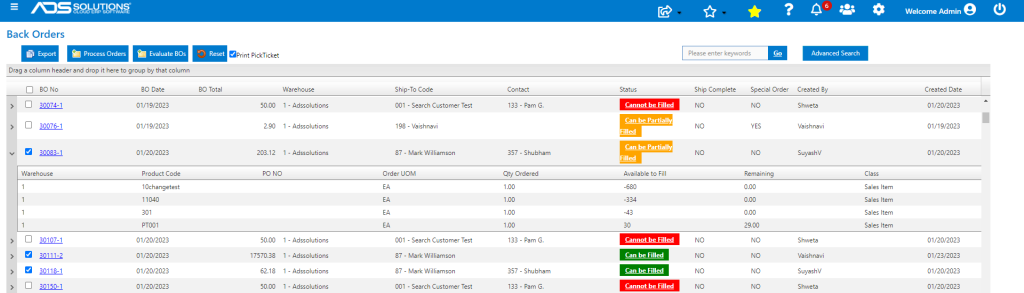
- Clicking on the Process BOs button will move the selected back orders to fulfillment and will create the Pick Tickets for these back orders.
- For Can be Partially Filled back orders the system will fill what can be filled and create a new back order for the unfilled portion.
- The selected back orders were processed and assigned Batch No 1556 so they can be identified easily.
- These are the selected back orders moved to Fulfillment as Batch No 1556, and the Pick Tickets were printed.

- The remaining (i.e., unprocessed) back orders are returned to Open status.
- At any time or upon receipt of inventory the Manage Back Orders process can be rerun to determine which, if any back orders, can then be filled.