
Accolent ERP provides a set of CSV data Import Templates that can be used to import your data. See the Using Data Imports wiki: https://help.accolent.net/using-data-imports/ for an overview of the process. Because the Import Templates are all CSV files, care must be taken when opening these in Excel in order to preserve leading zeros that Excel will try to drop. Included below are instructions for working with CSV files in Excel.
Opening CSV Files with Excel
- If your CSV data includes leading zeros, you cannot open it by dragging it into Excel or right clicking “Open With” and selecting Excel.
- Excel will strip leading zeros from numbers unless the data is formatted as Text.
- To do this you must use the Excel Text Import Wizard.
Excel Import Wizard
- Open the Excel program, and open the CSV text file from the File menu.
- In the Open dialog box, change the “Files of Type” to include .txt files.
- Select the file you wish to open and click the Open button.
- This will bring up the Text Import Wizard
- Make the appropriate choices for steps 1 and 2
- Excel will try to figure it out, so you can usually just take the settings recommended.
- On step 3, slide the scroll bar at the bottom to the last column, in the space that reads “General” enter <shift><left click> to select all columns, or just the individual columns you want.
- Select the radio button Text.
- All columns should change from format General to Text format.
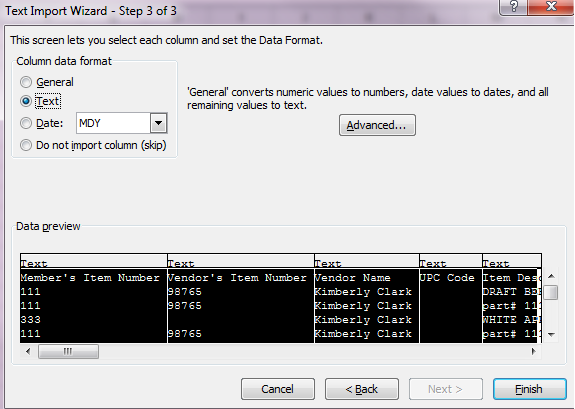
- When you click the Finish button, leading zeros will be preserved in the columns formatted as Text.