
Accolent ERP allows users to enter write-offs on Accounts Receivable (AR) items in conjunction with receiving payments. Write-offs may be used to eliminate small balances outstanding or to reverse interest charged but not paid or for other purposes.
Receiving Payment
- To record a payment on account, go to Receivables > Payment Receipts > List Payment Receipts, and click on the Add Payment button.
- Enter the Customer Code.
- Enter the Payment Type and Payment Amount.
- Enter the Payment Date, if backdated, otherwise the current date will be entered.
- Then select how any Invoices to display and click on the Load Grid button to display the oldest invoices on the account.
- For example, enter Customer Code 011; Payment Type of Check; and Payment Amount of $74.00.
Allocate Payment and Enter Write-Offs to Close AR Items
- Select invoice 71289 to be paid and enter payment allocation.
- Clicking on the blue refresh icon in the Current Payment column on any row will populate the Current Payment with the Amount Due for that invoice.
- To record a write-off, enter the Current Payment then click on the Write-Off details icon to pop-up a screen asking for the General Ledger Account that the write-off should be recorded against.
- The write-off amount will default as that amount remaining to close the AR item and bring the Amount Due to a zero balance but may be changed.
- Select one or more GL Accounts to distribute the write-off to.
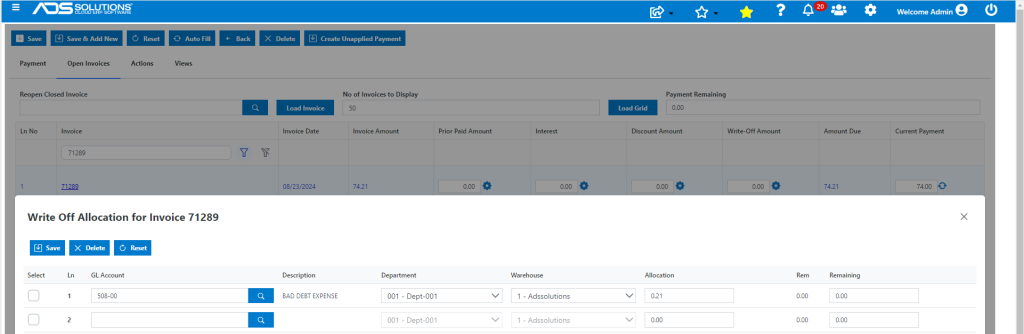
- Save the Payment.
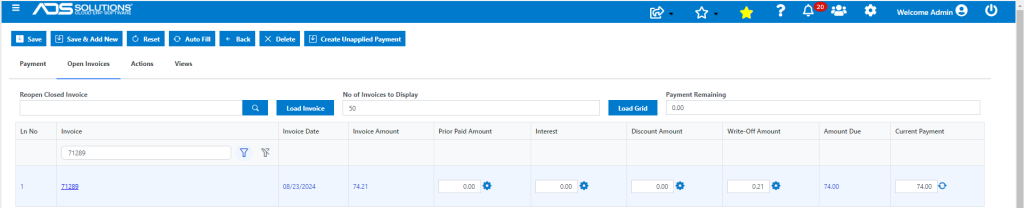
Write-Offs Can Only be Taken in Connection with Closing the AR Item
- Note that a write-off may only be taken in conjunction with a payment that closes the AR record.
- Write-offs that leave an invoice with an unpaid balance cannot be entered.
AR Aging
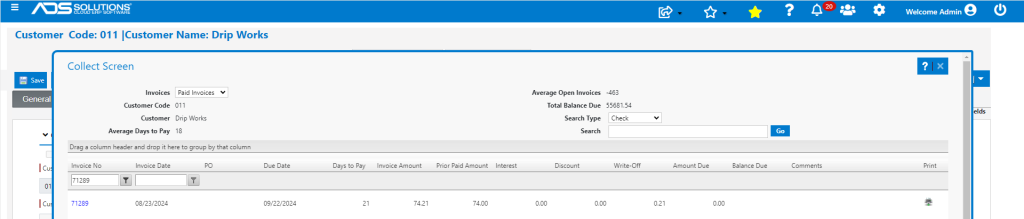
- Invoice 71289 has now been paid in full including the write-off and no longer appears in AR Aging.
- From Customers, select Customer > Views > Collections > Paid Invoices, which shows the invoice as paid.
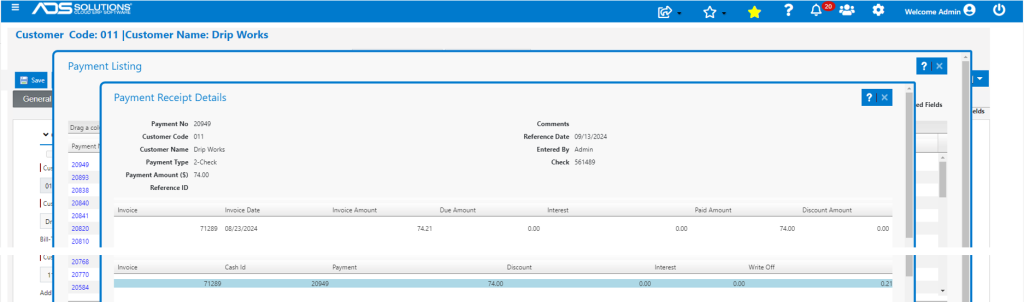
Payment Record
- Go to Views > Payment Listing > Payment Receipt Details which shows the details of the $74.00 payment and how it was entered including the write-off.
GL Posting of Write-Offs
- This is the GL Posting of Payment 20145 including the Write-Off.
