
Accolent ERP allows for the selection of multiple invoices from the List Invoices screen. Then by clicking one button, all selected invoices can be emailed to the contacts set up in the Email/Fax Defaults or printed to the printer set up in the Forms Set up. To allow this, the Email/Fax Defaults as well as the Printer Defaults have to be set up first.
Set up Email/Fax Defaults
- Go to Customers > Customer and select a customer. Then on the Customer go to Actions > Email/Fax Defaults.
- Select from the customer-facing Forms, select whether to Email or Fax and select the Contact.
- For example, for Customer 011 select the forms to be sent.
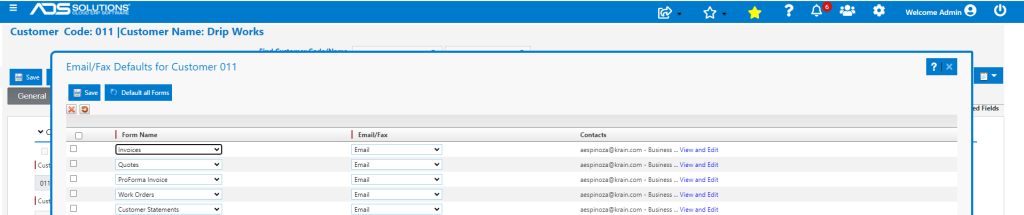
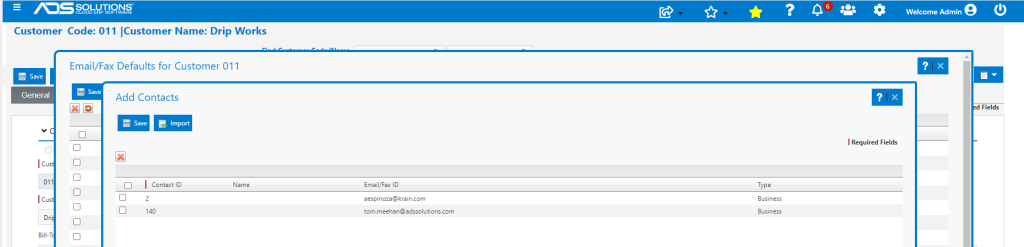
- Then click on the View and Edit hyperlink to add from Contacts already set up for this Customer.
Set up Email Template
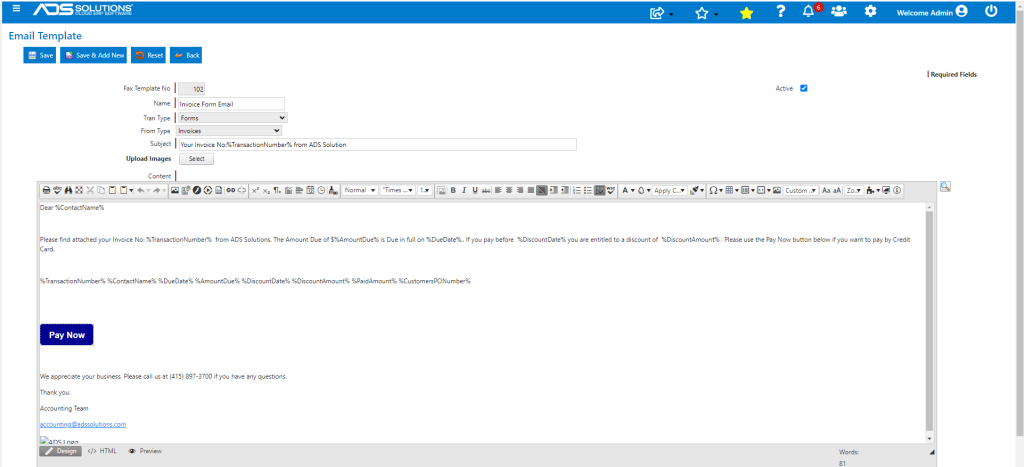
- Go to Settings > Printing & Sending > Email Templates and create an email template for each form (e.g., Invoice Form Email).
- Using the form editor create the Email Template and save.
Set up BCC Email Mailbox
- Go to Settings > System > System Configuration and set up a bcc email address to receive copies of all emails sent out of the system.
- This is not required, but if set up, the bcc mailbox will be a complete log of all outgoing emails.

Send Invoices by Email
- Go to List Invoices and select several invoices to be sent by email.

- Click on the Email button to send emails; a pop-up screen displays the results.

- A success message will be displayed.
- Emails will be sent to the Email/Fax Default Contacts and will include the invoices as PDF attachments.
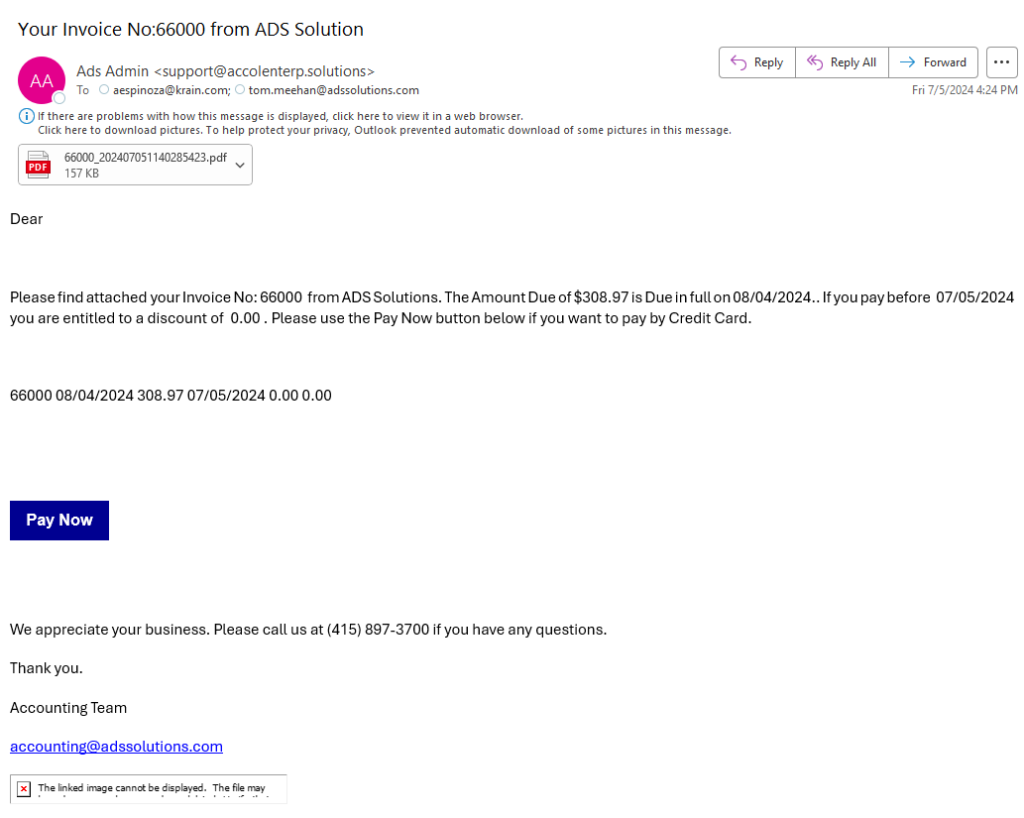
- Copies of the emails will also be sent to the bcc mailbox.
Set up Printing Defaults
- Go to Settings > Printing & Sending > Printer Groups > select printer group > select Invoice
- Select printing options.
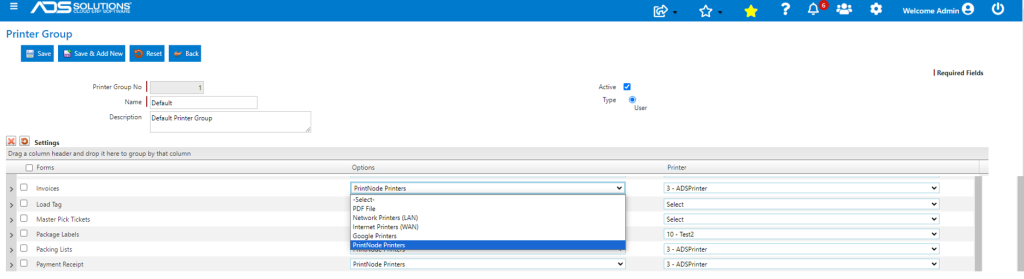
- Set Tray/Paper Source and No of Copies,

- Select list of Invoices as above.
- Click on the Print button to print these invoices to the selected printer.

- Then Print.