
Accolent ERP’s email integration allows users to send emails from Accolent ERP using their Outlook or Gmail email addresses. Emails sent from Accolent ERP automatically update the users’ Outlook or Gmail sent folders. Emails sent from Accolent ERP to customers, prospects and vendors are also automatically logged to the recent interactions tab on the customer, prospect or vendor. Optionally Accolent ERP can also be set up to track emails going into or sent from users’ Outlook or Gmail accounts and log these too, to the recent interactions tab. With this integration, users can choose to work from their email accounts or from Accolent ERP and see the email trails in both places.
Sending Emails
- Accolent ERP can send emails using SMTP protocol through the SMTP server set up in the Configuration settings. In this case all emails will be sent using the From Address set up in the Configuration settings.
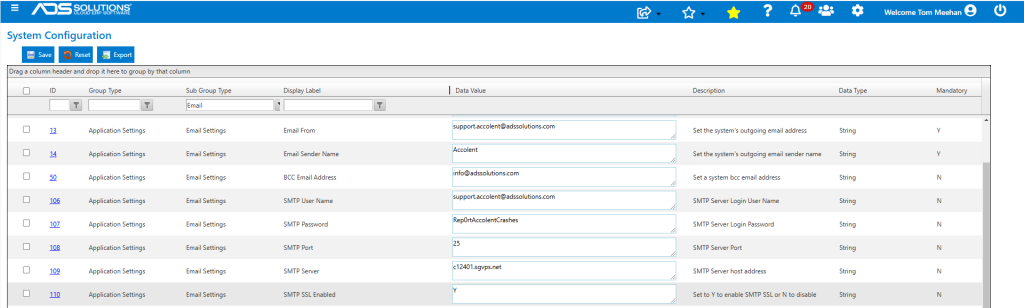
- Alternatively, all emails can be sent directly from users’ Outlook or Gmail accounts if set on users’ accounts.
- If sending emails from users’ accounts is selected, the emails will be sent using the POP3 or IMAP protocols.
- The integration with users’ accounts allows emails from Accolent ERP to also be recorded in the users’ Sent folders in Outlook or Gmail.
Email Integration
- To enable the Accolent ERP email integration with users’ accounts, first set Configuration ID 257 to Y.

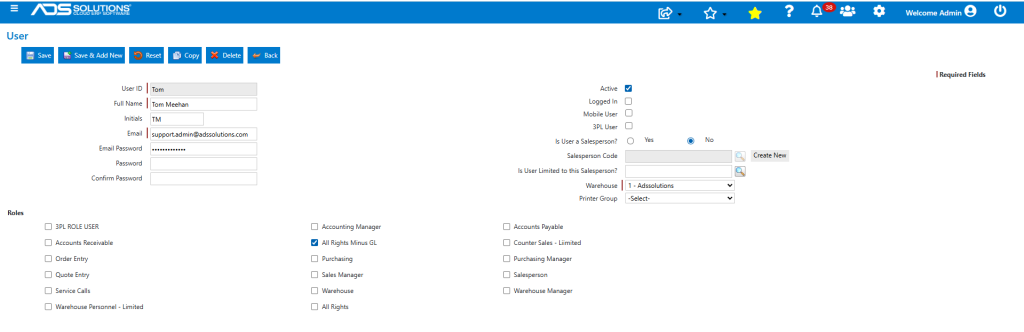
- Then enter the user’s email account and password on the Accolent ERP User screen.
- Emails initiated in Accolent ERP by the user will be sent from this account.
Sending Emails from Accolent ERP
- Emails sent from Accolent ERP by this user “Tom Meehan” will be sent from the user’s email address “support.admin@adssolutions.com.”
- Sent emails can use standard templates for form transmittals, or the emails can be freehand emails.
- To send using the standard invoice transmittal email template and email/fax default recipients that have already been set up, select the invoice on the List Invoices screen and select the Print button on the RHS of the screen
- To send using a freeform composed email, use the Email button instead of the Print button.

Sending invoice transmittal email using standard template
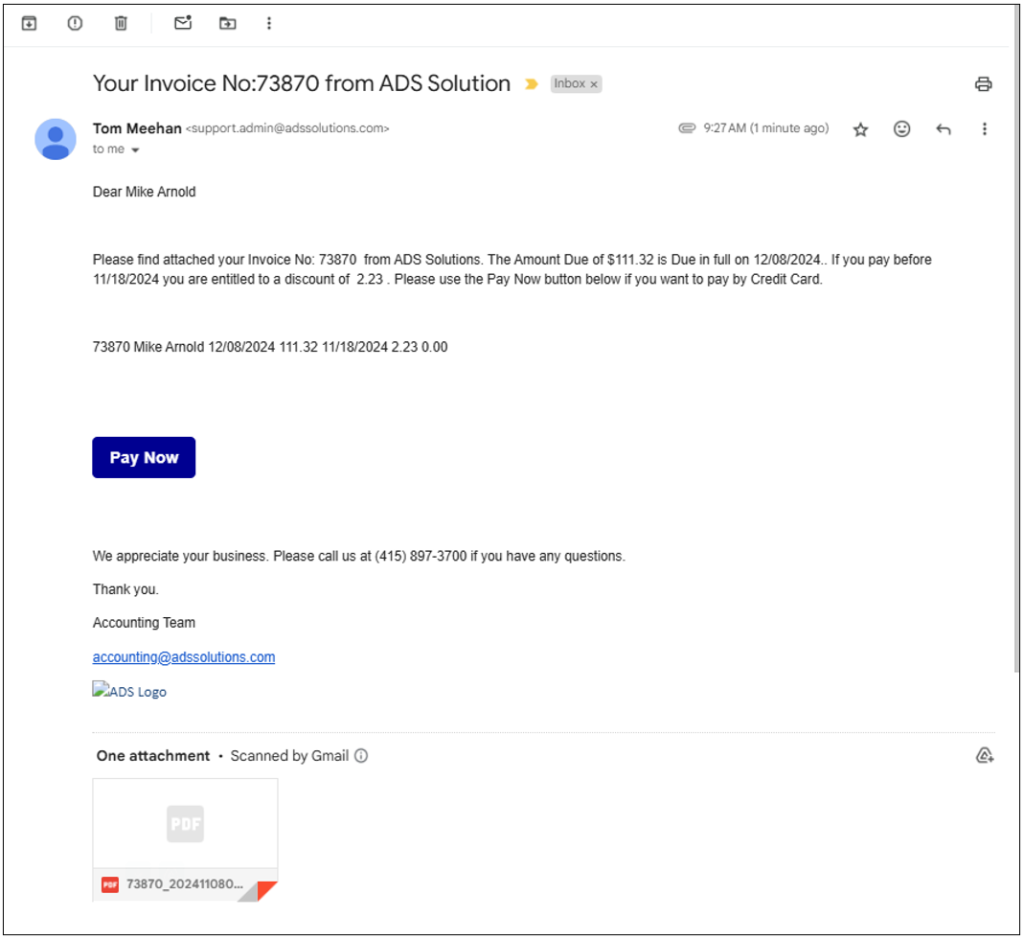
- This is the email received by Mike Arnold, sent from user Tom Meehan using the standard template already set up and including the invoice as a PDF attachment.
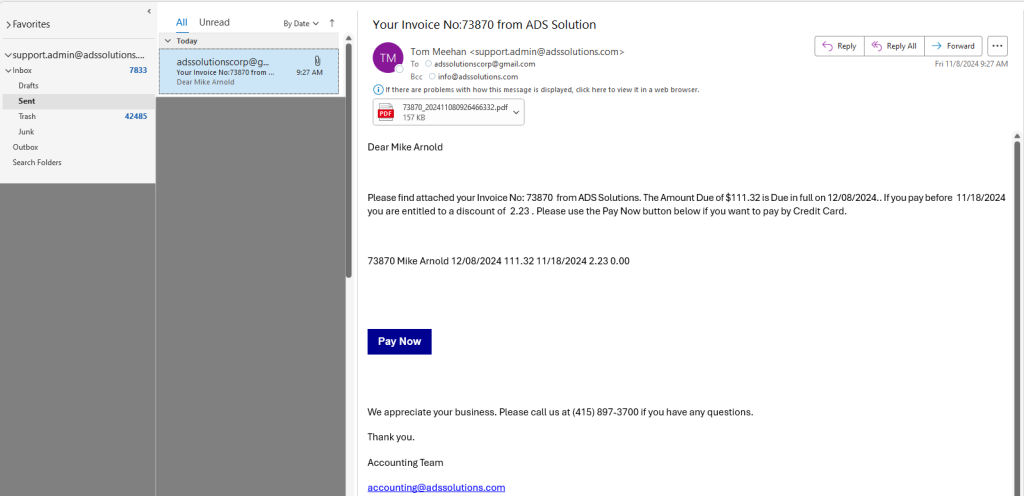
- This is the record in user Tom Meehan’s outlook account’s Sent folder, which was automatically updated:
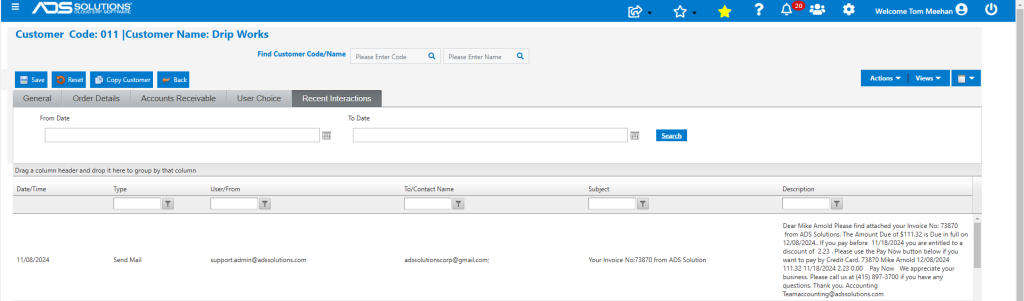
- This is the entry in the Recent Interactions tab for Customer 011.
Sending invoice transmittal using freeform email
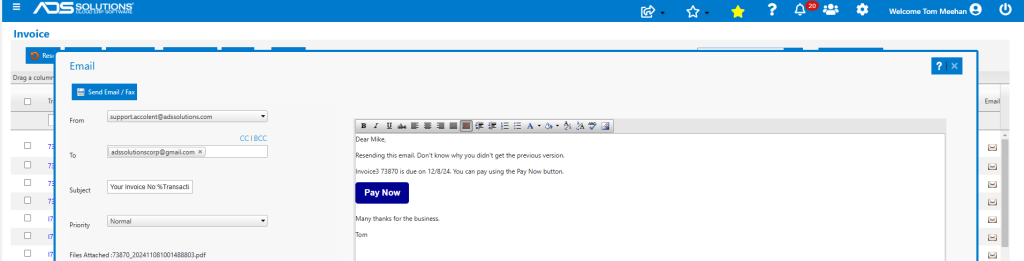
- This is the freeform email that was composed and sent.
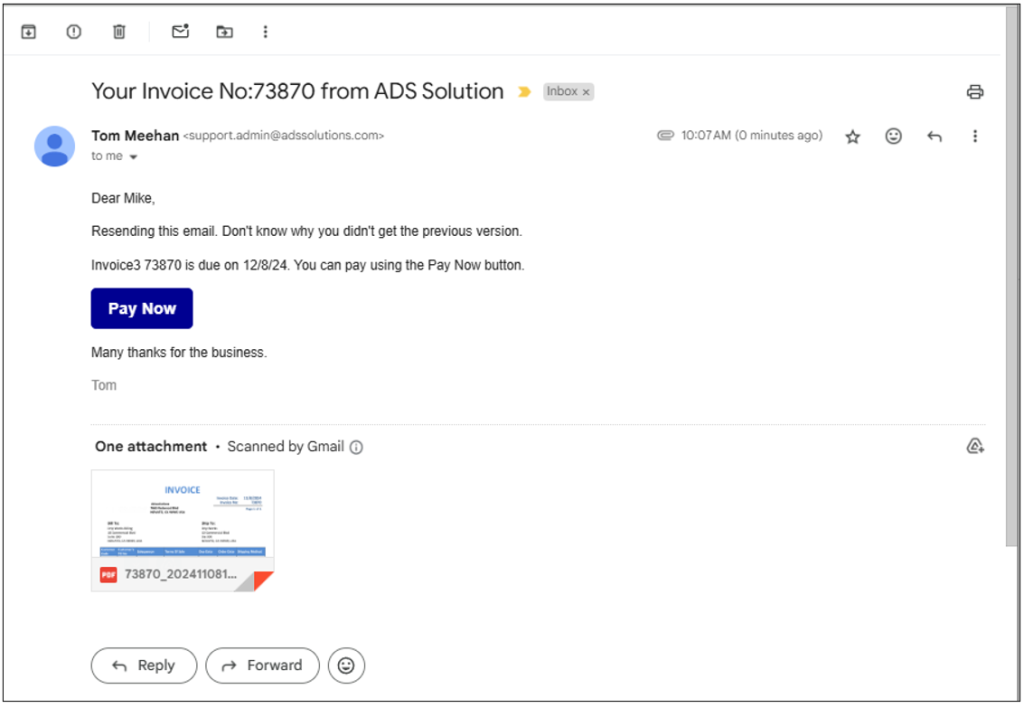
- This email was also written to the user’s Sent folder.

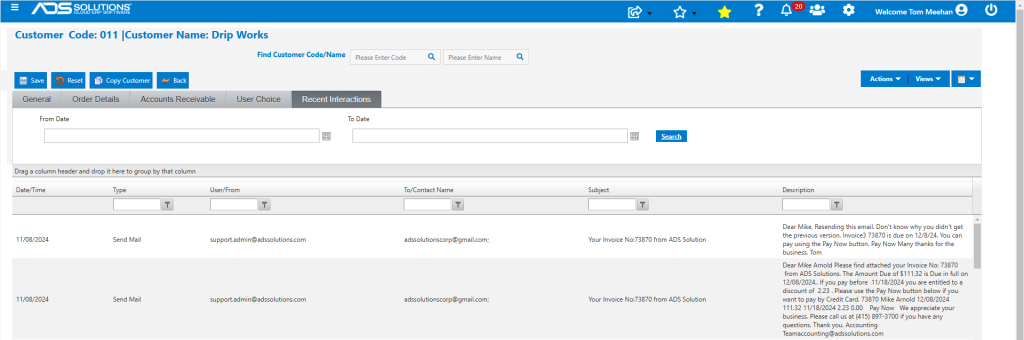
- And written to the Recent Interactions for Customer 011.
Other types of emails
- Sending transmittal emails with other types of transactions Quotes, Orders, Statements, etc., all work the same way, as follows:
- Send the email from the user’s email address,
- Write the email to the user’s email account’s Sent folder, and
- Write the email to the Recent Interactions tab for the Customer, Prospect or Vendor.
- CRM emails also work the same way.
Emails Into or Out of Outlook/Gmail
- We can optionally link Outlook or Gmail accounts to log incoming or outgoing emails to the Recent Interactions in Accolent ERP.
- This additional linkage will require incremental charges.
- If this is requested, we will monitor all emails in or out of a specified account and parse them to determine whether they are from or to a “Known Domain”.
- Known Domains are the URL domain names (e.g., “adssolutions.com”) associated with Customers, Prospects or Vendors in Accolent ERP.
- If an email can be matched to a Known Domain, it will be written to the Recent Interactions for that Customer, Prospect or Vendor.
- If an email cannot be matched to a Known Domain, it will be ignored.
Recent Interactions Tabs
- The Recent Interactions tab captures all emails sent from Accolent ERP, as well as all Calendar Tasks entered.
- If logging of users’ email accounts is requested, all incoming or outgoing emails from users’ accounts will also be recorded in the Recent Interactions tab.
- The Recent Interactions tabs are available for Customers, Prospects and Vendors.
- The effect of the Recent Interactions tabs is to consolidate in one place all the interactions, with that Customer, Prospect or Vendor.