
Accolent ERP allows for Sales Orders for special order items to be automatically linked to POs to create linked Special Orders. Sometimes, it may be necessary to subsequently edit these linked transactions to respond to customer or vendor changes. Editing these linked Special Orders requires both the Sales Order and the linked PO to be adjusted in order to preserve the link.
Creating a Special Order
- Create Order 4242 for special order lighting fixtures.
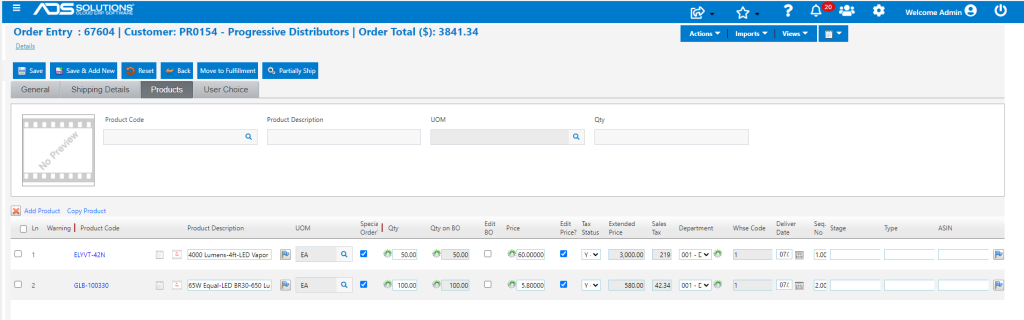
- Move order to fulfillment brings up the Special Order Purchasing Options screens.
- Accept the Vendor, specify Drop Ship as No and Auto PO as Yes.

- Save automatically creates the PO C9495 and moves the Order to Back Order as 67604-1; also creates the SPO Links 4840 and 4841 for each line item.
- At this point the linked Sales Order and PO have both been created.
Editing Existing Lines on the Special Order
- To edit the Special Order, go to the List POs screen and open the PO.
- Both line items are Special Orders and the SPO Links are displayed on each line item.
- Click on an SPO Link to edit the line item.
- For example, if the quantity to be ordered of GLB-100330 changes to 80, click on SPO Link 4841 to bring up the Special Order Details screen.
- The PO Qty can be directly edited and there is a hyperlink to open the order in a new browser tab.
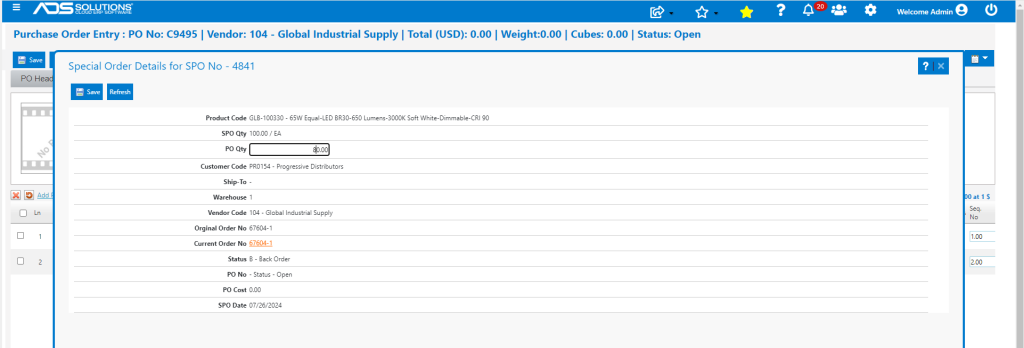
- Click on Order hyperlink which opens the Back Order in a new browser tab that allows editing.
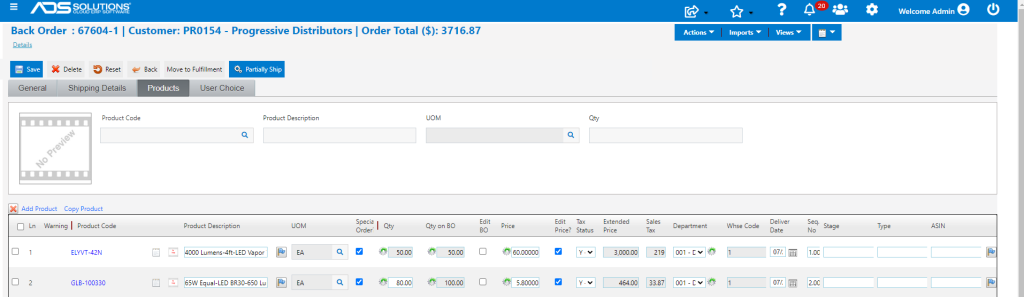
- Save to complete.
- Go to the List Back Orders screen – verify the change of GLB-100330 Qty to 80.00.
- Close the additional browser tab.

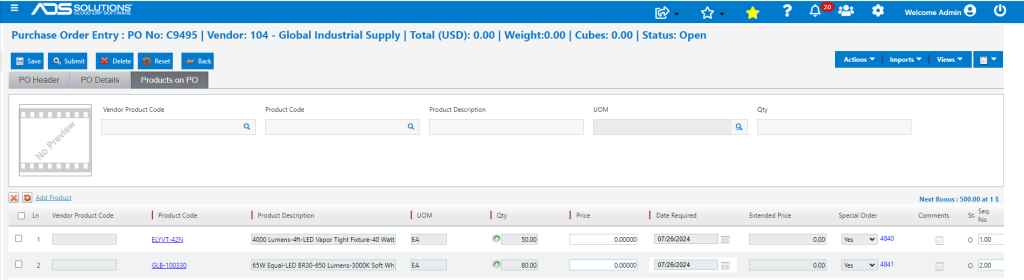
- Refresh the Special Order Details screen to update the SPO Qty to 80.00 / EA.
- Now you can edit the PO Qty to 80.00 / EA and Save.
- PO C9495 now reflects a Qty of 80 on GLB-100330.
- Note that the Vendor separately needs to be notified of this change. This can be done by clicking Submit and re-emailing the PO.
Adding New Lines to an SPO
- To add new lines to an SPO, first create a new sales order for the line(s) to be added and designate as a special order.
- Once the new sales order has been created and moved to fulfillment, go to the PO and add line(s) to the PO.
- Then use the PO Entry > Imports > Special Orders by Product or PO Entry > Imports > Special Orders for Vendor menus to import the new order line(s) to create new SPO Links for each line.
- If desired the two orders: the original sales order and the new added sales order, may be consolidated in shipping, after the PO is received, to create a single invoice for the customer.
Receive the PO, Fulfill and Invoice the Order
- Receive PO C9495.

- Automatically moves BO to fulfillment as 67604-2 and gives the option to print the Pick Ticket.

- Go to the List Fulfillments screen to open 67604-2, then fulfill and move the order to Invoice.
