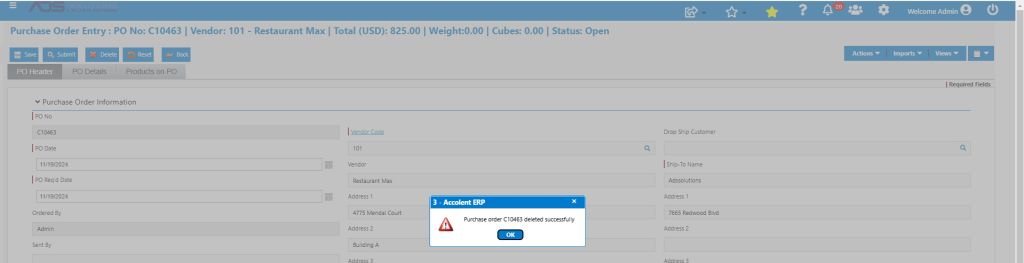
Accolent ERP provides the ability to delete Purchase Orders (POs) at any time. If a PO has been entered but not saved, it can simply be cleared. If the PO has been saved but not received, it can be deleted. If the PO has been received, then it must first be “un-received” and then it will be able to be deleted.
Delete an Unsaved PO
- From the menus select Purchasing/Vendors > Purchase Orders > Create Purchase Order, create PO No C10528.
- In the PO Header tab, enter the required PO information.
- Note there is no Delete button available when a PO is entered prior to being saved.
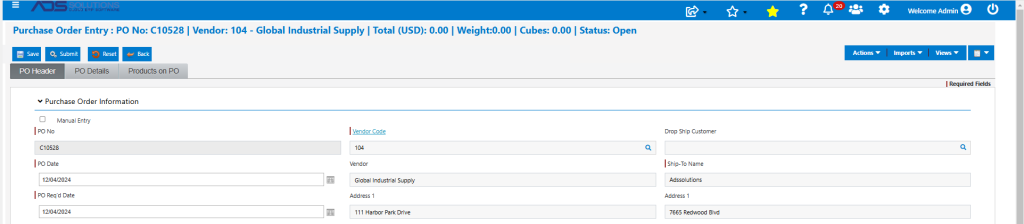
- At any time prior to saving the PO, the Reset button can be used to clear the entry.
Delete a Saved PO that Hasn’t Been Received
- If the PO has been saved, the next time it is opened there will be a Delete button which, if clicked, will delete the PO.
- After a PO is saved prior to its receipt, the quantity of each product on the PO will be reflected in the “Qty on PO” field in the product’s Inventory Status screen.
- Deleting the PO will reduce the Qty on PO on the Inventory Status screen.
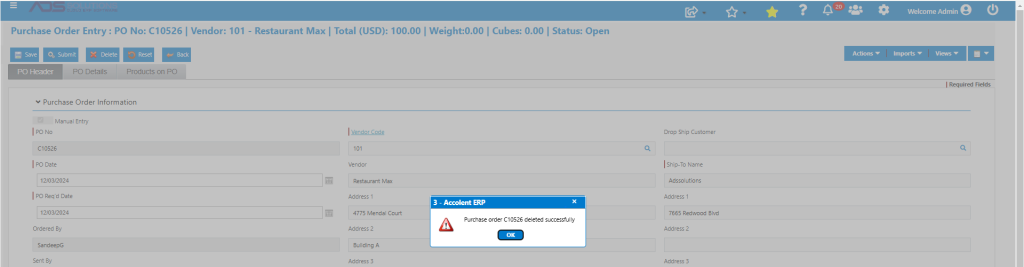
- Click the Delete button on PO No C10526.
- A pop-up will ask for confirmation of intention to delete; click OK and the PO is deleted.
Delete a PO that has Aready Been Received
- PO No C10463 was previously received.
- To delete a product from a PO that has already been received, or to delete the entire PO, the received lines must first be “un-received”.
- To “un-receive” go to Purchasing/Vendors > Purchase Orders > Adjust PO Receipts.
- On the Adjust PO Receipts screen, select the PO to be unreceived and reverse the quantity of the products previously received.
- In this case, there was only one product with a quantity of 33 EA that was received, so enter a quantity of -33 EA.

- This transaction will reverse the prior inventory transactions and adjust the stock status quantities.
- Also, if there were Landed Cost charges to the PO, these too must be reversed.
- Click the Save button on the Adjust PO Receipts screen and process the Landed Costs to complete the “un-receiving” of the PO.
- Now when PO No C10463 is opened, the Delete button will be available.
- First click the Unsubmit button then click the Delete button to delete the PO completely.