Accolent ERP allows for the taking of payment in full when an order is placed (such as, for example, on an eCommerce order). In this case, the payment is recorded as a Customer Deposit until the order and its associated backorders are invoiced, and then the payment is applied against the Accounts Receivable created. The Customer Deposit is linked to that order and can only be applied against the invoice created for that order. If the order is cancelled prior to being invoiced, the payment may be deleted. This reverses the Customer Deposit and the order can then be deleted.
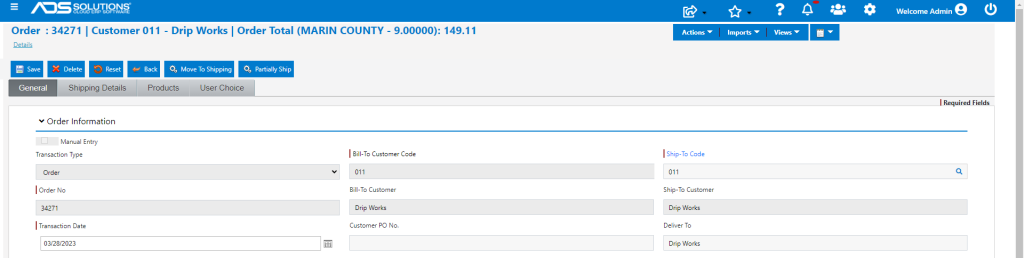
Create Order
- Create order 34271 for Customer 011 for an order total of $149.11.
- Enter payment 10841 for payment in full net of any payment discount that applies.
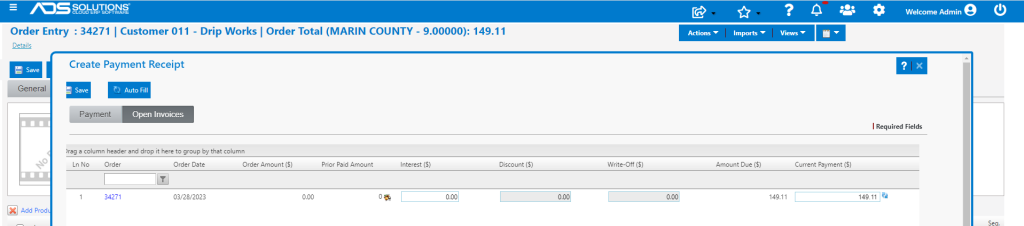
- Payment is then deposited as D2832*100.
Recording of Customer Deposit
- This is the Customer Deposit that is created.

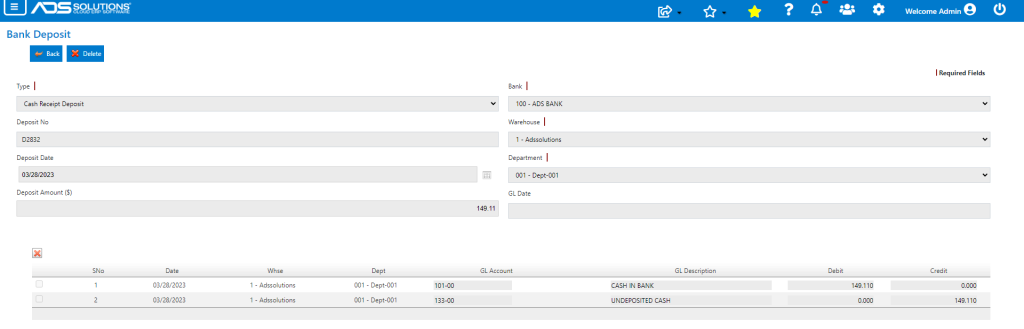
- This is the GL Posting of the Customer Deposit

Recording the Bank Deposit
- This is the GL Posting of the Bank Deposit for the payment taken.

Deleting Payment
- If the order is subsequently cancelled the following steps can be taken to remove the Customer Deposit and cancel the order:
-
- Go to General Ledger > Manage Bank Accounts > Bank Deposits > List Bank Deposits, select the Bank Deposit and delete the Deposit, this will reopen the Payment Receipt,
- Go to Receivables > Payment Receipts > List Payment Receipts and Delete the Payment Receipt,
- Physically refund the payment taken to the Customer, and
- Then open the order which may now be deleted.
- This is the Bank Deposit which can be deleted and then no longer shows in the List Bank Deposits.
- The Payment Receipt is now in Ready for Deposit status.
- Open the Payment Receipt and delete the payment receipt.
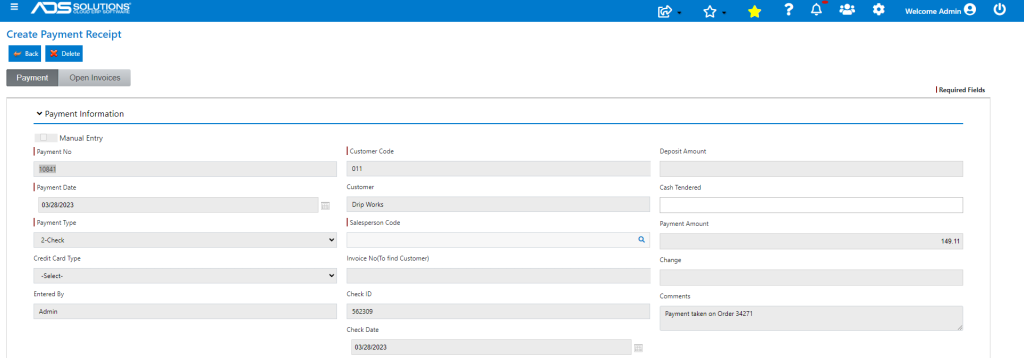
- This removes the Customer Deposit record and the GL Posting.
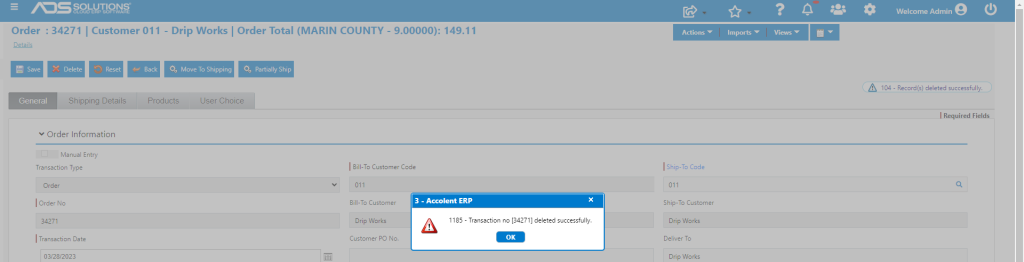
- The order may now be deleted.
- Order is now deleted.