
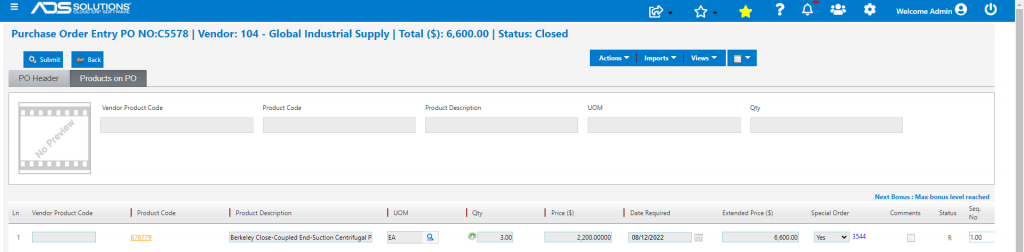
Accolent ERP has extensive special order functionality. A special order links a sales order line item directly to a PO. The special order line item can be filled only from the linked PO which can be created automatically. When the linked sales order is moved to shipping, it is moved to a backorder and held until the linked PO is received. Note that all special Order items must be flagged as Inventory items since even if items are drop shipped, they must be notionally received into Inventory and then go out again. Unlike other inventory transactions that take the sales order cost from the Average Cost, special orders get the sales order cost directly from the linked PO.
Special Orders and PO Linking
- A special order is a sales order that is linked with a PO
- The linking is done line-by-line so that each sales order line is linked to a PO line
- Once linked the sales order line can only be filled from that specific linked PO line
- The sales order MUST be created first before the PO
- Once the sales order is created there are two options to create the linked PO:
-
- Auto PO – from the sales order there is a capability to automatically create the PO, or
- Create PO and Link – after the sales order is created, a PO can be created separately and then from the PO Imports menus, the user can import either (i) Special Order Products or (ii) Special Orders for this Vendor
Special Order Automation
- Once the sales order and PO are linked, moving the sales order to shipping automatically moves it to back order status where it remains until the linked PO is received
- When the linked PO is received, the back order will automatically be moved to shipping and can then be filled
- If the PO was a drop-ship, there will be an automatic prompt to Invoice the transactions after the PO has been notionally received
- Unlike other inventory transactions in which the sales order GL cost is taken from the Average Cost for the product, special orders always take the GL cost directly from the PO
Creating a Special Order
- Product B76779 has been set up as a Class-S item that is an inventory product
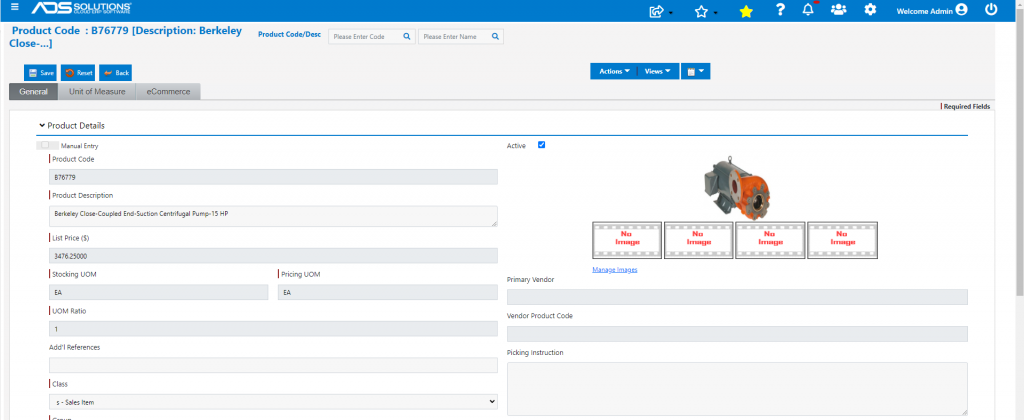
- Inventory status shows a Q-Avail of B76779 of 2 EA
- Alternate Cost is $2,200.00 and average cost is $2199.17
- Create order 21127 to sell 3 of these items as a one-time special order to be drop-shipped to the customer
- Because this is a Class-S sales item, check the Special Order checkbox to create a linked order and PO; if the product had been a Class-SP special order item, the Special Order checkbox would have been automatically checked
- By checking the Special Order checkbox, 2 will be supplied from inventory and 1 item will be special ordered
- To special order all 3 items, click the Edit BO checkbox to make 3 items rather than 1 item back ordered
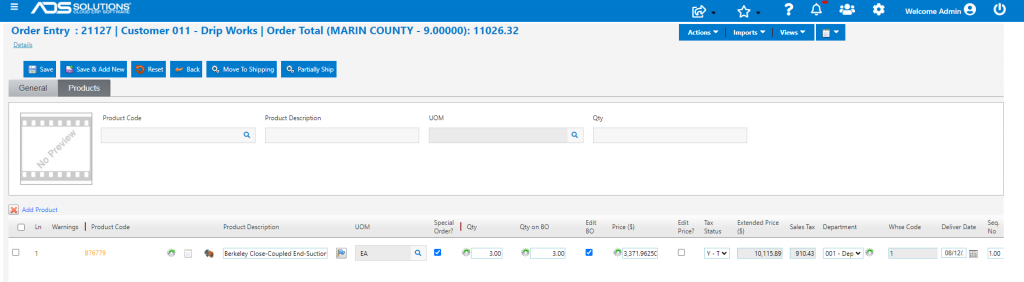
- When done, click Move to Shipping
- This will bring up the screen to allow the Special Order to be assigned to an alternate vendor, if desired
- Set up order as an SPO, with Drop Ship and Auto PO selected

- Click Save, to move order to back order, create a Special Order and link the PO to the order

- The transaction has been back ordered, and will remain as a BO until the PO is received
- Note that because the Special Order and PO are linked, the BO can only be filled by this specific PO and not from inventory or any other PO
Viewing Special Orders
- There are several ways Special Orders can be looked up and tracked
- From the Transaction Locate search on Special Orders
- From the Vendor using Views > Special Orders
- From the Product using the Views > Special Order History
- From the Purchase Order using Views > Special Orders
- For example, from the Product, Views > Special Order History

Receiving Special Orders
- Since this is a drop-ship, when the vendor confirms shipment, the PO can be “received”
- Once the goods have been received, the receiver may be printed if desired
Invoicing Special Orders
- There will be a prompt to confirm shipment

- Click on the Ship Confirm gear icon to open the shipment then Move to Invoice

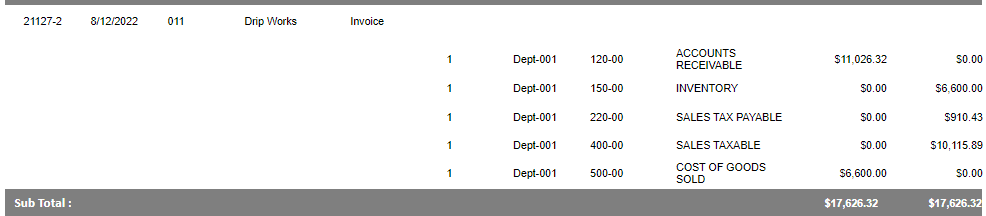
- GL Posting of 21127-2
- Note that the GL cost is $2200, the PO cost not the average cost which would be used for other inventory transactions
- Inventory ledger card for B76779 shows drop shipped items notionally coming into inventory and going out again
