
Accolent ERP includes comprehensive functionality for short-term equipment rentals. In accordance with FAS13 and US GAAP, Accolent ERP accounts for short term equipment rentals as operating leases in which the lessor retains legal and accounting ownership of the rental equipment. Rental items are treated as fixed assets on the lessor’s Balance Sheet and costs are recorded periodically through depreciation expense. Rental items are always non-inventory items and may be serialized or not serialized.
Set Count by Configuration
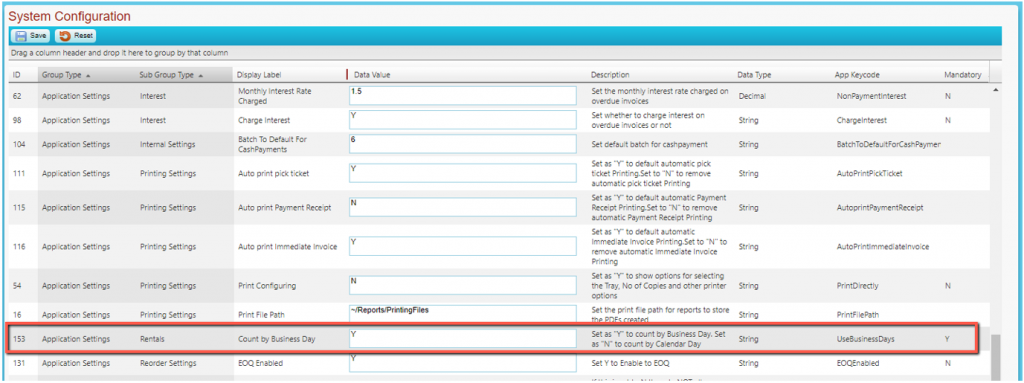
- Accolent ERP measures rental periods either by Workday or by Calendar Day (i.e., including weekends)
- Go to Settings > System Configuration and set Config ID 153 to count by Workday or Calendar Day
- Rental periods are measured in Days. Rates for extended rentals are entered as Qty Breaks (e.g., 2 days = 25% discount, 3-29 days = 57% discount, 30+ days = 75% discount)
Creating a Rental Order – Serialized Item
- Go to Sales > Rentals > Create Rentals
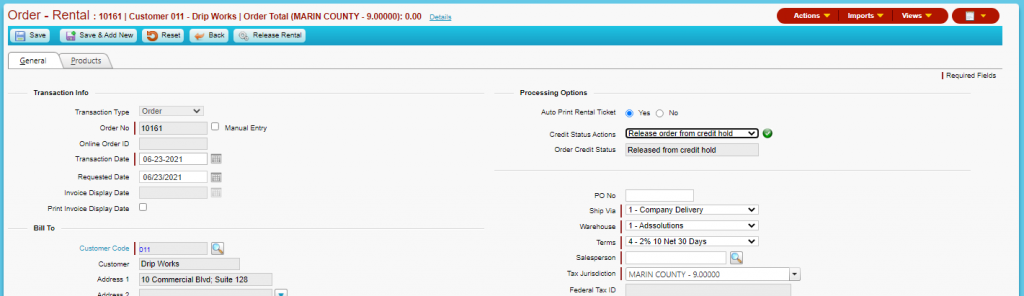
- Create Rental Order 10161
- Enter each rental item in the one-line entry box
- Serialized items allow a Qty of 1 only; non-serialized items can have Qty greater than 1
- Enter Product Code and Product Description, UOM will autofill
- Enter Rental Periods (Days), click enter and the grid will be populated

- Click on the icon in the grid to open the Rental Details pop-up
- Enter start date (e.g., 6/21/21) and start time (e.g., 9:00 am)
- Enter end date (e.g., 6/23/21)
- End time will automatically be the same as start time – pick-up at 9:00 am and return by 9:00 am the next day
- Rental Periods calculate based on the start date and end date and this calculated value will override whatever was previously entered for Rental Periods
- Select from Serial Nos that are On Hand

- When complete Save the Rental order
- This goes to the List Rentals screen with the status of Order

- When ready click the Release Rental button – which releases equipment to the renter
- The order shows the status on the List Rentals screen of Shipping
- Can either Auto Print or manually print the Rental Ticket and give it to the customer

- The order stays in Shipping status until the rental equipment is returned
- Rental Products Status screen now shows Qty on Rental of 1

- Clicking on the Qty on Rental hyperlink shows the transactions on Rental

- When rental equipment is returned, the order can be invoiced
- When returned, the user can use the Rental Details pop-up to adjust the return date to reflect the actual time on rental
- Open Order 10161 and use the Rental Details screen to record the actual End Date and End Time
- If the item is returned after the scheduled End Time (i.e., same as Start Time), the system will automatically add a full day

- Users can accept the charge for a full day or make the End Time the same as the Start Time and add a LATE FEE charge
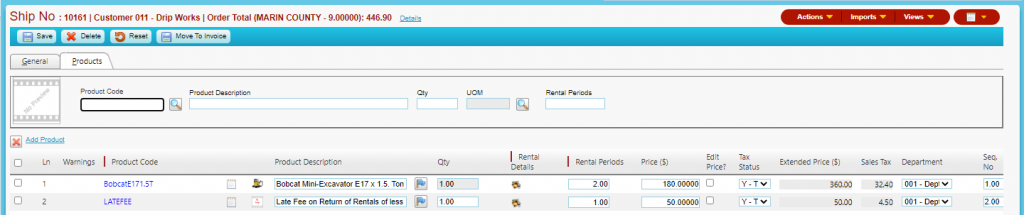
- Then move to Invoice and collect payment from the customer
- The invoice appears in Rentals with the status of Invoiced

- Rental Products Status screen shows the Qty on Hand is back to 5

- Click on View Transactions to see the history

Creating a Rental Order – Non-Serialized Items
- Create Order for non-serialized item CFP6x12
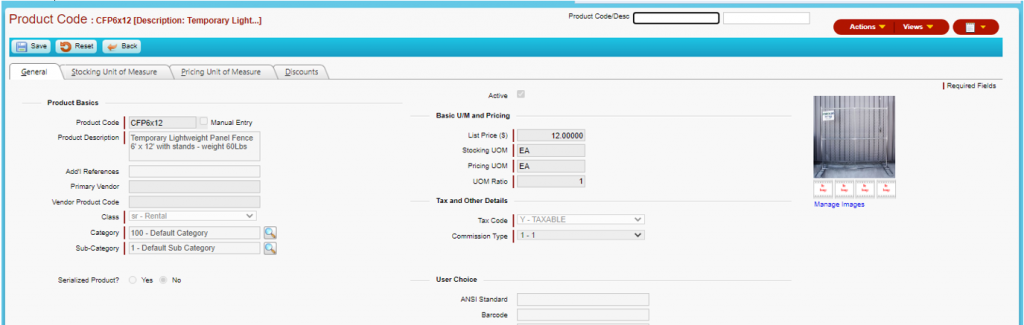
- Create Order 10016 for 20 x CFP6x12 construction fence panels for 2 days
- Note that because this item is non-serialized a quantity greater than 1 may be specified
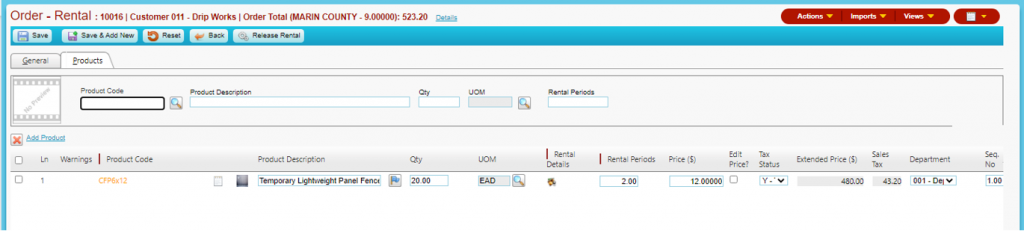
- Creates the order which shows on List Rentals with the status of Order
- Click Release Rental and status changes on List Rentals screen to Shipping
- Go to Rental Products Status, reduced On-Hand by 20, and increased Qty on Rental by 20

- Since this product is not serialized, the Qty on Hand hyperlink will show no serial numbers
- The Qty on Rental and View Transactions hyperlinks show the same data as for serialized products
- When the products are returned, the user can update the End Date and End Time just as for serialized items and then move to invoice to finalize and bill the transaction
- The invoice appears on the List Rentals screen with the status Invoiced
- All transaction statuses will update the Rental Products Status screen just as for serialized items