
Accolent ERP supports the use of a systematic sales process to take new sales leads then track their progression through the stages of qualification, discovery, evaluation and proposal to closing and completing a sale. These steps are referred to as Sales Stages and are defined in the Sales Stage Value List. The Sales Stage Value List allows the assignment of probabilities for each Sales Stage, so at any point a weighted Sales Pipeline can be created. When a Salesperson identifies a new sales lead the lead can first be created as a Contact then linked to a Prospect. A Prospect record can be made with the very limited information often available for new leads. As more is learned about the lead through qualification and discovery, the Prospect record can be updated. Once a lead is qualified, the Prospect record can be added to, and a Deal created. The Deal can specify a Deal Amount and an expected Close Date. The Deal can then be assigned a specific Sales Stage. Accolent ERP’s CRM functionality allows the Salesperson to calendar all the follow-up and record notes of all the interactions with the Prospect over time. This can all be used to update the Deal as it is moved through the sales process. At any time, the list of in-process Deals with associated weighted Deal Amounts sorted by Close Date is then the Sales Pipeline. This can be viewed for specific Salespersons or all Salespersons.
Define Sales Stages
- Create the Sales Stage Value List to capture all the steps in the sales process.
- There are 2 automatic Sales Stages for WON and LOST that are managed by the system. These do not need to be added to the Sales Stage Value List.

- Specify standard probabilities to Sales Stages, but these may be overwritten on a Deal if desired.
Create Contact and Prospect
- For a new incoming sales lead, create a Contact.
- Then create Prospect 03002-Water Savers. The only required fields on the Prospect are (i) Prospect Code, (ii) Prospect Name, (iii) Salesperson and (iv) Contact.
- Without an address and a Tax Jurisdiction the Taxable Status will default to N-Non Taxable.
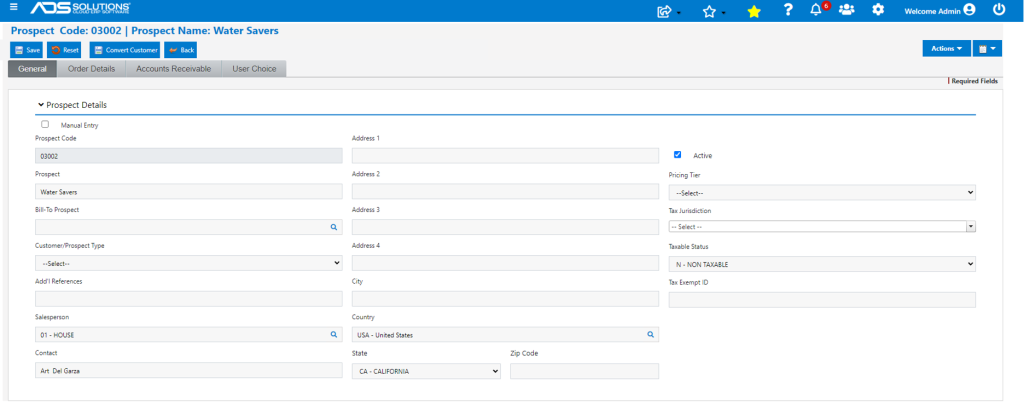
- The Contact can be selected from Actions > Prospect Contact Details and will then appear on General tab.

Create Calendar Task to Qualify Prospect
- The salesperson can create a Calendar Task to qualify/follow-up with the Prospect and Save.
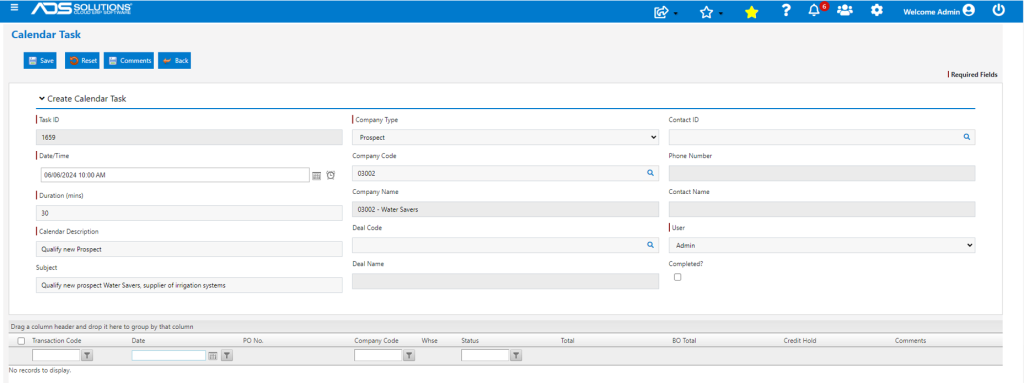
- When done, assignee can update Calendar Task and Prospect as needed, and record findings.
Create Deal
- At any point, a new sales lead can be turned into a Deal.
- A Deal is associated with a Prospect or Customer, a Contact (linked to that Prospect or Customer) and a Salesperson.
- A Deal also specifies a Deal Amount and an expected Close Date.
- Typically, a Deal is created when a Prospect is qualified.
- To create the Deal a Salesperson goes to CRM > Create Deal.
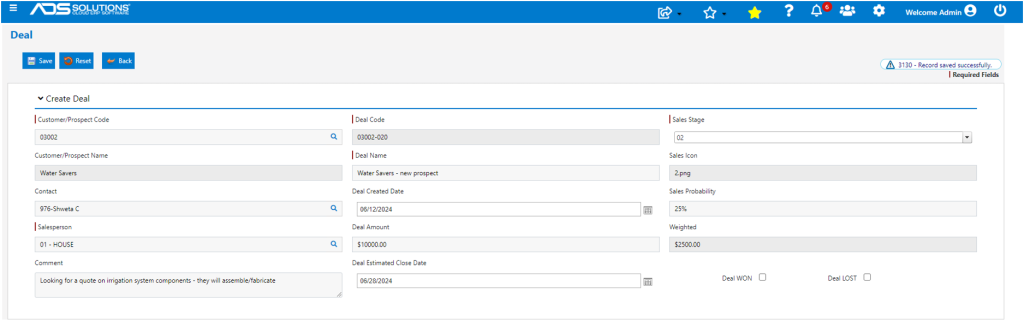
- When complete, Save the Deal which then displays on List Deals screen sorted by Close Date.
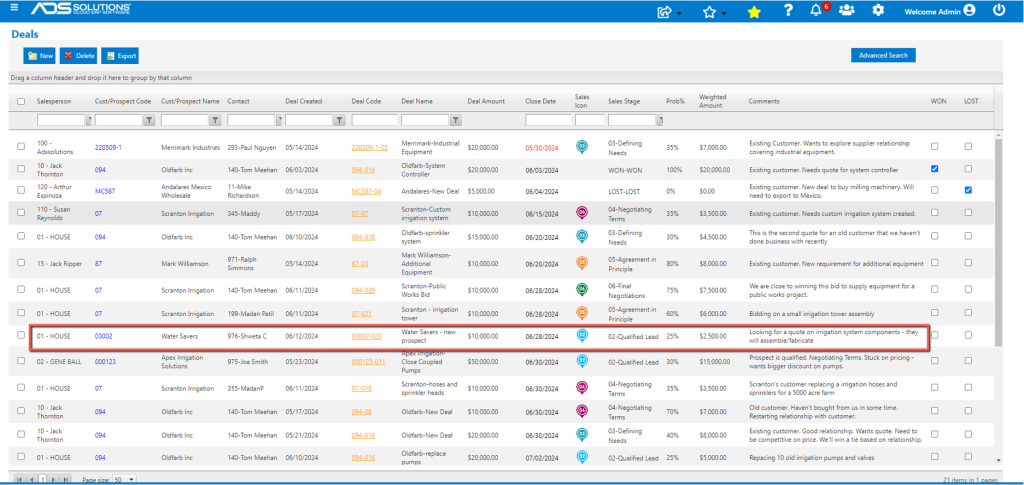
- Using checkboxes in Advanced Search for Deal Open, Deal Won or Deal Lost the screen can be filtered to display only one group.
Update Deal
- Once the Deal is created, the Salesperson goes to work to move the lead through the processes of discovery, evaluation and proposal to closing and completing a sale.
- All the Salesperson’s interactions with the lead can be scheduled, calendared and notes captured in the system. All this can be used to update the Deal and the Prospect.
- Proposals can be created for Prospects, but will require that the Prospect record contains some required information such as, for example, Address, Tax Jurisdiction and Taxable Status.
- At any time, as the Deal moves through the sales process, the user can change Sales Stage and/or override the Sales Stage Probability with a Deal Probability.
- For example, update Sales Stage to 03-Defining Needs.
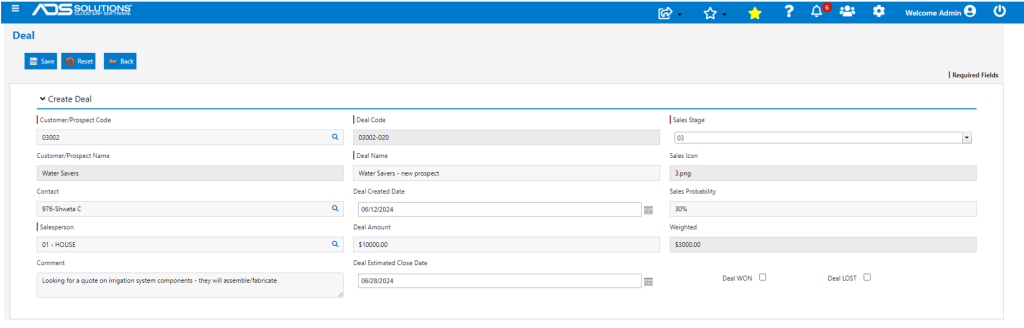
- Override probability of 30% for Sales Stage 03-Defining Needs, to Deal Probability of 35%.
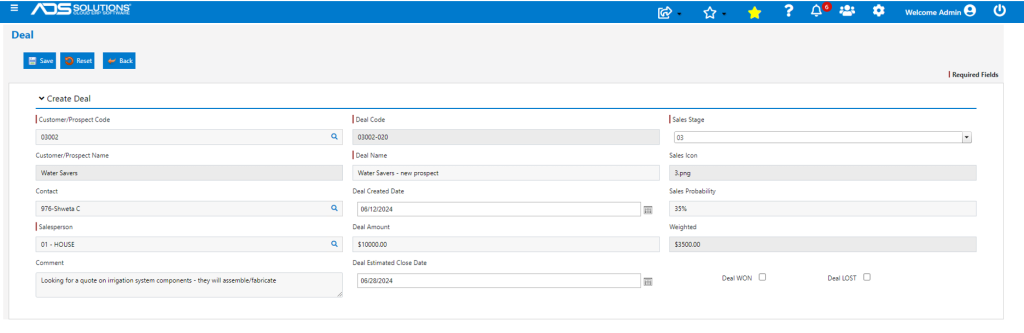
- Also, at any time user can change Comment, Deal Amount, or Close Date.
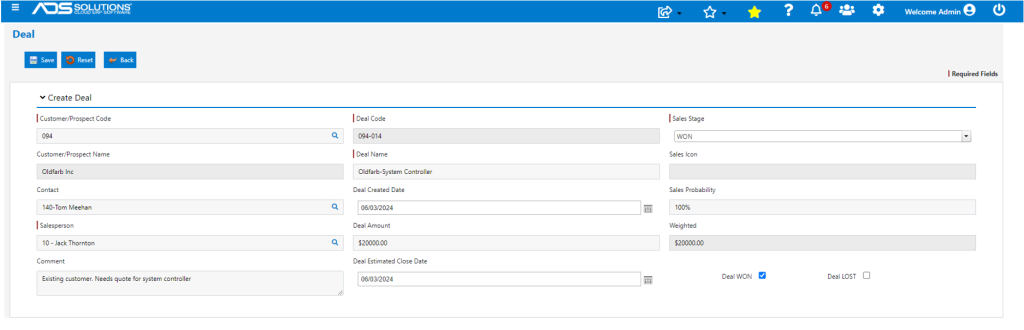
- When a Deal is marked as either WON or LOST, the Sales Stage probability automatically updates to 100% or 0% respectively.
Sales Pipeline
- Go to CRM > List Deals to show all the Deals. This screen can be sorted and filtered by grid headings. The default sort order is by Close Date oldest to newest.
- Any Close Date that has passed (i.e., Close Date < Today) shows in red as a warning.
- Using the Advanced Search filters for Deal Open, Deal WON or Deal LOST, user can create the list of Open or WON or LOST.
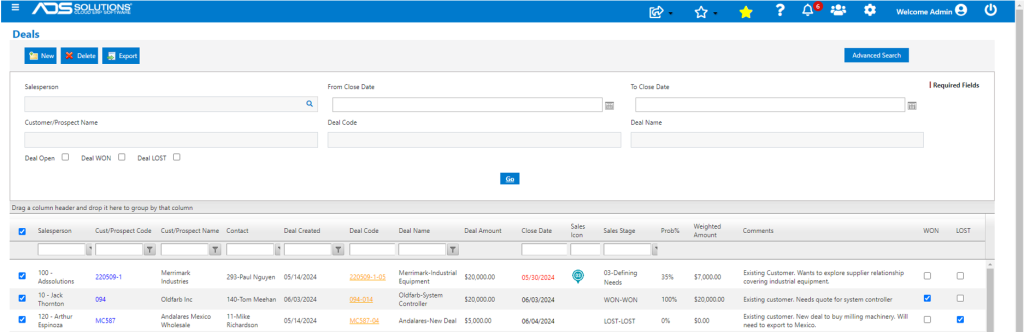
- Then using the Excel Export for the List Deals screen, the user can sort by Salesperson or all Salespersons, by Close Date range to create a sales pipeline.
